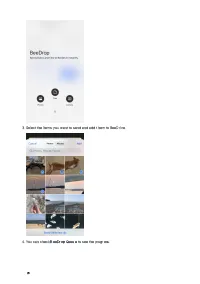
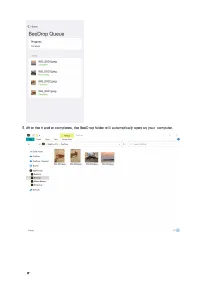
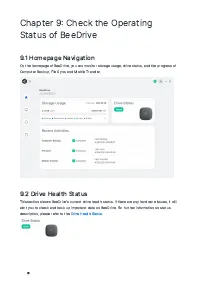
Page 2 - Table of Contents
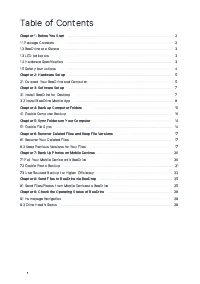
1 Table of Contents Chapter 1 Before You Start 2 1.1 Package Contents 2 1.2 BeeDrive at a Glance 3 1.3 LED Indicators 3 1.4 Hardware Specification 3 1.5 Safety Instructions 4 Chapter 2 Hardware Setup 5 2.1 Connect Your BeeDrive and Computer 5 Chapter 3 Software Setup 7 3.1 Install BeeDrive for Deskt...
Page 3 - Chapter 1 Before You Start; BeeDrive at a Glance
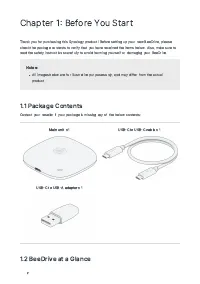
2 Chapter 1 Before You Start Thank you for purchasing this Synology product! Before setting up your new BeeDrive, pleasecheck the package contents to verify that you have received the items below. Also, make sure toread the safety instructions carefully to avoid harming yourself or damaging your Bee...
Page 4 - Hardware Specification
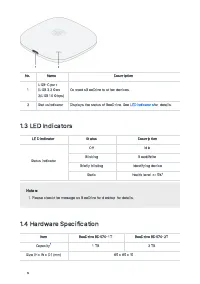
3 No. Name Description 1 USB C port USB 3.2 Gen 2/USB 10 Gbps) Connects BeeDrive to other devices. 2 Status indicator Displays the status of BeeDrive. See LED indicators for details. 1.3 LED Indicators LED Indicator Status Description Status indicator Off Idle Blinking Read/Write Briefly blinking I...
Page 5 - Safety Instructions
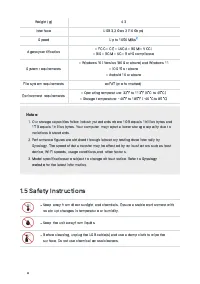
4 Weight (g) 43 Interface USB 3.2 Gen 2 10 Gbps) Speed Up to 1050 MB/s 2 Agency certification • FCC • CE • UKCA • BSMI • VCCI • BIS • RCM • KC • RoHS compliance System requirements • Windows 10 Version 1809 or above) and Windows 11 • iOS 15 or above • Android 10 or above File system requirements exF...
Page 6 - Chapter 2 Hardware Setup; Connect Your BeeDrive and Computer
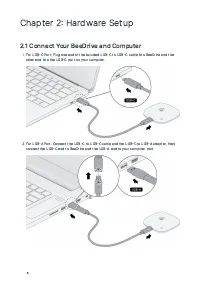
5 Chapter 2 Hardware Setup 2.1 Connect Your BeeDrive and Computer For USB C Port: Plug one end of the included USB C to USB C cable into BeeDrive and the other end into the USB C port on your computer. For USB A Port: Connect the USB C to USB C cable and the USB C to USB A adapter, then connec...
Page 8 - Chapter 3 Software Setup; Install BeeDrive for Desktop
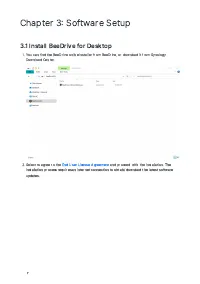
7 Chapter 3 Software Setup 3.1 Install BeeDrive for Desktop You can find the BeeDrive online installer from BeeDrive, or download it from Synology Download Center. Select to agree to the End User License Agreement and proceed with the installation. The installation process requires an Interne...
Page 9 - Install BeeDrive Mobile App
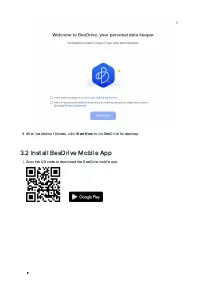
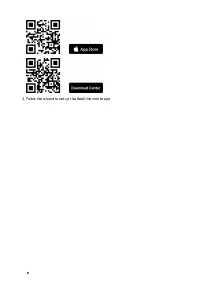
8 After installation finishes, click Start Now to run BeeDrive for desktop. 3.2 Install BeeDrive Mobile App Scan the QR code to download the BeeDrive mobile app.
Page 11 - Chapter 4 Back up Computer Folders; Enable Computer Backup
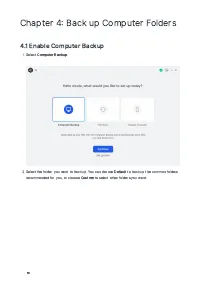
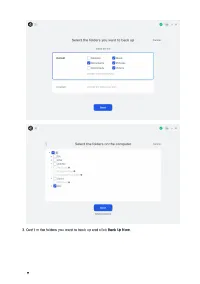
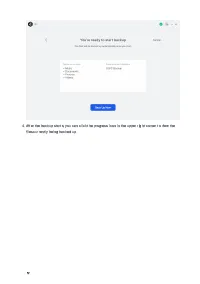
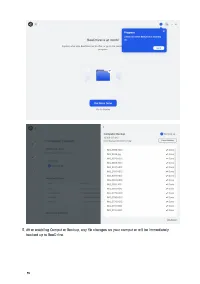
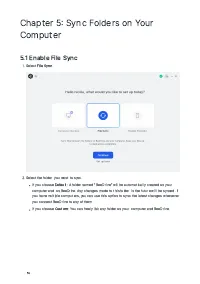
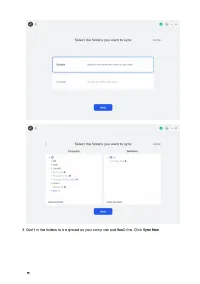
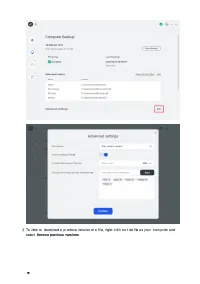
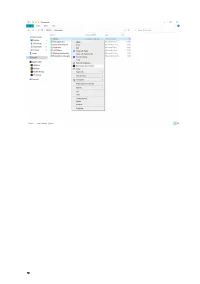
10 Chapter 4 Back up Computer Folders 4.1 Enable Computer Backup Select Computer Backup. Select the folder you want to backup. You can choose Default to back up the common folders recommended for you, or choose Custom to select other folders you want.
Page 21 - Pair Your Mobile Device with BeeDrive
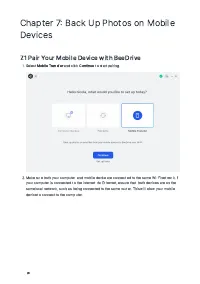
20 Chapter 7 Back Up Photos on MobileDevices 7.1 Pair Your Mobile Device with BeeDrive Select Mobile Transfer and click Continue to start pairing. Make sure both your computer and mobile device are connected to the same Wi-Fi network. If your computer is connected to the Internet via Ethernet,...
Page 22 - Enable Photo Backup
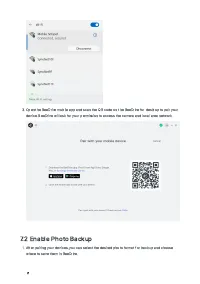
21 Open the BeeDrive mobile app and scan the QR code on the BeeDrive for desktop to pair your device. BeeDrive will ask for your permission to access the camera and local area network. 7.2 Enable Photo Backup After pairing your devices, you can select the desired photo format for backup and ch...
Page 23 - Use Focused Backup for Higher Efficiency
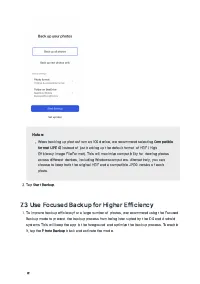
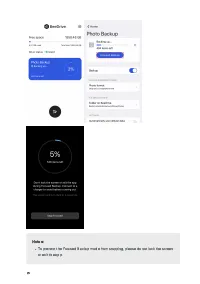
22 Notes: When backing up photos from an iOS device, we recommend selecting Compatibleformat JPEG instead of just backing up the default format of HEIF HighEfficiency Image File Format). This will maximize compatibility for viewing photosacross different devices, including Windows computers. Altern...
Page 30 - END USER LICENSE AGREEMENT
SYNOLOGY, INC. END USER LICENSE AGREEMENT IMPORTANT–READ CAREFULLY: THIS END USER LICENSE AGREEMENT ("EULA") IS A LEGAL AGREEMENT BETWEEN YOU (EITHER AN INDIVIDUAL OR A LEGAL ENTITY) AND SYNOLOGY, INC. ("SYNOLOGY") FOR THE SYNOLOGY SOFTWARE INSTALLED ONTO THE SYNOLOGY PRODUCT PURCHAS...
Page 36 - FCC Declaration of Conformity
FCC Declaration of Conformity This device complies with Part 15 of the FCC Rules. Operation is subject to the following two conditions: (1) this device may not cause harmful interference, and (2) this device must accept any interference received, including interference that may cause undesired opera...
Page 38 - Declaration Letter of REACH & RoHS Compliance; About REACH; About RoHS; REACH and RoHS Compliance
Declaration Letter of REACH & RoHS Compliance About REACH In June 2007, the European Union Regulation (EC) 1907/2006 concerning the Registration, Evaluation, Authorization and Restriction of Chemicals (REACH) was first released. Under this Regulation, manufacturers are required to gather informa...