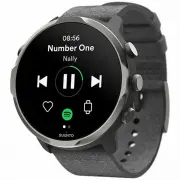
Page 6 - . G E T S T A R T E D; Your Suunto 7
2 . G E T S T A R T E D Your Suunto 7 Suunto 7 has a touch screen and four hardware buttons designed to provide you agreat sport experience – even when you're wearing gloves or underwater. 1. Power button2. Suunto Wear app / Navigate Suunto Wear app and control your exercise3. Navigate Suunto Wear a...
Page 7 - Set up and pair your Suunto 7; Before you get started, make sure you have:
1. Charging socket2. Microphone3. Optical heart rate sensor4. Barometric sensor5. Quick release straps Set up and pair your Suunto 7 Before you get started, make sure you have: • About 30 minutes (and maybe a coffee or some tea) • A compatible phone • A Wifi connection • Bluetooth enabled on your ph...
Page 8 - Charge and power on
1. Charge and power on 1. Connect your watch to the USB cable in the box to power on your watch. Stay calm, your watch may take a couple minutes to wake up. 2. Tap the screen to begin.3. Choose your language. Swipe up to browse the list and tap to choose.4. Accept Suunto’s End User License Agreement...
Page 9 - Download and pair with Wear OS by Google
2. Download and pair with Wear OS by Google The Wear OS by Google companion app connects your Suunto 7 with your phone sothat you can use smart features like notifications, the Google Assistant, Google Pay™and more. Suunto 7 can be paired with both Android and iOS. 1. On your phone, download the Wea...
Page 12 - Follow the Wear OS tutorial on watch; Start your sports with Suunto
3. Follow the Wear OS tutorial on watch After the initial set-up is done, follow the tutorial on your watch to learn more aboutWear OS by Google and how to navigate your Suunto 7. Learn how to navigate your watch NOTE: If you experience any slowness right after taking your watch into use, don't worr...
Page 13 - Get Suunto mobile app on your phone
Suunto Wear app is the home for sports on your Suunto 7. It tracks all your dailyactivities (steps and calories), sports and adventures with accurate real-time data andfree offline maps and heatmaps. To get started, press the top right button to open Suunto Wear app on your watch.Follow the on-scree...
Page 14 - Change language
Suunto mobile app on your phone is an essential part of the sports experience withyour new watch. With Suunto app, you sync and save your exercises from your watchto your sports diary, get detailed insights on your training, sleep and daily activities,share your best moments with friends, connect to...
Page 15 - Charge your watch; Good to know
• Thai • Turkish • Vietnamese NOTE: If your phone’s language is not supported in Suunto Wear app, the app will default to English. Charge your watch Charging Suunto 7 is easy and fast. Connect the supplied USB cable with a USB porton your computer or a USB power adapter and power outlet. Place the m...
Page 16 - Check your battery
Check your battery While on the watch face, swipe down from the top of the screen to see how muchbattery you have remaining. Maximize your watch's battery life Get automatic updates and download offline mapsduring charging Suunto 7 16
Page 17 - Learn to navigate your Suunto 7; Basic touch gestures
If you’re connected to Wifi while charging, you can keep your watch and apps up todate and get local Suunto maps downloaded automatically to your watch. With offlinemaps, you can leave your phone behind, go out and use Suunto Wear app with mapswithout needing an Internet connection. Manage automatic...
Page 18 - Press the top right button to open Suunto Wear app
Press the top left button (the Power button) to power onthe watch and access all your apps with Wear OS byGoogle. • Press the Power button to open your list of apps. • Press the Power button again to go back to watch face. • Press and hold the Power button to activate your Google Assistant. • Press ...
Page 21 - Swipe up to view and manage your notifications; Swipe right to get help from your Google Assistant
Swipe up to view and manage your notifications To go back to watch face, swipe down or press the Power button. Get notifications on your watch Swipe right to get help from your Google Assistant To go back to watch face, swipe left or press the Power button. Get started with your Google Assistant Suu...
Page 22 - Swipe left for a quick glance at your Tiles; Swipe right to exit watch settings or apps
Swipe left for a quick glance at your Tiles To go back to watch face, swipe right or press the Power button. View and manage your Tiles Swipe right to exit watch settings or apps You can also press the Power button to go back to the watch face from any view orapp. Suunto 7 22
Page 23 - Wake up your display; Check the time; Wake up display
Wake up your display The display on your watch will go to sleep if you haven’t interacted with your watchfor a few seconds. By default, the display and gestures to interact with your Suunto 7are set up to use a minimum amount of power in daily use. For the best experience,use default settings for Di...
Page 26 - Connect to the Internet
Adjust display settings All watch faces designed by Suunto are power optimized to show the time in a low-power mode without activating your watch. Keep in mind that other watch faces mightnot be optimized the same way. 1. While on the watch face, swipe down from the top of the screen.2. Tap Settings...
Page 27 - Check your connectivity
What still works when you are not connected to the Internet Check your connectivity While on the watch face, swipe down on your screen to see if your watch isconnected to the Internet. your watch is connected to the Internet through Wifi. your watch is connected to the Internet through your phone. y...
Page 28 - Connect to the Internet through your phone
Connect to the Internet through your phone To use the Internet through your phone, your watch needs to be connected to theWear OS by Google app. Suunto 7 automatically connects to the Internet through thephone that it is connected with, if the phone has Internet connection via: • a Wifi network • a ...
Page 29 - Reconnect your watch with your phone; Connect to the Internet through Wifi
Reconnect your watch with your phone Your watch should automatically reconnect with your phone when: • You have your watch and phone close together. • Bluetooth on your watch and phone is turned on. • The Wear OS by Google app is open on your phone. If your watch doesn’t automatically reconnect afte...
Page 30 - Turn on Wifi on your watch
As long as your watch's Wifi is on, your watch can automatically connect to any savedand available Wifi networks. Your watch can't connect to: • Wifi networks that take you to a login page before you can connect (for example,Wifi networks at places like hotels or coffee shops) • 5GHz networks Turn o...
Page 31 - Keep your Suunto 7 up to date
What still works when you are not connected to theInternet When your watch is not connected to the Internet you can still use many of the basicfeatures on your watch. You can: • Record your exercises • Track your daily activity • Use offline maps • Check your exercise and activity progress with Tile...
Page 32 - System updates; Check system version; App updates; Manage automatic app updates
System updatesApp updatesWear OS updatesSuunto Wear app updates System updates System updates are automatically downloaded and installed when your watch ischarging and connected to Wifi. However, if a system update does not install on itsown, you can manually download and install it. Check system ve...
Page 33 - Download app updates manually; Wear OS updates; Check your Suunto Wear app version; Set an alarm
2. Tap the Play Store app . (If necessary, follow the instructions to connect to Wifi and add a Google account.) 3. Scroll down and tap Settings .4. Toggle Auto-update apps on or off. Download app updates manually 1. To open your list of apps, press the Power button.2. Tap the Play Store app . (If n...
Page 34 - Turn your watch on and off; Turn your watch off
4. Confirm your selection by tapping . NOTE: The Alarm app has no sound available. Turn your watch on and off Turn your watch on Press and hold the Power button until your watch vibrates. Turn your watch off To turn off your watch, you can use the Power button: 1. Press and hold the Power button unt...
Page 35 - Reset your watch to factory settings
2. Tap Settings » System » Power off.3. Confirm your selection by tapping . Restart your watch To restart your watch, you can press the Power button. 1. Press and hold the Power button until Power off/Restart screen is visible.2. Tap Restart. NOTE: Google Assistant will show first when you press the...
Page 38 - . W E A R O S B Y G O O G L E; Google Assistant
3 . W E A R O S B Y G O O G L E Your watch is powered with Wear OS by Google to enjoy the latest smart features andto stay connected. Wear OS by Google provides you with the functions below asstandard: • Dictation and voice commands • Messaging and incoming phone call notification • Google Fit™, Tim...
Page 40 - Google Pay
Enable "Ok Google" detection • While on the watch face, swipe down from the top of the screen. • Tap Settings » Personalization. • Turn on "Ok Google" detection. NOTE: The "Ok Google" detection uses a small amount of battery power. To save a little more battery, turn this fea...
Page 41 - How to pay with your watch in stores
Google Pay™ is the fast, simple way to pay in stores with your Wear OS by Googlewatch. Now you can purchase your daily coffee without having to dig for your walletor phone. To use Google Pay on your watch, you need to: • Be in Australia, Belgium, Brazil, Canada, Chile, Croatia, Czech Republic, Denma...
Page 42 - Google Fit
Google Fit Google Fit™ is an activity tracker that coaches you to a healthier and more active lifewith activity goals like Heart Points — designed based on recommendations from theWorld Health Organization and the American Heart Association. With Google Fit, you can: • Set goals around personal fitn...
Page 43 - Get started with Google Fit; Connect Suunto 7 with Google Fit; Get Google Fit on your phone
Get started with Google Fit Your Suunto 7 comes with Google Fit already installed on it. Open the Google Fit appon your watch and sign in with your Google account to get started. To follow your daily activity progress on your watch: • Swipe left to check your daily metrics with the Fit Tile. • Tap t...
Page 44 - Google Play Store; Use and manage apps
Google Play Store Find and download all your favorite apps and keep them up to date with Google Play™Store on your watch. To use Play Store on your watch, you’ll need: • A Google account on your watch • An Internet connection on your watch via Wifi or your phone Get more apps from Google Play StoreK...
Page 46 - Remove apps; Update apps
• A Google account on your watch • An Internet connection on your watch via Wifi or your phone 1. To open your list of apps, press the Power button.2. Tap the Play Store app . (If necessary, follow the instructions to connect to Wifi and add a Google account.) 3. Tap the search icon .4. You can eith...
Page 47 - Get notifications on your watch; View new notifications
Get notifications on your watch Your watch can also show any messages, calls or notifications you receive on yourphone. View new notificationsManage your notificationsAnswer or reject a callReply to a message with AndroidSelect which notifications show on your watchSilence notifications temporarilyT...
Page 48 - Manage your notifications
Manage your notifications If you don’t react to a notification when it arrives, the message is saved in yournotification stream. A small ring at the bottom of the watch face indicates you have anew notification. • While on the watch face, swipe up to scroll through your notifications. • Tap to expan...
Page 49 - Answer or reject a call; Reply to a message with Android
Answer or reject a call If you get a call on your phone, you will see a notification of an incoming call on yourwatch. You can react to the call from your watch, but you must use the phone to carryout the call. • Swipe left or tap the green phone to answer a call. • Swipe right or tap the red phone ...
Page 50 - Select which notifications show on your watch; Silence notifications temporarily
If your watch is paired with an Android phone, you can also reply to messages on yourwatch. 1. Scroll down to the bottom of a message.2. Tap Reply .3. Options: Tap the microphone to speak your message, select the keyboard or emoji, or scroll down for pre-written message options. 4. You will see a ch...
Page 51 - View and manage your Tiles; View and arrange Tiles; Check your exercise trends and daily activity with Suunto
View and manage your Tiles Tiles are a quick way to access information that is most relevant for you, whether it ischecking your training status, the weather or progress on your daily activity goals. Suunto 7 comes with six pre-selected Tiles – Heart rate, Today, Resources, Sleep,Overview and This w...
Page 56 - . C U S T O M I Z E Y O U R W A T C H; Customize watch faces; Suunto watch faces
4 . C U S T O M I Z E Y O U R W A T C H There are many ways to customize your Suunto 7 to make it your own. Change thelook of your watch with interchangeable straps and watch faces. Or download apps,add relevant data to your watch face and get button shortcuts to your favorite apps. Customize watch ...
Page 57 - Heatmap
Heatmap To inspire and encourage you to explore the outdoors around you, the Heatmapwatch face shows where other passionate Suunto athletes have been exercising inyour area. By default, the heatmap will show popular running routes in your area. If running is notyour thing, you can go to the watch fa...
Page 59 - Rose; Change your watch face
Between 1953 and 2011 Suunto was in the marine compass market. The Marine watchface is inspired by the popular Suunto K-14 marine compass, which became astandard in a large number of sail and power boats around the world due to the stableand easy to read compass card and the smart mounting into the ...
Page 61 - Add a new watch face
3. Tap the ‘complication’ on the watch face design that you would like to change. 4. Browse the list and tap to choose which complication you want to see on your watch face. (To add a shortcut, tap General » App shortcut.) Add a new watch face All watch faces designed by Suunto are optimized to use ...
Page 62 - Hide a watch face; Delete a watch face you found in the Play Store; Customize button shortcuts; Use hardware buttons as shortcuts to apps
1. While on the watch face, touch and hold the middle of the screen to see a list of watch faces. 2. Swipe left and tap the option to add more watch faces.3. Scroll down and tap Get more watch faces. (If necessary, follow guidance to connect to Wifi and add a Google account.) Hide a watch face 1. Wh...
Page 63 - Change watch straps; Detach the strap from the watch body
Change watch straps Suunto 7 has a quick-release strap made of durable silicone. This quick release strapis comfortable to wear and easy to change without any additional tools. NOTE: All 24 mm quick release straps sold at suunto.com are compatible with Suunto 7. Detach the strap from the watch body ...
Page 64 - Attach a new strap
Attach a new strap 1. Insert the pin to the opposite end of the spring mechanism into its socket in the watch body. 2. Pull the pin towards the middle of the strap to retract the free end of the spring bar. 3. Slip the strap into place and release the pin. Ensure the strap is in place by checking th...
Page 65 - . S P O R T S B Y S U U N T O; Suunto Wear app on your watch
5 . S P O R T S B Y S U U N T O Suunto Wear app on your watch Suunto 7 comes with Suunto Wear app – your sports and adventure companion onyour watch. Suunto Wear app has over 70 sport modes to track all your sports andfree Suunto maps and heatmaps for exploring the outdoors – even when you’reoffline...
Page 66 - Get started
Get started Suunto Wear app is designed for sports and outdoor use. You can use the buttonsinstead of the touch screen when needed. If you’re wearing gloves or underwater, youcan use the three buttons on the right to navigate Suunto Wear app, track yourexercise and zoom in on the map. 1. Press the t...
Page 67 - Suunto mobile app on your phone
NOTE: To edit your profile information later, open Suunto Wear app, swipe up and go to General options. Suunto mobile app on your phone For the full Suunto 7 sports experience, you need Suunto mobile app – on yourphone. Suunto 7 67
Page 68 - New to Suunto; Already a Suunto app user
With Suunto app on your phone you can: • Sync and save your exercises from your watch • Get detailed insights on your training • Follow your daily activity trends and history • Follow your exercise trends and history • View your outdoor exercise tracks on the map • Explore heatmaps to see where othe...
Page 70 - Connect to your favorite sport services
Connect to your favorite sport services With Suunto app, you can connect to and sync your activities with your favorite sportservices like Strava and Relive. 1. Open Suunto app on your phone.2. Tap “Profile” tab.3. Tap “Connect to other services” and choose which services you want to connect to and ...
Page 71 - Using multiple watches with Suunto mobile app
Using multiple watches with Suunto mobile app You can have only one device connected to Suunto app at a time. When you havepaired your watch with the Wear OS by Google app on your phone, unpair your otherdevice from Suunto mobile app, then connect Suunto 7 with the app. Suunto 7 71
Page 72 - Suunto maps
Suunto maps Suunto Wear app has free outdoor maps and 15 sport-specific heatmaps to explore –even when you are offline. Optimized for the outdoors, Suunto maps highlight altitudedifferences with accurate contour lines and show popular cycling and skiing tracks inaddition to basic trails. Heatmaps vi...
Page 74 - Map gestures
5. To exit Suunto Wear app, press the Power button or swipe right. Map gestures Zoom in and outUse top and bottom right buttons. Pan the mapTouch and drag the map. Center the mapWhen the map is panned, tap the map. NOTE: During exercise, the map will automatically center in a couple of seconds after...
Page 75 - Map view
Map view LocationThe black circle indicates your current position on the map. The circle is gray if thewatch does not have accurate current location. Heading arrowThe heading arrow inside the location indicator displays the direction you are headed. Map scaleThe numeric value at the bottom of the ma...
Page 76 - Map styles; Heatmaps
Map styles Suunto Wear app has several map styles to choose from – an outdoor map, a wintermap and 15 types of heatmaps for different sports like running, trail running, cyclingand swimming. By default, the map view displays the Suunto outdoor map. Change map style Heatmaps Heatmaps show the most po...
Page 78 - Popular starting points; Offline maps
Explore with heatmaps NOTE: Heatmaps are created based on exercises that are shared publicly. Popular starting points When heading to a new place or route, it’s often hard to figure out where to start.Check out popular starting points in Suunto Wear app or Suunto mobile app. Thepopular starting poin...
Page 79 - Get local offline maps automatically
With Suunto Wear app you can have Suunto maps downloaded on your watch, leaveyour phone behind and use maps without an Internet connection. Suunto Wear appdownloads and updates local offline maps with heatmaps for you automatically whenyour watch is charging and connected to Wifi. You can also creat...
Page 82 - Different sports and measurements
3. Get offline maps. With offline maps, you can enjoy a faster and smoother map experience withoutbeing connected to your phone or the Internet. Learn more Different sports and measurements Suunto Wear app provides accurate and insightful sports measurements via built-inGPS, barometer and wrist hear...
Page 83 - Sport modes
Sport modes Suunto Wear app has over 70 sport modes (different sports), ready to track all yoursports – run, bike, swim, hike – you choose. Each sport mode has 2 to 4 exerciseviews to show the most relevant stats during your exercise and a map when you areexercising outdoors. For instance, if you go...
Page 84 - Customize sport modes
Page 85 - Heart rate during exercise
With a wide range of pre-defined sport modes, your Suunto 7 always shows the mostrelevant data during your exercise. In addition to the pre-defined sport modes, youcan also create custom sport modes using Suunto app. Learn how to create custom sport modes (Android). Learn how to create custom sport ...
Page 86 - HR zones
How to wear your watch to improve HR measurements HR zones Suunto Wear app has five different heart rate zones, numbered from 1 (lowest) to 5(highest), defined as percentage range based on your maximum heart rate (max HR). Understanding heart rate zones when exercising helps to guide your fitnessdev...
Page 90 - How are heart rate zones calculated?; Follow your progress with laps; Autolaps
When your heart rate during a workout reaches zone 5, the training will feel extremelyhard. Lactic acid will build up in your system much faster than it can be removed, andyou will be forced to stop after a few minutes at most. Athletes include thesemaximum-intensity workouts in their training progr...
Page 92 - Mark a lap manually during exercise
Mark a lap manually during exercise In addition to autolaps, you can manually mark laps to track different sections of yourexercise. For example, during an interval session, you could create a lap mark for bothyour intervals and rest periods to help analyze your session afterwards or you couldmark a...
Page 93 - View laps stats after exercise
NOTE: With some sport modes, such as Track and field, you can also compare your manually marked laps real-time in the lap table view. View laps stats after exercise To see your lap stats after your exercise, scroll down in the exercise summary andselect Laps.Sync your exercises to Suunto mobile app ...
Page 94 - How to improve GPS accuracy
GPS: speed, distance & location Suunto 7 uses GPS (location information) during exercise to draw your track on themap and – together with accelerometer data – for measurements like speed anddistance. NOTE: Suunto 7 can also use Glonass and BeiDou for location information. How to improve GPS accu...
Page 97 - Barometer
Learn how to update your watch Altitude, ascent & descent Suunto Wear app uses FusedAlti™– a combination of GPS and barometric altitude – toprovide an altitude reading and derived ascent and descent values during exercise. Barometer Suunto 7 has a built-in pressure sensor that measures absolute ...
Page 98 - Before you begin; Start an exercise
CAUTION: Keep the area around the air pressure sensor holes on the left-side of your watch free of dirt and sand. Never insert any objects into the holes as this maydamage the sensor. Start an exercise Before you beginStart an exerciseWaiting to startAvoid accidental touch and button actions during ...
Page 101 - Waiting to start
To get the most accurate HR and GPS data from the start, you can wait until the arrowicon (location) and heart icon (heart rate) above the start button turn white beforestarting your exercise. If the heart rate icon stays gray, try moving your watch on your wrist about two fingersup from the wrist b...
Page 103 - Lock touch screen and button actions; Control watch during exercise
NOTE: Unwanted actions such as rain drops or a wet sleeve can also drain your battery faster than expected by waking up the display repeatedly without younoticing. Lock touch screen and button actions 1. To lock the screen and button actions, keep the middle button pressed.2. To unlock, keep the mid...
Page 105 - Change exercise views
Change exercise views The stats you can follow during your exercise depend on the sport mode you choose.Most sport modes have 2 to 4 different exercise views displaying the most relevantexercise data for each sport. When you do outdoor sports, you can also see your trackon a map. To change between v...
Page 106 - Open other apps while exercising; Buttons and touch screen use during exercise
Open other apps while exercising If you need to use another app during your exercise, for example to skip a song or tocheck the weather, you can exit Suunto Wear app and keep the exercise recording. 1. Press the Power button or touch the screen to wake up the display.2. Press the Power button to go ...
Page 107 - Pause and resume exercise
EndPress the top right button, then press the bottom right button. Mark a lapPress the bottom right button. Lock buttonsKeep the middle button pressed. Control the mapWhile in the map view, use the top right and bottom right button to zoom in and out. Adjust exercise optionsKeep the bottom right but...
Page 109 - Check your location while paused
Check your location while paused 1. While paused, press the middle button until you are in the map view. 2. While in the map view, you can zoom the map with the top right and bottom right buttons and touch and drag the map to move it around. Suunto 7 109
Page 110 - End and review exercise
3. To resume your exercise, press the middle button to return to an exercise view, then press the top right button. End and review exercise End your exerciseView your exercise summaryDelete your exerciseView your exercise details in Suunto mobile appAccess your exercise diary on your watch Suunto 7 ...
Page 111 - End your exercise
End your exercise When you are finished and ready to end your exercise: 1. Make sure you are in an exercise view.2. Press the top right button. 3. Then press the bottom button to end and save the exercise. Suunto 7 111
Page 112 - View your exercise summary; Delete your exercise
View your exercise summary When you have finished your exercise, you will get an exercise summary to see howyou did. Scroll down to see detailed information of your efforts and exercise intensitysuch as what was your average heart rate, what was the peak training effect (PTE) orestimated recovery ti...
Page 114 - View your exercise details in Suunto mobile app
View your exercise details in Suunto mobile app When your watch is connected to Suunto mobile app, your exercises will beautomatically synced and saved to the app on your phone. In Suunto mobile app, youcan view and analyze your exercise in more detail, add photos and videos, sync themto your favori...
Page 115 - Access your exercise diary on your watch; Swimming with Suunto 7
Access your exercise diary on your watch To quickly check your previous exercises, open Suunto Wear app on your watch andswipe up the menu. Scroll down and tap Diary to view your previous exercises, dailyactivity or sleep. You can also access your Diary by tapping any of the followingSuunto Tiles: H...
Page 116 - Pool swimming
Pool swimming With pool swimming sport mode, it is easy to follow your overall progress as well asyour swimming intervals. Whenever you stop for a rest at the end of the pool, yourwatch marks a swimming interval for you and shows it real time in the lap table view. Your watch relies on the pool leng...
Page 117 - Open water swimming
Open water swimming With open water swimming mode, you can follow your swimming pace and distanceas well as see your track on the map. To find the best open water area near you,check the swimming heatmap on your watch or explore heatmaps in Suunto mobileapp. Suunto 7 117
Page 119 - Exercise with maps; Start an exercise with maps
Exercise with maps With Suunto Wear app, you have easy access to an outdoor map and heatmaps whenyou’re exercising outdoors. You can see your track on the map, use your own or otherpopular routes to navigate with, use heatmaps to explore new routes or follow yourtrack to find your way back to where ...
Page 122 - Leave the map to end your exercise
Can’t see the map?Map gestures Leave the map to end your exercise When you are finished and ready to end your exercise: 1. Press the middle button or swipe left or right to leave the map. 2. While in the exercise view, press the top right button to pause. Suunto 7 122
Page 125 - Route navigation; Sync routes to watch
Route navigation Suunto 7 offers you easy offline route navigation with outdoor maps. It is possible tocreate your own routes or use other popular routes from Suunto community as well asother partner services via Suunto mobile app. The routes are synced to your Suunto 7via Bluetooth and route naviga...
Page 126 - Get offline maps for routes
Learn how to create routes in Suunto app (iOS). NOTE: a maximum of 15 routes can be stored in the watch. Get offline maps for routes When the watch is charging and connected to Wifi, an offline map is downloaded foreach route on watch automatically. The download includes the basic outdoor map (nohea...
Page 127 - View the route before exercise
When selecting a sport mode that uses GPS, a shortcut to route selection is visibleright below the selected sport mode. You can also go to Map options » Select a route to find a list of your routes. Tap orpress the middle button to select a route. The map preview is visible for the route if the rout...
Page 128 - Select a route during exercise; Navigating a route
On the start view, press the top right button or swipe down to view the map with anoverview of the route length. Tap the map to see a zoomed in view with distance(birds-eye-view) to the starting point. Select a route during exercise 1. During exercise, keep the bottom button pressed or swipe up from...
Page 131 - Deleting a route; Exercise with music; Automatic media controls
NOTE: If you have changed the Location accuracy to Good a small delay for notifications can occur. Deleting a route If you want to remove a route from your watch but still keep it in Suunto mobile app,select the route in the app on your phone and uncheck the option Add to watch. Make sure that your ...
Page 132 - Open media controls during exercise
If you start playing music from your phone during exercise, the media controls canappear on top of your exercise views. To exit the media control view, swipe right. Manage media controls Open media controls during exercise If you need to pause or skip tracks during exercise you need to first leave S...
Page 134 - Pause and skip tracks with buttons; Exercise options; Tones & vibration during exercise
Pause and skip tracks with buttons The media controls app supports using buttons in addition to touch gestures. Withbuttons, you can control your music even if your hands are sweaty or you have gloveson. Pause & playPress the middle button to pause, press again to play. Next trackPress the top r...
Page 135 - Manage tones; Manage vibration; Pool length; Set pool length
you hear a sound and feel the watch vibrate when you get an automatic lap update tomake sure you won’t miss key stats. Manage tones 1. Press the top right button to open Suunto Wear app . 2. Swipe up the menu and go to Exercise options » Tones & vibration.3. Turn Tones on or off. Manage vibratio...
Page 137 - Power saving; Change the location accuracy
Power saving Change the location accuracyChange the display settings Change the location accuracy When you are recording an exercise, Suunto 7 updates your location informationevery 1 second. To save battery power, you can change the GPS accuracy before orduring your exercise. The Location accuracy ...
Page 138 - Change the display settings
2. Scroll down and select Power saving » Location accuracy.3. Change Location accuracy to Good. How to change the Location accuracy during an exercise: 1. Keep the bottom button pressed or swipe up from the bottom of the screen to open the menu. 2. Scroll down and select Power saving » Location accu...
Page 139 - Manage Always-on map during exercise; Map options
1. Choose the sport mode you want to use.2. Scroll down and select Power saving » Display » Always-on map3. Activate Always-on map. NOTE: Activating Always-on map will increase battery consumption. NOTE: The Power saving settings you choose are saved to the sport mode. Selecting the same sport mode ...
Page 141 - Download a custom offline map
Download a custom offline map In addition to automatically downloaded local maps , Suunto Wear app allows you to download a custom offline map for your adventures away from home. For example, ifyou are not sure your travel destination has a Wifi network available, you candownload a map for the area ...
Page 143 - General options
NOTE: For local and custom offline maps, all heatmap styles are included in the download. NOTE: You can save one custom map on your watch at a time. General options Profile settingsUnitsGoogle FitCheck your Suunto Wear app version Profile settings You can check your weight, height, birth year, gende...
Page 144 - Connect to Google Fit
Units Suunto Wear app supports both metric (kg, km) and imperial (mi., lbs) unit systems forsetting your personal information and for viewing your exercise stats. 1. Press the top right button to open Suunto Wear app .2. Swipe up the menu and go to General options » Units.3. Adjust the setting.4. To...
Page 145 - Diary
5. Tap Connect.6. Select the same Google account you used to sign in to Google Fit.7. Scroll down and tap the check mark to allow Suunto to sync data recorded during your activity to Google Fit. Diary In the diary you can find your previous exercises and see today’s daily activity statsand your last...
Page 147 - . H E A R T R A T E; Follow your heart rate with Suunto 7; Factors that affect wrist heart rate measurements
6 . H E A R T R A T E Follow your heart rate with Suunto 7 Suunto 7 uses wrist heart rate (WHR) technology, also known as optical heart rate,which measures heart rate via LEDs to track blood flow in your wrist. This means thatyou can see your heart rate data during your exercise or in daily use with...
Page 151 - . D A I L Y A C T I V I T Y; Daily heart rate
7 . D A I L Y A C T I V I T Y In addition to sports tracking, you can use your Suunto 7 to keep track of your dailyactivity and recovery. You can follow your daily steps, calories, heart rate, bodyresources and sleep on your watch and follow the trends with the Suunto mobile app. StepsCaloriesDaily ...
Page 152 - Turn on Daily heart rate & resources
If you are tracking sleep with your Suunto 7, you can also follow the amount of bodyresources you have gained during the night and level of your total body resourceswhen you wake up. Body resources information can also be find in Suunto Wear app via Diary > Dailyactivity. Turn on Daily heart rate...
Page 153 - Turn sleep tracking on
8 . S L E E P With Suunto 7, you can keep track of how you sleep. One of the commonly agreedthings about sleep is that we rest to recover and the single best way to do this isduring sleep. If you want to improve your performance, a good and restorative sleepis a key. The two fundamentals of getting ...
Page 154 - Sleep report
Sleep report You can get more insights into your sleep from the sleep report. The sleep reportsummarizes your sleep quality and the various sleep stages. It also shows your heartrate during your sleep and your body resources at your wake-up time. To access your sleep report from the Sleep Tile: 1. W...
Page 155 - Cinema mode
Cinema mode You can silence your watch during sleep by turning on Cinema mode from the watchsystem settings. Cinema mode turns your display off so that it will not disturb youduring sleep or while getting to sleep. While in Cinema mode, your watch will also silence all notifications excluding alarms...
Page 156 - Sleep insights in Suunto mobile app
Sleep insights in Suunto mobile app Suunto mobile app provides even more insights into your sleep. From Suunto mobileapp, you can check your sleep history logs and long term analysis. The detailed sleep analysis and history logs can be found from day and diary views. Suunto 7 156
Page 157 - Control music from your wrist
9 . M U S I C Listen to tracks that take you further – connect your headphones to your phone andcontrol music from your wrist or download your favorite songs to your watch andleave your phone behind. Control music from your wrist Connect your headphones to your phone and control music and other audi...
Page 158 - Button shortcut to media controls
To go back to media controls while on the watch face, swipe down from the top ofyour screen or use the button shortcut (press middle button). Manage media controls 1. While on the watch face, swipe down from the top of your screen.2. Tap Settings » General.3. Turn Autolaunch media controls on or off...
Page 159 - Download an app for your music
2. Use touch or buttons to control your music or other audio. 3. To exit media controls, swipe right or press the Power button. Learn more about button shortcuts Download an app for your music Some music services like Spotify and Pandora offer an app for controlling your musicwith the watch. With a ...
Page 160 - Listen to music without your phone; Connect headphones to your watch; Long exercise and music
tracks or save your favorite songs with your watch. You can find and download appsfrom Google Play Store on your watch. Listen to music without your phone Suunto 7 can store thousands of tracks so that you can listen to your favorite songs orother audio on the go – without your phone. To listen to m...
Page 161 - 0 . B A T T E R Y L I F E; Maximize battery life in daily use; Use Suunto’s watch faces
1 0 . B A T T E R Y L I F E Suunto 7 is full of powerful features for your sports and everyday life and it isoptimized to save power whenever possible. The actual battery life varies dependingon the features and apps you use, and the way you use them. Also, the sports you docan have a big effect on ...
Page 162 - Use default settings for Display and Gestures
All watch faces designed by Suunto are power optimized to show time in a low-powermode without waking up the display and activating your watch. Keep in mind thatother watch faces might not be optimized the same way. If you recently added a new watch face and notice that your battery is draining fast...
Page 165 - Turn the Airplane mode on
Select which notifications show on your watch Remove apps If you recently installed an app and notice that your battery is draining faster thannormal, try uninstalling that app. You can also remove apps that you don’t use to avoidany unnecessary data connections to your phone or the Internet. Remove...
Page 166 - Change location accuracy; Stay in low-power mode
Maximize battery life during exercise Suunto 7 is ideal for all sorts of activities. Battery consumption varies depending onyour choice of sports – training outdoors with GPS uses up more power than trainingindoors. Also, the way you interact with your watch during the exercise – check yourstats, br...
Page 167 - Stay in Suunto Wear app during exercise recording
NOTE: Low-power mode does not affect the accuracy of your exercise data. NOTE: Using low-power mode together with Always-on map enabled will increase the power consumption. Avoid accidental touch and button actions duringexercise Some movements and wet conditions such as rain drops or a wet sleeve, ...
Page 168 - Check battery life & usage
and want to listen to music, use your watch to control music that’s playing on yourphone. Check battery life & usage To get information about battery usage on your watch, open the Wear OS by Googleapp on your phone and go to Advanced settings » Watch battery. NOTE: Your battery info resets each ...
Page 170 - 2 . H O W T O V I D E O S
1 2 . H O W T O V I D E O S Please see our How to videos on Youtube. Suunto 7 170
Page 171 - 3 . C A R E A N D S U P P O R T; Handling guidelines; Disposal; Getting support
1 3 . C A R E A N D S U P P O R T Handling guidelines Handle the unit with care – do not knock or drop it. Under normal circumstances, the watch does not require servicing. On a regularbasis, rinse it with fresh water, mild soap, and carefully clean the housing with a moist,soft cloth or chamois. Us...
Page 173 - 4 . G L O S S A R Y
1 4 . G L O S S A R Y EPOCExcess Post-exercise Oxygen Consumption (EPOC) If you want to know about intensity, think EPOC! The higher your EPOC number, thehigher the intensity of your workout - and the higher the amount of energy you'llspend recovering from your (presumably epic) exercise. BeidouBeid...
Page 175 - 5 . R E F E R E N C E; Manufacturer; Date of manufacture; Compliance
1 5 . R E F E R E N C E Manufacturer's info Manufacturer Suunto Oy Tammiston kauppatie 7 A FI-01510 Vantaa FINLAND Date of manufacture The manufacturing date can be determined from your device’s serial number. Theserial number is always 12 characters long: YYWWXXXXXXXX. In the serial number, the fir...
Page 176 - Copyright
Trademark Suunto 7, its logos, and other Suunto brand trademarks and made names areregistered or unregistered trademarks of Suunto Oy. All rights are reserved. Google, Wear OS by Google, Google Play, Google Pay, Google Fit and other relatedmarks and logos are trademarks of Google LLC. App Store and ...
Page 177 - International Limited Warranty
Prints use map data from Mapbox and OpenStreetMap and their data sources. Tolearn more, visit https://www.mapbox.com/about/maps/ and http:// www.openstreetmap.org/copyright . International Limited Warranty Suunto warrants that during the Warranty Period Suunto or a Suunto AuthorizedService Center (h...
Page 179 - Types of safety precautions; Safety precautions
1 6 . S A F E T Y Types of safety precautions WARNING: - is used in connection with a procedure or situation that may result in serious injury or death. CAUTION: - is used in connection with a procedure or situation that will result in damage to the product. NOTE: - is used to emphasize important in...
Page 182 - SUUNTO CUSTOMER SUPPORT
SUUNTO CUSTOMER SUPPORT www.suunto.com/supportwww.suunto.com/register Manufacturer:Suunto OyTammiston kauppatie 7 A,FI-01510 Vantaa FINLAND © Suunto Oy 08/2021Suunto is a registered trademark of Suunto Oy. All Rights reserved.