Page 2 - Contents; Getting Started
2 Contents WARNING . . . . . . . . . . . . . . . . . . . . . . . . . . 3PRECAUTIONS . . . . . . . . . . . . . . . . . . . . . . 3 About wireless LAN security . . . . . . . . 5Notes About the Discs . . . . . . . . . . . . . 6 Getting Started Supplied Accessories . . . . . . . . . . . . . . . . 7 Inse...
Page 3 - WARNING; PRECAUTIONS
3 WARNING To reduce the risk of fire or electric shock, do not expose this appliance to dripping or splashing, and do not place objects filled with liquids, such as vases, on the appliance. To avoid electrical shock, do not open the cabinet. Refer servicing to qualified personnel only. The AC power ...
Page 5 - About wireless LAN security
5 On watching 3D video images Some people may experience discomfort (such as eye strain, fatigue, or nausea) while watching 3D video images. Sony recommends that all viewers take regular breaks while watching 3D video images. The length and frequency of necessary breaks will vary from person to pers...
Page 6 - Notes About the Discs
6 • To keep the disc clean, handle the disc by its edge. Do not touch the surface. Dust, fingerprints, or scratches on the disc may cause it to malfunction. • Do not expose the disc to direct sunlight or heat sources such as hot air ducts, or leave it in a car parked in direct sunlight as the temper...
Page 7 - Supplied Accessories
7 Gett in g S ta rt e d Getting Started Supplied Accessories • AC adaptor (AC-M1215WW) (1)• AC power cord (mains lead) (1)• High Speed HDMI Cable (supports 18 Gbps bandwidth) (1) • Remote commander (remote) (1)• R03 (size AAA) batteries (2) Insert two R03 (size AAA) batteries by matching the + and –...
Page 8 - Guide to Parts and Controls; Front panel
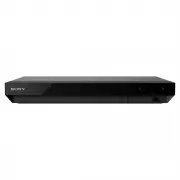
8 Guide to Parts and Controls A Door B Z (open/close) C 1 (on/standby) Turns on the player, or sets to standby mode. D Power indicator Lights up when the player is turned on. E (USB) jack Connect a USB device to this jack. See page 15. F Remote sensor A Ventilation holes B DIGITAL OUT (COAXIAL) jack...
Page 9 - Remote
9 Gett in g S ta rt e d The available functions of the remote are different depending on the disc or the situation. z N , TV 2 +, and AUDIO buttons have a tactile dot. Use the tactile dot as a reference when operating the player. A Z (open/close) Opens or closes the door tray. -TV- t (TV input selec...
Page 10 - Code numbers of controllable TVs
10 D m / M (fast reverse/fast forward) • Fast reverse/fast forward the disc when pressed during playback. The search speed changes each time you press the button. • Plays in slow motion when pressed for more than one second in pause mode. • Plays one frame at a time when pressed for a short time in ...
Page 11 - Step 1: Connecting the Player; Connecting to your TV
11 Gett in g S ta rt e d Step 1: Connecting the Player * Premium High Speed HDMI Cable or High Speed HDMI Cable that supports 18 Gbps bandwidth. b • To enjoy 4K Ultra HD 60p content, you need to connect the player to your 4K TV using Premium High Speed HDMI Cable or High Speed HDMI Cable that suppor...
Page 13 - Step 2: Network Connection; Wired Setup
13 Gett in g S ta rt e d Step 2: Network Connection If you are not going to connect the player to a network, proceed to “Step 3: Easy Setup” (page 14). z The use of a shielded and straight interface cable (LAN cable) is recommended. z No cable assembly required between the player and the wireless LA...
Page 14 - When turned on for the first time; Home screen display
14 Step 3: Easy Setup 1 Connect the supplied AC adaptor and AC power cord (mains lead) in the numeric order shown below. When removing them, do so in reverse order. 2 Press 1 to turn on the player. Power indicator lights up. 3 Turn on the TV and press TV t button on the remote to set the input selec...
Page 15 - Playback; Playing a Disc; Playing from a USB Device; Enjoying 4K Ultra HD Blu-ray
15 Play back Playback Playing a Disc You can play Ultra HD Blu-ray discs, BDs, DVDs and CDs. For “Playable discs”, see page 27. 1 Press Z (open/close), and place a disc on the disc tray.Place the disc's side with character or image facing up.For double-sided discs, place the side you want to play fa...
Page 16 - Playing via a Network; Prepare to use Home Network.; Playing files on a Home Network
16 Playing via a Network A Home Network-compatible product can play video/music/photo files stored on another Home Network-compatible product via a network. Prepare to use Home Network. 1 Connect the player to a network (page 13). 2 Prepare the other necessary Home Network- compatible products. Refe...
Page 17 - Available Options; Common options
17 Play back Available Options Various settings and playback operations are available by pressing OPTIONS. The available items differ depending on the situation. Common options x [Repeat Setting] *1 : Sets the repeat mode. x [Play]/[Stop]: Starts or stops the playback. x [Play from start]: Plays the...
Page 18 - Photo only
18 Photo only x [Slideshow Speed]: Changes the slideshow speed. x [Slideshow Effect]: Sets the effect for slideshows. x [Slideshow BGM] *6 : – [Off]: Turns off the function.– [My Music from USB]: Sets the music files registered in [Add Slideshow BGM]. – [Play from Music CD]: Sets the tracks in CD-DA...
Page 19 - Settings and Adjustments; Using the Settings Displays
19 S e tt ings a n d Adju s tme nts Settings and Adjustments Using the Settings Displays Select [Setup] on the home screen when you need to change the settings of the player.The default settings are underlined. 1 Select [Setup] on the home screen using < / M / m / , . 2 Select the setup category ...
Page 24 - Additional Information; Troubleshooting; Picture
24 Additional Information Troubleshooting If a problem occurs while operating the player, use this troubleshooting guide to help remedy the problem before requesting repairs. If the problem persists, consult your nearest Sony dealer. No picture or the picture is not output correctly. • Check that al...
Page 25 - Disc
25 A ddition a l I n forma tion Message Code 3 [Audio outputs temporarily muted. Do not adjust the playback volume. The content being played is protected by Cinavia and is not authorized for playback on this device. For more information, see http://www.cinavia.com. Message Code 3.] appears on the sc...
Page 26 - Others
26 The [Control for HDMI] function does not work (BRAVIA Sync). • Check that your TV is connected via the HDMI OUT 1 jack. • Check that [Control for HDMI] in [HDMI Settings] is set to [On] (page 22). • If you change the HDMI connection, turn the player off and on again. • If power failure occurs, se...
Page 27 - Playable discs; Discs that cannot be played
27 A ddition a l I n forma tion Playable discs *1 Since the Blu-ray Disc specifications are new and evolving, some discs may not be playable depending on the disc type and the version. The audio output differs depending on the source, connected output jack, and selected audio settings. *2 BD-RE: Ver...
Page 28 - Playable types of files; Video
28 Playable types of files Video Codec Container Extension With Audio MPEG-1 Video *1 PS .mpg, .mpeg Dolby Digital, DTS, LPCM, MPEG MKV .mkv Dolby Digital, LPCM, AAC, MP3, Vorbis MPEG-2 Video *2 PS *3 .mpg, .mpeg Dolby Digital, DTS, LPCM, MPEG TS *4 .m2ts, .mts Dolby Digital, DTS, LPCM, MPEG, AAC MK...
Page 29 - Music
29 A ddition a l I n forma tion Music Photo *1 The player may not play this file format on a Home Network server. *2 The player can only play standard definition video on a Home Network server. *3 The player does not play DTS format files on a Home Network server. *4 The player can only play Dolby D...
Page 30 - Specifications; System
30 Specifications Specifications and design are subject to change without notice. System Inputs and outputs Wireless General Laser Semiconductor laser Jack name Jack type/Output level/Load impedance DIGITAL OUT (COAXIAL) Phono jack /0.5 Vp-p/75 ohms HDMI OUT 1*/2 HDMI 19-pin standard connector * Onl...
Page 31 - Copyrights and Trademarks
31 A ddition a l I n forma tion • Oracle and Java are registered trademarks of Oracle and/or its affiliates. Other names may be trademarks of their respective owners. • Dolby, Dolby Vision, Dolby Audio and the double-D symbol are trademarks of Dolby Laboratories. Manufactured under license from Dolb...
Page 33 - Privacy Policy; Language code list
33 A ddition a l I n forma tion Privacy Policy For Privacy Policy, please refer to [Privacy Policy] in the option menu on each network service icon. Network services, content and software of this product may be subject to individual terms and conditions and changed, interrupted or discontinued at an...
Page 34 - Parental control/area code
34 For details, see [Parental Control Area Code] (page 22). Parental control/area code Code Area 2044 Argentina 2047 Australia 2046 Austria 2057 Belgium 2070 Brazil 2090 Chile 2092 China 2093 Colombia 2115 Denmark 2165 Finland 2174 France 2109 Germany 2200 Greece 2219 Hong Kong 2248 India 2238 Indon...
Page 36 - For Your Convenience
For Your Convenience Software Updates: The software of this player may be updated in the future.Please visit the following website: http://www.sony-asia.com/support/ Before Inquiries: Please confirm the following details:• Investigate with "Troubleshooting" (page 24) to help remedy the probl...