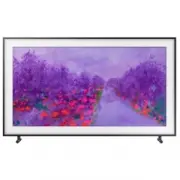
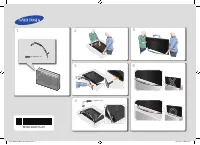
Page 2 - Before Reading This User Manual; Learning the e-Manual's assistance functions
Before Reading This User Manual This TV comes with this user manual and an embedded e-Manual.Before reading this user manual, review the following: User Manual Read this provided user manual to see information about product safety, installation, accessories, initial configuration, and product specif...
Page 3 - Features of your new TV; Home Screen
Features of your new TV Home Screen In Home Screen, you can easily run the apps that have been used previously or frequently. The apps can also be moved or deleted in the screen. e-Manual Get help from a detailed, on-screen user's manual built into your TV. Voice Interaction Access and control menu ...
Page 4 - Warning! Important Safety Instructions
Warning! Important Safety Instructions Please read the Safety Instructions before using your TV. CAUTION Class II product: This symbol indicates that a safety connection to electrical earth (ground) is not required. RISK OF ELECTRIC SHOCK. DO NOT OPEN. CAUTION: TO REDUCE THE RISK OF ELECTRIC SHOCK, ...
Page 7 - Contents
English - 7 Before Reading This User Manual ---------------------------------------------------------------- 2 Features of your new TV ---------------------------------------------------------------- 3 Warning! Important Safety Instructions -----------------------------------------------------------...
Page 10 - 2 Assembling the TV; Connecting the TV to the One Connect
02 Assembling the TV Connecting the TV to the One Connect ONE CONNECT ONE CONNECT 5 ONE CONNECT ONE CONNECT Bending Cover TV 10 cm To connect the One Invisible Connection cable to the One Connect and your TV, take the following steps: 1. Connect to the TV the connector that must be connected to the ...
Page 11 - Attaching the TV to the Stand
• Be careful of the actions below because the One Invisible Connection contains a power circuit. Bending Twisting Pulling Pressing on Electric shock CLASS 1 LASER PRODUCT • Caution - Invisible laser radiation when open. Do not stare into beam. – Do not bend or cut cables excessively. – Do not place ...
Page 12 - Mounting the TV on a wall
Mounting the TV on a wall If you mount this TV on a wall, follow the instructions exactly as set out by the manufacturer. Unless it is correctly mounted, the TV may slide or fall and cause serious injury to a child or adult and serious damage to the TV. For models providing wall mount adapters, inst...
Page 13 - Providing proper ventilation for your TV
TV size in inches VESA screw hole specs (A * B) in millimetres C (mm) Standard Screw Quantity 43-49 200 x 200 43-45 M8 4 55-65 400 x 400 Do not install your wall mount kit while your TV is turned on. This may result in personal injury from electric shock. • Do not use screws that are longer than the...
Page 14 - Other Cautions; Safety Precaution: Securing the TV to the wall to prevent
Other Cautions • The actual appearance of the TV may differ from the images in this manual, depending on the model. • Be careful when you touch the TV. Some parts can be somewhat hot. Safety Precaution: Securing the TV to the wall to prevent falling Caution : Pulling, pushing, or climbing on the TV ...
Page 15 - Preventing the TV from falling; Using the Cover Cap
Preventing the TV from falling 1. Using the appropriate screws, firmly fasten a set of brackets to the wall. Confirm that the screws are firmly attached to the wall. – You may need additional material such as wall anchors depending on the type of wall. 2. Using the appropriately sized screws, firmly...
Page 16 - 3 Using Art Mode
03 Using Art Mode > Art You can use Art mode function to display image content such as artworks or photos when you are not watching TV in full screen mode. • Press the button on the remote control to switch to TV mode or Art mode. • Press the button in Art mode to switch to TV mode. • To turn off...
Page 17 - Viewing images
Viewing images Options Landscape Architecture Wildlife Recent Art Store Samsung Collection My Collection Settings • The image on your TV may differ from the image above depending on the model and geographical area. To view an image in Art mode, select one of the menus below. To switch to the sub men...
Page 19 - Setting the style of the selected image; Apply a border style and a colour to an image
Setting the style of the selected image Details Mount Favourites Landscape • The image on your TV may differ from the image above depending on the model and geographical area. Use the directional buttons on the remote control to move to Options at the top of the screen. You can use the following men...
Page 21 - 4 The TV Controller; Using the TV Controller
04 The TV Controller Using the TV Controller You can turn on the TV with the TV Controller button at the bottom of the TV, and then use the Control Menu. The Control menu appears when the TV Controller is pressed while the TV is On. For more information about its usage, refer to the figure below. Mo...
Page 22 - 5 The Remote Control; About the Buttons on the Remote Control
05 The Remote Control About the Buttons on the Remote Control • This remote control has Braille points on the Power , Channel , Volume , and Select buttons and can be used by visually impaired persons. • The images, buttons, and functions of the remote control may differ depending on the model. Alte...
Page 23 - About the Buttons on the Samsung Smart Remote
About the Buttons on the Samsung Smart Remote • The images, buttons, and functions of the Samsung Smart Remote may differ depending on the model. (Voice Interaction) Runs Voice Interaction . Press and hold the button, say a command, and then release the button to run Voice Interaction . When you pre...
Page 24 - Installing batteries into the remote control (Battery size: AAA)
Installing batteries into the remote control (Battery size: AAA) Match the polarities of the batteries to the symbols on the battery compartment. 1 3 2 • The colour and shape of the remote may vary depending on the model. • Use the remote control within 7 m of the TV. • Bright lights may affect the ...
Page 25 - Installing batteries into the Samsung Smart Remote; About the Samsung Smart Remote
Installing batteries into the Samsung Smart Remote To install the batteries, push the rear cover open in the direction of the arrow at the bottom of the illustration, and then insert the batteries as shown in the figure. Make sure that the positive and negative ends are facing in the correct directi...
Page 26 - Pairing the TV to the Samsung Smart Remote
Pairing the TV to the Samsung Smart Remote When you turn on the TV for the first time, the Samsung Smart Remote pairs to the TV automatically. If the Samsung Smart Remote does not pair to the TV automatically, point it at the remote control sensor of the TV, and then press and hold the and buttons s...
Page 28 - 6 Performing the initial setup; Initial setup
06 Performing the initial setup • The initial setup differs from model to model. • Turn on the TV using the P button on the remote control or TV controller. • Noise may occur temporarily when the TV communicates with mobile devices. • The SmartThings app is available on mobile devices for Android 6....
Page 29 - 7 Connections; Connecting devices to your TV
07 Connections Connecting devices to your TV You can connect various external devices using the connectors located at the back of the product. Check the connectors and then refer to the Quick Guide for more instructions on supported external devices.For more information about connections, see the e-...
Page 30 - Connecting to the Internet; Network Connection - Wireless
Connecting to the Internet Connecting the TV to a network gives you access to online services such as the Smart Hub, as well as software updates. • For more information about Smart Hub, see the e-Manual chapter, " Smart Features > Smart Hub ". • The shape of the rear panel differs among t...
Page 31 - 8 Selecting Connected Devices; Changing the input signal
08 Selecting Connected Devices Changing the input signal > s Source When you select a connected external device on the Source screen, the output of the selected device is displayed on the TV's screen. • For more information about selecting connected devices, see the e-Manual chapter " Switchi...
Page 32 - 9 Troubleshooting and Maintenance; Troubleshooting; The TV won’t turn on.
09 Troubleshooting and Maintenance Troubleshooting If the TV seems to have a problem, first review this list of possible problems and solutions. Alternatively, review the Troubleshooting Section in the e-Manual. If none of these troubleshooting tips apply, please visit “www.samsung.com” and click on...
Page 34 - The TV remains on or does not turn on automatically.
Single story Multi story Wireless router Wireless repeater • Contact your Internet Service Provider (ISP) and ask them to reset your network circuit to re-register the Mac addresses of your new Modem/Router and the TV. Video App problems (Youtube etc) • Change the DNS to 8.8.8.8. Select > Setting...
Page 35 - How does Remote Support work?
Precautions when using Art mode • The motion sensor is located at the bottom of the TV. Do not block the sensor at the front of the TV. The motion sensor as well as the brightness and colour tone of the screen can be affected. • Art mode uses algorithms to minimise image burn-in that can be caused b...
Page 37 - 0 Specifications and Other Information; Specifications; Environmental Considerations
10 Specifications and Other Information Specifications Model Name UE43LS03N UE49LS03N Display Resolution 3840 x 2160 3840 x 2160 Screen SizeMeasured Diagonally 43 inches 108 cm 49 inches 123 cm Sound (Output) 20 W 20 W Dimensions (W x H x D)BodyWith stand 966.6 x 556.8 x 42.5 mm 966.6 x 599.8 x 200....
Page 38 - Decreasing power consumption; Recommendation - EU Only
• The design and specifications are subject to change without prior notice. • For information about the power supply, and more information about power consumption, refer to the label-rating attached to the product. • Typical power consumption is measured according to IEC 62087. • You can see the lab...
Page 40 - Warranty Card; WARRANTY CONDITIONS
Warranty Card United Kingdom Republic of Ireland (EIRE) This Samsung product is warranted for a period of twelve (12) months from the original date of purchase, against defective materials and workmanship. In the event that warranty service is required, you should return the product to the retailer ...
Page 41 - This page is intentionally