Page 2 - Contents; Chapter 1. Getting Started
1 Chapter 1. Getting Started Contents Chapter 1. Getting Started 3 Before You Start 5 Safety Precautions 19 Proper Posture During Computer Use 22 Overview 27 Turning the Computer On and Off Chapter 2. Using Windows 31 What is Microsoft Windows? 32 Screen At a Glance 35 Using the Charms 37 Using Apps...
Page 4 - Before You Start; Before reading the User Manual, first check the following; Safety Precaution Notations
3 Chapter 1. Getting Started Before You Start Before reading the User Manual, first check the following information. Optional items, some devices and software referred to in • the User Manual may not be provided and/or changed by upgrade. Note that the computer environment referred in the User Manua...
Page 5 - Copyright; About the capacity representation of the storage
4 Chapter 1. Getting Started Before You Start Copyright © 2014 Samsung Electronics Co., Ltd. Samsung Electronics Co., Ltd. owns the copyright of this manual.No part of this manual may be reproduced or transmitted in any form or by any means, electronic or mechanical, without the consent of Samsung E...
Page 6 - Installation Related; Safety Precautions; For your security and to prevent damage, please read the; Warning; Failure to follow instructions marked with this symbol may
4 5 Chapter 1. Getting Started Installation Related Do not install the product in places exposed to humidity such as a bathrooms. There is a danger of electric shock. Use the product within the operating conditions specified in the Manufacturers User Manual. Keep the plastic bags out of the reach of...
Page 7 - Power Related
6 Chapter 1. Getting Started G If the power cord or power outlet makes a noise, disconnect the power cord from the wall outlet and contact a service center. There is a danger of electric shock or fire hazard. Do not use a damaged or loose main plug or power cord or power outlet. There is a danger of...
Page 8 - AC Adapter Usage Precautions
6 7 Chapter 1. Getting Started Connect the power cord to an outlet or multiple power plug (extended cable) with a ground terminal. Failure to do so may result in electric shock. When the power supply is ungrounded, the current may leak resulting in electric shock. If water or other conductive substa...
Page 9 - Battery Usage Related
8 Chapter 1. Getting Started Battery Usage Related Please charge the battery fully before using the computer for the first time. Keep the battery out of the reach of infants and pets, as they could put the battery into their mouths. There is a danger of electric shock or choking. Use an authorized b...
Page 10 - Usage Related
8 9 Chapter 1. Getting Started Usage Related Disconnect all cables connected to the computer before cleaning it. If your notebook is external & removable battery type, remove the external battery. There is a danger of electric shock or damage to the product. Do not connect a phone line connected...
Page 11 - Upgrade Related
10 Chapter 1. Getting Started Upgrade Related Be sure to upgrade the computer by yourself only if you have sufficient knowledge and ability. If this is not the case, ask for assistance from the service center or an authorized engineer for the upgrade. Be sure to upgrade only the parts specified in t...
Page 12 - Storage and Movement Related; If a heavy object is pressed against the
10 11 Chapter 1. Getting Started Storage and Movement Related Follow the instructions for the relevant location (e.g. airplane, hospital, etc.) when using a wireless communication device (wireless LAN, Bluetooth, etc.). Avoid exposing a drive to magnetic fields. Security devices with magnetic fields...
Page 14 - Caution
12 13 Chapter 1. Getting Started Usage Related Do not place a candle, light cigar, etc. over or on the product. There is a danger of fire. Use a wall outlet or multi-plug with a grounding part. Failure to do so may cause electric shock hazard. Make sure to have the product tested by a safety service...
Page 17 - Cautions on Preventing Data Loss; Take care not to damage the data on a hard disk drive.
16 Chapter 1. Getting Started Cautions on Preventing Data Loss (Hard Disk Management) Take care not to damage the data on a hard disk drive. A hard disk drive is so sensitive to external impact that an • external impact may cause loss of data on the surface of the disk. Take extra care, because movi...
Page 18 - Using the Power Supply in an Airplane; When Using the AC Power Plug
16 17 Chapter 1. Getting Started Safety Precautions Using the Power Supply in an Airplane Since the power outlet type differs depending on the type of airplane, connect the power appropriately. Since the representative figures of the power plug and the auto adapter are used, they may differ from the...
Page 19 - When Using the Auto Adapter
18 Chapter 1. Getting Started Safety Precautions When Using the Auto Adapter When a cigar socket is provided, you have to use the auto adapter (optional). Insert the cigar plug of the auto adapter into the cigar socket and connect the DC plug of the auto adapter to the power input port of the comput...
Page 20 - Proper Posture During Computer Use; The instructions in this manual have been prepared so that; Proper Posture; Adjust the heights of desks and chairs appropriate to your
18 19 Chapter 1. Getting Started Proper Posture During Computer Use Maintaining a proper posture during computer use is very important to prevent physical harm.The following instructions are about maintaining a proper posture during computer use developed through human engineering. Please read and f...
Page 21 - Eye Position; Keep the monitor or LCD away from your eyes by at least; Hand Position; Keep your arm at a right angle as shown by the figure.
20 Chapter 1. Getting Started Proper Posture During Computer Use Eye Position Keep the monitor or LCD away from your eyes by at least 50cm. Adjust the height of the monitor and the LCD screen so that its • top height is equal to or lower than your eyes.Avoid setting the monitor and LCD excessively b...
Page 22 - Check your volume first to listen to music.; To prevent possible hearing damage, do not listen at high volume; Illumination
20 21 Chapter 1. Getting Started Proper Posture During Computer Use Volume Control (Headphones and Speakers) Check your volume first to listen to music. Check your volume! Check if the volume is too loud before using headphones. • It is not recommended using headphones for long periods of • time.Any...
Page 23 - Overview; Front View
22 Chapter 1. Getting Started Overview Front View The pictures used for the cover and the main body in the • User Manual are those of the representative model of each series. Therefore the colors and appearance of the pictures may differ from the actual appearance of the product depending on the mod...
Page 24 - Charge Status
22 23 Chapter 1. Getting Started Overview Status indicators and sensors (Optional) 1 2 1 Charge Status This shows the power source and the battery charge status. Green: When the battery is fully charged or the battery is not installed. / Red or orange: When the battery is being charged. Off: When th...
Page 25 - Right View; Multi Card Slot
24 Chapter 1. Getting Started Overview Right View 5 1 3 2 4 1 Multi Card Slot (Optional) A card slot supports multi cards. 2 Microphone You can use the built-in microphone. 3 Monitor Port A port used to connect a monitor, TV or projector supporting a 15pin D-SUB interface. You can connect a VGA adap...
Page 26 - Left View; What is a chargeable USB port?
24 25 Chapter 1. Getting Started Overview Left View 4 1 2 3 What is a chargeable USB port? USB device accessing and charging functions are • supported.The USB charging function is supported regardless of • whether the power is turned on or off.Charging a device through a chargeable USB port may take...
Page 27 - Bottom View; Battery Emergency
26 Chapter 1. Getting Started Bottom View 1 2 1 Battery Emergency Hole This hole is to cut the power supply to the battery. Insert and press one end of an unfolded paper clip into the hole it to cut the power to the battery. For more information, refer to About the function to cut the power supply t...
Page 28 - Turning the Computer On and Off; Turning the computer on; LED; About Windows Activation
26 27 Chapter 1. Getting Started Turning the Computer On and Off Turning the computer on 1 Connect the AC adapter . 2 Lift the LCD panel up. 3 Press the Power button to turn the computer on. 4 Power button LED is lit while the computer is turned on. LED About Windows Activation When you turn the com...
Page 29 - Turning the computer off; Since the procedures to turn the computer off may differ; On the desktop; Start button; on the; Shut down or sign out > Shut down; On the Start screen; Click; Power; at the upper-right corner of the; Start; Select; Shut down
28 Chapter 1. Getting Started Turning the Computer On and Off Turning the computer off Since the procedures to turn the computer off may differ • depending on the installed operating system, please turn the computer off according to the procedures for the purchased operating system.Save all your dat...
Page 30 - On the Charms; Charms; Unlocking the screen
28 29 Chapter 1. Getting Started On the Charms 1 Open the Charms . • Touchpad/mouse: Drag the mouse pointer to the top- or the bottom-right corner of the screen. 2 Click Settings áᔪ Ŗᮁ ᯲ ᰆ⊹ ᖅᱶ > Power ⦽ > Shut down . If you want to power off your computer when you are logged out, unlock the s...
Page 31 - Using Windows; What is Microsoft Windows?
Chapter 2. Using Windows What is Microsoft Windows? 31 Screen At a Glance 32 Using the Charms 35 Using Apps 37 Windows Hot Key Function 41
Page 32 - Windows Help and Support; The screen may appear somewhat different depending on; Displaying Help; If you are connected to the internet, you can access the most
31 Chapter 2. Using Windows What is Microsoft Windows? Microsoft Windows is an operating system that is required for operating a computer.To use your computer optimally, you need to know how to use it properly. To learn how to use the operating system, check out Windows Help and Support , and Help+T...
Page 33 - Screen At a Glance; The following two screens are provided: the; screen and the; Desktop; This provides similar functions to those provided by the desktop
32 Chapter 2. Using Windows Screen At a Glance The following two screens are provided: the Start screen and the desktop. Desktop Start Start screen Desktop This provides similar functions to those provided by the desktop in prior Windows 8 versions. 3 4 2 2 1 1 Desktop Refers to the Desktop. 2 Displ...
Page 34 - Using the Start button; to select quick access menus.; Power menu; Start screen; Launch applications on the; On the desktop, click the; or open the Charms
32 33 Chapter 2. Using Windows Screen At a Glance Using the Start button Right-click the Start button to select quick access menus. Control PanelFile Explorer Power menu Start button Start screen Launch applications on the Start screen. On the desktop, click the Start button or open the Charms and s...
Page 35 - Sleep
34 Chapter 2. Using Windows Screen At a Glance 1 Start Screen Refers to the default Start screen of Windows. 2 App Refers to the apps that are currently installed. Samsung Apps supplied with the original factory product are compatible with the product’s supported OS. Changing the OS may result in li...
Page 36 - The Charms is a new type of menu that combines the Start menu; Activating the Charms; Place the mouse pointer over the top- or; Using the Charms
34 35 Chapter 2. Using Windows The Charms is a new type of menu that combines the Start menu with the Control Panel of existing Windows. The Charms allows you to quickly configure the device(s) connected to your computer, search for App(s)/file(s), and use the sharing function, etc. Activating the C...
Page 37 - Changing the Settings; Icon; Change PC settings; You can change more settings.
36 Chapter 2. Using Windows Using the Charms Changing the Settings Frequently used Windows menus are collected.Click the Charms > Settings . Icon Name Function Description ⦽ Wireless Network You can connect to a wireless network. Select a wireless network to connect to. ⦽ Adjusting the Volume You...
Page 38 - App; Starting/Exiting an App; To exit the current app using the mouse; Using Apps; Right-click over the App in the list and click; Close; to exit the
36 37 Chapter 2. Using Windows Using Apps An App refers to an application program (hereafter referred to as an App ). In a larger sense, it refers to all the software programs installed on the operating system. Windows provides basic Apps for frequently performed tasks. Starting/Exiting an App Click...
Page 39 - Using split screens; Ex) If you run the Weather App and Store App at the same time; Screen; Adding/Removing an App to/from the Start Screen; Ex) When removing an App in the Start screen
38 Chapter 2. Using Windows Using Apps Using split screens 1 Select the Apps in the Start screen. 2 Touchpad/mouse: Move the mouse pointer to the top edge. The pointer changes to the palm shape. Then, drag the mouse to the left or right. 3 Arrange the position of each split screen as appropriate. 4 ...
Page 40 - Camera App at a Glance; To play the photo or movie; Cautions; Do not take a photo of others without their permission.
38 39 Chapter 2. Using Windows Camera App at a Glance Use the OS-provided camera app to take photos or make movies and edit them to your preference. 1 Select Camera from the Start screen . 2 To take photos, select . To make movies, select . To play the photo or movie ► To play the Camera-taken photo...
Page 41 - Using the Windows Store; Samsung cannot solve errors occuring with other apps; Configuring your Microsoft Account
40 Chapter 2. Using Windows Using the Windows Store If you run the App Store in the Start screen, the Apps in the Windows Store are displayed. However, a Microsoft account is required to purchase App(s) in the Windows Store.Continue after registering your Microsoft Account in the Charms . Samsung ca...
Page 42 - Windows Hot Key Function; You can use the following convenient hot keys in Windows.
40 41 Chapter 2. Using Windows Windows Hot Key Function You can use the following convenient hot keys in Windows. Function Hot Keys Function Description Displaying the Start Screen Windows Key Switches to Start mode. Displaying the Desktop Windows Key + D Switches to Desktop mode. Running the Charms...
Page 43 - Using the computer
Keyboard 43 Touchpad 46 External-type CD drive (ODD, To be purchased) 50 Multi Card Slot (Optional) 52 Connecting an External Display Device 55 Adjusting the Volume 58 LCD Brightness Control 59 Wired Network 61 Wireless Network (Optional) 65 Using the TPM Security Device (Optional) 67 Using the Mult...
Page 44 - Keyboard; The keyboard image may differ from the actual keyboard.; While pressing and holding the; Fn; Alternatively, press the; Fn Lock; key as well as a hot key to use the hot key functions more easily.; Method 1; Shortcut Keys; Method 2; The; Blue LED; is turned; On
43 Chapter 3. Using the computer Keyboard Shortcut key functions and procedures are discussed in the following sections. The keyboard image may differ from the actual keyboard. • The keyboard may differ depending on your country. The following mainly describes the shortcut keys. • Shortcut Keys Whil...
Page 45 - The Samsung software control program, the; Settings; Controls the screen brightness.
44 Chapter 3. Using the computer Keyboard Shortcut Keys Name Function Settings The Samsung software control program, the Settings , is launched. Screen Brightness Control Controls the screen brightness. LCD/External Monitor Switches the screen output to the LCD or external monitor when an external m...
Page 46 - If you press the; key, you can use the hot key functions; If the hot keys do not work properly, you have to install the
44 45 Chapter 3. Using the computer Keyboard Other Function Keys (Optional) Performs the right-click mouse function (touchpad). • + If you press the • Fn Lock key, you can use the hot key functions without pressing the Fn key. If the hot keys do not work properly, you have to install the Settings .
Page 47 - Touchpad; The touchpad provides the same function as a mouse and the left; Touch the touchpad with your fingers only.; Basic Touchpad Functions; Moving the cursor on the screen; direction you wish to move the cursor.; Click Function; Tap; Double-Click Function; Put your finger on the touchpad and quickly tap twice with your; ClickClick
46 Chapter 3. Using the computer Touchpad The touchpad provides the same function as a mouse and the left and right buttons of the touchpad plays the role of the left and right buttons of a mouse. Touch the touchpad with your fingers only. • Anything other than your fingers, such as a ball-point pen...
Page 48 - Right Button Function; Drag Function; want to drag and move the item to the new location.; Holding down the left; The Gesture Function of the Touchpad (Optional); The Touchpad Gesture function may not be provided and the; Configuring the Gesture Function; Click the; Charms menu > Settings; PC and devices > Mouse and touchpad; To cancel the Gesture function, deselect the checkbox for the
46 47 Chapter 3. Using the computer Right Button Function This corresponds to clicking the right mouse button.Press the right touchpad button once. The corresponding pop-up menu appears. Click Drag Function Dragging refers to moving an item to another place after selecting it.Press and hold down the...
Page 49 - The Scroll Function; Zoom Functions; or; Charms Menu Activating Function
48 Chapter 3. Using the computer The Scroll Function This function is the same as the scroll area of the Touchpad.If you place two fingers over the Touchpad and move them up, down, left or right, the screen is scrolled up, down, left or right accordingly. or Zoom Functions If you place two fingers o...
Page 50 - Touchpad On/Off Function; Locking with shortcut keys; To lock the touchpad function, press the
48 49 Chapter 3. Using the computer Touchpad On/Off Function Locking with shortcut keys To set the mouse-only environment, simply lock the touchpad. To lock the touchpad function, press the + keys. Alternatively, press the key and then press the key to turn the touchpad function off. Touchpad
Page 51 - This computer supports an external USB CD-ROM drive (can be; Do not insert a cracked or scratched CD.; Connecting the CD Drive; Connect the CD drive to the; USB port; External-type CD drive
50 Chapter 3. Using the computer This computer supports an external USB CD-ROM drive (can be additionally purchased).Check if the interface type of the external CD-ROM drive is a USB type. For detailed specifications, refer to the catalog. Do not insert a cracked or scratched CD. • Otherwise, the CD...
Page 52 - Inserting and Ejecting a CD; Eject; A CD drive’s reading and writing speed may differ
50 51 Chapter 3. Using the computer Inserting and Ejecting a CD 1 Press the Eject button of the CD drive. 2 When the CD tray opens, insert a CD or DVD and push the tray in until it clicks. 3 Push the CD tray inward until it clicks. The CD drive status indicator is turned on. A CD drive’s reading and...
Page 53 - Using the multi-card slot, you can read and write data on various
52 Chapter 3. Using the computer Multi Card Slot (Optional) Using the multi-card slot, you can read and write data on various types of memory cards.When you insert a memory card, make sure to insert the memory card in the correct direction. Pushing an incorrectly inserted memory card may damage the ...
Page 54 - Insert a memory card into the multi-card slot in the correct; open the folder and click; If a message appears to notify you of any problem, click the; > Continue without Scanning; can perform the following process described in No. 3.; File Explorer; runs on the Desktop. You can save, move and; To remove a memory card
52 53 Chapter 3. Using the computer Multi Card Slot (Optional) 1 Insert a memory card into the multi-card slot in the correct direction. 2 The following message appears on the top right. Click to open the folder and click View Files. If a message appears to notify you of any problem, click the corre...
Page 55 - To format a memory card
54 Chapter 3. Using the computer Multi Card Slot (Optional) To format a memory card When using the memory card for the first time, you must format the card before using it. Formatting a card deletes all data saved on the card. If the card includes data, backup the data before formatting it. 1 Click ...
Page 56 - Connecting an External Display Device; About the connection cable
54 55 Chapter 3. Using the computer Connecting an External Display Device If you connect an external display device such as a monitor, TV, projector, etc., you can view the picture on the wider screen of the external device when you give a presentation or watch a video or movie.The computer supports...
Page 57 - Connect the power cord of the connected monitor, TV or; Charms menu > Devices; Select a desired monitor mode.
56 Chapter 3. Using the computer 2 Connect the power cord of the connected monitor, TV or projector and turn the power on. Change your TV to external device mode when connecting to the TV. 3 Select Charms menu > Devices áᔪ Ŗᮁ ᯲ ᰆ⊹ ᖅᱶ > Projector > Second Screen . Select a desired monitor m...
Page 58 - Connecting through the Micro HDMI port; DVI IN; PC screen only
56 57 Chapter 3. Using the computer Connecting through the Micro HDMI port (Optional) By connecting the computer to a TV with a HDMI port, you can enjoy both a high visual quality and a high sound quality.After connecting a TV through HDMI, you have to configure the screen and sound. 1 Connect the H...
Page 59 - Adjusting the Volume; Adjusting the Volume using the Keyboard; Mute; Using the Sound Recorder
58 Chapter 3. Using the computer Adjusting the Volume You can adjust the volume using the keyboard and the volume control program. Adjusting the Volume using the Keyboard + o r + Alternatively, press the + key combination to turn the volume on or off. Adjusting the Volume using the Volume Adjustment...
Page 60 - LCD Brightness Control; Switching the picture mode; The screen brightness is automatically set to the brightest
58 59 Chapter 3. Using the computer LCD Brightness Control 1 Click the Charms menu > Settings áᔪ Ŗᮁ ᯲ ᰆ⊹ ᖅᱶ > Screen Adjustment icon ⦽ . 2 Adjust the brightness with the screen brightness control bar. Switching the picture mode You can switch the picture mode to your preferred viewing pleasur...
Page 61 - Saving battery power consumption
60 Chapter 3. Using the computer LCD Brightness Control Saving battery power consumption • Decreases the LCD brightness when the computer is running on battery power to save battery power consumption. LCD bad pixels principle of computer • Samsung observes the specifications regarding strict quality...
Page 62 - Wired Network; Connecting to the Wired LAN; LAN adapter; Control Panel > Network and Internet > Network and
60 61 Chapter 3. Using the computer Wired Network A wired network is a network environment used for a company network or broadband internet connection at home. You can use wired LAN by using the LAN adapter (Optional). • This manual is based on the latest Windows. The content • or pictures may diffe...
Page 63 - Ethenet; The LAN Device name may differ depending on your; Properties; The Network Component name may differ depending on
62 Chapter 3. Using the computer 4 Select Ethenet and click the right button of the touch pad and select Properties . The LAN Device name may differ depending on your computer’s Network Device. 5 Select Internet Protocol Version 4(TCP/IPv4) from the list of Network Components and click Properties . ...
Page 64 - When not using DHCP, ask your network administrator for the
62 63 Chapter 3. Using the computer Wired Network 6 Configure the IP settings. When using DHCP, select Obtain an IP address automatically . To use a static IP address, select Use the following IP address , and set the IP address manually. When not using DHCP, ask your network administrator for the I...
Page 65 - Wake On LAN
64 Chapter 3. Using the computer Wired Network Wake On LAN activated by Ping is not supported. When connected to a 100Mbps/1Gbps wired LAN and the computer exits Sleep/hibernation mode, a message appears informing you of a connection to a 10Mbps/100Mbps wired LAN. This happens because when the compu...
Page 66 - A wireless network (Wireless LAN) environment is a network; Wireless Network
64 65 Chapter 3. Using the computer A wireless network (Wireless LAN) environment is a network environment that enables communication between multiple computers at home or a small-size office through wireless LAN devices. The screen figures and terms may differ depending on the • model.Depending on ...
Page 67 - Connecting to a Wireless LAN; Connections; AP List; Connect; For the network key, please ask your network administrator.
66 Chapter 3. Using the computer Wireless Network (Optional) Connecting to a Wireless LAN If there is an AP, you can connect to the Internet via the AP using the Wireless LAN connection method provided by Windows. 1 If you click the Charms menu > Settings áᔪ Ŗᮁ ᯲ ᰆ⊹ ᖅᱶ > Network Connections i...
Page 68 - Using the TPM Security Device; This function is only supported for models with TPM; Setting Up the TPM; To use the TPM function, you have to complete the following; Initializing the TPM chip
66 67 Chapter 3. Using the computer Using the TPM Security Device (Optional) A TPM (Trusted Platform Module) security device is a security solution that protects your personal information by saving the user authentication data on the TPM chip installed on the computer.To use the TPM security device,...
Page 69 - Initializing the TPM chip erases all authentication; Configuration
68 Chapter 3. Using the computer Initializing the TPM chip When you use the TPM function for the first time or you want to register the user again, you have to initialize the TPM chip. Initializing the TPM chip erases all authentication • information saved on the TPM chip. Any decision to initialize...
Page 71 - Installing the TPM program; This program is only provided for models with Recovery and; If the system software media is supplied with the product,
70 Chapter 3. Using the computer Installing the TPM program You can install the TPM program as follows. Install the program according to the procedures below. This program is only provided for models with Recovery and the TPM function. Method 1 1 Run Recovery and click on System Software . - If your...
Page 72 - Registering the TPM program; If the; status not initialized; message appears, click; Yes; If you backup the emergency recovery file to an external
70 71 Chapter 3. Using the computer Registering the TPM program 1 Right-click the icon on the taskbar. Run the Security Platform Management item with the admin authority.Click the User Settings tab, and initialize the settings. 2 The security authentication settings begin with the Initialization Wiz...
Page 73 - Using the TPM program
72 Chapter 3. Using the computer Using the TPM program For more information about using the TPM program, refer to the online help for the program. Encrypting a file (folder) This function enables encrypting files and folders. You can safely protect documents through the Encrypt File System (EFS). Th...
Page 75 - When the virtual drive (PSD) does not appear; Note that when you have copied confidential data to the PSD,
74 Chapter 3. Using the computer When the virtual drive (PSD) does not appear You can only use the virtual drive (PSD) when you have selected the Personal Secure Drive (PSD) option during the program registration. If you have not selected the option during the registration, complete the following st...
Page 76 - When you have to register again (to erase the; Deleting the virtual drive
74 75 Chapter 3. Using the computer When you have to register again (to erase the authentication information on the TPM chip) To register a user again, you need to delete the existing authentication information saved on the TPM chip and then clear the TPM chip. Register the user in the following ord...
Page 77 - Deleting the existing authentication information saved
76 Chapter 3. Using the computer Using the TPM Security Device (Optional) Deleting the existing authentication information saved on the TPM chip. 1 On the desktop, select the Charms menu > Settings > Control Panel > Programs > Uninstall a program > Infineon TPM Professional Package . ...
Page 78 - Using the Multimedia App; S PhotoStudio; Using the PhotoStudio app
76 77 Chapter 3. Using the computer Using the Multimedia App (Optional) S PhotoStudio and S Player+ enables you to take photos and make videos and edit them to your preference. S PhotoStudio Edit photos that you took or selected to your preference. S Player+ Play music or video clips stored on the c...
Page 79 - Using the S Player+ app; On the; Click a file to play.
78 Chapter 3. Using the computer Using the S Player+ app A variety of file types including multimedia formats are available with S Player+. 1 On the Start screen, select S Player+ . 2 Click a file to play. Only files in the Video or Music folder are available for playback. Move the selected file to ...
Page 80 - Samsung Software Update; You can check updatable files before performing the; Software
78 79 Chapter 3. Using the computer Samsung Software Update SW Update is a software program that searches for Samsung software programs and drivers installed when you purchased the computer and helps you update any drivers or programs. You can check updatable files before performing the • update onl...
Page 81 - Diagnosing the Computer Status and Troubleshooting
80 Chapter 3. Using the computer Diagnosing the Computer Status and Troubleshooting The Support Center program, which is Samsung’s computer’s troubleshooting guide, supports diagnosing the system and has a FAQ for frequently occurring problem(s). Support Center may not be provided or may be a differ...
Page 82 - Settings and Upgrade
BIOS Setup 82 Setting a Boot Password 84 Changing the Boot Priority 87 Battery 88 Chapter 4. Settings and Upgrade
Page 83 - BIOS Setup; Use the BIOS setup to define a boot password, change the; Entering the BIOS Setup
82 Chapter 4. Settings and Upgrade BIOS Setup The BIOS Setup enables you to configure your computer hardware according to your needs. Use the BIOS setup to define a boot password, change the • booting priority, or add a new device.Since incorrect settings may cause your system to • malfunction or cr...
Page 84 - The BIOS Setup Screen; Setup Menu
82 83 Chapter 4. Settings and Upgrade The BIOS Setup Screen The BIOS Setup menus and items may differ depending on your computer model. System Time > System Date > SATA Port 1 xxxxxxxxxxxx CPU Vender Intel(R) CPU Type Core xxxxxxxxxxxx CPU Speed x.xx GHz CPU VT (VT-x) Supported Total Memory xx...
Page 85 - Setting a Boot Password; Setting a Supervisor Password; Security
84 Chapter 4. Settings and Upgrade Setting a Boot Password If you set a password, you have to enter the password when you turn the computer on or enter the BIOS Setup.By configuring a password, you can restrict system access to authorized users only and protect data and files saved on the computer. ...
Page 86 - For some models, if the password entered message appears; Setup Notice; window, the settings are not complete; Enter; Setting a User Password
84 85 Chapter 4. Settings and Upgrade Setting a Boot Password 3 Enter a password, press < Enter >, re-enter the password for confirmation, and press < Enter > again. The password can be up to 8 alphanumeric characters. Special characters are not allowed. 4 The supervisor password has bee...
Page 87 - Setting up a Hard Disk Drive Password (Optional)
86 Chapter 4. Settings and Upgrade Setting a Boot Password Setting up a Hard Disk Drive Password (Optional) If you set a password for a hard disk drive, it cannot be accessed from another computer.Select in the Set HDD Password item and define a password as described in Step 3 of the Setting up the ...
Page 88 - Changing the Boot Priority; The screen image and terms may change depending on the; Save; To boot to DOS when using a USB device, enter the BIOS; Boot; item to; Off
86 87 Chapter 4. Settings and Upgrade Changing the Boot Priority The computer is configured so that it boots from the HDD with priority, by default.This section will show you how to change the setting so that the computer boots from a USB device. The screen image and terms may change depending on th...
Page 89 - Battery; Please refer to the following instructions when running the; Charging the Battery; Connect the AC adapter to the power input jack of the; AC adapter not
88 Chapter 4. Settings and Upgrade Battery Please refer to the following instructions when running the computer on battery power without connecting the AC power. This computer is equipped with an internal battery. Precautions Users cannot remove or replace the internal battery. • To remove or replac...
Page 90 - Measuring the Remaining Battery Charge; Confirming the battery charge in the Taskbar; Viewing the current battery charge when the computer
88 89 Chapter 4. Settings and Upgrade Battery Measuring the Remaining Battery Charge You can view the battery charge status by completing the following procedures. Confirming the battery charge in the Taskbar Disconnect the AC adapter and move the mouse cursor over the battery icon in the system tra...
Page 91 - Extending the Battery Usage Time; Decreasing the LCD Brightness; Using the power management program
90 Chapter 4. Settings and Upgrade Battery Extending the Battery Usage Time Decreasing the LCD Brightness 1 Click the Charms menu > Settings áᔪ Ŗᮁ ᯲ ᰆ⊹ ᖅᱶ > Screen Adjustment icon ⦽ . 2 Adjust the brightness with the screen brightness control bar. The battery life will be extended. Using the ...
Page 92 - Using the Battery Calibration Function (Optional); The screen images and terms may differ from actual product; Advanced > Smart Battery Calibration; Esc
90 91 Chapter 4. Settings and Upgrade Battery Using the Battery Calibration Function (Optional) When charging/discharging the battery repeatedly for a short time only, the battery usage time may be reduced by the difference between the actual battery charge and the remaining charge display.In this c...
Page 93 - Troubleshooting
Chapter 5. Troubleshooting Recovering/Backing up the Computer (Optional) 93Reinstalling Windows (Optional) 100 Q&A 103
Page 94 - Recovering/Backing up the Computer; If a problem occurs with your computer,; Recovery; program) allows you to easily restore your computer to the default; Recovery Introduction; Function
93 Chapter 5. Troubleshooting Recovering/Backing up the Computer (Optional) If a problem occurs with your computer, Recovery (recovery program) allows you to easily restore your computer to the default (factory) settings. Alternatively, you can back up your computer so that you can restore it to you...
Page 95 - Recovering; If you set the User Data Maintenance to ON, the computer is
94 Chapter 5. Troubleshooting Recovering You can restore the computer settings to the factory default settings if the computer fails to boot up, or if you encounter a serious problem with the computer. 1 - If Windows does not start Turn on the computer and press the F4 key several times to enter the...
Page 96 - Recovering after a Backup; Backing up; Backup; You cannot select a DVD drive.
94 95 Chapter 5. Troubleshooting Recovering after a Backup You can recover your computer after you have backed up your computer to a separate drive or external storage device. Backing up 1 To back up your computer to an external storage device, connect the external storage device and select the rele...
Page 98 - To copy the external storage disk; The new storage device must have sufficient capacity to save; If you cannot open the cover at the bottom of the computer,
96 97 Chapter 5. Troubleshooting To copy the external storage disk When you replace a storage device such as the HDD, SSD, etc. (hereafter referred to as a hard disk) built into your computer, you can move your existing data to the new storage device easily and safely. The new storage device must ha...
Page 99 - Export Disk Image Function; Run; To restore the computer settings to the factory default; connect the external storage device that contains the disk
98 Chapter 5. Troubleshooting Export Disk Image Function If you frequently recover your computer to the default (factory) settings, you can conveniently recover your computer after exporting the default (factory) status disk image to an external storage device. 1 Connect the external storage device,...
Page 100 - Computer Recovery Function in Windows 8; Get; You should back up the files in the following folders
98 99 Chapter 5. Troubleshooting Recovering/Backing up the Computer (Optional) Computer Recovery Function in Windows 8 If a problem occurs with your computer, the recovery program allows you to restore your computer to the default settings. For models where the SSD is less than 64GB, use the Windows...
Page 101 - Reinstalling Windows; SYSTEM RECOVERY MEDIA; Reinstalling in Windows; Go online to get the latest updates for
100 Chapter 5. Troubleshooting Reinstalling Windows (Optional) You can reinstall Windows using the SYSTEM RECOVERY MEDIA for Windows when Windows is no longer working properly. (For models supplied with a SYSTEM RECOVERY MEDIA.)For models supplied with the Recovery , you can reinstall Windows using ...
Page 102 - Custom; Next; OK
100 101 Chapter 5. Troubleshooting Reinstalling Windows (Optional) 4 The following window appears, select an installation option. If you click Custom , the procedures from Step 5 continue sequentially. If you click Upgrade , the procedures from Step 6 continue sequentially. This screen may not be di...
Page 103 - Reinstalling when Windows does not start
102 Chapter 5. Troubleshooting Reinstalling Windows (Optional) Reinstalling when Windows does not start When Windows does not start, boot up with the SYSTEM RECOVERY MEDIA and from there you can reinstall Windows. 1 Insert the SYSTEM RECOVERY MEDIA into the DVD drive and restart the computer. 2 If t...
Page 104 - Recovery Related; What is a Recovery Area?
102 103 Chapter 5. Troubleshooting You can look for potential problems that may occur with the system and view the relevant solutions. Also, you may look up any reference(s) required while operating the computer. Recovery Related Q1 What is a Recovery Area? A Samsung computers have an additional par...
Page 105 - Windows Related
104 Chapter 5. Troubleshooting Q3 What is a recovery image? A This refers to the computer status (including operating system, specific driver(s), software(s), etc.) which is converted to a data image. It is required to recover your computer and is embedded in the computer's hard disk. However, this ...
Page 106 - How to activate Active X:
104 105 Chapter 5. Troubleshooting Q&A Q3 How can I uninstall the driver? A On the Desktop, click Charms > Settings > Control Panel > Uninstall a program . Alternatively, right-click the Start button , and click Programs and Features . Click the program. Then click uninstall . Q4 How ca...
Page 107 - Display Related; For Intel graphics cards
106 Chapter 5. Troubleshooting Q&A Q7 The screen overlaps the text characters, or the font looks smaller. A If the font size is set too large or too small, the screen may overlap the text, resulting in poor readability. On the desktop, right-click an empty area and click Personalize > Display...
Page 108 - Sound Related
106 107 Chapter 5. Troubleshooting Q&A Sound Related Q1 I cannot hear any sound from the TV after connecting via the HDMI port. A 1. Right-click over the taskbar on the Desktop and click Play Device . 2. Change the option to Digital Audio (HDMI), HDMI device, HDMI Output or another option and cl...
Page 109 - Appendix
Chapter 6. Appendix Important Safety Information 109 Replacement Parts and Accessories 111 Regulatory Compliance Statements 113 WEEE Symbol Information 126 Samsung Packaging Take-Back Program 127 TCO Certified (for corresponding models only) 128 Product Specifications 129 Glossary 131
Page 110 - Safety Instructions; Always follow these instructions to help guard against; Setting Up your System; Important Safety Information
109 Chapter 6. Appendix Safety Instructions Your system is designed and tested to meet the latest standards for safety of information technology equipment. However, to ensure safe use of this product, it is important that the safety instructions marked on the product and in the documentation are fol...
Page 111 - Care During Use
110 Chapter 6. Appendix Care During Use Do not walk on the power cord or allow anything to rest on it. • Do not spill anything on the system. The best way to avoid • spills is to not eat or drink near your system.Some products have a replaceable CMOS battery on the • system board. There is a danger ...
Page 112 - Replacement Parts and Accessories; Battery Disposal
110 111 Chapter 6. Appendix Replacement Parts and Accessories Use only replacement parts and accessories recommended by manufacturer. To reduce the risk of fire, use only No. 26 AWG or larger telecommunications line cord. Do not use this product in areas classified as hazardous. Such areas include p...
Page 113 - Connect and Disconnect the AC adapter; Do not unplug the power cord by pulling the cable only.; Power Cord Requirements; General Requirements; The requirements listed below are applicable to all countries:
112 Chapter 6. Appendix Replacement Parts and Accessories Connect and Disconnect the AC adapter The socket-outlet shall be installed near the equipment and shall be easily accessible. Do not unplug the power cord by pulling the cable only. Power Cord Requirements The power cord set (wall plug, cable...
Page 114 - Regulatory Compliance Statements; Wireless Guidance
112 113 Chapter 6. Appendix Regulatory Compliance Statements Wireless Guidance (If fitted with 2.4G band or 5G band) Low power, Radio LAN type devices (radio frequency (RF) wireless communication devices), operating in the 2.4GHz/5GHz Band, may be present (embedded) in your notebook system. The foll...
Page 115 - United States of America; USA and Canada Safety Requirements and Notices; Do not touch or move antenna while the unit is transmitting or; Use in specific environments:; set forth by each hospital.
114 Chapter 6. Appendix Regulatory Compliance Statements Wireless devices are not user serviceable. Do not modify • them in any way. Modification to a wireless device will void the authorization to use it. Please contact manufacturer for service.Only use drivers approved for the country in which • t...
Page 116 - Use On Aircraft Caution; Other Wireless Devices; Safety Notices for Other Devices in the Wireless Network:; Unintentional Emitter per FCC Part 15
114 115 Chapter 6. Appendix Use On Aircraft Caution Regulations of the FCC and FAA prohibit airborne operation of radio-frequency wireless devices because their signals could interfere with critical aircraft instruments. Other Wireless Devices Safety Notices for Other Devices in the Wireless Network...
Page 117 - Intentional emitter per FCC Part 15; Wireless devices are not user serviceable. Do not modify
116 Chapter 6. Appendix If necessary, the user should consult the dealer or an experienced radio/television technician for additional suggestions. The user may find the following booklet helpful: “Something About Interference.”This is available at FCC local regional offices. Our company is not respo...
Page 118 - Health and safety information
116 117 Chapter 6. Appendix Health and safety information Exposure to Radio Frequency (RF) Signals Certification Information This product can contain an embedded radio transmitter and receiver. It is designed and manufactured not to exceed the exposure limits for radio frequency (RF) energy set by t...
Page 119 - Canada; Unintentional Emitter per ICES-003
118 Chapter 6. Appendix Canada Unintentional Emitter per ICES-003 This digital apparatus does not exceed the Class B limits for radio noise emissions from digital apparatus as set out in the radio interference regulations of Industry Canada. Intentional Emitter per RSS 210 This device complies with ...
Page 120 - Brazil
118 119 Chapter 6. Appendix Operation of this device is subject to the following two conditions: (1) This device may not cause harmful interference, and (2) this device must accept any interference received, including interference that may cause undesired operation of the device. To prevent radio in...
Page 121 - European Union; European Union CE Marking and Compliance Notices; or regions within countries under the heading “European
120 Chapter 6. Appendix European Union European Union CE Marking and Compliance Notices Products intended for sale within the European Union are marked with the Conformité Européene (CE) Marking, which indicates compliance with the applicable Directives and European standards and amendments identifi...
Page 122 - EU R&TTE Compliance Statements
120 121 Chapter 6. Appendix EU R&TTE Compliance Statements Česky [Czech] Samsung tímto prohlašuje, že tento Notebook PC je ve shodě se základními požadavky a dalšími příslušnými ustanoveními směrnice 1999/5/ES. Dansk [Danish] Undertegnede Samsung erklærer herved, at følgende udstyr Notebook PC o...
Page 124 - To view the EU Declaration of Conformity for this product (in; Manufacturer Information; For the web or the phone number of Samsung Service Centre, see; European Economic Area Restrictions; must be published in all end-user documentation provided with
122 123 Chapter 6. Appendix To view the EU Declaration of Conformity for this product (in English only), go to: http://www.samsung.com/uk/support/main/ supportMain.do or http://www.samsung.com/uk/support then search the model number of the product.If the Declaration of Conformity for the model you a...
Page 125 - General; RTC CAUTION
124 Chapter 6. Appendix The European variant is intended for use throughout the European Economic Area. However, authorization for use is further restricted in particular countries or regions within countries, as follows: General European standards dictate maximum radiated transmit power of 100 mW e...
Page 126 - RF Exposure; General Statement on RF energy
124 125 Chapter 6. Appendix RF Exposure General Statement on RF energy Your Notebook or Tablet PC contains a transmitter and a receiver. When it is ON, it receives and transmits RF energy. When you communicate with your Notebook or Tablet PC, the system handling your connection controls the power le...
Page 127 - WEEE Symbol Information; Correct disposal of this product; India Only; This product is RoHS compliant.; Correct disposal of batteries in this product; (Applicable in countries with separate collection systems); USA ONLY
126 Chapter 6. Appendix WEEE Symbol Information Correct disposal of this product (Waste Electrical & Electronic Equipment) (Applicable in countries with separate collection systems) This marking on the product, accessories or literature indicates that the product and its electronic accessories (...
Page 128 - In partnering with select recyclers, Samsung offers packaging; Samsung Packaging Take-Back Program
126 127 Chapter 6. Appendix In partnering with select recyclers, Samsung offers packaging take-back at no cost to you.Simply call the following number for the locations nearest you. CRT Processing, LLC (877) 278-0799 Kathy Severson – Logistics contact Dispose unwanted electronics through an approved...
Page 129 - TCO Certified; Usability – Designed for You
128 Chapter 6. Appendix TCO Certified (for corresponding models only) Congratulations!This product is TCO Certified for Usability and the Environment. Félicitations ! The product you have just purchased carries the TCO Certified label. This means that your computer is designed, manufactured and test...
Page 130 - The system specifications may differ depending on the derived; Product Specifications
128 129 Chapter 6. Appendix The system specifications may differ depending on the derived models.For detailed system specifications, refer to the product catalogue. CPU (Optional) Intel Core i5/i7 Processor Main Memory Memory type: DDR3L Storage Device SSD Graphics Intel HD Graphics (Internal) Opera...
Page 131 - Registered Trademarks; ENERGY STAR® Partner; The ENERGY STAR Program has reduced greenhouse gas emissions; HDMI
130 Chapter 6. Appendix Product Specifications Registered Trademarks Samsung is a registered trademark of Samsung Co., Ltd.Intel, Core™ i5/i7 are registered trademarks of the Intel Corporation.Microsoft, MS-DOS, and Windows are registered trademarks of the Microsoft Corporation.The terms HDMI and HD...
Page 132 - Glossary; (Double Data Rate Synchronous Dynamic Random Access Memory)
130 131 Chapter 6. Appendix Glossary The Glossary lists the terminologies used in this User Manual. For terminologies other than these, look in Windows Help. Backup A way to save the current data to restore it later if necessary. A backup is a way to restore computer data when the data or computer i...
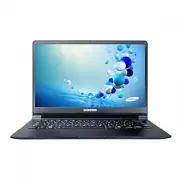


 Samsung NP750XDA-KD8UK User Manual
 Samsung NP750XDA-KD9DE User Manual
 Samsung NP900X3C-A01HU User Manual
 Samsung NP905S3G-K0ATR User Manual
 Samsung NP930QCA-KA4DE User Manual
 Samsung NP944XGKA-BIZ User Manual