Samsung LN40E550F7FXZA - User Manual
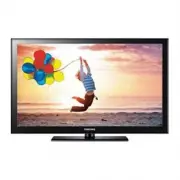
Samsung LN40E550F7FXZA TV – User Manual, read for free online in PDF format. We hope this helps you resolve any issues you may have. If you have further questions, please contact us through the contact form.


Table of Contents:
- Page 2 – English; Still image warning; Installation with a stand.
- Page 3 – Contents; ENGLISH; Getting Started; TOOLS
- Page 4 – List of Features; Media Play; Accessories; Check the cable before plug-in; Warning
- Page 5 – SOURCE
- Page 6 – Viewing the Remote Control; Installing batteries (; MTS
- Page 7 – POWER; SLEEP
- Page 8 – Connecting to an AV Device; Using an HDMI cable or HDMI to DVI Cable: HD connection (up to 1080p); VCR; AV IN; Connections
- Page 10 – Changing the Input source; Source List; Edit Name; MENU
- Page 11 – Seeing Channels; Channel List; Basic Features
- Page 12 – Using Favorite Channels; Add to Favorite / Delete from Favorite; Delete; Memorizing channels; Auto Program; Editing channels; Clear Scrambled Channel
- Page 13 – Basic Featur
- Page 14 – Picture Menu; Changing the Preset Picture Mode; Mode; Adjusting picture settings; Advanced Settings
- Page 15 – Picture Options; ENTER; Picture Reset
- Page 16 – Sound Menu; Changing the Preset Sound Mode; Adjusting sound settings; Equalizer; Sound Settings; Preferred Language
- Page 17 – Setting the Time; Time; Using the Sleep Timer; Timer 1
- Page 18 – Locking Programs
- Page 19 – Other Features; Language
- Page 20 – MUTE; Energy Saving; Support Menu; Self Diagnosis; TV Rear Panel
- Page 21 – Connecting a USB Device; Application; Using the Media Play Menu; Advanced Features
- Page 22 – Photo; Music; USB
- Page 25 – Assembling the Guide Stand (32 inches or above); Other Information; Guide Stand
- Page 26 – Securing the TV to the Wall (depending on the model); Caution
- Page 27 – Install the TV close to the wall so that it does not fall.
- Page 28 – Anti-Theft Kensington Lock
- Page 29 – Solutions and Explanations
- Page 32 – Storage and Maintenance; Do not spray water directly onto the product. Any liquid
- Page 33 – This device is a Class B digital apparatus.; License; Open Source License Notice
- Page 34 – Dimensions; FRONT VIEW / SIDE VIEW; Model name; Model name
LCD TV
user manual
Contact SAMSUNG WORLDWIDE
If you have any questions or comments relating to Samsung products, please contact the SAMSUNG customer care center.
Comuníquese con SAMSUNG WORLDWIDE
Si desea formular alguna pregunta o comentario en relación con los productos de Samsung, comuníquese con el centro de
atención al cliente de SAMSUNG.
Country
Customer Care Center
Web Site
Address
CANADA
1-800-SAMSUNG(726-7864)
www.samsung.com
Samsung Electronics Canada Inc., Customer
Service 55 Standish Court Mississauga,
Ontario L5R 4B2 Canada
Samsung Electronique Canada Inc.,
Service à la Clientèle 55 Standish Court
Mississauga, Ontario L5R 4B2 Canada
U.S.A
1-800-SAMSUNG(726-7864)
www.samsung.com
Samsung Electronics America, Inc.
85 Challenger Road
Ridgefield Park, NJ 07660-2112
imagine the possibilities
Thank you for purchasing this Samsung product.
To receive more complete service, please register
your product at
www.samsung.com/register
Model _____________ Serial No. _____________
✎
If you have any questions, please call us at 1-800-SAMSUNG (1-800-726-7864) for assistance.
BN68-04313A
BN68-04313A-00
[LD550-ZA] BN68-04313A.indb 1
2012-02-23 �� 1:51:30
"Loading the manual" means you need to wait until the file loads and becomes available for online reading. Some manuals are very large, and the time they take to appear depends on your internet speed.
Was this manual helpful?
About this manual
- Brand
- Samsung
- Model
- LN40E550F7FXZA
- Document type
- User Manual
- Category
- TV
- Language(s)
- English
- Pages
- 35
- File size
- 10.1 MB
- Format
Summary
2 English Figures and illustrations in this User Manual are provided for reference only and may differ from actual product appearance. Product design and specifications may be changed without notice. Important Warranty Information Regarding Television Format Viewing ✎ See the warranty card for more ...
3 Contents English ENGLISH Getting Started y List of Features ......................................................... 4 y Accessories .............................................................. 4 y Viewing the Control Panel ......................................... 5 y Viewing the Remote Contro...
4 4 Getting Started English Getting Started List of Features ■ Excellent Digital Interface & Networking : With a built-in HD digital tuner, nonsubscription HD broadcasts can be viewed without a cable box / STB (Set-Top-Box) satellite receiver. ■ Media Play : Allows you to play music files, and p...
Ask a question
Related manuals
Popular Samsung TVs


More Samsung TVs models
 Samsung LE40D503F7W User Manual
 Samsung LE40D504F7W User Manual
 Samsung LE40D550K1W User Manual
 Samsung LE40R72B User Manual
- Samsung LE46D550K1W User Manual
 Samsung LN40D630M3FXZA User Manual
- Samsung LN46D630M3FXZA User Manual
 Samsung MNA110MS1AC User Manual
 Samsung N4300 User Manual
 Samsung O55S90C (QE55S90CAUXUA) User Manual
 Samsung PE43H4500AK User Manual
 Samsung PN43D450A2DXZA User Manual