Page 2 - Safety Warnings
Safety Warnings 1 Use of controls, adjustments or performance of procedures otherthan those specified herein may result in hazardous radiationexposure. CAUTION-INVISIBLE LASER RADIATION WHEN OPEN AND INTERLOCKS DEFEATED, AVOIDEXPOSURE TO BEAM. This symbol indicates that dangerous voltage whichcan ca...
Page 3 - Precautions
Precautions Ensure that the AC power supply in your house complies with the identification sticker located on the back of your player. Install your playerhorizontally, on a suitable base (furniture), with enough space around it for ventilation (3~4inches). Make sure the ventilation slots are notcove...
Page 4 - offers fantastic audio and video, thanks to Dolby; Do not use the following types of disc!
DVD (Digital Versatile Disc) offers fantastic audio and video, thanks to Dolby Digital surround sound and MPEG-2 video compression technology. Now you canenjoy these realistic effects in the home, as if you were in a movie theater or concerthall. V I D E O DVD players and the discs are coded by regi...
Page 5 - Contents; PREP
4 Contents Safety Warnings Precautions Description Remote Control Listening on headphones CHAPTER 1. PREPARATION 1 2 5 7 8 Setting up the Language Features System Setup Speaker Setup To set up Speaker Balance Creating Realistic Sound Fields Dolby Pro Logic II decoder DSP (Digital Signal Processor) M...
Page 6 - Front Panel
Page 7 - Rear Panel; Accessories
PREP ARA TION Rear Panel 6 Remote Control Video/Audio Cable User's Manual FM Antenna AM Antenna Accessories 5.1 Channel Speaker Output Terminals COMPONENT VIDEOOUTPUT/INPUT jacks Connect a TV with component videoinput jacks to these jacks. External Digital Component Input Connectors Use these for co...
Page 8 - Remote Control Unit
Page 9 - Insert Remote Batteries; Replace the battery cover.
PREP ARA TION 8 30 30 7~10m Remove the battery cover onthe back of the remote bypressing down and sliding thecover in the direction of thearrow. Insert Remote Batteries Range of Operation of the Remote Control 1 Insert two 1.5V AAA batteries,paying attention to the correctpolarities (+ and –). 2 Rep...
Page 11 - CONNECTIONS; Connect Video to TV
Page 13 - AUX Connections
Page 15 - Before Using the DVD Player; rations; TV Broadcast System; • This device is designed to work with the PAL video format.; TV System Selection
• The “WAIT” message that appears on the display for about 4~5 seconds when turning on thepower or selecting a DVD function indicates a stabilization period for optimizing the condition ofyour DVD player. While the message is being displayed, other buttons remain inactive. • When the power is not tu...
Page 16 - DVD Playback; Pausing Playback
DVD Playback 15 • Depending on the disc, the initial discinformation screen may look differentfrom disc to disc. • When playing a DVD containing MPEGformat, video may not be reproducedcorrectly and you may get picturedistortion. Pausing Playback Press the Play/Pause ( ) button duringplayback. • To r...
Page 17 - Press the Display button on the remote.; Using the On-Screen Display; Turning the sound off temporarily?; Press the Mute button during playback.
OPERA TION 16 Press the Display button on the remote. If the player is left for more than 3 minutesin pause mode, it will stop. The On-Screen Display disappears. Using the On-Screen Display Display Display Display Display V I D E O 1/2 1/8 00:00:00 T C V I D E O ENG ENG OFF 1/3 1/1 D I G I T A L DOL...
Page 18 - Starting Playback
MP3-CD Playback 17 This system has a built-in MP3 decoder. You can play back MP3 tracks (files)recorded on CD-Rs, CD-RWs, and CD-ROMs. • It is recommended you turn on your TV when playing back an MP3-CD. Starting Playback Press the Open/Close( ) button to load a disc. 1 • After detecting the disc, p...
Page 19 - Operations Using the On-Screen Display; Repeating Playback; Press the Repeat button.
OPERA TION 18 Turn on your TV when playing back an MP3 disc. Operations Using the On-Screen Display When the loaded MP3 disc is recognized, the following on-screen display appears on the TV screen.(The contents of this on-screen display vary according to the disc — the way MP3 tracks were recorded o...
Page 20 - Forward/Reverse Searching; Each time the button is pressed; Skipping through a Chapter; Playing Frame by Frame
Forward/Reverse Searching 19 High-Speed Playback X 2 X 4 X 8 PLAY X 2 X 4 X 8 PLAY Each time the button is pressed Each time the button is pressed Skipping through a Chapter SEARCH SEARCH • Each time the button is pressed during playback, it moves to the nextor previous chapter and plays it. Playing...
Page 21 - Playing Slowly; Each time the Slow button is pressed; Checking the Remaining Time; Each time the Remain button is pressed; Press the Slow button.
OPERA TION Slow Playback/Checking theRemaining Time 20 Playing Slowly SLOW 1/2 SLOW 1/4 PLAY Each time the Slow button is pressed • For checking check the total time and the remaining time of a title or chapter being played. The slow playback speed changesand the selections (1/2X, 1/4X, 1/8X,1/16X a...
Page 22 - Repeat Playback; Playing Repeatedly; Each time the Repeat button is pressed; B Repeat Playback
Repeat Playback 21 Playing Repeatedly Each time the Repeat button is pressed Repeat playback allows you to repeat a chapter, title, or track. A ↔ B Repeat Playback Press the Repeat A ↔ B button again. 1 2 Repeat
Page 23 - Using Disc Menu/Title; OPERA; To Select the Disc Menu; Using the Title Menu; To move directly to a title, chapter, or time
Using Disc Menu/Title 22 OPERA TION Title To Select the Disc Menu Press the Menu button duringplayback. 1 Use the Up/Down ( ▲ / ▼ ) or Left/Right( / ) button toaccess the different features. Press the Enter button. 2 • The selected item will play. • The Menu Screen appears. • When playing a VCD vers...
Page 25 - To enlarge an image; Selecting the desired Screen Angle
OPERA TION 24 OFF 1/3 2/3 3/3 To enlarge an image • Images can be enlarged 2x and 4x. • During DVD playback, press the Zoom buttonto zoom in 2X/4X/normal, in that order. • Press / / ▲ / ▼ to move the enlarged portion you want to watch. • This function only works with discs on which multiple angles h...
Page 26 - Program Playback; To Program Tracks in a particular order; To Cancel the Programming
Program Playback 25 To Program Tracks in a particular order To Cancel the Programming PROGRAM MENU SELECT : ENTER TITLE CHAPT PREVIOUS NEXT TITLE CHAPT 2 3 4 5 678 9 10 1 PLAY : FINISH : PROGRAM TITLE CHAPT PREVIOUS NEXT TITLE CHAPT 2 1 3 4 5 678 9 10 1 PROGRAM MENU SELECT : ENTER FINISH : PROGRAM P...
Page 27 - To Change the Program
OPERA TION 26 • Press the Stop ( ) button twice during playback. • Press the Stop ( ) button once when in the Stop mode. • Press the Open/Close ( ) button on the main unit. The disc tray will open and then close. The program will thenbe deleted. To Change the Program Press the Up/Down ( ▲ / ▼ ) butt...
Page 30 - System Setup; To End the System Setup; To Set up the System
You can use the DVD player's Setup function to select the TV screen ratio,rating limit, or digital output mode. 29 System Setup ENGLISH CHINESE CHINESE CHINESE OSD LANGUAGE SYSTEM AUDIO SUBTITLE MENU LANGUAGE LANGUAGES : Move Setup : Exit 4:3 LB OFF BITSTREAM OUTPUT DIGITAL TV SCREEN RATING LEVEL : ...
Page 31 - SETUP; button to select either RATING LEVEL or; RATING LEVEL; When the rating level; : Select this to play a 16:9 picture in the; : Select this to play a 16:9 picture in the pan; screen mode on your wide screen TV.
SETUP 4:3 LB OFF BITSTREAM OUTPUT DIGITAL TV SCREEN RATING LEVEL : Move Setup : Exit LANGUAGES SYSTEM The Rating Level function works in conjunction with DVDs which have been assigneda rating, to help control the types of DVDs that your family watches. 1. Select RATING LEVEL, then press the Enter bu...
Page 32 - Speaker Setup
Speaker Setup 31 Setting up Speaker Mode and Delay Time • Each time the button is pressed, a different mode selection isdisplayed on the front panel display as shown below. SPK Mode The display changes depending on the current audio output mode(DSP, PRO LOGIC, 3-STEREO, STEREO, etc.). DIGITAL L LS R...
Page 33 - Ideal Speaker Placement; Front Speakers; Setting up the Speaker Delay Time
SETUP 32 Ideal Speaker Placement Front Speakers Center Speaker Rear Speakers Subwoofer Speaker Set the front speakers so that their tweeters (high-range) arealigned at about ear level and at a horizontal angle of 45° to theprime listening position. Ideally the center speaker should be positioned wit...
Page 34 - To set up Speaker Balance; Speaker Setting Methods; To End the
33 To set up Speaker Balance To set up Speaker Balance PRO LOGIC LINEAR PCM L C R LS LFE S RS D I G I T A L PRO LOGIC LINEAR PCM L C R LS LFE S RS D I G I T A L PRO LOGIC LINEAR PCM L C R LS LFE S RS D I G I T A L PRO LOGIC LINEAR PCM L C R LS LFE S RS D I G I T A L PRO LOGIC LINEAR PCM L C R LS LFE...
Page 36 - Dolby Pro Logic II decoder; Pro Logic II Mode; Dolby Pro Logic II
35 2 3 Press the Pro Logic II button. Press the DSP/DPL II Mode button. 1 Press the Function button on the front panel to select the desired function. • Each time the Pro Logic II button is pressed. • Select from FM ➞ AM ➞ DVD ➞ DIGITAL IN ➞ AUX 1 ➞ AUX 2. • Each time the DSP/DPL II Mode button is p...
Page 37 - Dolby Pro Logic II Effect Function
SETUP 36 Dolby Pro Logic II Effect Function Effect • When playing a DVD encoded in two or more channels, DOLBY PRO LOGIC II modecannot be selected. • Panorama ModeThis mode extends the front stereo image to include the surround speakers for anexciting “wraparound” effect with side wall imaging. • Ce...
Page 38 - II; Provides a clear vocal and simulates the feeling of a concert hall.
DSP (Digital Signal Processor) Modes DSP modes have been designed to simulate different acoustic environments.The sound heard in a hall, theater, pavilion, dance club, or live club consists of directand indirect sound —early reflections and reflections from behind.Direct sounds reach the listener di...
Page 40 - Listening to the Radio; To Listen in Mono/Stereo
39 When the button is pressed, a presetbroadcast station is selected. Hold in the button. Automatic searchingbegins, and then stops when a station is tuned in. Press the button to tune to the chosenstation. The frequency changes incrementally in eitherdirection each time the corresponding button is ...
Page 41 - Presetting stations; To tune in a preset station
RADIO OPERA TION 40 Presetting stations Example: Presetting FM 89.1 in the memory MH Z L R PROGRAM MH Z L R PROGRAM MH Z L R L R MH Z L R MH Z L R Press the Tuner(Band) buttonand select the FM band. Select the MANUAL bypressing the Stop ( ) buttonon the main unit. 1 Use the andbutton to tune into 89...
Page 42 - Troubleshooting; No sound is produced.; Problem
Troubleshooting • Is the disc installed with the label side facing up? • Is the power cord plugged securely into the power outlet? • Turn off the power to the unit by pressing the Power ( ) buttonand turn it back on. • Check the region number of the DVD. • DVD discs purchased abroad may not be playa...
Page 45 - MISCELLANENOUS; Disc Type and Protection; Marks; Recording; Usable Discs
MISCELLANENOUS 44 Disc Type and Protection COMPACT DIGITAL VIDEO V I D E O COMPACT DIGITAL AUDIO Marks Audio + Video DVD VIDEO-CD AUDIO-CD 12cm Approx. 240 min. (Single-sided) Approx. 480 min. (Double-sided) Approx. 80 min. (Single-sided) Approx. 160 min. (Double-sided) 74 min. 20 min. 74 min. 20 mi...
Page 46 - Specification
Specification Power Consumption Weight Dimensions (W x H x D) Operating Temperature Range Operating Humidity Range Usable Sensitivity S/N Ratio Distortion Usable Sensitivity S/N Ratio Distortion Composite Video Component Video S-VIDEO Front speaker output Center speaker output Rear speaker output Su...
Page 48 - THIS APPLIANCE IS MANUFACTURED BY:
THIS APPLIANCE IS MANUFACTURED BY: AH68-01141J DM150-Cover(GB)-NOR 7/27/02 13:07 Page 1


 Samsung HT-D5500 User Manual
 Samsung HT-D6500 User Manual
 Samsung HT-D7000 User Manual
 Samsung HT-D7200 User Manual
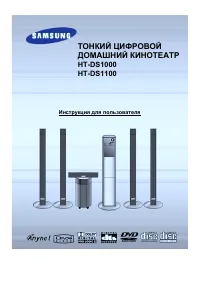 Samsung HT-DS100 Manual
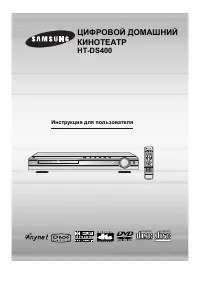 Samsung HT-DS400 Manual
 Samsung HT-E4200 User Manual
 Samsung HT-E4500 User Manual
 Samsung HT-E4550 User Manual
 Samsung HT-E5200 User Manual
 Samsung HT-E5530 User Manual