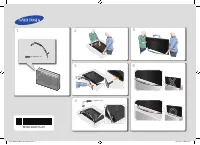
Page 2 - Instruction; Interactive; Operational Modes; Installation with a stand.
Figures and illustrations in this User Manual are provided for reference only and may differ from actual product appearance. Product design and specifications may be changed without notice. Instruction This TV is provided with interactive functionality through a set-back box (SBB/STB) connected to t...
Page 3 - Contents; ENGLISH; English
Contents ENGLISH 3 English y Accessories ............................................................................................................................................. 4 y Installing the LED TV Stand ........................................................................................
Page 4 - Stand Components; Stand
4 English Accessories ✎ Please make sure the following items are included with your LED TV. If any items are missing, contact your dealer. ✎ The items’ colours and shapes may vary depending on the model. y Remote Control & Batteries (AAA x 2) y Power Cord / Data Cable y Safety Guide (Not availab...
Page 5 - Front; ATTENTION; Side; Make sure that at least two people lift and move the TV.
5 English HG**ED670,HG**AD670 ✎ Place a soft cloth over the table to protect the TV, and then place the TV on the cloth screen-side down. ✎ Insert the Stand Guide into the slot on the bottom of the TV. ✎ Slide and assemble it to the end line in the direction of arrow. 1 3 2 (M4 X L12) x4 B C A-1 Fro...
Page 7 - Insert the Stand Guide into the slot on the bottom of the TV.
7 English HG40ED470 / HG40AD470 x4 (M4 X L12) C A-5 B-1 Front ATTENTION Top View DO NOT USE CHEMICALS DO NOT USE GREASE DO NOT USE OIL ✎ Place a soft cloth over the table to protect the TV, and then place the TV on the cloth screen-side down. ✎ Insert the Stand Guide into the slot on the bottom of t...
Page 9 - Assembling the swivel (32 inch TVs or larger); Top; WARNING
9 English Assembling the swivel (32 inch TVs or larger) The TV stand more than 32inch supports the swivel function. The swivel angle support all of 20°, 60° and 90° and you can change the swivel angle by using BRACKET HOLDER SWIVEL.Support the swivel models: HG**D670 (HG32AD670DJXZK is not supported...
Page 10 - Viewing the Connection Panel
10 English Viewing the Connection Panel ! @ HDMI IN 2 (DVI) HDMI IN 1 (ARC) (5V 0.5A) / CLONING COMMON INTERFACE 6 1 4 5 3 7 9 8 0 DATA HP-ID RJP AV IN AUDIO VIDEO VOL-CTRL PC / DVI AUDIO IN VARIABLE AUDIO OUT PC IN CLOCK 2 $ # < HD670 > HG32ED670HG40ED670HG48ED670HG55ED670 < HD470 > HG2...
Page 17 - Ext; Display Modes; IBM
17 English @ HDMI IN (ARC) Connects to the HDMI jack of a device with an HDMI output. – No sound connection is needed for an HDMI-HDMI connection. HDMI connections carry both audio and video. – Use the HDMI IN (DVI) jack for a DVI connection to an external device. Use a DVI to HDMI cable or DVI-HDMI...
Page 19 - Using the TV’s Controller; Standby mode
19 English Using the TV’s Controller The TV Controller, which is a small joystick like button at the right back of the TV, lets you control the TV without the remote control. Selecting Media Play Power off Selecting a Source Selecting the Menu Function menu TV Controller The image is drawn by facing...
Page 20 - Viewing the Remote Control; Power; ALARM; GUIDE; Channel List; NOTE
20 English Viewing the Remote Control ✎ This remote control has Braille points on the Power , Channel , and Volume buttons and can be used by visually impaired persons. A B C D ALARM SUBT. CLOCK GUIDE CONTENT HOME CH LIST TTX/MIX Turns the TV on and off. Have direct access to channels. Alternately s...
Page 21 - MENU
21 English Using the Sports Mode Sports Mode t O MENU m → Applications → Sports Mode → ENTER E This mode provides optimized condition for watching sports games. y a ( Zoom ): Pause playback and divide the picture into 9 parts. Select a part to zoom it in. Press this button again to resume. ✎ When th...
Page 22 - Connecting the TV with SBB; ETH MODEM; Data Cable
22 English Connecting the TV with SBB ETH MODEM DATA HP-ID RJP AV IN AUDIO VIDEO VOL-CTRL PC / DVI AUDIO IN VARIABLE AUDIO OUT PC IN CLOCK DATA HP-ID RJP AV IN AU DI O VIDE O VOL-CTRL PC / DVI AUDIO IN VARIABLE AUDIO OUT PC IN CLOCK DATA Data Cable TV Rear Panel 1. Connect the DATA jack of the TV to...
Page 23 - List of Vendors and Compatible Data Cables Supplied with the TV
23 English List of Vendors and Compatible Data Cables Supplied with the TV y Confirm that you are using the correct data cable for your vendor. Refer to the code label on the data cables. ✎ Operation Specification of Data Cable(RJ12) : RS232
Page 24 - Connecting the Bathroom Speakers; VARIABLE AUDIO OUT; Volume Control Box
24 English Connecting the Bathroom Speakers You can connect the Bathroom Speakers using the following method. (HD470 not support it) Connecting through the Variable Output (available without an external amplifier) AUDIO VIDEO VOL-CTRL VARIABLE AUDIO OUT AU DI O VIDE O VOL-CTRL VARIABLE AUDIO OUT VOL...
Page 25 - HEADPHON BOX; TV Rear Panel; TV Headphones jack
25 English HP-ID An additional Headphone Box can be installed on a bed or business desk for added convenience. The installation procedures are given below. y Detailed Drawing of the Headphone Box. HP-ID A HP-ID A HP-ID HEADPHON BOX TV Rear Panel Headphone Box TV Headphones jack Whitewire (Audio-L) S...
Page 26 - Connecting the MediaHub HD
26 English Connecting the MediaHub HD Output to any external source connected to MediaHub HD on the hotel desk. HDMI USB RS/232 HDMI IN 2 (DVI) HDMI IN 1 (ARC) (5V 0.5A) / CLONING COMMON INTERFACE AIR/CABLE DATA HP-ID RJP AV IN AUDIO VIDE O VOL-CTRL PC / DVI AUDIO IN VARIABLE AUDIO OUT PC IN CLOCK H...
Page 27 - PC IN
27 English Connecting the RJP (Remote Jack Pack) Output to any external source connected to RJP on the hotel desk. HDMI IN 2 (DVI) HDMI IN 1 (ARC) (5V 0.5A) / CLONING COMMON INTERFACE AIR/CABLE DATA HP-ID RJP AV IN AUDI O VIDEO VOL-CTRL PC / DVI AUDIO IN VARIABLE AUDIO OUT PC IN CLOCK HDMI IN 2 (DVI...
Page 29 - Setting the Hotel Option Data; MUTE
29 English Setting the Hotel Option Data To Enter: Press the MUTE → 1 → 1 → 9 → ENTER E buttons in order. (From the Hospitality mode, the Standalone mode is set.) To Exit from this menu: power off and turn on again. No Hotel TV Function Description Category Item Initial value 1 Hospitality Mode Hosp...
Page 35 - Welcome Message; – The Welcome message settings are placed in the Hotel Option Menu.; ; Edit Welcome Message
35 English Welcome Message The Welcome message is a feature that allows you to display customized message on the TV every time the TV is turned on by a guest in a hotel room. – The Welcome message settings are placed in the Hotel Option Menu. – The Welcome message should be ON in order for the messa...
Page 36 - Hotel Logo; Hospitality Logo
36 English Hotel Logo The Hospitality Logo function displays the Hotel’s logo when the TV is powered on. – The Hospitality Logo settings are in the Hospitality mode menus. – The Logo Download and Logo Display Menu items are enabled when you turn the Hospitality Logo option on. – If there is a logo i...
Page 38 - OK; Auto Tuning; Clock; Configure your TV; Easy Set up; Local Set; System
38 English Plug & Play The Hotel Plug & Play function automatically performs the Hotel mode selection, Country Setup, Clock Setup and Picture mode Setup when the TV starts for the first time. – Hotel Plug & Play is only available when the power is turned ON for the first time. – After se...
Page 40 - Europe; Region
40 English HD Plug & Play – Local Set (Only Europe) y Local Set is very important software setting value such as Languages, Broadcast frequencies, etc. y TV might not function, if Local Set is not correctly configured. Select correct Local Set with country list provided. Local Set Change Locat S...
Page 41 - SW Clock
41 English SW Clock The SW Clock shows the current time on the screen when a user presses the Info remote control key in standby mode. – If a user presses the Info key when the TV is in standby mode, the TV is turned on and shows the current time on the screen for 10 seconds and then returns to stan...
Page 42 - Multi Code Remocon; RETURN; Remote control code is set to 0. If you want; EXIT; Setting the Time
42 English Multi Code Remocon Multi Code Remote Control is a special transmitter which is designed to control multiple TVs with one remote.This function is useful when there is more than one TV in one location such as a hospital. The Set ID number will be displayed in the source OSD. It is possible ...
Page 43 - Setting the Channel Bank Editor in Stand-alone Mode; Channel Bank Edit; References of using SMOOVIE Remote Controller
43 English Channel Bank Editor (Smoovie TV Only) Channel Bank Editor is a function to edit channels with 3 different Bank Options.Depending on the Bank card, there are specific channels hotel customers can enjoy. Setting the Channel Bank Editor in Stand-alone Mode 1. Enter the Hotel Standalone menu ...
Page 44 - Channel Editor; Channel Editor edits channel number and name.; Simple Steps for channel Editor under Stand-alone Mode; TOOLS
44 English Channel Editor Channel Editor edits channel number and name. – Use Channel Editor to sort the channels as user-desired channel numbers. Hospitality Mode Standalone System SI Vendor OFF Power On Channel Menu OSD Clock Music Mode Remote Jack Pack External Source HP Management Bathroom Speak...
Page 45 - You must select the country first, or you cannot set a genre.; My Channel; Key Guide
45 English My Channel Determines the country and genre for the channels provided by the hotel, and if the user selects a country and genre, shows the corresponding channels. y You must select the country first, or you cannot set a genre. y If you select the genre that not added any channels, the Cha...
Page 48 - The current selection of the country is high-lighted.; Default Highlight: All
48 English Highlight Interaction [Default Genre] y This page is only to indicate possible interactions. It may not be exactly identical to actual screens. ENTER / RIGHT LEFT My Channel Current status All Country / All } Keep Previous n Move E Enter All Country Austria Belgium China Denmark Finland A...
Page 50 - The genre mode change complete message is displayed.
50 English Mode Change Interaction 1 (2/2) y This page is only to indicate possible interactions. It may not be exactly identical to actual screens. ENTER / RETURN / Timeout My Channel Current status All Country / All } Keep Previous n Move E Enter All Country Austria Belgium China Denmark Finland A...
Page 52 - POWER; Power Off
52 English Mode Change Interaction 1 (2/2) y This page is only to indicate possible interactions. It may not be exactly identical to actual screens. POWER POWER Genre Mode changed to Aistria / News. Genre Mode changed to Aistria / News. Power Off 1 y Current Genre Mode: Austria / News y Current Genr...
Page 53 - Channel Genre Edit; An editor to set genre for each Hotel TV channel.
53 English Genre Editor y Country and Genre selection can be done in channel list Menu. y Pressing Red Key enables country sub list, here viewer can scroll down and select country of choice. y Genre selection can be done using Left/right key i.e scrolling horizontally in channel list menu. y If view...
Page 54 - Samsung Sound-Bar & Hospitality TV in 2015
54 English Mixed Channel Map The Mixed Channel Map function mixes Air, Cable and Satellite channels. – The Mixed Channel Map function should be ON in order to mix Air, Cable and Satellite channels. – Use the Channel Editor to sort the channels after turning on the ‘Mixed Channel Map’ function in the...
Page 55 - Installing the Wall Mount; The Wall mount kit is not supplied but sold separately.; inches
55 English Installing the Wall Mount 1. Installing the Wall Mount kit with the GUIDE-STAND supplied by SAMSUNG, please refer to the “Wall Mount Quick setup guide” 2. Installing other Wall Mount, please refer as follow:The wall mount kit (sold separately) allows you to mount the TV on the wall. For d...
Page 56 - Securing the TV to the Wall; Caution; To avoid the TV from falling; Anti-theft Kensington Lock
56 English Securing the TV to the Wall [ Caution : Pulling, pushing, or climbing onto the TV may cause the TV to fall. In particular, ensure that your children do not hang over or destabilize the TV; doing so may cause the TV to tip over, resulting in serious injuries or death. Follow all safety pre...
Page 57 - Specifications; The above specifications may differ depending on the model.
57 English Specifications Items Specification Comment TV System PAL,SECAM DVB-TC,DTMB (HongKong),DVB-T2C Audio out Speaker out 24-28 inch: 5W X 2 The HG32ED470 is 5W X 2, the other is 32 inch of 10W X 2 40inch / 48inch / 55inch: 10W X 2 Variable Audio 4W mono 8 ohm SPK' Phone Jack output BTL Sound o...
Page 58 - Supported Video Formats; Other Restrictions; Supported Subtitle Formats; External; Supported Photo Formats
58 English Supported Video Formats File Extention Container Video Codec Resolution Frame rate(fps) Bit rate(Mbps) Audio Codec *.avi / *.mkv *.asf / *.wmv *.mp4 / *.3gp *.vro / *.mpg*.mpeg / *.ts *.tp / *.trp *.mov / *.flv*.vob / *.svi *.divx AVI MKV ASF MP4 3GP MOV FLV VROVOB PS TS DivX 3.11/4.x/5.x...
Page 59 - Contact SAMSUNG WORLD WIDE; CZECH
© 2015 Samsung Electronics Co., Ltd. All rights reserved. HD470_670-EU-ENG-04 Contact SAMSUNG WORLD WIDE If you have any questions or comments relating to Samsung products, please contact the SAMSUNG customer care centre. Country Customer Care Centre Web Site AUSTRIA 0800-SAMSUNG (0800-7267864) [Onl...