Samsung Galaxy Grand Neo (GT-I9060) - User Manual
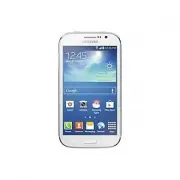
Samsung Galaxy Grand Neo (GT-I9060) Smartphone – User Manual, read for free online in PDF format. We hope this helps you resolve any issues you may have. If you have further questions, please contact us through the contact form.


Table of Contents:
- Page 2 – Legal
- Page 3 – Contents
- Page 4 – Your phone and accessories; In this section
- Page 5 – What’s in the box
- Page 6 – Getting to know your phone
- Page 7 – Installing the battery, and SIM card; Open the phone’s back cover
- Page 8 – Replace the phone’s back cover; Remove or insert the battery
- Page 10 – Remove or insert a SIM card
- Page 11 – Charging your phone; Charge the phone
- Page 12 – Using the headset
- Page 13 – Turning the phone on and off; Turn on the phone
- Page 14 – Unblock a SIM
"Loading the manual" means you need to wait until the file loads and becomes available for online reading. Some manuals are very large, and the time they take to appear depends on your internet speed.
Summary
2 About this manual This device provides high quality mobile communication and entertainment using Samsung’s high standards and technological expertise. This user manual is specially designed to detail the device’s functions and features. • Please read this manual before using the device to ensure s...
About this manual 3 • Default applications that come with the device are subject to updates and may no longer be supported without prior notice. If you have questions about an application provided with the device, contact a Samsung Service Centre. For user-installed applications, contact service pro...
About this manual 4 Trademarks • SAMSUNG and the SAMSUNG logo are registered trademarks of Samsung Electronics. • Bluetooth ® is a registered trademark of Bluetooth SIG, Inc. worldwide. • Wi-Fi ® , Wi-Fi Protected Setup ™ , Wi-Fi Direct ™ , Wi-Fi CERTIFIED ™ , and the Wi-Fi logo are registered trade...




