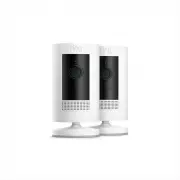
Ring B09P45P69G Security Camera – User Manual, read for free online in PDF format. We hope this helps you resolve any issues you may have. If you have further questions, please contact us through the contact form.
1
2
3
4
5
6
7
8
9
10
11
Table of Contents:
Page 2 – Charge the provided battery.; Charge and insert; Insert the battery
Page 3 – Download the Ring app.; Set up your Stick Up
Page 4 – Stick Up Cam Battery.; How to use Stick Up Cam
Page 5 – How to install Stick Up Cam
Page 6 – Rotate the stand above the camera:; Snap the cover back
Page 8 – Mount your Ring; Round Plug
Page 9 – Remove the two screws
Page 10 – Get your Wi-Fi password
Loading the manual
Stick Up Cam Battery
"Loading the manual" means you need to wait until the file loads and becomes available for online reading. Some manuals are very large, and the time they take to appear depends on your internet speed.
Summary
Page 2 - Charge the provided battery.; Charge and insert; Insert the battery
Charge the provided battery. First , fully charge the battery by plugging it into a USB port using the provided orange cable. The battery is fully charged when just one LED is lit . = Charged = Charging 1. Charge and insert the battery. Insert the battery Insert the charged battery into the bottom o...
Page 3 - Download the Ring app.; Set up your Stick Up
2. Set up your Stick Up Cam in the Ring app. Download the Ring app. The app walks you through setting up and managing your Stick Up Cam. Search for “Ring ” in one of the app stores below, or visit : ring.com /app Download from Windows Store Grab your Wi-Fi password. You’ll need it to set up your Sti...
Page 4 - Stick Up Cam Battery.; How to use Stick Up Cam
3. Install your Stick Up Cam Battery. How to use Stick Up Cam on a table or shelf: Choose a location. Stick Up Cam is happy just about anywhere, indoors or out . It comes ready to sit on a flat surface like a table or shelf, but can also be mounted to a wall or ceiling. Just choose a spot where it c...
Page 5 - How to install Stick Up Cam
Remove the plastic cover and rubber pad from the base. You’ll put the cover back on once you’ve mounted your Stick Up Cam. Flip the base to the rear. The base of the stand is hinged. Before wall-mounting, flip the base down and behind your Stick Up Cam. Push the rubber pad back into the base. The ru...
Page 6 - Rotate the stand above the camera:; Snap the cover back
How to install Stick Up Cam on a ceiling: Drive the screws. Hold the round part of the base against your ceiling, rubber-side down. Then mount it with the included screws. Rotate the stand above the camera: The whole stand can rotate on its axis. Before ceiling- mounting, rotate the stand 180 degree...
Page 8 - Mount your Ring; Round Plug
4. If you have a Ring Solar Panel... Ring Solar Panel charges the battery in your Stick Up Cam whenever the sun is shining. To purchase your own, visit : Mount your Ring Solar Panel. Follow the Ring Solar Panel instructions to mount the panel to your home and route its power cable to your Stick Up C...
Page 9 - Remove the two screws
How to connect a Ring Solar Panel with a screw tab power plug: Remove the two screws next to the power port. Be sure to save them, as you’ll need them to secure the power plug later. Insert the power plug. In most cases, the trailing cable should point down. Secure the plug. Be sure to use the screw...
Page 10 - Get your Wi-Fi password
5. Need a little setup help? If your in-app setup doesn’t go as planned, try these tips: Get your Wi-Fi password just right. The most common setup issues come from entering the wrong Wi-Fi password. These passwords are case- sensitive, and every little error counts. Reboot your router. If you entere...