Page 2 - CO N T E N T S
CO N T E N T S 1. P R E PA R I N G F O R U S I N G . . . . . . . . . . . . . . . . . . . . . . . . . . . . . . . . . . . . . . . . . . . . . . . . . . . . . . . . . . . . . . . . . 3 1 .1 PA RT S O F T H E CA M E RA . . . . . . . . . . . . . . . . . . . . . . . . . . . . . . . . . . . . . . . . . . ...
Page 4 - Inserting the battery and memory card; . Slide and open the bottom plastic cover as per the
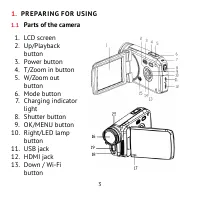
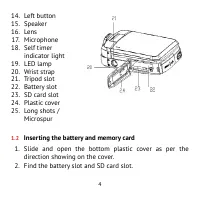
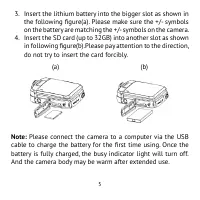
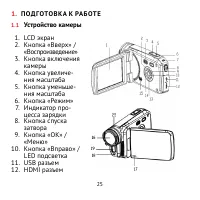
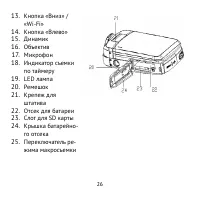
4 14 . Left button 15 . Speaker 16 . Lens 17 . Microphone 18 . Self timer indicator light 19 . LED lamp 20 . Wrist strap 21 . Tripod slot 22 . Battery slot 23 . SD card slot 24 . Plastic cover 25 . Long shots / Microspur 1.2 Inserting the battery and memory card 1 . Slide and open the bottom plastic...
Page 7 - Formatting the memory card
7 you want to modify. And press OK button to confirm and exit . 5 . Press the Left button to turn back .Press the Mode button(or touch the ”Back” icon on the screen)to exit the setup menu . 2.3 Formatting the memory card It is important to formatting the memory card for the first time using. All the...
Page 8 - Changing the mode; The camera has 3 different modes: capture mode, video mode; Display on the LCD screen; Video Mode; . Memory card capacity
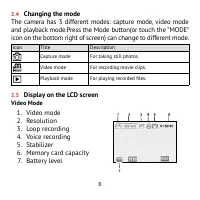
8 2.4 Changing the mode The camera has 3 different modes: capture mode, video mode and playback mode.Press the Mode button(or touch the ”MODE“ icon on the bottom right of screen) can change to different mode. Icon Title Description Capture mode For taking still photos . Video mode For recording movi...
Page 9 - Capture Mode; . Memory card capacity; Playback Mode; The sequence of current file/
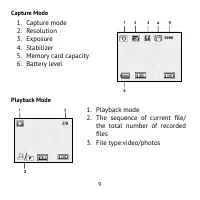
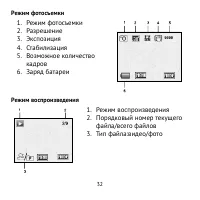
9 Capture Mode 1 . Capture mode 2 . Resolution 3 . Exposure 4 . Stabilizer 5 . Memory card capacity 6 . Battery level Playback Mode 1 . Playback mode 2 . The sequence of current file/ the total number of recorded files 3 . File type:video/photos
Page 10 - Setting the camera; Before taking photographs or recording videos, turn on the
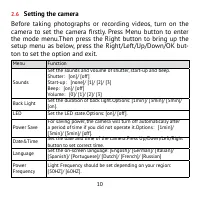
10 2.6 Setting the camera Before taking photographs or recording videos, turn on the camera to set the camera firstly. Press Menu button to enter the mode menu .Then press the Right button to bring up the setup menu as below, press the Right/Left/Up/Down/OK but - ton to set the option and exit . Men...
Page 11 - R E CO R D I N G V I D E O; Turn on the camera, press the Mode button to set the
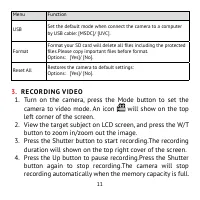
11 Menu Function USB Set the default mode when connect the camera to a computer by USB cable: [MSDC]/ [UVC] . Format Format your SD card will delete all files including the protected files.Please copy important files before format. Options : [Yes]/ [No] . Reset All Restores the camera to default set...
Page 13 - TA K I N G S T I L L I M AG E S; Turn on the camera, and press the Mode button to set the
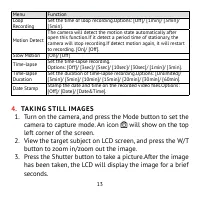
13 Menu Function Loop Recording Set the time of loop recording .Options: [Off]/ [1min]/ [3min]/ [5min] . Motion Detect The camera will detect the motion state automatically after open this function.If it detect a period time of stationary, the camera will stop recording.If detect motion again, it wi...
Page 16 - P L AY B AC K; Entering playback mode; eo File” and “JPG File”.Chose the option you want to playback,; View all the files; and video files one by one.Press the OK button to chose file; Playback video files; Press the Shutter button to play the video, press the Up but
16 5. P L AY B AC K 1. Entering playback mode Turn on the camera and press the Mode button to set the cam- era to playback mode .The screen will show two options ”Vid- eo File” and “JPG File”.Chose the option you want to playback, press OK button to enter the playback interface . An icon will appear...
Page 17 - Playback Mode Menu; M A K E CO N N E CT I O N S; view the target subject on TV .
17 5.1 Playback Mode Menu Menu Function Lock Use this function to protect the files from being deleted by accident: [Single]/ [Lock All]/ [Unlock All] . Delete Use this function to delete single file or all files: [Single]/ [All]. 6. M A K E CO N N E CT I O N S 6.1 Connecting the camera to a HDTV Co...
Page 18 - There are two ways to download files from the camera’s inter; Using a Card Reader; on the computer’s hard disk.; Connecting the camera to a PC by the USB Cable; Disk” appears in the drive list. Double-click the “Removable
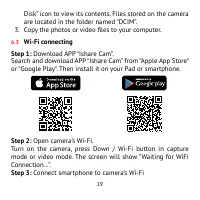
18 6.2 Connecting the camera to a computer Download the files on the computer There are two ways to download files from the camera’s inter - nal memory or memory card to a computer: • By inserting the memory card into a card reader • By connecting the camera to a computer by the supplied USB cable ....
Page 20 - How to use the PC camera function
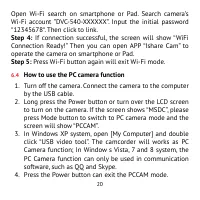
20 Open Wi-Fi search on smartphone or Pad. Search camera’s Wi-Fi account ”DVC-540-XXXXXX” . Input the initial password “12345678“. Then click to link. Step 4: If connection successful, the screen will show “WiFi Connection Ready!” Then you can open APP “Ishare Cam” to operate the camera on smartphon...
Page 21 - S P E C I F I CAT I O N
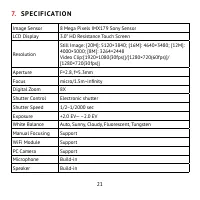
21 7. S P E C I F I CAT I O N Image Sensor 8 Mega Pixels IMX179 Sony Sensor LCD Display 3 .0” HD Resistance Touch Screen Resolution Still Image: [20M]: 5120×3840; [16M]: 4640×3480; [12M]: 4000×3000; [8M]: 3264×2448 Video Clip:[1920×1080(30fps)]/[1280×720(60fps)]/ [1280×720(30fps)] Aperture F=2.8, f=...
Page 22 - Manufacturer is not responsible for accidental mistakes and
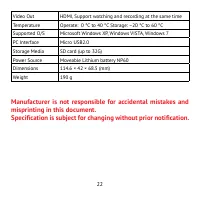
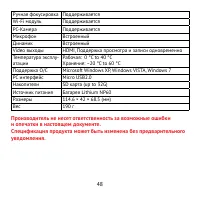
22 Video Out HDMI, Support watching and recording at the same time Temperature Operate: 0 °C to 40 °C Storage: –20 °C to 60 °C Supported O/S Microsoft Windows XP, Windows VISTA, Windows 7 PC Interface Micro USB2 .0 Storage Media SD card (up to 32G) Power Source Moveable Lithium battery NP60 Dimensio...
Page 24 - СОД Е РЖА Н И Е
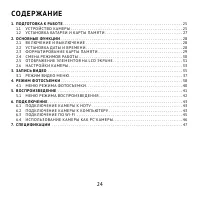
24 СОД Е РЖА Н И Е 1. П ОД ГОТО В КА К РА Б ОТ Е . . . . . . . . . . . . . . . . . . . . . . . . . . . . . . . . . . . . . . . . . . . . . . . . . . . . . . . . . . . . . . . 25 1.1 УС Т Р О Й С Т В О К А М Е Р Ы . . . . . . . . . . . . . . . . . . . . . . . . . . . . . . . . . . . . . . . . . . . ....
Page 27 - Установка батареи и карты памяти
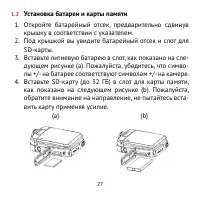
27 1.2 Установка батареи и карты памяти 1 . Откройте батарейный отсек, предварительно сдвинув крышку в соответствии с указателем. 2 . Под крышкой вы увидите батарейный отсек и слот для SD-карты. 3 . Вставьте литиевую батарею в слот, как показано на сле - дующем рисунке (а). Пожалуйста, убедитесь, чт...
Page 29 - Форматирование карты памяти
29 2 . Нажмите кнопку «Меню» (или нажмите на значок «Ме - ню» на экране), чтобы войти в меню интерфейса. За - тем нажмите кнопку «Вправо», чтобы войти в меню настроек. 3 . Нажмите кнопку «Вверх» и «Вниз» (или коснитесь «Дата и время» на экране), чтобы перейти к пункту установки даты и времени. Зат...
Page 30 - Смена режимов работы
30 щенные файлы будут удалены. Пожалуйста, убедитесь, что вы сохранили все важные файлы на компьютер перед фор - матированием. 1 . Включите камеру. 2 . Нажмите кнопку «Меню», чтобы войти в меню интер - фейса, а затем нажмите кнопку «Вправо», чтобы войти в меню настроек. 3 . Выберите элемент меню «...
Page 31 - Отображение элементов на LCD экране; Видео режим
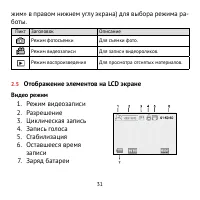
31 жим» в правом нижнем углу экрана) для выбора режима ра - боты. Пикт Заголовок Описание Режим фотосъемки Для съемки фото. Режим видеозаписи Для записи видеороликов. Режим воспроизведения Для просмотра отснятых материалов. 2.5 Отображение элементов на LCD экране Видео режим 1 . Режим видеозаписи 2 ...
Page 33 - Настройки камеры; Перед тем как приступить к фотосъемке или записи видео,
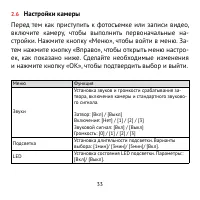
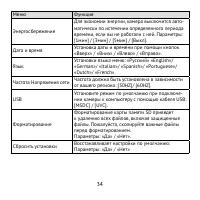
33 2.6 Настройки камеры Перед тем как приступить к фотосъемке или записи видео, включите камеру, чтобы выполнить первоначальные на - стройки. Нажмите кнопку «Меню», чтобы войти в меню. За - тем нажмите кнопку «Вправо», чтобы открыть меню настро - ек, как показано ниже. Сделайте необходимые изменени...
Page 35 - З А П И С Ь В И Д Е О
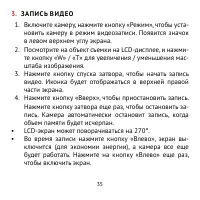
35 3. З А П И С Ь В И Д Е О 1 . Включите камеру, нажмите кнопку «Режим», чтобы уста - новить камеру в режим видеозаписи. Появится значок в левом верхнем углу экрана. 2 . Посмотрите на объект съемки на LCD-дисплее, и нажми - те кнопку «W» / «T» для увеличения / уменьшения мас - штаба изображения. 3 ...
Page 37 - Режим видео меню
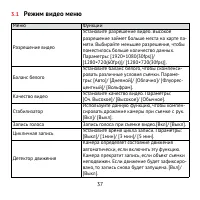
37 3.1 Режим видео меню Меню Функции Разрешение видео Установите разрешение видео. Высокое разрешение займет больше места на карте па - мяти. Выбирайте меньшее разрешение, чтобы поместилось больше количество данных. Параметры: [1920×1080(30fps)]/ [1280×720(60fps)]/ [1280×720(30fps)]. Баланс белого У...
Page 38 - Р Е Ж И М Ф ОТО СЪ Е М К И; Включите камеру и нажмите кнопку «Режим», чтобы пе
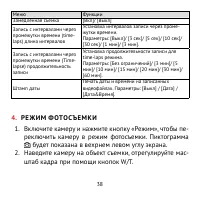
38 Меню Функции Замедленная съемка [Вкл]/ [Выкл] Запись с интервалами через промежутки времени (time- laps) длина интервалов Установка интервалов записи через проме - жутки времени. Параметры: [Выкл]/ [3 сек]/ [5 сек]/ [10 сек]/ [30 сек]/ [1 мин]/ [3 мин]. Запись с интервалами через промежутки време...
Page 40 - Меню Режима фотосъемки
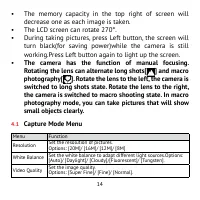
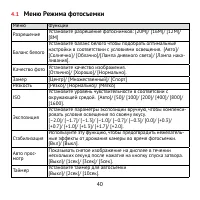
40 4.1 Меню Режима фотосъемки Меню Функции Разрешение Установите разрешение фотоснимков: [20M]/ [16M]/ [12M]/ [8M] Баланс белого Установите баланс белого чтобы подобрать оптимальные настройки в соответствии с условиями освещения. [Авто]/ [Солнечно]/ [Облачно]/[Лампа дневного света]/ [Лампа нака - ли...
Page 41 - В О С П Р О И З В Е Д Е Н И Е; Переключите камеру в режим воспроизведения.
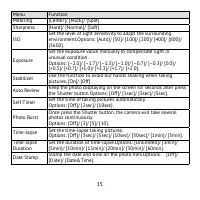
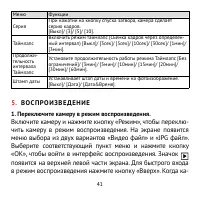
41 Меню Функции Серия При нажатии на кнопку спуска затвора, камера сделает серию кадров. [Выкл]/ [3]/ [5]/ [10]. Таймлапс Включить режим таймлапс (Съемка кадров через определен - ный интервал) [Выкл]/ [3сек]/ [5сек]/ [10сек]/ [30сек]/ [1мин]/ [3мин]. Продолжи - тельность интервала Таймлапс Установит...
Page 42 - Меню режима воспроизведения
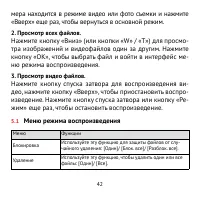
42 мера находится в режиме видео или фото съемки и нажмите «Вверх» еще раз, чтобы вернуться в основной режим. 2. Просмотр всех файлов. Нажмите кнопку «Вниз» (или кнопки «W» / «T») для просмо - тра изображений и видеофайлов один за другим. Нажмите кнопку «OK», чтобы выбрать файл и войти в интерфейс м...
Page 43 - Загрузка файлов на компьютер
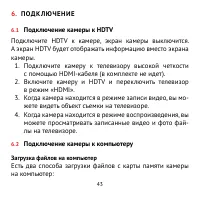
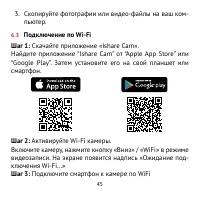
43 6. П ОД К Л Ю Ч Е Н И Е 6.1 Подключение камеры к HDTV Подключите HDTV к камере, экран камеры выключится. А экран HDTV будет отображать информацию вместо экрана камеры. 1 . Подключите камеру к телевизору высокой четкости с помощью HDMI-кабеля (в комплекте не идет). 2 . Включите камеру и HDTV и ...
Page 46 - Использование камеры как PC-камеры
46 Откройте поиск WiFi на смартфоне. Найдите название вашей камеры в списке и введите пароль для входа «12345678». Шаг 4: Если соединение успешно установлено, на экране появится «WiFi Connection Ready!» Затем вы можете от - крыть приложение «Ishare Cam», чтобы управлять камерой с помощью смартфона и...
Page 47 - С П Е Ц И Ф И КА Ц И И
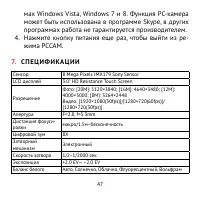
47 мах Windows Vista, Windows 7 и 8. Функция PC-камера может быть использована в программе Skype, в других программах работа не гарантируется производителем. 4 . Нажмите кнопку питания еще раз, чтобы выйти из ре - жима PCCAM. 7. С П Е Ц И Ф И КА Ц И И Сенсор 8 Mega Pixels IMX179 Sony Sensor LCD дис...