Page 2 - Contents
1 English EN Contents 1 Important safety information 2 General maintenance 2 Recycling the product and the built-in batter y 5 2 Your new VIBE 6 What’s in the box 6 3 Getting started 7 Over view of the controls and connections 7 Limit the volume 7 Over view of the main menu 7 Connect and charge 8 So...
Page 3 - General maintenance
2 EN 1 Important safety information General maintenance The translation of this document is for reference only. In the event of any inconsistency between the English version and the translated version, the English version shall prevail. Caution To avoid damage or malfunction: • Do not expose the pro...
Page 6 - Recycling the product and the
5 English EN ACTION OF CONTRACT, TORT OR OTHERWISE, ARISING FROM, OUT OF OR IN CONNECTION WITH THE SOFTWARE OR THE USE OR OTHER DEALINGS IN THE SOFTWARE. Recycling the product and the built-in battery Your product is designed and manufactured with high quality materials and components, which can be ...
Page 7 - Your new VIBE; What’s in the box
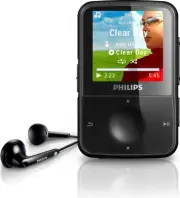
6 EN 2 Your new VIBE VIBE allows you to play music • watch videos • What’s in the box Check that you have received the following items: Player Earphones USB cable Quick star t guide Philips GoGear audio player Quick start guide Note The images ser ve as reference only. Philips • reser ves the right ...
Page 8 - Getting started; Overview of the controls and; Limit the volume; Overview of the main menu
7 English EN 3 Getting started Overview of the controls and connections a RESET press: reset GoGear Vibe b / press: scroll up/downpress and hold: scroll up/ down at high speed c slide and hold: turn GoGear Vibe on/offslide: lock /unlock all buttons except VOL d display e VOL press: increase/decrease...
Page 9 - Connect and charge; Connect VIBE to a computer
8 EN Connect and charge VIBE has a built-in batter y that can be charged through the USB por t of a computer (USB cable included). Note When you connect VIBE to a computer, you • are briefly prompted to select: • [Charge & transfer] or [Charge & play] . VIBE automatically applies • [Charge &...
Page 10 - Install the Philips Songbird software; Battery level indication; Software loaded on the VIBE; Files loaded on the VIBE
9 English EN Install the Philips Songbird software again (after the first installation) Important! The Philips Songbird software installer is preloaded to VIBE. To free memory capacity for your media content on VIBE, the installer file is automatically deleted during the first installation process. ...
Page 11 - Update VIBE; Manually verify / update the
10 EN 4 Update VIBE VIBE is controlled by an internal program called firmware. Newer versions of the firmware may have been released after you have purchased VIBE. The software program called Philips Songbird can use your computer to check for firmware updates that are available on the Internet. Ins...
Page 12 - Turn VIBE on; Lock the keys
11 English EN 5 Turn VIBE on and off 1 To toggle between modes on and off, slide and hold for approximately 2 seconds. Automatic shut-down VIBE has an automatic shut-down feature that can save batter y power. After 10 minutes in idle mode (no music plays, no button is pressed), VIBE turns off. 1 Sli...
Page 13 - Philips Songbird; Build a media library; Rip a CD; Import media from iTunes
12 EN 6 Philips Songbird VIBE comes with the Philips Songbird software. The Philips Songbird software helps you to: purchase new media (music and videos) • online create a media library • manage your media library • play music and videos • sync your media with the VIBE • When Philips Songbird is lau...
Page 14 - Export media to iTunes; Browse your media library; Let Songbird manage your media; Remove media files from the Songbird
13 English EN Export media to iTunes 1 On the computer, launch the Songbird program. 2 Select Tools > Options... . 3 On the Songbird toolbar, select the Media Importer tab, then iTunes Import/Export . 4 Verify your library location and options. 5 Select Export Library . The software expor ts the ...
Page 15 - Playlists; Create a playlist
14 EN Delete media This is how to delete media files in Windows Explorer: 1 With VIBE connected to the computer, open Windows explorer. 2 Locate the media folder in VIBE. 3 Delete the media file in the same way as you would from any other location on the computer. Let Songbird watch a folder You can...
Page 16 - Remove titles from a playlist; Change the look of the; Repair VIBE (restore factory
15 English EN Remove titles from a playlist 1 On the computer, launch the Songbird program. 2 Select a playlist. 3 Right-click on the title that you want to remove, and then Remove . The selected title is removed from the » playlist. Change the look of the Songbird library You can change the design ...
Page 17 - Music; Listen to music; Navigate inside a music track; Play music from a filtered; Find your music; Delete the currently playing music
16 EN 7 Music Listen to music 1 From the main menu, select to enter the music mode. 2 Navigate the sub-menus to select the music track. 3 Press to toggle between play and pause. Press • OPTIONS to see more music options. Press • to go back one level. Press and hold • to return to the main menu. Navi...
Page 18 - Delete one or more music tracks
17 English EN Delete one or more music tracks Use the Philips Songbird software to sync your media files. Alternatively, you can delete music in Windows Explorer: 1 Connect VIBE to the computer. 2 In Windows Explorer, locate the music folder in VIBE. 3 Delete the music as you normally would on the c...
Page 19 - Audiobooks; Add audiobooks to VIBE; Audiobook controls; Select audiobook by book
18 EN 8 Audiobooks VIBE suppor ts books in audio format. The use of this feature requires that you download the AudibleManager from audible.com. With the AudibleManager you can manage the digital contents of your audiobooks. Visit audible.com and register. The onscreen instructions guide you through...
Page 21 - Video; Play videos; Navigate inside a video; Delete the currently playing; Delete one or more videos
20 EN 9 Video Play videos 1 From the main menu, select to enter the video mode. 2 Navigate the sub-menus to select the video. 3 Press to toggle between play and pause. Press • OPTIONS to see more video options. Press • to go back one level. Press and hold • to return to the main menu. Navigate insid...
Page 26 - 3 Technical data; System requirements
25 English EN 13 Technical data Power Power supply: 250 mAh Li-ion polymer internal rechargeable battery Play time¹ - music: 24 hours - video: 4 hours Software Philips Songbird: to update firmware and transfer music Connectivity Headphone 3.5 mm USB 2.0 High speed Sound Channel separation: 45 dB Fre...