Page 4 - English; FUNCTIONAL OVERVIEW; Skip to the previous chapter, track or title.; Left of player ( see figure
English FUNCTIONAL OVERVIEW Congratulations on your purchase and welcome to Philips!To fully benifit from the support that Philips offers, register your productat www.philips.com/welcome. Main unit controls ( see figure 1 ) 1 PREV....................... Skip to the previous chapter, track or title. ...
Page 5 - ) search backward/forward in a disc at different; CAUTION
FUNCTIONAL OVERVIEW Remote controls ( see figure 2 ) 1 SETUP ....................Enter or exit the system menu. 2 DISPLAY ................Display information on TFT during playback. 3 ZOOM .....................Enlarge or reduce a picture or active image on the TFT. 4 SUB ........................Sele...
Page 6 - • Portable DVD player; Placement
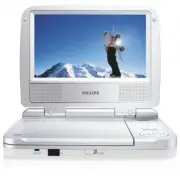
INTRODUCTION Your portable DVD player Your portable DVD player plays digital video discs conforming to the universalDVD Video standard. With it, you will be able to enjoy full-length movies withtrue cinema picture quality, and stereo or multichannel sound (depending on thedisc and on your playback s...
Page 7 - Precautions related to battery recharge; Playable disc formats; R and DVD; CD with JPEG files; You can also view JPEG still photos on this player.
INTRODUCTION About Built-in Rechargeable Battery Precautions related to battery recharge 1 Once the battery is fully discharged, immediately recharge it (regardless ofwhether you plan to use the battery or not) in order to maximize the batterylife. When the power is low, the battery icon will be sho...
Page 9 - heated. This is normal
GENERAL INFORMATION Power Sources This unit operates on a supplied AC adapter and car adapter. • Make sure that the input voltage of the AC adaptor is in line with the local volt- age. Otherwise, the AC adaptor and unit may be damaged. • Do not touch the AC adaptor with wet hands to prevent electric...
Page 10 - Listen at a moderate volume:; • Using headphones at a high volume can impair your hearing. This; To establish a safe volume level:
GENERAL INFORMATION Hearing Safety Listen at a moderate volume: • Using headphones at a high volume can impair your hearing. This product can produce sounds in decibel ranges that may cause hearingloss for a normal person, even for exposure less than a minute. Thehigher decibel ranges are offered fo...
Page 12 - Using the AC / DC adaptor; Using the car adapter; the same or equivalent type.
PREPARATIONS Power supply Using the AC / DC adaptor Stäng av spelaren innan du ansluter den medföljande adaptern till den och till elut- taget (se bilden). Spelaren måste vara avstängd när batteriet laddas. TIP To avoid damage to the player, switch off before plugging or unplugging the AC adaptor. U...
Page 13 - Connect the headphones into the; Connecting additional equipment; TV
PREPARATIONS Remove the battery if the remote control is not to be used for a long time. Connections Connecting headphones Connect the headphones into the p jack of your set. Connecting additional equipment • Turn off your set before connecting to any additional equipment.• You can connect the playe...
Page 14 - ENTER
GENERAL EXPLANATION About this manual This manual gives the basic instructions for operating this DVD player. Some DVD discs however are produced in a way that requires specific oper-ation or allows only limited operation during playback. In these cases theplayer may not respond to all operating com...
Page 16 - Playing an audio or video CD disc; Playing DivX® disc
BASIC FUNCTIONS Playing a DVD disc After switching on, inserting the disc and closing the door, playback starts auto-matically. The screen shows the type of disc loaded. The disc may invite you toselect an item from a menu. Use the 3 , 4 , J( , )K keys to highlight your selec- tion,and press ENTER ....
Page 17 - Playing a JPEG discs; MENU
BASIC FUNCTIONS Playing a MP3 CD The following playback features are available for MP3 CDs. Please refer to the corresponding sections for more information.Volume control, skipping tracks, searching, repeat, shuffle, etc.Use the 3 , 4 keys to highlight your selected music folder. Press ENTER to play...
Page 19 - GENERAL FEATURES; AUDIO; ZOOM; REPEAT
GENERAL FEATURES Changing the audio output (for VCD/CD) Press AUDIO repeatedly for the following audio options. x 1 Mono left x 2 Mono right x 3 Stereo TIP This key is used to select audio languages during DVD playback. ZOOM The Zoom function allows you to enlarge the video image and to pan through ...
Page 20 - TIP; at your chosen starting point; AB; appears on the display, and the repeat sequence; Volume Control
GENERAL FEATURES TIP The repeat function is also available for JPEG. The actions may vary for dif-ferent media being played. Repeat A - B To repeat or loop a sequence in a title:• Press A - B at your chosen starting point; A appears on the screen. • Press A - B again at your chosen end point; AB app...
Page 21 - DISPLAY
GENERAL FEATURES DISPLAY Press DISPLAY on the remote repeatedly for the following display options: DVD CD/VCD DivX x 1 Title elapsed Single elapsed Single elapsed x 2 Title remained Single remained Single remained x 3 Chapter elapsed Total elapsed Display off x 4 Chapter remained Total remained X5 D...
Page 23 - DISC MENU
SPECIAL DVD FEATURES Playing a title 1 Press DISC MENU to enter the disc title menu. 2 Use J( )K 3 4 or numeric keys (0-9) to select a play option. 3 Press ENTER to confirm. PET716S_05_CCR 2/11/07 10:48 Page 23
Page 24 - Note: Before using the
SETUP OPERATIONS To maximize your playback experience, use SETUP to fine tune your settings. Use the 3 , 4 , J( , )K keys to highlight your selection, and press ENTER . 1 Press SETUP . A list of features is shown. 2 Use the 3 4 keys to highlight your selection. When the cursor highlights these setti...
Page 25 - Password Setup Page; Preference Page
SETUP OPERATIONS Video Setup Page When the cursor highlights these settings, press ENTER to: Brightness select brightness level Contrast select contrast level DivX R VOD get DivX ID for VOD Press J( to abort current settings or go back to previous menu level Password Setup Page When the cursor highl...
Page 26 - TROUBLESHOOTING
TROUBLESHOOTING If it appears that the DVD-Video player is faulty, first consult this checklist. It may be that something has been overlooked. WARNINGUnder no circumstances should you try to repair the set yourself as thiswill invalidate the guarantee.If a fault occurs, first check the points listed...
Page 28 - TECHNICAL DATA
TECHNICAL DATA Dimensions 210 x 178 x 39 mm Weight 0.79 kg / 0.36 pounds Power supply DC 9V 1.0A Power Consumption 9W Operating temperature range 0 - 45°C Laser wavelength 650nm Video system PAL Frequency response 20Hz ~ 20KHz ± 1dB Signal/noise ratio ≥ 80dB Audio distortion + noise ≤ -80(1KHz) Chan...
Page 29 - DISPOSAL OF YOUR OLD PRODUCT
DISPOSAL OF YOUR OLD PRODUCT Your product is designed and manufactured with high quality materials and components, which can be recycled and reused. When this crossed-out wheeled bin symbol is attached to a product itmeans the product is covered by the European Directive 2002/96/EC. Please inform yo...
Page 30 - Printed in China
CLASS 1 LASER PRODUCT Printed in China wk7234 Specifications are subject to change without notice. Trademarks are the property of Koninklijke Philips Electronics N.V. or their respective owners 2007© Koninklijke Philips Electronics N.V. All rights reserved. PET716S_05_CCR 2/11/07 10:48 Page 30