Page 2 - Always there to help you; EN; Contact
Always there to help you www.philips.com/welcome Register your product and get support at PD7012/37 PD9012/07/37 EN User manual ES Manual del usuario FR Mode d’emploi Question? Contact Philips
Page 3 - Canada
2 EN Canada English: This digital apparatus does not exceed the Class B limits for radio noise emissions from digital appar atus as set out in the Radio Interference Regulations of the Canadian Depar tment of Communications.This Class B digital apparatus complies with Canadian ICES-003. Français: Ce...
Page 5 - Contents
3 English EN Contents 1 Important 6 Impor tant safety instructions 6 Notice 8 2 Your portable DVD player 11 Introduction 11 What’s in the box 11 Over view of the main unit 12 Over view of the second screen 14 3 Get started 15 Preparation 15 Connect the second screen 16 Connect power 16 4 Use your pl...
Page 8 - Important; Important safety instructions
6 1 Important Important safety instructions a Read these instructions. b Keep these instructions. c Heed all warnings. d Follow all instructions. e Do not use this apparatus near water. f Clean only with dry cloth. g Do not block any ventilation openings. Install in accordance with the manufacturer’...
Page 9 - Hearing safety
7 n Apparatus shall not be exposed to dripping or splashing. o Do not place any sources of danger on the apparatus (e.g. liquid filled objects, lighted candles). p This product may contain lead and mercury. Disposal of these materials may be regulated due to environmental considerations. For disposa...
Page 10 - Notice
8 Listen for reasonable periods of time: • Prolonged exposure to sound, even at normally ‘safe’ levels, can also cause hearing loss. • Be sure to use your equipment reasonably and take appropriate breaks. Be sure to observe the following guidelines when using your headphones. • Listen at reasonable ...
Page 11 - Recycling
9 However, there is no guarantee that inter ference will not occur in a par ticular installation. If this equipment does cause harmful inter ference to radio or television reception, which can be determined by turning the equipment off and on, the user is encouraged to try to correct the inter feren...
Page 13 - Your portable DVD player; Introduction; What’s in the box
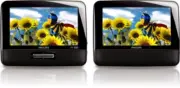
11 2 Your portable DVD player Congratulations on your purchase, and welcome to Philips! To fully benefit from the suppor t that Philips offers, register your product at www.philips. com/welcome. Introduction Your por table DVD player plays digital video discs that conform to the universal DVD Video ...
Page 14 - Overview of the main unit
12 Overview of the main unit a BRIGHTNESS • Adjusts screen brightness. b SETUP • Accesses or exits the setup menu. c , • Skips to the previous or nex t title, chapter, or track. d OPEN • Opens the disc compar tment. e DISC MENU • For DVD, accesses or exits disc menu. • For VCD, turns on or off PBC (...
Page 16 - Overview of the second screen
14 Overview of the second screen 1 DC IN • Power supply socket. 2 AV IN • Audio/video input jack. 3 • Headphone jack. 4 VOL -/+ • Decreases or increases volume. 5 BRIGHTNESS -/+ • Adjusts screen brightness. 6 OFF / ON • Turns off/on the second screen. EN
Page 17 - Get started; Preparation
15 3 Get started Caution • Use the controls only as stated in this user manual. • Always follow the instructions in this chapter in sequence. If you contact Philips, you will be asked for the model and serial number of your player. The model number and serial number are on the bottom of your player....
Page 18 - Connect the second screen; Connect power
16 Connect the second screen Caution • Turn off your player before you connect the second screen. A: main unit; B: second screen 1 Connect the supplied AV cable to: • the AV OUT jack on the main unit. • the AV IN jack on the second screen. Connect power Caution • Risk of product damage! Ensure that ...
Page 20 - Use your player; Turn on
18 4 Use your player Turn on 1 Slide the ON / OFF switch on the main unit to the ON position. • To turn on the second screen, slide the OFF / ON switch on the second screen to the ON position. Select OSD language You can choose a different language for the on-screen display text. 1 Press SETUP . » T...
Page 21 - Adjust settings; Set the main unit
19 5 Adjust settings Set the main unit To maximize your play experience, use SETUP to fine tune your settings. 1 Press SETUP . » The setup menu is displayed. 2 Use navigation keys to select an option and press OK to confirm. [General][Language] Select on-screen display language [PBC settings] Set pl...
Page 22 - Set the second screen
20 Set the second screen You can also set the second screen. • To adjust volume level for the second screen, press VOL -/+ on the second screen. • To adjust the brightness of the second screen, press BRIGHTNESS -/+ on the second screen. EN
Page 23 - Use more of your player; Connect additional equipment; Connect power from household source; TV; not supplied
21 6 Use more of your player Connect additional equipment Caution • Turn off your player before connecting to any additional equipment. You can connect the player to a TV or an amplifier to enjoy DVDs or Karaoke. Match the color of the AV cables (the AV cable connected to TV is not supplied) with th...
Page 25 - Product information
23 7 Product information Note • Product information is subject to change without prior notice. Dimensions - Main unit - Second screen 200 x 155 x 39 mm 200 x 155 x 21 mm Weight - Main unit - Second screen 0.7 kg 0.4 kg Power supply Input: 100-240V 50/60Hz 0.3A Output: DC 9V 0.8A Power consumption 9 ...
Page 26 - Troubleshooting
24 8 Troubleshooting Warning • Risk of electric shock. Never remove the casing of the player. To keep the warranty valid, never tr y to repair the system yourself. If you encounter problems when using the player, check the following points before requesting ser vice. If the problem remains unsolved,...