Philips HTS6515D/37 - Quick Guide
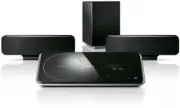
Philips HTS6515D/37 – Quick Guide, read for free online in PDF format. We hope this helps you resolve any issues you may have. If you have further questions, please contact us through the contact form.


3
Enjoy
Need help?
User Manual
See the user manual that came with your Philips DVD Home Theater System.
Hotline
Call 1-888-PHILIPS (1-888-744-5477) for our operators.
2008
C
Philips Consumer Lifestyle
A Division of Philips Electronics North America Corp
P.O. Box 671539 Marietta, GA 30006 0026
All rights reserved.
Printed in China
sgpjp_816/37-eng2
DVD Home Theatre unit
Remote Control
and 2 batteries
Table stand
Micro fi bre
cleaning cloth
Subwoofer
User
Manual
Composite
Video cable
HDMI cable
Register your product and get support at
www.philips.com/welcome
Quick Star t Guide
HTS6515D
What’s in the box?
Connect
Set up
Enjoy
1
2
3
EasyLink control
This feature is only applicable if this DVD Home Theater
unit is connected to HDMI CEC compliant TV/device
using HDMI cable. It enables all the linked devices
response or react to certain commands simultaneously
with one touch control.
HDMI
HDMI
HDMI CEC
TV
AUDIO
AUDIO
A
Turn on the HDMI CEC operations on your TV and
other connected devices. See TVs/devices manual for
details.
B
You can now enjoy the EasyLink controls.
One touch play [ Auto Wake-up TV ]
A
Press PLAY.
It turns on this unit and start disc play (if a video disc
is detected,) and your TV automatically turns on and
switches to the correct viewing channel.
Note
This is only possible if this unit is in standby
mode. If this unit is in active mode, you have to press
DISC followed by PLAY to start disc play.
One touch power off [ System Standby ]
A
Press and hold
2
.
It turns off all linked devices.
Note
This unit responses to standby command from
other HDMI CEC compliant TV/devices.
One touch audio input switching
This unit is able to render the audio signals from the
active source and switch automatically to the
corresponding audio input.
Before you can enjoy this feature, connect audio cables
from this unit to your TV/devices and follow the
instructions below to map the audio inputs to the
connected devices.
A
Press
DISC
.
B
Press
OPTIONS
.
C
Press
B
.
D
Select [ EasyLink ], then press
B
.
Screen Saver
DivX(R) VOD Code
Sleep Timer
Display Dim
Disc Lock
OSD Language
EasyLink
Standby Mode
General Setup
Auto Wake-up TV
System Standby
System Audio Control
Audio Input Mapping
E
Select [ System Audio Control ] > [ On ], then
press
OK
.
F
Select [ Audio Input Mapping ], then press
OK
.
G
Select [ OK ] in the menu, then press
OK
to start
scanning of devices.
H
When scanning complete, select the audio input of
this unit that is used to connect to your TV/device
(e.g. AUX1 Input,) then press
B
.
I
Select the TV/device (appeared in its brand name)
in the right panel, then press
OK
.
J
Repeat steps 8~9 to map other connected devices.
K
To exit the menu, press
OPTIONS
.
Note
Philips does not guarantee 100%
interoperability with all HDMI CEC compliant devices.
Speakers
Component
video cables
Big bracket
2 Small brackets
4 Dock
adaptors
Mounting knob
Subwoofer
Satellite Receiver/
Cable Box
HDD / DVD Recorder
"Loading the manual" means you need to wait until the file loads and becomes available for online reading. Some manuals are very large, and the time they take to appear depends on your internet speed.


