Page 2 - Contents
1 Change audio settings 16 Set up network 16 Set up EasyLink 17 Change preference settings 17 Change advanced settings 18 7 Update software 18 Check software version 18 Update software from the network 18 Update software from a USB 19 8 Product specifications 19 9 Troubleshooting 21 10 Index 22 Cont...
Page 3 - Open source software; Trademarks; Notice; Copyright; Copyright in the UK; Compliance
2 Open source software Philips Electronics Singapore Pte Ltd hereby offers to deliver, upon request, a copy of the complete corresponding source code for the copyrighted open source software packages used in this product for which such offer is requested by the respective licenses. This offer is val...
Page 5 - Product care; Health warning; Important; Safety
4 • Never place the product or any objects on power cords or on other electrical equipment. • If the product is transpor ted in temperatures below 5°C, unpack the product and wait until its temperature matches room temperature before connecting it to the power outlet. • Visible and invisible laser r...
Page 6 - Your home theater; Main unit; Disposal of your old product
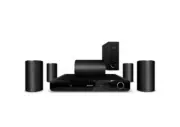
5 3 Your home theater Congratulations on your purchase, and welcome to Philips! To fully benefit from the suppor t that Philips offers, register your home theater at www.philips.com/welcome. Main unit a Disc compartment b (Open/Close) Opens or closes the disc compar tment. c (Play/Pause) Star ts, pa...
Page 7 - Remote control
6 b (Home) Accesses the home menu. c TOP MENU Accesses the main menu of a video disc. d (Options) • Accesses more play options during playback. • In radio mode, programs radio stations. e Navigation buttons • Navigates menus. • In radio mode, press left or right to star t auto search. f OK Confirms ...
Page 8 - Connectors; Back connectors
7 4 Connect your home theater This section helps you connect your home theater to a TV and other devices. The basic connections of the home theater with its accessories are provided in the Quick Star t. For a comprehensive interactive guide, see www.connectivityguide.philips.com. Note • Refer to the...
Page 9 - Connect audio from TV or; Connect to the TV
8 Option 2: Connect to the TV through composite video (CVBS) Note • The composite video cable or connector might be labeled AV IN , VIDEO IN , COMPOSITE or BASEBAND . Connect audio from TV or other devices Use your home theater to play audio from the TV or other device such as a cable box. Tip • Pre...
Page 10 - Set up network; Connect to the internet
9 Set up network 1 Connect the home theater to a broadband modem or router (see ‘Connect to the internet’ on page 9). 2 Turn on your TV and switch to the correct source for the home theater. 3 Press ( Home ). 4 Select [Setup] , then press OK . 5 Select [Network] > [Network Installation] , then pr...
Page 11 - Change sound mode; Change surround sound mode; Use your home; Before you start
10 Sound experience Description SOUND Selects a sound mode. SURROUND Selects a surround sound or stereo sound. TREBLE Adjusts the high frequency output. MID Adjusts the middle frequency output. BASS Adjusts the low frequency output. AUDIO SYNC Delays the audio to match the video. 3 Select an option,...
Page 12 - Play a disc; Change treble, mid and bass
11 Play a disc The home theater can play a wide variety of discs, including video, audio and mixed media (for example, a CD-R that contains JPEG pictures and MP3 music). 1 Inser t a disc into the home theater. 2 Press DISC , or select [play Disc] in the home menu and press OK . » The disc plays or t...
Page 13 - Play 3D video; Play 3D discs in 2D; Use Bonus View on Blu-ray
12 Note • The range of BD-Live ser vices depends on the disc. • When you use BD-Live, data on the disc and home theater are accessed by the content provider. • Use a USB storage device with at least 1GB of free space to store the downloaded files. • If there is insufficient memory to download BD-Liv...
Page 14 - Use picture options; Play from a USB storage device; More play features for disc or USB; Use video options
13 • [Info] : Displays information about what is playing. • [Character Set] : Selects a character set that suppor ts the DivX subtitle. • [Time Search] : Skips to a specific par t of the video by entering the time of the scene. • [2nd Audio Language] : Selects the second audio language to play. • [2...
Page 15 - Play from radio; Use audio options
14 Play from radio The home theater can store up to 40 radio stations. 1 Check that the FM antenna is connected. 2 Press RADIO . » “ AUTO INSTALL...PRESS PLAY ’ appears on the display panel if you have not installed any radio stations. Press ( Play ). 3 Press the following buttons to control play: B...
Page 16 - Use Philips EasyLink; Play audio from TV or other
15 Use Philips EasyLink The home theater suppor ts Philips EasyLink, which uses the HDMI CEC (Consumer Electronics Control) protocol. EasyLink- compliant devices that are connected through HDMI connectors can be controlled by a single remote control. Note • Philips does not guarantee 100% interopera...
Page 17 - Change audio settings; Change settings; Access the setup menu; Change video settings
16 • [Picture Settings] : Selects a predefined color setting. 5 Press OK to confirm your choice. Note • The best setting is automatically selected for the TV. If you need to change the setting, ensure that the TV suppor ts the new setting. • For settings related to HDMI, the TV must be connected thr...
Page 18 - Set up EasyLink; Change preference settings
17 4 Select and adjust the following settings: • [Menu language] : Selects the on- screen display menu language. • [Audio] : Selects audio language for video. • [Subtitle] : Selects subtitle language for video. • [Disc Menu] : Selects menu language for video disc. • [Parental Control] : Restricts ac...
Page 19 - Update software; Check software version; Change advanced settings
18 7 Update software To check for new updates, compare the current software version of your home theater with the latest software version (if available) on the Philips web site. Check software version 1 Press ( Home ). 2 Select [Setup] , then press OK . 3 Select [Advanced] > [Version Info.] , the...
Page 20 - Product specifications; Update software from a USB
19 8 Product specifications Note • Specification and design are subject to change without notice. Region code The type plate on the back or bottom of the home theater shows which regions it suppor ts Playback media • BD-Video, DVD-Video, DVD+R /+RW, DVD-R /-RW, DVD+R /-R DL, CD-R /CD- RW, Audio CD, ...
Page 22 - Troubleshooting
21 Sound No sound. • Ensure that the audio cables are connected and select the correct input source (for example, AUDIO SOURCE ) for the device you want to play. No sound on HDMI connection. • You might not hear any sound if the connected device is not HDCP (High- bandwidth Digital Content Protectio...
Page 26 - Language Code
Abkhazian 6566 Afar 6565 Afrikaans 6570 Amharic 6577 Arabic 6582 Armenian 7289 Assamese 6583 Avestan 6569 Aymara 6589 Azerhaijani 6590 Bahasa Melayu 7783 Bashkir 6665 Belarusian 6669 Bengali 6678 Bihari 6672 Bislama 6673 Bokmål, Norwegian 7866 Bosanski 6683 Brezhoneg 6682 Bulgarian 6671 Burmese 7789...