Page 2 - Contents
Contents 1 Home Screen 4 1.1 Introduction 4 1.2 Dashboard and Settings 4 1.3 Google TV and Basic Mode 4 1.4 Open the Home Screen 5 2 Setting Up 6 2.1 Read Safety 6 2.2 TV Stand and Wall Mounting 6 2.3 Tips on Placement 6 2.4 Power Cable 6 2.5 Antenna Cable 7 2.6 Satellite Dish 7 3 Remote Control 8 3...
Page 4 - Home Screen; Introduction
1 Home Screen 1.1 Introduction To enjoy the benefits of your Google TV, connect theTV to the Internet. Press HOME on your remote control to get your Home screen . Like on your Android smartphone or tablet, the Home screen is thecentre of your TV. From the Home screen you candecide what to watch by...
Page 5 - Open the Home Screen
The Home screen of Basic Mode has only two rowsand without tabs. The first Home row contains Watch TV , TV Guide , Sources and Dashboard icons for TV feature operations. The second App row contains all pre-installed Apps. The Dashboard on Basic Mode does not include personal profile and can onlyperf...
Page 6 - Setting Up; Read Safety; Tips on Placement
2 Setting Up 2.1 Read Safety Read the safety instructions first before you use theTV. To read the instructions, in Help , press the colour key Keywords and look up Safety Instructions . 2.2 TV Stand and Wall Mounting TV Stand You can find the instructions for mounting the TVstand in the Quick Star...
Page 7 - Antenna Cable; Satellite Dish
key Keywords and look up Switching On for more information on switching the TV on or off. 2.5 Antenna Cable Insert the antenna plug firmly intothe Antenna socket at the back of the TV. You can connect your own antenna or an antennasignal from an antenna distribution system. Use anIEC Coax 75 Ohm R...
Page 8 - Remote Control
3 Remote Control 3.1 Key Overview (Type 1) Top 1 - Standby / On To switch the TV on or back to Standby. Long pressfor three seconds to reboot the TV. 2 - VOICE microphone 3 - AMBILIGHT To select one of the Ambilight style. 4 - To launch the Amazon prime video App. 5 - • If you have a Netflix m...
Page 13 - Channel Installation; Satellite Installation
5 Channel Installation 5.1 Satellite Installation About Installing Satellites Up to 4 Satellites You can install up to 4 satellites (4 LNBs) on this TV.Select the exact number of satellites you wish toinstall at the start of the installation. This will speed upthe installation. Unicable You can use ...
Page 15 - Antenna Installation
Homing Transponder and LNB In some countries, you can adjust the expert settingsfor homing transponder and each LNB. Only use orchange these settings when a normal installation fails.If you have non-standard satellite equipment, youcan use these settings to overrule the standardsettings. Some provid...
Page 18 - Channel List Copy
5.3 Channel List Copy Introduction Channel List Copy is intended for dealers and expertusers. With Channel List Copy, you can copy the channelsinstalled on one TV onto another Philips TV of thesame range. With Channel List Copy, you avoid thetime-consuming channel search by uploading apredefined cha...
Page 19 - Channels; Install Channels
6 Channels 6.1 Install Channels For more information, in Help , press the colour key Keywords and look up Channel, Antenna Installation or Channel, Installation . 6.2 Channel Lists About Channel Lists After a channel installation, all channels appear onthe All channel list. The channels displayed ...
Page 23 - Favourite Channels
To view the CAM information: 1 - Press SOURCES . 2 - Select the channel type you are using the CAM for Watch TV . 3 - Press OPTIONS and select Common Interface . 4 - Select the TV operator of the CAM and press OK . The following screens come from the TV operator. CAM Settings Set profile name fo...
Page 25 - Interactive TV
Text Options In Text/Teletext, press OPTIONS to select the following: • Freeze page / Unfreeze page To start or stop the automatic rotation of subpages.• Dual screen / Full screen To show the TV channel and Text alongside eachother.• T.O.P. overview To open T.O.P. Text.• Enlarge / Normal view To e...
Page 26 - TV Guide; TV Guide Data
7 TV Guide 7.1 TV Guide Data With the TV Guide you can view a list of the currentand scheduled TV programmes of yourchannels. Depending on where the TV guideinformation (data) is coming from, analogue anddigital channels or only digital channels are shown.Not all channels offer TV Guide information....
Page 27 - Connect Devices; About Connections
8 Connect Devices 8.1 About Connections Connectivity Guide Always connect a device to the TV with the highestquality connection available. Also, use good qualitycables to ensure a good transfer of picture andsound. When you connect a device, the TV recognizes itstype and gives each device a correct ...
Page 29 - Home Theatre System - HTS; Digital Audio Out - Optical
top of Optimal (Auto Game xxxHz Pro) . It is recommended to use with new gaming computer orconsole. * With HDMI Variable Refresh Rate/FreeSyncPremium or Premium Pro/G-Sync supported, the TVchanges its refresh rate in real time according to theframe rate signal to synchronize with every picture. Itis...
Page 30 - Smartphones and Tablets
8.4 CAM with Smart Card - CI+ CI+ This TV is ready for the CI+ Conditional Access . With CI+ you can watch premium HD programmes,like movies and sports, offered by digital TV operatorsin your region. These programmes are scrambled bythe TV operator and descrambled with a prepaid CI+module.Digital TV...
Page 31 - USB Keyboard; USB Storage Device
8.7 Headphones You can connect a set of headphones tothe connection on the back of the TV. The connection is a mini-jack 3.5mm. You can adjust thevolume of the headphones separately. To adjust the volume: 1 - Press Volume , select the headphones icon by arrows (left) or (right). 2 - Press th...
Page 34 - Connect Your TV; Network and Internet
9 Connect Your TV 9.1 Network and Internet Home Network To enjoy the full capabilities of your Philips GoogleTV, your TV must be connected to the Internet. Connect the TV to a home network with a high-speedInternet connection. You can connect your TVwirelessly or wired to your network router. Connec...
Page 35 - Google Account
Network and Internet Settings View Network Settings Settings > Network & Internet > View network settings . You can view all current network settings here. The IPand MAC address, signal strength, speed, encryptionmethod, Address/Netmask/Gateway/DNS of IPv4 orIPv6, etc. Switch On with Wi-...
Page 36 - Internet; Start Internet
10 Internet 10.1 Start Internet You can browse the Internet on your TV. You canview any Internet website but most of them are notprepared for a TV screen. • Some plug-ins (e.g. to view pages or videos) are notavailable on your TV.• You cannot send or download files.• Internet pages are shown one pag...
Page 37 - Sources; Switch to a device
11 Sources 11.1 Switch to a device From the list of Sources, you can switch to any of theconnected devices. You can switch to a tuner towatch TV or open the content of a connected USBstorage device. You can switch to your connecteddevices to watch their programme, a digital receiver ora Blu-ray Disc...
Page 39 - Display and Sound; Picture
13 Display and Sound 13.1 Picture Picture Settings About Picture Settings Menu The picture setting menu provides an easy flow toaccess multi-level picture settings from general toadvanced. For some picture settings, values can bechanged by breakaway menu to let you view all thesetting values and pre...
Page 42 - Screen; Sound
> Blur reduction . To reduce the blur to makes picture movement clearand sharp. Select from 0 to 10 to have different degress for reducing motion blur. Visible in movies on TV.Select 0 when noise appears in playing moving picture on-screen. Note: Only available when Motion styles set to Personal....
Page 46 - Audio Output
The Delta volume setting can be used to adjust tobalance the sound level difference between the TVchannel and the HDMI source input. Pressthe Arrow / navigation keys to adjust the delta value for TV speaker volume. * Note: Delta volume is available when the inputsource is set to HDMI or Analogue sou...
Page 47 - Ambilight
13.5 Ambilight Turn Ambilight On or Off Turn on Ambilight Press AMBILIGHT to turn on, or you can turn on by selecting Settings > Display & Sound > Ambilight > Ambilight style > Enable . To switch off Ambilight: 1 - Press AMBILIGHT . 2 - Press OK on Enable option to switch on or off...
Page 51 - Apps; About Apps
14 Apps 14.1 About Apps You can find your favorite Apps on Your apps row in the Home menu. Like apps on your smartphone or tablet, the apps onyour TV offer specific functions for an enriched TVexperience. You can use the WEB BROWSER app to surf the Internet. Apps can come from the Google Play™ Store...
Page 52 - Start or Stop an App
button. Find more information onwww.support.google.com/googletv Google Play Store From the Google Play Store you can download andinstall new apps. Some apps are free of charge. What You Need • your TV must be connected with the Internet• you must sign in with your Google Account on TV• add a credit ...
Page 53 - System; Accessibility
15 System 15.1 Accessibility Settings > System > Accessibility . With Accessibility switched on, the TV is prepared for use for the deaf, hard of hearing, blind or partiallysighted people. High contrast text Settings > System > Accessibility > High contrast text . Turn on to make ...
Page 56 - Cast; System Sounds
save energy. You can set the time to 15 minutes , 30 minutes , 1 hour , 4 hours , 8 hours , 12 hours , 24 hours , or Never . Set screen off to save energy consumption Quick Menu > Frequent Settings > Screen off . Alternatively, go to Settings > System > Power & Energy > Screen...
Page 57 - Retail Mode Settings; Restart
new one. 15.12 Retail Mode Settings Home or Shop Select the location of your TV Settings > System > Retail mode settings > Location . Select Shop , the picture style settings will be restored to default, and can adjust shop settings.Shop mode is for in-store promotion. Shop Setup Adjust s...
Page 58 - Bluetooth® On or Off
16 Remote andAccessories 16.1 Bluetooth® On or Off Pair Accessory Position the Bluetooth® device within a distance of 5meters from the TV. Read the user manual of thedevice for specific information on pairing and onwireless range. Make sure the Bluetooth® setting onTV is switched on. Once a Bluetoot...
Page 61 - View your Photos
2 - Select USB Devices and press (right) to select the USB device you need. 3 - Select Videos and select one of video, you can press Play all to play all files in the folder or press Mark as favourite to add the selected video to favourite menu - Favourites. Control bar 1 - Progress bar 2 - ...
Page 62 - Play your Music
Photo Options Browse photo files: • Shuffle – Play your files in a random order • Repeat – Play the slide show once or continuously • Stop music – Stop background music playing • Slide Show Speed – Set the speed of the slide show • Info – Show photo information Playing photo files: • Mark as favouri...
Page 64 - Philips TV Remote App
18 Smartphones andTablets 18.1 Philips TV Remote App The Philips TV Remote App on your smartphone or tablet is your new TV buddy. The app lets you switchchannels and adjust the volume — just like a remotecontrol. Download the Philips TV Remote App from yourfavourite app store today. The Philips TV R...
Page 65 - Games
19 Games 19.1 What You Need On this TV, you can play games: • from the Google Play Store in the Home menu• from a connected Game Console Games from the Google Play Store must bedownloaded and installed on TV before you can playthem. Some games need a gamepad to play. To install game apps from the Go...
Page 66 - Netflix
20 Netflix If you have a Netflix membership subscription, youcan enjoy Netflix on this TV. Your TV must beconnected to the Internet. In your region, Netflixmight only come available with future softwareupdates. To open Netflix, press to open the Netflix App. You can open Netflix immediately from a...
Page 67 - Alexa; About Alexa
21 Alexa 21.1 About Alexa Your TV supports Amazon Alexa* voice controloperations. About Alexa Alexa is a cloud-based voice service available onAlexa Echo devices from Amazon and devicemanufacturers. With Alexa working on your TV, youcan switch on/off TV, change channels, changevolume and more. To co...
Page 68 - Specifications; Environmental; Operating System
22 Specifications 22.1 Environmental European Energy Label The European Energy Label informs you on the energy efficiency class of this product. The greenerthe energy efficiency class of this product is, thelower the energy it consumes.On the label, you can find the energy efficiency class,the avera...
Page 70 - Help and Support; Register your TV
23 Help and Support 23.1 Register your TV Register your TV and enjoy a range of benefitsincluding full support (including downloads),privileged access to information about new products,exclusive offers and discounts, the chance to winprizes and even participate in special surveys aboutnew releases. ...
Page 71 - Troubleshooting
• Check the TV - You can check if the picture, sound and other settings are working fine..• Check the network - Check the network connection.• Check the remote control - Perform the test to verify the TV bundled remote control functionality.• View weak signal history - Display the list of channel nu...
Page 73 - Online Help
Bluetooth® Unable to pair • Make sure the device is in pairing mode. Read theuser manual of the device.• Keep the wireless speaker as close to the TV aspossible.• Trying to pair several devices with the TV at thesame time, may not work. Bluetooth® lost connection • Always position the wireless speak...
Page 74 - Safety and Care; Safety
24 Safety and Care 24.1 Safety Important Read and understand all safety instructions beforeyou use the TV. If damage is caused by failure tofollow instructions, the warranty does not apply. Risk of Electric Shock or Fire • Never expose the TV to rain or water. Never placeliquid containers, such as v...
Page 75 - Screen Care
some lithium battery types).• Disposal of a battery into fire or a hot oven, ormechanically crushing or cutting of a battery, that canresult in an explosion.• Leaving a battery in an extremely high temperaturesurrounding environment that can result in anexplosion or the leakage of flammable liquid o...
Page 76 - Terms of Use; Terms of Use - Smart TV
25 Terms of Use 25.1 Terms of Use - Smart TV You can see the terms of use, privacy policy, and alsoset privacy settings of your Smart TV. To open the terms of use of Smart TV page: 1 - Press HOME to open the Home menu. 2 - Select Apps to open apps. 76
Page 77 - Copyrights
26 Copyrights 26.1 HDMI The terms HDMI, HDMI High-Definition MultimediaInterface, HDMI trade dress and the HDMI Logos aretrademarks or registered trademarks of HDMILicensing Administrator, Inc. 26.2 HEVC Advance Covered by one or more claims of the HEVC patentslisted at patentlist.accessadvance.com....
Page 80 - Index
Index A Advanced Colour Setting 40 Alexa 67 Ambient Light Level Optimization 39 Ambient mode 55 Ambilight Extension 49 Ambilight Style 47 Ambilight+Hue 49 Ambilight+hue, configuration 49 Ambilight+hue, on or off 49 Ambilight+Philips Wireless Home Speakers 49 Ambilight, Custom Colour 48 Ambilight, Se...
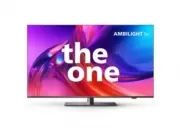


 Philips 65PUS8550/12 Quick Guide
 Philips 65PUS8555/12 User Manual
 Philips 65PUS8558/12 Quick Guide
 Philips 65PUS8609/12 User Manual
 Philips 65PUS8807/12 User Manual
 Philips 65PUS8808/12 User Manual
 Philips 65PUS8818/12 Quick Guide
 Philips 65PUS8837/12 User Manual
 Philips 65PUS8848/12 User Manual
 Philips 65PUS8887/12 User Manual
 Philips 65PUS8909/12 User Manual
 Philips 65PUS8919/12 User Manual