Page 2 - Contents
Contents 1 OLED Screen Care 4 2 Home Screen 6 2.1 Introduction 6 2.2 Dashboard and Settings 6 2.3 Google TV and Basic Mode 6 2.4 Open the Home Screen 7 3 Setting Up 8 3.1 Read the Safety Instructions 8 3.2 TV Stand and Wall Mounting 8 3.3 Tips on Placement 8 3.4 Power Cable 8 3.5 Antenna Cable 9 3.6...
Page 4 - OLED Screen Care
1 OLED Screen Care OLED Display is state of the art technology andcombined with our Picture Quality Engine it has wonan outstanding number of awards. To ensure thatyour TV always offers the best possible performance,it will sometimes perform a display clean-up processwhile in standby. If you never p...
Page 6 - Home Screen; Introduction
2 Home Screen 2.1 Introduction To enjoy the benefits of your Google TV, connect theTV to the Internet. Press HOME on your remote control to get your Home screen . Like on your Android smartphone or tablet, the Home screen is thecentre of your TV. From the Home screen you candecide what to watch by...
Page 7 - Open the Home Screen
more information, please refer to Google supportpage. Difference of Home screen The Home screen of Basic Mode has only two rowsand without tabs. The first Home row contains Watch TV , TV Guide , Sources and Dashboard icons for TV feature operations. The second App row contains all pre-installed Apps...
Page 8 - Setting Up; Read the Safety Instructions; Tips on Placement
3 Setting Up 3.1 Read the Safety Instructions Please read the safety instructions before you use theTV. To read the instructions, in Help > User manual , press the colour key Keywords and look up Safety Instructions . 3.2 TV Stand and Wall Mounting TV Stand You can find the instructions for mou...
Page 9 - Antenna Cable; Satellite Dish
Although this TV has a very low standby powerconsumption, unplug the power cable to save energyif you do not use the TV for a long period of time. For more information, in Help , press the colour key Keywords and look up Switching On for more information on switching the TV on or off. 3.5 Antenna ...
Page 10 - Remote Control; Key Overview
4 Remote Control 4.1 Key Overview Top (Type 1) 1 - (Standby / On) To switch the TV on or back to Standby. Long pressfor three seconds to reboot the TV. 2 - VOICE microphone 3 - To select one of the Ambilight style. 4 - To launch the Amazon prime video App. 5 - • If you have a Netflix members...
Page 14 - Channel Installation; Satellite Installation
6 Channel Installation 6.1 Satellite Installation About Installing Satellites Up to 4 Satellites You can install up to 4 satellites (4 LNBs) on this TV.Select the exact number of satellites you wish toinstall at the start of the installation. This will speed upthe installation. Unicable You can use ...
Page 16 - Antenna Installation
Homing Transponder and LNB In some countries, you can adjust the expert settingsfor homing transponder and each LNB. Only use orchange these settings when a normal installation fails.If you have non-standard satellite equipment, youcan use these settings to overrule the standardsettings. Some provid...
Page 19 - Channel List Copy
6.3 Channel List Copy Introduction Channel List Copy is intended for dealers and expertusers. With Channel List Copy, you can copy the channelsinstalled on one TV onto another Philips TV of thesame range. With Channel List Copy, you avoid thetime-consuming channel search by uploading apredefined cha...
Page 20 - Channels; Install Channels
7 Channels 7.1 Install Channels For more information, in Help , press the colour key Keywords and look up Channel, Antenna Installation or Channel, Installation . 7.2 Channel Lists About Channel Lists After a channel installation, all channels appear onthe All channel list. The channels displayed ...
Page 24 - Favourite Channels
To view the CAM information: 1 - Press SOURCES . 2 - Select the channel type you are using the CAM for Watch TV . 3 - Press OPTIONS and select Common Interface . 4 - Select the TV operator of the CAM and press OK . The following screens come from the TV operator. CAM Settings Set profile name fo...
Page 26 - Interactive TV
the teletext will be unavailable via TV. In that case,the set-top box’s teletext can be used instead. Text Options In Text/Teletext, press OPTIONS to select the following: • Freeze page / Unfreeze page To start or stop the automatic rotation of subpages.• Dual screen / Full screen To show the TV c...
Page 27 - TV Guide; TV Guide Data
8 TV Guide 8.1 TV Guide Data With the TV Guide you can view a list of the currentand scheduled TV programmes of yourchannels. Depending on where the TV guideinformation (data) is coming from, analogue anddigital channels or only digital channels are shown.Not all channels offer TV Guide information....
Page 28 - Connect Devices; About Connections
9 Connect Devices 9.1 About Connections Connectivity Guide Always connect a device to the TV with the highestquality connection available. Also, use good qualitycables to ensure a good transfer of picture andsound. When you connect a device, the TV recognizes itstype and gives each device a correct ...
Page 30 - Home Theatre System - HTS; Digital Audio Out - Optical
Premium / G-Sync supported, the TV changes itsrefresh rate in real time according to the frame ratesignal to synchronize with every picture. It is appliedto reduce the lag, judder and frame tearing for bettergaming experience. Note : G-Sync compatible is supported in some TV models and Nvidia GTX 30...
Page 31 - Smartphones and Tablets
CI+ This TV is ready for the CI+ Conditional Access . With CI+ you can watch premium HD programmes,like movies and sports, offered by digital TV operatorsin your region. These programmes are scrambled bythe TV operator and descrambled with a prepaid CI+module.Digital TV operators provide a CI+ modul...
Page 32 - Game Console; USB Keyboard; USB Storage Device
To adjust the volume: 1 - Press Volume , select the headphones icon by arrows (left) or (right). 2 - Press the arrows (up) or (down) to adjust the volume. 9.8 Game Console HDMI For best quality, connect the game console with aHigh speed HDMI cable to the TV. 9.9 USB Keyboard Connect Connec...
Page 35 - Connect Your TV; Network and Internet
10 Connect Your TV 10.1 Network and Internet Home Network To enjoy the full capabilities of your Philips GoogleTV, your TV must be connected to the Internet. Connect the TV to a home network with a high-speedInternet connection. You can connect your TVwirelessly or wired to your network router. Conn...
Page 36 - Google Account
Network and Internet Settings View Network Settings Settings > Network & Internet > View network settings . You can view all current network settings here. The IPand MAC address, signal strength, speed, encryptionmethod, Address/Netmask/Gateway/DNS of IPv4 orIPv6, etc. Switch On with Wi-...
Page 37 - Internet; Start Internet
11 Internet 11.1 Start Internet You can browse the Internet on your TV. You canview any Internet website but most of them are notprepared for a TV screen. • Some plug-ins (e.g. to view pages or videos) are notavailable on your TV.• You cannot send or download files.• Internet pages are shown one pag...
Page 38 - Sources; Switch to a device
12 Sources 12.1 Switch to a device From the list of Sources, you can switch to any of theconnected devices. You can switch to a tuner towatch TV or open the content of a connected USBstorage device. You can switch to your connecteddevices to watch their programme, a digital receiver ora Blu-ray Disc...
Page 40 - Display and Sound; Picture
14 Display and Sound 14.1 Picture Picture Settings About Picture Settings Menu The picture setting menu provides an easy flow toaccess multi-level picture settings from general toadvanced. For some picture settings, values can bechanged by breakaway menu to let you view all thesetting values and pre...
Page 44 - Screen; Sound
14.2 Screen Picture Format If the picture is not filling the whole screen, if blackbars are showing on the top or bottom or at bothsides, you can adjust the picture to fill the screencompletely. To select one of the basic settings to fill the screen: 1 - Press Settings > Display & Sound >...
Page 48 - Audio Output
3 - A test sound will be played and measured through your remote control. Hold your remotecontrol and point it towards the TV, this can takeseveral seconds. 4 - Once your TV speakers are successfully calibrated, select Test to listen to the sound before and after the TV speakers are calibrated. Sele...
Page 49 - Ambilight
- SPDIF output (DIGITAL AUDIO OUT) will beenabled when streaming Dolby Digital Plus content. Digital out levelling Settings > Display & Sound > Audio output > Digital out levelling . Adjust the loudness level of the HDMI sound system. • Select More to have louder volume.• Select Less ...
Page 54 - Apps; About Apps
15 Apps 15.1 About Apps You can find your favorite Apps on Your apps row in the Home menu. Like apps on your smartphone or tablet, the apps onyour TV offer specific functions for an enriched TVexperience. You can use the WEB BROWSER app to surf the Internet. Apps can come from the Google Play™ Store...
Page 55 - Start or Stop an App
2 - Select Google Play Games app and open it. 3 - Select a game to play or select a new game to install and press OK . 4 - When done, press Back repeatedly or press EXIT or stop the app with its dedicated exit/stop button. * Note: If Google Play Games is not on Your Apps row, you can search it in ...
Page 56 - System; Accessibility
16 System 16.1 Accessibility Settings > System > Accessibility . With Accessibility switched on, the TV is prepared for use for the deaf, hard of hearing, blind or partiallysighted people. High contrast text Settings > System > Accessibility > High contrast text . Turn on to make ...
Page 59 - Cast; System Sounds
save energy. You can set the time to 15 minutes , 30 minutes , 1 hour , 4 hours , 8 hours , 12 hours , 24 hours , or Never . Set screen off to save energy consumption Quick Menu / MENU > Frequent Settings > Screen off . Alternatively, go to Settings > System > Power & Energy >...
Page 60 - Retail Mode Settings; Restart
Note : If you forgot your PIN code, you can override thecurrent one by using the code 8888 and entering a new one. Lock for Programme Set a minimum age to watch rated programmes (only available for certain countries) Settings > System > Child lock > Parental rating . 16.12 Retail Mode Set...
Page 61 - Bluetooth® On or Off
17 Remote andAccessories 17.1 Bluetooth® On or Off Pair Accessory Position the Bluetooth® device within a distance of 5meters from the TV. Read the user manual of thedevice for specific information on pairing and onwireless range. Make sure the Bluetooth® setting onTV is switched on. Once a Bluetoot...
Page 64 - View your Photos
2 - Select USB Devices and press (right) to select the USB device you need. 3 - Select Videos and select one of video, you can press Play all to play all files in the folder or press Mark as favourite to add the selected video to favourite menu - Favourites. Control bar 1 - Progress bar 2 - ...
Page 65 - Play your Music
Photo Options Browse photo files: • Shuffle – Play your files in a random order • Repeat – Play the slide show once or continuously • Stop music – Stop background music playing • Slide Show Speed – Set the speed of the slide show • Info – Show photo information Playing photo files: • Mark as favouri...
Page 67 - Philips TV Remote App
19 Smartphones andTablets 19.1 Philips TV Remote App The Philips TV Remote App on your smartphone or tablet is your new TV buddy. The app lets you switchchannels and adjust the volume — just like a remotecontrol. Download the Philips TV Remote App from yourfavourite app store today. The Philips TV R...
Page 68 - Games
20 Games 20.1 What You Need On this TV, you can play games: • from the Google Play Store in the Home menu• from a connected Game Console Games from the Google Play Store must bedownloaded and installed on TV before you can playthem. Some games need a gamepad to play. To install game apps from the Go...
Page 69 - Netflix
21 Netflix If you have a Netflix membership subscription, youcan enjoy Netflix on this TV. Your TV must beconnected to the Internet. In your region, Netflixmight only come available with future softwareupdates. To open Netflix, press to open the Netflix App. You can open Netflix immediately from a...
Page 70 - Alexa; About Alexa
22 Alexa 22.1 About Alexa Your TV supports Amazon Alexa* voice controloperations. About Alexa Alexa is a cloud-based voice service available onAlexa Echo devices from Amazon and devicemanufacturers. With Alexa working on your TV, youcan switch on/off TV, change channels, changevolume and more. To co...
Page 71 - Specifications; Environmental; Operating System
23 Specifications 23.1 Environmental European Energy Label The European Energy Label informs you on the energy efficiency class of this product. The greenerthe energy efficiency class of this product is, thelower the energy it consumes.On the label, you can find the energy efficiency class,the avera...
Page 73 - Multimedia
• AI EQ• Mimi Health Hearing 23.9 Multimedia Connections • USB 2.0 / USB 3.0• Ethernet LAN RJ-45• Wi-Fi 802.11a/b/g/n/ac, Dual Band• Bluetooth® 5.0 Supported USB file systems • FAT 16, FAT 32, NTFS, exFAT Playback formats • Containers: PS, TS, M2TS, TTS, AVCHD, MP4, M4V,MKV, ASF, AVI, 3GP, Quicktime...
Page 74 - Help and Support; Register your TV
24 Help and Support 24.1 Register your TV Register your TV and enjoy a range of benefitsincluding full support (including downloads),privileged access to information about new products,exclusive offers and discounts, the chance to winprizes and even participate in special surveys aboutnew releases. ...
Page 75 - Troubleshooting
• Check the TV - You can check if the picture, sound and other settings are working fine..• Check the network - Check the network connection.• Check the remote control - Perform the test to verify the TV bundled remote control functionality.• View weak signal history - Display the list of channel nu...
Page 77 - Online Help
Bluetooth® Unable to pair • Make sure the device is in pairing mode. Read theuser manual of the device.• Keep the wireless speaker as close to the TV aspossible.• Trying to pair several devices with the TV at thesame time, may not work. Bluetooth® lost connection • Always position the wireless speak...
Page 78 - Safety and Care; Safety
25 Safety and Care 25.1 Safety Important Read and understand all safety instructions beforeyou use the TV. If damage is caused by failure tofollow instructions, the warranty does not apply. Risk of Electric Shock or Fire • Never expose the TV to rain or water. Never placeliquid containers, such as v...
Page 79 - Screen Care
some lithium battery types).• Disposal of a battery into fire or a hot oven, ormechanically crushing or cutting of a battery, that canresult in an explosion.• Leaving a battery in an extremely high temperaturesurrounding environment that can result in anexplosion or the leakage of flammable liquid o...
Page 80 - Terms of Use
26 Terms of Use 26.1 Terms of Use - TV 2023 © TP Vision Europe B.V. All rights reserved. This product was brought to the market by TP VisionEurope B.V. or one of its affiliates, hereinafter referredto as TP Vision, which is the manufacturer of theproduct. TP Vision is the warrantor in relation to th...
Page 81 - Terms of Use - Smart TV
26.2 Terms of Use - Smart TV You can see the terms of use, privacy policy, and alsoset privacy settings of your Smart TV. To open the terms of use of Smart TV page: 1 - Press HOME to open the Home menu. 2 - Select Apps to open apps. 81
Page 82 - Copyrights; Google TV; AMD FreeSync Premium
27 Copyrights 27.1 Google TV Google TV is the name of this device's softwareexperience and a trademark of Google LLC.Google, YouTube and other marks are trademarks ofGoogle LLC. 27.2 HDMI The terms HDMI, HDMI High-Definition MultimediaInterface, HDMI trade dress and the HDMI Logos aretrademarks or r...
Page 85 - Index
Index A Advanced Colour Settings 42 AI Picture style 40 Alexa 70 Ambient Dark Detail Optimization 41 Ambient Intelligence 41 Ambient Light Level Optimization 41 Ambient mode 58 Ambilight Extension 51 Ambilight Style 49 Ambilight, Custom Colour 50 Ambilight, Settings 49 Ambisleep 50 Antenna, Manual I...
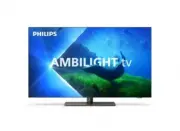


 Philips 65OLED769/12 User Manual
 Philips 65OLED803/12 User Manual
 Philips 65OLED804/12 User Manual
 Philips 65OLED805/12 User Manual
 Philips 65OLED806/12 User Manual
 Philips 65OLED807/12 User Manual
 Philips 65OLED809/12 User Manual
 Philips 65OLED818/12 User Manual
 Philips 65OLED819/12 User Manual
 Philips 65OLED837/12 Quick Guide
 Philips 65OLED848/12 User Manual
 Philips 65OLED849/12 Quick Guide