Page 2 - Content
Content 1 Setting Up 3 1.1 Read Safety 3 1.2 TV Stand and Wall Mounting 3 1.3 Tips on Placement 3 1.4 Power Cable 3 1.5 Antenna Cable 4 1.6 Satellite Dish 4 2 Switching On and Off 5 3 Remote Control 6 3.1 Key Overview 6 3.2 IR Sensor 7 3.3 Batteries 7 3.4 Cleaning 7 4 Specifications 8 4.1 Environmen...
Page 3 - Mounting; TV Stand; Wall Mounting
1. Setting Up 1.1. Read Safety Read the safety instructions first before you use the TV. 1.2. TV Stand and Wall Mounting TV Stand You can find the instructions for mounting the TV stand in the Quick Start Guide that came with the TV. In case you lost this guide, you can download it from www.philips....
Page 5 - Off
2. Switching On and Off Make sure the TV is connected to the mains AC power. The indicator light at the bottom of the TV lights up. Switch on Press Power on the remote control to switch the TV on. You can also press the small joystick key on the bottom of the TV to switch the TV on in case you can't...
Page 8 - Product Information sheet
4. Specifications 4.1. Environmental Product Information sheet EPREL registration number 24HFL4518/12 : 1827408 32HFL4518/12 : 1827409 43HFL4518U/12 : 1827411 50HFL4518U/12 : 1827412 55HFL4518U/12 : 1827413 65HFL4518U/12 : 1827415 4.2. End of Use Disposal of your old product and batteries Your produ...
Page 11 - HTS; Connect with HDMI ARC
Device auto power off Turn off the HDMI devices with the TV. Home > Settings > Device Preferences > Inputs > Device auto power off . TV auto power on Power on the TV with HDMI devices. Home > Settings > Device Preferences > Inputs > TV auto power on . HDMI EDID Version Check ...
Page 14 - Tablets; What You Need; Cast to Your TV
7. Smartphones and Tablets 7.1. Google Cast What You Need If an app on your mobile device has Google Cast, you can cast your app on this TV. On the mobile app, look for the Google Cast icon. You can use your mobile device to control what's on TV. Google Cast works on Android and iOS.Your mobile devi...
Page 15 - Notification
8. Professional mode 8.1. What you can do The Professional Mode will be already set to On if it was selected during the Virgin installation procedure. In professional mode, you can configure the TV for hotel use.Features include: • Changing professional setup items, such as power and speaker setting...
Page 17 - Screen; Home Screen; Network and Internet
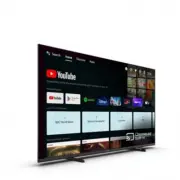
9. Android TV Home Screen 9.1. About the Android TV Home Screen To enjoy the benefits of your Android TV, connect the TV to the Internet.Like on your Android smartphone or tablet, the Home screen is the centre of your TV. From the Home sreen you can decide what to watch by browsing entertainment opt...
Page 21 - Apps
Apps Google Play Movies and TV With Google Play Movies & TV , you can rent or buy movies and TV shows to watch on TV. What You Need • your TV must be connected with the Internet • you must sign in with your Google Account on TV • add a credit card to your Google Account to purchase movies and TV...
Page 24 - Picture
* If you use the TV as a monitor or use a digital receiver to watch TV (a Set-Top Box - STB) and you do not use the remote control of the TV, you should deactivate this automatic switch off, to set the value to Off. Set auto sleep timer Power > Auto sleep.TV switches to sleep mode automatically a...
Page 27 - Control
10. Help and Support 10.1. Troubleshooting 10.2. Switch On and Remote Control The TV does not switch on • Disconnect the power cable from the power outlet. Wait for one minute then reconnect it. • Make sure that the power cable is securely connected. Creaking sound at startup or switch off When you ...
Page 28 - Bluetooth®
10.5. Sound No sound or poor sound quality If no audio signal is detected, the TV automatically switches the audio output off — this does not indicate malfunction.• Make sure that the sound settings are correctly set. • Make sure that all cables are properly connected. • Make sure that the volume is...
Page 31 - Apparatus
Lightning Storms Disconnect the TV from the power outlet and antenna before lightning storms. During lightning storms, never touch any part of the TV, power cord or antenna cable. Risk of Hearing Damage Avoid using earphones or headphones at high volumes or for prolonged periods of time. Low Tempera...
Page 35 - Index
Index A Android TV Home Screen 17 Announcements 34 Antenna Cable 4 Antenna port 10 Audio Device 12 C Connect Devices 10 D Display Input Resolution 9 G Google Cast 14 H Headphones 12 Health Care Facility Apparatus 31 Home Theatre System 11 P Power cable 3 R Remote Control 6 Remote control, batteries ...