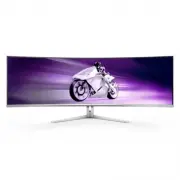
Page 2 - Table of Contents; Safety precautions and; Power Delivery and Smart; Philips’ Flat Panel Monitors Pixel
Table of Contents 1. Important ...................................... 1 1.1 Safety precautions and maintenance ..................................1 1.2 Notational Descriptions ..............3 1.3 Disposal of product and packing material ............................................4 2. Setting up the ...
Page 5 - Notational Descriptions
3 • “Burn-in”, “after-imaging”, or “ghost imaging” is a well-known phenomenon in QD OLED panel technology. In most cases, the “burn-in”, “after-imaging” or “ghost imaging” will disappear gradually over some time after the power has been switched off. Warning It is highly recommended that you always ...
Page 7 - monitor; Package contents; *Different according to region
5 2. Setting up the monitor 2.1 Installation 1 Package contents *DP *HDMI * USB A-B *USB C-C/A *USB C-C *USB C-A VESA Bracket Quick Start 49M2C8900 Register your product and get support at www.philips.com/welcome Power * Remote Control Batteries AAA R03 1.5V Screw and screwdriver M4 x 4 M5 x 2 *Diff...
Page 10 - Operating the monitor
8 2.2 Operating the monitor 1 Description of the control buttons Press to switch power on. Press more than 3 seconds to switch power off. Access the OSD menu. Confirm the OSD adjustment.Adjust the Game Mode.Adjust the OSD menu. Change the signal input source.Adjust the OSD menu.SmartImage Game menu....
Page 13 - Description of the On-Screen Display
11 5 Description of the On-Screen Display What is On-Screen Display (OSD)?On-Screen Display (OSD) is a feature in all Philips QD OLED monitors. It allows an end user to adjust screen performance or select functions of the monitors directly through an on-screen instruction window. A user-friendly OSD...
Page 16 - Swivel; Height adjustment
14 7 Firmware The over-the-air (OTA) firmware update is through the Evnia Precision Center software and is easily downloadable through the Philips website. What does Evnia Precision Center do? It is an additional software that helps control the photo, audio, and the other on- screen graphic settings...
Page 17 - VESA Mounting Screw M4. Always
15 2.3 Remove the Base Assembly for VESA Mounting Before you start disassembling the Display base, please follow the instructions below to avoid any possible damage or injury.1. Place the monitor face down on a smooth surface. Pay attention not to scratch or damage the screen. 2. Loosen the assembly...
Page 18 - MultiClient Integrated KVM; Use DP and HDMI as input then use
16 2.4 MultiClient Integrated KVM 1 What is it? With MultiClient Integrated KVM switch, you can control two separate PCs with one monitor-keyboard-mouse set up. 2 How to enable MultiClient Integrated KVM With the built-in MultiClient Integrated KVM, Philips monitor allows to quickly switch your peri...
Page 22 - Image Optimization
20 3. Image Optimization 3.1 SmartImage 1 What is it? SmartImage provides presets that optimize display for different types of content, dynamically adjusting brightness, contrast, color, and sharpness in real-time. Whether you're working with text applications, displaying images, or watching a video...
Page 24 - Customize color space
22 Note To switch off the HDR function, please disable the Input device and its content.Inconsistent HDR settings between the input device and monitor may cause unsatisfying images. 3.2 SmartContrast 1 What is it? It is a unique technology that dynamically analyzes displayed content and automaticall...
Page 25 - Note
23 4. Power Delivery and Smart Power You can power your compatible device with up to 90 Watts of power from this monitor. 1 What is it? Smart Power is an exclusive Philips technology that provides flexible power delivery options for various devices.This is useful for recharging high performance lapt...
Page 26 - Compatible
24 5. NVIDIA® G-SYNC® Compatible When playing intense games with high refresh rates, screen tearing may appear without optimal graphics synchronization. Certified as NVIDIA® G-SYNC® Compatible, variable refresh rate (VRR) reducing screen tearing and syncing your monitor’s refresh rate with your grap...
Page 27 - Premium Pro; AMD Radeon R9 Fury X
25 6. AMD FreeSync™ Premium Pro PC gaming has long had an imperfect experience because GPUs and monitors update at different rates. Sometimes a GPU can render many new pictures during a single update of the monitor and the monitor will show pieces of each picture as a single image. This is called “t...
Page 28 - How to enable Ambiglow
26 7. Ambiglow Ambiglow ambiglow What is it? Ambiglow adds a new dimension to your viewing experience. The innovative and exclusive Ambiglow processor continuously adjusts the overall color and brightness of the gamer's surroundings to match the on-screen image. User options like Auto mode and 3-ste...
Page 29 - Lighting
27 8. Windows Dynamic Lighting This monitor is equipped with Microsoft Windows Dynamic Lighting feature, which enables users with Windows 11 or later to synchronize and manage the RGB lighting of all their monitors and peripherals from one menu. By doing this, the Dynamic Lighting feature creates a ...
Page 31 - Rearrange your displays.
29 9. HDR HDR Settings in Windows11/10 system.Steps 1. Right-click on the desktop, and enter Display settings. 2. Select the display/monitor.3. Select an HDR-capable display under Rearrange your displays. 4. Select Windows HD Color settings.5. Adjust Brightness for SDR content. Note Windows 11 / 10 ...
Page 32 - Screen maintenance; • Screen Saver; that you always turn on Pixel Orbiting to protect the screen.; • Pixel Refresh
30 10. Screen maintenance Following the characteristics of QD OLED displays, there are automatic mechanisms used to protect the screen and reduce image sticking which may request an opportunity to run the refresh process. These mechanism settings may be adjusted in the On-Screen Display (OSD) menu u...
Page 33 - reaches 16 hours, the screen will refresh automatically.; Compulsory execution message; • Multi-Logo Protection; sticking where logos are detected.; • Boundary Dimmer; of specific areas with a large difference in brightness levels.
31 the user the option to activate or skip the refresh process. If the user chooses to ignore the initial Pixel Refresh, a reminder will appear every two hours. Once cumulative usage reaches 16 hours, the screen will refresh automatically. A reminder message that pops up after 4 hours of continuous ...
Page 34 - • Taskbar Dimmer
32 • Taskbar Dimmer The Taskbar Dimmer technology will dim the brightness of the taskbar area on the screen. No brightness changes will be noticeable in the areas other than in the taskbar.
Page 35 - • Thermal Protection; LED Indicator; Status
33 • Thermal Protection When the temperature of the monitor is over 60 degrees Celsius, the Thermal Protection feature will automatically dim the brightness of the screen in order to ensure heat dissipation properly. It is recommended that you turn on the feature for the monitor. Note Please note th...
Page 36 - Ideal working posture
34 11. Designs to prevent computer vision syndrome (CVS) Philips monitor is designed to prevent eye strain caused by prolonged computer use. Follow the below instructions and use a Philips monitor to efficiently reduce fatigue and maximize working productivity. 1. Appropriate environment lighting: •...
Page 37 - Technical Specifications; Connectivity
35 12. Technical Specifications Picture/Display Monitor Panel Type QD OLED Panel Size 48.9" W (124.3 cm) Aspect Ratio 32:9 Pixel Pitch 0.233 (H) mm x 0.233 (V) mm Contrast Ratio (typ.) 1.5M:1 Recommended Resolution 5120X1440 @ 60 Hz Maximum Resolution 5120X1440 @ 240 Hz Viewing Angle 178° (H) / ...
Page 42 - Power Management; Power Management Definition; Off mode
40 13. Power Management If you have a VESA DPM compliance display card or software installed on your PC, the monitor can automatically reduce its power consumption when not in use. If an input from a keyboard, mouse, or other input device is detected, the monitor will 'wake up' automatically. The fo...
Page 43 - Philips’ Flat Panel Monitors; Sub pixels; Pixels and Sub pixels
41 14. Customer care and warranty 14.1 Philips’ Flat Panel Monitors Pixel Defect Policy Philips strives to deliver the highest quality products. We use some of the industry's most advanced manufacturing processes and practice stringent quality control. However, pixel or sub-pixel defects on the TFT ...
Page 47 - FAQs; Troubleshooting; Common Problems
45 15. Troubleshooting & FAQs 15.1 Troubleshooting This page deals with problems that can be corrected by a user. If the problem persists after you have tried these solutions, contact a Philips customer service representative. 1 Common Problems No Picture (Power LED not lit) • Make sure the powe...