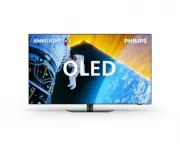
Page 2 - Content
Content 1 OLED Screen Care 4 2 Home Screen 6 2.1 Introduction 6 2.2 Dashboard and Settings 6 2.3 Google TV and Basic Mode 6 2.4 Open the Home Screen 7 3 Setting Up 8 3.1 Read the Safety Instructions 8 3.2 TV Stand and Wall Mounting 8 3.3 Tips on Placement 8 3.4 Power Cable 8 3.5 Antenna Cable 9 3.6 ...
Page 6 - Mode
2. Home Screen 2.1. Introduction To enjoy the benefits of your Google TV, connect the TV to the Internet. Press HOME on your remote control to get your Home screen . Like on your Android smartphone or tablet, the Home screen is the centre of your TV. From the Home screen you can decide what to wat...
Page 8 - TV Stand
3. Setting Up 3.1. Read the Safety Instructions Please read the safety instructions before you use the TV.To read the instructions, in Help > User manual , press the colour key Keywords and look up Safety Instructions . 3.2. TV Stand and Wall Mounting TV Stand You can find the instructions for ...
Page 11 - Bottom; to TV
3 - Arrow / navigation keys To navigate up, down, left or right. 4 - OPTIONS ( ) To open or close the options menu. Long press to open programme info. 5 - (Back) To switch back to the previous channel you selected. To return to previous menu. To go back to the previous App/Internet page. 6 - Vol...
Page 13 - Top Box
use substances such as alcohol, chemicals or household cleaners on the remote control. 4.6. Simple Setup App for Set Top Box Simple Setup app will allow user to control their set top box using the TV remote control (via IR control to the set top box). Setup via App for connected set top box 1 - Conn...
Page 14 - Off
5. Switching On and Off 5.1. On or Standby Make sure the TV is connected to the mains AC power. Connect the supplied power cord to the AC in connector at the back of the TV. The indicator light at the bottom of the TV lights up. Switch on Press on the remote control to switch the TV on. You can al...
Page 15 - Installation; About Installing Satellites
6. Channel Installation 6.1. Satellite Installation About Installing Satellites Up to 4 Satellites You can install up to 4 satellites (4 LNBs) on this TV. Select the exact number of satellites you wish to install at the start of the installation. This will speed up the installation. Unicable You can...
Page 19 - DVB Settings
Analogue Channels or Only Digital Channels and press OK . 9 - Select Start and press OK to reinstall channels. This can take a few minutes. 10 - Press (left) to go back one step or press Back to close the menu. Factory reset You can redo a full TV installation. The TV is completely reinstalled.T...
Page 23 - Channel Options
2 - Press OK to open the current channel list. 3 - Press OPTIONS . 4 - Select Select Channel List and press OK . 5 - Select Filter Antenna Channels or Filter Cable Channels according to the list you want to filter, and press OK . 6 - In the Options menu, select the filter you want and press OK to ...
Page 32 - HTS; Connect with HDMI ARC/eARC; Optical
playing such content for the first time. HDR10+ content is supported only when HDMI Ultra HD is set to Optimal or Optimal (Auto Game xxxHz Pro) . Dolby Vision content is supported only when HDMI Ultra HD is set to Optimal , Optimal (Auto Game) or Optimal (Auto Game xxxHz Pro) . For supported TV mode...
Page 39 - Start Internet
external sources. Create a Kids profile You may use your existing Google Account to sign in to your TV or add an account to create Kids profile. 1 - Select the Profile icon via the Dashboard at the top right corner of Home screen. 2 - Select an existed account if you already created accounts, or sel...
Page 41 - Frequent Settings
12. Quick Menu and Frequent Settings In the Quick Menu and Frequent settings , you will find a quick way to access TV functions or setting menus.To open Quick Menu / Frequent settings and open an item: 1 - Press Quick Menu / MENU to open Quick Menu . 2 - Press the arrows (Left) or (right) to s...
Page 42 - Sound; Picture Settings
13. Display and Sound 13.1. Picture Picture Settings About Picture Settings Menu The picture setting menu provides an easy flow to access multi-level picture settings from general to advanced. For some picture settings, values can be changed by breakaway menu to let you view all the setting values a...
Page 45 - Picture Format
Switch on to have a superior sharpness in line edges and details. Not available when Picture format is set to Fill Screen . Picture Clean Noise reduction Settings > Display and sound > Picture > Picture clean > Noise reduction . Select Off , Maximum , Medium , or Minimum to set the lev...
Page 47 - TV Placement
Select On to get an improved sound quality for speech programme. AI Equalizer Settings > Display and sound > Sound > Personal settings > AI Equalizer . Select On to enable intelligent equalizer adjustment based on audio content and custom settings. Custom AI Equalizer Settings > D...
Page 48 - Personalised Sound
complete the Home Theater system setup. On Settings menu of Home Theater system. You can select Distance To Speakers to choose proper distance or select Disable Home Theater , Disband Setup if necessary.Note: 1. Wireless surround/Stereo pair should proceed under Play-Fi Home Theater. 2. The features...
Page 57 - System Software Update
15. System 15.1. Accessibility Settings > System > Accessibility . With Accessibility switched on, the TV is prepared for use for the deaf, hard of hearing, blind or partially sighted people. High contrast text Settings > System > Accessibility > High contrast text . Turn on to ma...
Page 64 - Accessories; Pair Accessory
17. Remote and Accessories 17.1. Bluetooth® On or Off Pair Accessory Position the Bluetooth® device within a distance of 5 meters from the TV. Read the user manual of the device for specific information on pairing and on wireless range. Make sure the Bluetooth® setting on TV is switched on.Once a Bl...
Page 65 - and Music; Last Played Menu; Play Videos
18. Videos, Photos and Music 18.1. From a Computer or NAS You can view your photos or play your music and videos from a computer or a NAS (Network Attached Storage) in your home network.The TV and computer or NAS must be in the same home network. On your computer or NAS, you need to install Media Se...
Page 68 - Tablets
19. Smartphones and Tablets 19.1. Philips Smart TV App The Philips Smart TV on your smartphone or tablet is your new TV buddy. The app lets you switch channels and adjust the volume — just like a remote control.Download the Philips Smart TV App from your favourite app store today.The Philips Smart T...
Page 69 - Console or Computer
20. Games 20.1. What You Need On this TV, you can play games:• from the Google Play Store in the Home menu • from a connected Game Console Games from the Google Play Store must be downloaded and installed on TV before you can play them. Some games need a gamepad to play.To install game apps from the...
Page 72 - EPREL Registration Number; End of Use
23. Specifications 23.1. Environmental European Energy Label The European Energy Label informs you on the energy efficiency class of this product. The greener the energy efficiency class of this product is, the lower the energy it consumes. On the label, you can find the energy efficiency class, the...
Page 75 - diagnose
24. Help and Support 24.1. Register your TV Register your TV and enjoy a range of benefits including full support (including downloads), privileged access to information about new products, exclusive offers and discounts, the chance to win prizes and even participate in special surveys about new rel...
Page 78 - Wrong Menu Language
5 meters from the TV. Bluetooth® Audio and Video syncronisation • Before you purchase a wireless Bluetooth® speaker, inform yourself about its quality of Audio to Video syncronisation, commonly called 'lip sync'. Not all Bluetooth® devices perform correctly. Ask your dealer for advice. Wrong Menu La...
Page 79 - Stability Hazards
25. Safety and Care 25.1. Safety Important Read and understand all safety instructions before you use the TV. If damage is caused by failure to follow instructions, the warranty does not apply. Risk of Electric Shock or Fire • Never expose the TV to rain or water. Never place liquid containers, such...
Page 83 - AirPlay
27. Copyrights 27.1. Google TV Google TV is the name of this device's software experience and a trademark of Google LLC. Google, YouTube and other marks are trademarks of Google LLC. 27.2. HDMI The terms HDMI, HDMI High-Definition Multimedia Interface, HDMI trade dress and the HDMI Logos are tradema...
Page 84 - Atmos
27.7. AMD FreeSync Premium No Stuttering. No Tearing. Fluid Gaming. 27.8. Dolby Vision and Dolby Atmos Dolby, Dolby Vision, Dolby Atmos, and the double-D symbol are registered trademarks of Dolby Laboratories Licensing Corporation. Manufactured under license from Dolby Laboratories. Confidential unp...
Page 87 - Index
Index A Advanced Ambilight Settings 52 Advanced Colour Settings 44 AI Picture style 42 Alexa 71 Ambient Dark Detail Optimization 43 Ambient Intelligence 43 Ambient Light Level Optimization 43 Ambient mode 59 Ambilight animation 52 Ambilight Extension 52 Ambilight Personalisation 51 Ambilight Style 5...