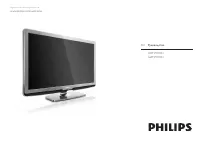
Page 3 - Return your Product Registration Card or register online at; Congratulations on your purchase,; Dear PHILIPS product owner:; Know these; safety; symbols; C A U T I O N; Purchase
ENGLISH FRANÇAISE ESP AÑOL EN-1 Registering your model with PHILIPS makes you eligible for all of the valuable benefits listed below, so don't miss out. Complete and return your Product Registration Card at once, or register online at www.philips.com/welcome to ensure: Return your Product Registrati...
Page 4 - EADBEFOREOPERATINGEQUIPMENT
EN-2 ENGLISH FRANÇAISE ESP AÑOL )-0/24!.43!&%49).3425#4)/.3 2EADBEFOREOPERATINGEQUIPMENT 2EADTHESEINSTRUCTIONS+EEPTHESEINSTRUCTIONS(EEDALLWARNINGS&OLLOWALLINSTRUCTIONS$ONOTUSETHISAPPARATUSNEARWATER#LEANONLYWITHADRYCLOTH$ONOTBLOCKANYOFTHEVENTILATIONOPENINGS)NSTALLINACCORDANCEWITHTHEMANUFACTUR...
Page 6 - Contents
EN-4 ENGLISH FRANÇAISE ESP AÑOL Contents Important 1. . . . . . . . . . . . . . . . . . . . . . . . . . . . . . . 5 Product information . . . . . . . . . . . . . . . . . . . . . . . . . . . . . 5Screen care . . . . . . . . . . . . . . . . . . . . . . . . . . . . . . . . . . . . 5Environmental care ....
Page 7 - Environmental care; Recycling; Like all LCD products, this set contains a lamp with Mercury,; Disposal of batteries; Regulatory notices; WARNING: To reduce the risk of fire or electric shock, this; Important; Product information
ENGLISH FRANÇAISE ESP AÑOL EN-5 1.2 Screen care Turn off and unplug the power cord before cleaning the screen. • Clean the screen with a soft, dry cloth. Do not use substances such • as household cleaning agents as these may damage the screen. To avoid deformations or color fading, wipe off water dr...
Page 8 - Your TV; Television overview; Front and side controls; MENU; Connect your devices; Understand the
EN-6 ENGLISH FRANÇAISE ESP AÑOL Your TV 2. This section describes the controls and functions of your TV. 2.1 Television overview Front and side controls 1 2 4 3 POWER CHANNEL MENU VOLUME 5 Power switch 1. Channel up/down 2. Menu 3. The MENU key can be used as an OK key in some submenus. Volume up/do...
Page 9 - Get started; Install the remote control batteries
ENGLISH FRANÇAISE ESP AÑOL EN-7 Get started 3. This section describes how to position and connect your TV, and how to perform your first-time installation. 3.1 Position the TV Warning B Do not insert the power plug into the wall socket before all the • connections are made.Large screen TVs are heavy...
Page 10 - Quick Start; Connect a set-top box through component video input or; Connect the power cord; WARNING: Verify that your voltage corresponds with the; To disconnect the TV from the power outlet
EN-8 ENGLISH FRANÇAISE ESP AÑOL YPbPr (Component Video Input) • HDMI • For information about how to connect a set-top box, see the Quick Start Guide provided. Connect a set-top box through RF IN/OUT If the TV is connected to a cable box or satellite set-top box via a coaxial connection, set the TV t...
Page 11 - Switch on and setup the TV; Retail store
ENGLISH FRANÇAISE ESP AÑOL EN-9 3.6 Switch on and setup the TV The TV switches on automatically after connecting the power cord. Press the GREEN Next button located on your remote control to proceed. Thank you for your purchase of this PHILIPS TV. Please proceed with the following steps to set-up yo...
Page 12 - Use your TV; Switch your TV on/off or to standby; To switch the TV on; To switch to standby; Watch TV; Switch channels
EN-10 ENGLISH FRANÇAISE ESP AÑOL Use your TV 4. This section helps you perform basic TV operations. Switch your TV on/off or to standby 4.1 To switch the TV on Press • . POWER at the right side of the TV. POWER To switch to standby Press • . on the remote control. To switch on from standby without t...
Page 13 - Watch channels from a set-top box
ENGLISH FRANÇAISE ESP AÑOL EN-11 Watch channels from a set-top box 4.3 Switch on the set-top box. 1. The picture from your set-top box might appear automatically on your screen.Use the remote control of your set-top box to select channels. 2. If the picture does not appear Press 1. SOURCE repeatedly...
Page 14 - Use more of your TV; Understand the remote control; Í Æ Î ï
EN-12 ENGLISH FRANÇAISE ESP AÑOL 5. Use more of your TV This section describes the advanced features of your TV. 5.1 Understand the remote control 21 4 23 9 15 6 12 13 16 18 14 1 11 19 8 7 17 10 20 5 ON/OFF MODE AMBILIGHT . 1. Switches the TV on from standby or back to standby. The TV is never power...
Page 15 - Use the quick access menu; Change picture format; Equalizer; Change sound settings; Change picture and sound settings; Start now
ENGLISH FRANÇAISE ESP AÑOL EN-13 5.2 Use the quick access menu The quick access menu gives direct access to some often needed menu items. Note D When digital channels are installed and broadcast, the relevant digital options are displayed in the quick access menu.Press 1. OPTION on the remote contro...
Page 16 - On with
EN-14 ENGLISH FRANÇAISE ESP AÑOL Summary of picture settings The following picture settings can be configured. Depending on the format of the picture source, some picture settings might not be available. • Contrast - Sets the level of white in the picture. • Brightness - Sets the brightness of the p...
Page 17 - Watch; Change Ambilight settings; Configure Ambilight; first and set
ENGLISH FRANÇAISE ESP AÑOL EN-15 Change sound settings This section describes how to adjust your sound settings. Press 1. MENU on the remote control and select TV settings > Sound . Sound Equalizer BalanceDigital audio languageAlternate audioMono/StereoIncredible soundAVLBBE TV Settings TV menu S...
Page 18 - Create and use lists of favorite channels; Switch to one of the channels on a list
EN-16 ENGLISH FRANÇAISE ESP AÑOL 5.6 Create and use lists of favorite channels This section describes how to create and use lists of your favorite channels. Select a list of favorite channels Press the 1. FAV key on the remote control. Your lists of favorite channels are displayed.Press 2. Î or ï to...
Page 19 - Time zone; Set the sleeptimer
ENGLISH FRANÇAISE ESP AÑOL EN-17 5.7 Set the clock This section describes how set the time, date, time zone, and daylight saving. Set the time automatically Some digital channels transmit the time. For these channels, you can set the time automatically. Follow these steps to set the time automatical...
Page 20 - Use child control and rating locks; Set the clock
EN-18 ENGLISH FRANÇAISE ESP AÑOL Use child control and rating locks 5.9 This section describes how to lock or unlock the TV. You can set a personal identification number (PIN) and prevent your children from watching certain programs or certain channels. Set or change your PIN Press 1. MENU on the re...
Page 21 - Set or change your; Age rating; None
ENGLISH FRANÇAISE ESP AÑOL EN-19 Use the TV ratings lock Your TV is equipped with a V-chip that allows you to control access to individual programs based on their age rating and content rating. The program content advisory data are sent by the broadcaster or by the program provider.If you are receiv...
Page 23 - Summar y of caption; Downloaded rating table
ENGLISH FRANÇAISE ESP AÑOL EN-21 5.10 View closed captions (subtitles) The caption service displays transmitted CC-, T-, and CS- text. The caption text can be displayed permanently or only when the TV is muted. This section describes how to use the caption service. Note D This television provides a ...
Page 24 - View photos and play music on a USB device; Notes for the use of USB; Choose how digital captions are displayed
EN-22 ENGLISH FRANÇAISE ESP AÑOL 5.11 View photos and play music on a USB device Your TV is fitted with a USB connection that enables you to view photos or listen to music stored on a USB device. You can view your pictures as a slideshow or listen to a music playlist. For information about using a U...
Page 25 - View your pictures on a USB device; Accompany a slideshow with music; Listen to music on a USB device
ENGLISH FRANÇAISE ESP AÑOL EN-23 View your pictures on a USB device After connecting your USB device to the TV, press 1. Æ to enter the Multimedia menu. Picture is highlighted. Picture Thumbnails Image1.JPG Image2.JPGFolder 1Folder 2 Picture Music MyUSB Press 2. Æ to enter the Picture folder. Press ...
Page 26 - Use your TV as a PC monitor; Configure your TV in PC mode; Use your TV in HDTV mode; Configure your TV in HDTV mode
EN-24 ENGLISH FRANÇAISE ESP AÑOL 5.13 Use your TV as a PC monitor For information how to connect a PC to your TV see Connect a PC on page 33. Use an HDMI-DVI cable or an HDMI-DVI adaptor. For sound, add an audio cable with a stereo mini jack. Caution B Before you connect your PC, set the PC monitor ...
Page 27 - Use Philips EasyLink
ENGLISH FRANÇAISE ESP AÑOL EN-25 5.14 Use Philips EasyLink Your TV supports Philips EasyLink, which enables one-touch play and one-touch standby between EasyLink-compliant devices. Compliant devices must be connected to your TV via an HDMI connector. One-touch play When you connect your TV to device...
Page 28 - Change your TV installation; Select your menu language; Set your location to home; Set or change; Optimize the signal quality from your antenna
EN-26 ENGLISH FRANÇAISE ESP AÑOL Change your TV installation 6. The first time you switch on your TV you select the language for the TV menus and make basic choices for picture and sound settings. Use this chapter to reinstall the TV, to set preferences in the TV menus, or to tune new TV channels. 6...
Page 29 - Uninstall and reinstall channels; Return your settings to default values
ENGLISH FRANÇAISE ESP AÑOL EN-27 Uninstall and reinstall channels 6.5 This section describes how to uninstall and reinstall a stored channel. When a channel is uninstalled it is removed from the list of channels.Uninstalled channels are not reinstalled during an installation update. Press 1. MENU on...
Page 30 - Download the software; Upgrade software; Power; Update your TV software; Check your current software version; Prepare for the software upgrade
EN-28 ENGLISH FRANÇAISE ESP AÑOL Download the software On your PC, open a web browser and go to 1. www.philips.com/ welcome . Find information and software related to your TV and download the 2. latest software upgrade file to your PC.Decompress the ZIP-file and copy the “ 3. autorun.upg ” file to t...
Page 31 - Connect devices; Connection overview
ENGLISH FRANÇAISE ESP AÑOL EN-29 Connect devices 8. 8.1 Connection overview SER V. U SPDIF OUT VIDEO S-VIDEO DVI AUDIO IN HDMI 3 HDMI 1 HDMI 2 AV 3 AV 1 AV 2 Y Pb Pr L R L R L R Y Pb Pr L R TV ANTENNA HDMI 4 S-VIDEO VIDEO L AUDIO R USB SER V. U R R R TV ANTENNA SER V. U VV RR RR RR TV ANTENNA 1 2 3 ...
Page 32 - Composite - Basic quality; Label your connections; Select your connection quality; HDMI - Highest quality; Use Philips
EN-30 ENGLISH FRANÇAISE ESP AÑOL S-Video - Good quality An analog connection, S-Video provides better picture quality than composite video. When connecting your device with S-Video, plug the S-Video cable to the S-Video connector on the side of the TV. You must connect a separate Audio L/R cable fro...
Page 33 - Connect your devices
ENGLISH FRANÇAISE ESP AÑOL EN-31 Connect a set-top box, DVD player/recorder and game console via HDMI SER V. U SPDIF OUT VIDEO S-VIDEO DVI AUDIO IN HDMI 3 HDMI 1 HDMI 2 AV 3 AV 1 AV 2 Y Pb Pr L R L R L R Y Pb Pr L R TV ANTENNA Connect a DVD player/recorder via HDMI-DVI and DIGITAL AUDIO OUT connecto...
Page 34 - Connect a digital home theater amplifier; Warning
EN-32 ENGLISH FRANÇAISE ESP AÑOL Connect a digital home theater amplifier SER V. U SPDIF OUT VIDEO S-VIDEO DVI AUDIO IN HDMI 3 HDMI 1 HDMI 2 AV 3 AV 1 AV 2 Y Pb Pr L R L R L R Y Pb Pr L R TV ANTENNA DIGITAL AUDIO IN DIGITAL AUDIO OUT Warning B Due to legal requirements, it is possible that with cert...
Page 35 - Connect a PC with an HDMI connector; Connect a PC; Connect a PC with an S-Video connector at the back; Connect a PC with an S-Video connector at the side; Connect a PC with a DVI connector
ENGLISH FRANÇAISE ESP AÑOL EN-33 Connect a PC with an HDMI connector SER V. U SPDIF OUT VIDEO S-VIDEO DVI AUDIO IN HDMI 3 HDMI 1 HDMI 2 AV 3 AV 1 AV 2 Y Pb Pr L R L R L R Y Pb Pr L R TV ANTENNA HDMI Connect a PC Connect a PC with an S-Video connector at the back SER V. U SPDIF OUT VIDEO S-VIDEO DVI ...
Page 36 - Glossary
EN-34 ENGLISH FRANÇAISE ESP AÑOL Glossary 9. Term Meaning DVI Digital Visual Interface A digital interface standard created by the Digital Display Working Group (DDWG) to convert analog signals into digital signals to accommodate both analog and digital monitors. RGB signals Red, Green and Blue sign...
Page 37 - Troubleshooting
ENGLISH FRANÇAISE ESP AÑOL EN-35 Troubleshooting 10. Symptoms Possible cause What should you do No power or indicator light. The TV is not connected to the power. 1. Press . POWER at the right side of the TV, or press . on the remote control.2. Ensure the power cord is connected tightly to the TV po...
Page 38 - Notes for the use of USB devices; Digital Content Issues
EN-36 ENGLISH FRANÇAISE ESP AÑOL 11. Notes for the use of USB devices Digital Content Issues Only FAT (DOS) formatted (initialized) portable memory is • supported. Errors in this formatting can result in unreadable content. If such problems appear try to re-format the card. Be aware that formatting ...
Page 39 - Technical specifications
ENGLISH FRANÇAISE ESP AÑOL EN-37 12. Technical specifications Feature Description Type no. 42-57PFL7603D PICTURE ENHANCEMENT Type 1080p 120Hz Brightness 500 cd/m2 Aspect Ratio 16:9 Response Time 2ms Viewing Angles 178 (V) by 178 (H) Built-in digital tuner ATSC/QAM HD Natural Motion Yes Dynamic Dimmi...
Page 40 - Index; Configuring the TV in HDTV mode
EN-38 ENGLISH FRANÇAISE ESP AÑOL Index 13. A Active control 14Ambilight Adjust settings 15Change mode 15Color 15Modes 15 Antenna, connect 7Audio 15 Alternate 15Language 15 Auto format 14Automatic Channel installation 26Surround 15Volume leveling 15 Auto Mode 16 B Back connectors 6Balance, Ambilight ...
Page 41 - See
ENGLISH FRANÇAISE ESP AÑOL EN-39 Mode HD 24Home or retail store 26PC 24 Model number 5Movie expand 14Movie ratings 20MPEG artefact reduction 14Multimedia 22Music. See Photos and music N Noise reduction 14 O One-touch play 25Overview, TV 6 P Parental control. See Child lock PC mode 24Photos and music...
Page 42 - Warranty; PHILIPS LIMITED WARRANTY
EN-40 ENGLISH FRANÇAISE ESP AÑOL Warranty 14. Philips, P.O. Box 671539, Marietta, GA. 30006-0026 PHILIPS LIMITED WARRANTY ONE (1) YEAR WARRANTY COVERAGE: PHILIPS warranty obligation is limited to the terms set forth below. WHO IS COVERED: Philips warrants the product to the original purchaser or the...