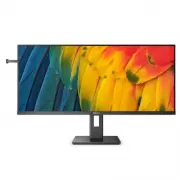
Page 2 - Table of Contents; Safety precautions and; Technical Specifications; Philips’ Flat Panel Displays Pixel
Table of Contents 1. Important ����������������������������������������� 1 1.1 Safety precautions and maintenance .....................................1 1.2 Notational Descriptions .................3 1.3 Disposal of product and packing material ..............................................4 2� Sett...
Page 3 - procedures other than those specified
1 1. Important This electronic user’s guide is intended for anyone who uses the Philips monitor. Take time to read this user manual before you use your monitor. It contains important information and notes regarding operating your monitor.The Philips guarantee applies provided the product is handled ...
Page 5 - Notational Descriptions
3 • Temperature: 0-40°C 32-104°F• Humidity: 20-80% RH Important information for Burn-in/ Ghost image • Always activate a moving screen saver program when you leave your monitor unattended. Always activate a periodic screen refresh application if your monitor will display unchanging static content. U...
Page 6 - Waste Electrical and Electronic
4 1.3 Disposal of product and packing material Waste Electrical and Electronic Equipment-WEEE This marking on the product or on its packaging illustrates that, under European Directive 2012/19/EU governing used electrical and electronic appliances, this product may not be disposed of with normal hou...
Page 7 - Setting up the monitor; Package contents; Install the base
5 2. Setting up the monitor 2.1 Installation 1 Package contents Quick start Register your product and get support at www.philips.com/welcome 40B1U5600 Business Monitor 5000 Series * HDMI * DP Power *USB C-C *USB A-B *USB C-C/A Screw and screwdriver M4 x 4 *USB C-A *Different according to region. 2 I...
Page 8 - Connecting to your PC; Connect to PC
6 3 Connecting to your PC Fast Charger USBC (PD15W) AUDIO OUT Fast Charger 1 2 3 4 5 7 8 10 9 6 11 12 USB C-C a-1 a-2 USB Type-C OR USB A-C USB Type-A a-1 a-2 OR USB hub USB A-B 1 Power Switch 2 AC power input 3 HDMI input 4 DisplayPort input 5 USBC 6 USB UP 7 USB downstream/USB fast charger 8 Audio...
Page 10 - Operating the monitor; Confirm the OSD; OSD Settings; button to confirm your
8 2.2 Operating the monitor 1 Description of the control buttons 5 4 3 2 1 7 6 8 1 Switch monitor’s power ON or OFF . 2 Access the OSD menu. Confirm the OSD adjustment. 3 Adjust the OSD menu. 4 User preference key. Customize your own preference function from OSD to become the “user key”. 5 Change th...
Page 13 - Physical Function; Tilt; Warning
11 5 Physical Function Tilt 30° -5° Swivel -180° +180° Height adjustment 150mm Slant Adjust -2° 0° 2° 0° Warning • To avoid potential screen damage, such as panel peeling, ensure that the monitor does not tilt downward by more than -5 degrees. • Do not press the screen while adjusting the angle of t...
Page 14 - MultiClient Integrated KVM; How to enable MultiClient Integrated
12 2.3 MultiClient Integrated KVM 1 What is it? With MultiClient Integrated KVM switch, you can control two separate PCs with one monitor-keyboard-mouse set up. 2 How to enable MultiClient Integrated KVM With the built-in MultiClient Integrated KVM, Philips monitor allows to quickly switch your peri...
Page 16 - PIP
14 2.4 MultiView 1 What is it? Multiview enables active dual connect and view so that you can work with multiple devices like PC and Notebook side-by-side simultaneously, making complex multi-tasking work a breeze. 2 Why do I need it? With the ultra high resolution Philips MultiView display, you can...
Page 17 - Note
15 [PBP]: Picture by Picture Open up a sub-window side-by-side of another signal source. A (main) B When the sub source is not detected: A (main) B Note The black strip shows on the top and the bottom of the screen for the correct aspect ratio when in the PBP mode. If you expect to see full screen s...
Page 18 - Before you start disassembling the
16 2.5 Remove the Base Assembly for VESA Mounting Before you start disassembling the monitor base, please follow the instructions below to avoid any possible damage or injury. 1. Place the monitor face down on a smooth surface. Pay attention not to scratch or damage the screen. 2. Loosen the assembl...
Page 19 - Image Optimization; optimize display for different types
17 3. Image Optimization 3.1 SmartImage What is it? SmartImage provides presets that optimize display for different types of content, dynamically adjusting brightness, contrast, color and sharpness in real time. Whether you're working with text applications, displaying images or watching a video, Ph...
Page 21 - OK; button to turn on or off
19 • Off: No optimization by SmartImage HDR. Note To switch off HDR function, please disable from Input device and its content.Inconsistent HDR settings between input device and monitor may cause unsatisfying images. 3.2 SmartContrast What is it? Unique technology that dynamically analyzes displayed...
Page 22 - Adaptive Sync; update at different rates. Sometimes
20 3.4 Adaptive Sync Adaptive Sync PC gaming has long been an imperfect experience because GPUs and monitors update at different rates. Sometimes a GPU can render many new pictures during a single update of the monitor, and the monitor will show pieces of each picture as a single image. This is call...
Page 24 - Designs to prevent
22 5. PowerSensor™ How does it work? • PowerSensor works on principle of transmission and reception of harmless “infrared” signals in order to detect user-presence. • When the user is in front of the monitor, the monitor operates normally, at the predetermined settings that the user has set- i.e. br...
Page 25 - Landscape/Portrait mode
23 5. PowerSensor™ How does it work? • PowerSensor works on principle of transmission and reception of harmless “infrared” signals in order to detect user-presence. • When the user is in front of the monitor, the monitor operates normally, at the predetermined settings that the user has set- i.e. br...
Page 27 - VESA Certified DisplayHDRTM 400
25 6. Technical Specifications Picture/Display Display Panel Type IPS Technology Backlight W-LED Panel Size 39.5" W (100.4 cm) Aspect Ratio 21:9 Pixel Pitch 0.26925 (W) x 0.26925 (H) Contrast ratio(typical) 1200:1 Native Resolution 3440 x 1440 @ 60 Hz Maximum Resolution 3440 x 1440 @ 100 Hz (HDM...
Page 31 - Power Management Definition
29 7. Power Management If you have VESA DPM compliance display card or software installed in your PC, the display can automatically reduce its power consumption when not in use. If an input from a keyboard, mouse or other input device is detected, the display will 'wake up' automatically. The follow...
Page 32 - Philips’ Flat Panel Displays; in flat panel d; subpixel; Pixels and Sub pixels
30 8. Customer care and warranty 8.1 Philips’ Flat Panel Displays Pixel Defect Policy Philips strives to deliver the highest quality products. We use some of the industry's most advanced manufacturing processes and practice stringent quality control. However, pixel or sub pixel defects on the TFT Di...
Page 36 - FAQs; Common Problems
34 • Check to see if the display cable has bent pins. • Make sure the computer is turned on. Visible signs of smoke or sparks • Do not perform any troubleshooting steps • Disconnect the display from mains power source immediately for safety • Contact with Philips customer service representative imme...