Philips 27M1F5800/00 - User Manual
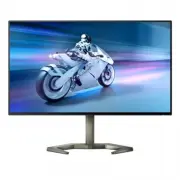
Philips 27M1F5800/00 – User Manual, read for free online in PDF format. We hope this helps you resolve any issues you may have. If you have further questions, please contact us through the contact form.


Table of Contents:
- Page 2 – Table of Contents; Important 1; Safety precautions and; Setting up the monitor 5; Remove the Base Assembly for; Image Optimization 13; Philips’ Flat Panel Monitors Pixel
- Page 3 – tenance; Warnings
- Page 5 – Notational Descriptions; The following subsections describe
- Page 6 – ing material; Waste Electrical and Electronic
- Page 7 – Setting up the monitor; Package contents; *Different according to region
- Page 8 – Connecting to your PC; Connect to PC
- Page 9 – ports to charge your Smart phone or; Operating the monitor; Description of the control buttons
- Page 10 – work your way around the different
- Page 11 – Physical Function; Warning
- Page 12 – Before you start disassembling the
- Page 14 – MultiView in OSD menu; Open up a sub-window; DisplayPort 1; The main picture source and; PBP; Stop MultiView function.
- Page 15 – Image Optimization; optimize display for different types
- Page 16 – When this display receives HDR signal
- Page 18 – mium Pro; update at different rates. Sometimes; Operating system
- Page 20 – Technical Specifications; Connectivity
- Page 24 – Power Management Definition; The following setup is used to measure
- Page 25 – Philips’ Flat Panel Monitors; in flat panel m; Pixels and Sub pixels
- Page 29 – FAQs; This page deals with problems that can
- Page 32 – or Ghost Image in LCD panels?
EN
User manual
1
Customer care and warranty
Troubleshooting and FAQs
Register your product and get support at www.philips.com/welcome
27M1F5800
"Loading the manual" means you need to wait until the file loads and becomes available for online reading. Some manuals are very large, and the time they take to appear depends on your internet speed.
Was this manual helpful?
About this manual
- Brand
- Philips
- Model
- 27M1F5800/00
- Document type
- User Manual
- Language(s)
- English
- Pages
- 34
- File size
- 2.8 MB
- Format
Other Manuals for Philips 27M1F5800/00
Summary
Table of Contents 1. Important 1 1.1 Safety precautions and maintenance ................................. 1 1.2 Notational Descriptions ............. 3 1.3 Disposal of product and packing material ........................................... 4 2 Setting up the monitor 5 2.1 Installation ................
1 1. Important This electronic user’s guide is intended for anyone who uses the Philips monitor. Take time to read this user manual before you use your monitor. It contains important information and notes regarding operating your monitor.The Philips guarantee applies provided the product is handled ...
3 Ghost image • Always activate a moving screen saver program when you leave your monitor unattended. Always activate a periodic screen refresh application if your monitor will display unchanging static content. Uninterrupted display of still or static images over an extended period may cause “burn-...
Ask a question
Related manuals
Popular Philips Other


More Philips Other models
 Philips 27E1N1900AE/00 User Manual
 Philips 27E1N5500LA/00 User Manual
 Philips 27E1N5600HE/00 User Manual
 Philips 27M1C5200W/00 User Manual
 Philips 27M1C5500VL/00 User Manual
 Philips 27M1F5500P/00 User Manual
 Philips 27M1N3200ZA/00 User Manual
 Philips 27M1N3500LS/00 User Manual
 Philips 27M1N5500ZA/00 User Manual
 Philips 27M2C5200W/00 User Manual
 Philips 27M2C5201L/00 Installation Manual
 Philips 27M2C5201L/01 Installation Manual