Philips 27E1N5600AE/00 - User Manual
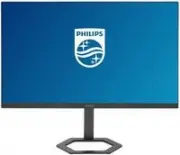
Philips 27E1N5600AE/00 Monitor – User Manual, read for free online in PDF format. We hope this helps you resolve any issues you may have. If you have further questions, please contact us through the contact form.


Table of Contents:
- Page 2 – Table of Contents; Power Delivery and Smart
- Page 3 – procedures other than those specified
- Page 5 – Notational Descriptions
- Page 6 – locations for dropping off such waste
- Page 7 – monitor; Package contents; *Different according to region
- Page 10 – efficiency of the radio transmission.; Operating the monitor; Confirm the OSD adjustment.
- Page 12 – screen flickering. It is recommended
- Page 14 – Pivot
- Page 15 – Note
- Page 16 – Noise Cancelling; This monitor has Noise Cancelling
- Page 17 – * Display design may differ from those
- Page 18 – Image Optimization; optimize display for different types
- Page 21 – Adaptive Sync; update at different rates. Sometimes
- Page 22 – technology that provides flexible power
- Page 23 – Technical Specifications; Connectivity
- Page 28 – Philips’ Flat Panel Monitors; in flat panel m; Pixels and Sub pixels
- Page 32 – FAQs; Common Problems
- Page 35 – or Ghost Image in LCD panels?; Q14: Where can I find Important
27E1N5600AE
27E1N5600HE
5000
Series
Monitor
Register your product and get support at www.philips.com/welcome
EN
User manual
1
Customer care and warranty
Troubleshooting and FAQs
"Loading the manual" means you need to wait until the file loads and becomes available for online reading. Some manuals are very large, and the time they take to appear depends on your internet speed.
Was this manual helpful?
About this manual
- Brand
- Philips
- Model
- 27E1N5600AE/00
- Document type
- User Manual
- Category
- Monitor
- Language(s)
- English
- Pages
- 36
- File size
- 5.4 MB
- Format
Other Manuals for Philips 27E1N5600AE/00
Summary
Table of Contents 1. Important ...................................... 1 1.1 Safety precautions and maintenance ..................................1 1.2 Notational Descriptions ..............3 1.3 Disposal of product and packing material ............................................4 2. Setting up the ...
1 1. Important This electronic user’s guide is intended for anyone who uses the Philips monitor. Take time to read this user manual before you use your monitor. It contains important information and notes regarding operating your monitor.The Philips guarantee applies provided the product is handled ...
3 Uninterrupted display of still or static images over an extended period may cause “burn-in”, also known as “after-imaging” or “ghost imaging”, on your screen. • “Burn-in”, “after-imaging”, or “ghost imaging” is a well-known phenomenon in LCD panel technology. In most cases, the “burn- in” or “afte...
Ask a question
Related manuals
Popular Philips Monitors


More Philips Monitors models
 Philips 345B1C/00 User Manual
 Philips 345E2AE/00 User Manual
 Philips 346E2CUAE/00 User Manual
 Philips 346P1CRH/00 User Manual
 Philips 24E1N3300A/00 User Manual
 Philips 24M1N3200ZA/00 User Manual
 Philips 27E2F7901 User Manual
 Philips 223V5LHSB2/00 User Manual
 Philips 223V5LSB/00 User Manual
 Philips 241B8QJEB/00 User Manual
 Philips 241V8L/00 User Manual
 Philips 241V8L/01 User Manual