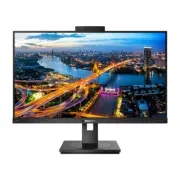
Page 2 - Table of Contents; Safety precautions and; Designs to prevent computer; Philips’ Flat Panel Monitors
Table of Contents 1. Important ...................................... 1 1.1 Safety precautions and maintenance ................................. 1 1.2 Notational Descriptions ............ 31.3 Disposal of product and packing material .......................................... 4 2. Setting up the mon...
Page 3 - Warnings
1 1. Important 1. Important This electronic user’s guide is intended for anyone who uses the Philips monitor. Take time to read this user manual before you use your monitor. It contains important information and notes regarding operating your monitor. The Philips guarantee applies provided the produ...
Page 5 - Notational Descriptions; Note
3 1. Important • For transportation information, please refer to “Technical Specifications”. • Do not leave your monitor in a car/trunk under direct sun light. Note Consult a service technician if the monitor does not operate normally, or you are not sure what procedure to take when the operating in...
Page 7 - Setting up the monitor; Package contents; Start; *Different according to region
5 2. Setting up the monitor 2. Setting up the monitor 2.1 Installation Package contents *DP Power *HDMI *USB A-B * DVI Register your product and get support at www.philips.com/welcome Quick Start B Line B Line 275B1 *Different according to region Install the base 1. Place the monitor face down on a ...
Page 8 - USB docking; USB charging
6 2. Setting up the monitor Connecting to your PC 1 2 Fast Charger USB UP 3 6 5 7 8 10 9 4 USB docking 2 USB A-B 1 2 USB UP USB a b c 1 Power Switch 2 AC power input 3 DVI input 4 HDMI input 5 Displayport input 6 Audio output 7 USB UP 8 USB downstream 9 USB downstream/USB fast charger 10 Kensington ...
Page 9 - Operating the monitor; Description of the control buttons
7 2. Setting up the monitor between your wireless receiver and the USB3.2 connection port. 2.2 Operating the monitor 1 Description of the control buttons 7 6 2 5 4 3 1 Switch monitor’s power ON and OFF. Access the OSD menu. Confirm the OSD adjustment.Adjust the OSD menu. PowerSensorChange the signal...
Page 10 - Description of the On Screen Display
8 2. Setting up the monitor 3 Description of the On Screen Display What is On-Screen Display (OSD)?On-Screen Display (OSD) is a feature in all Philips LCD monitors. It allows an end user to adjust screen performance or select functions of the monitors directly through an on-screen instruction window...
Page 11 - Resolution notification; Physical Function; Warning
9 2. Setting up the monitor 4 Resolution notification This monitor is designed for optimal performance at its native resolution, 2560 x 1440. When the monitor is powered on at a different resolution, an alert is displayed on screen: Use 2560 x 1440 for best results. Display of the native resolution ...
Page 12 - Remove the Base Assembly
10 2. Setting up the monitor 2.3 Remove the Base Assembly for VESA Mounting Before you start disassembling the monitor base, please follow the instructions below to avoid any possible damage or injury. 1. Extend the monitor base to its maximum height. 2. Place the monitor face down on a smooth surfa...
Page 13 - How to enable Windows HelloTM; a. In the settings app click on
11 2. Setting up the monitor 2.4 Built-in Windows Hello™ pop-up webcam What is it? Philips' innovative and secure webcam pops up when you need it and securely tucks back into the monitor when you are not using it. The webcam is also equipped with advanced sensors for Windows Hello facial recognition...
Page 15 - Image Optimization; How to enable SmartImage?
13 3. Image Optimization 3. Image Optimization 3.1 SmartImage What is it? SmartImage provides presets that optimize display for different types of content, dynamically adjusting brightness, contrast, color and sharpness in real time. Whether you're working with text applications, displaying images o...
Page 17 - Adaptive Sync; Operating system
15 4.Adaptive Sync 4. Adaptive Sync Adaptive Sync PC gaming has long been an imperfect experience because GPUs and monitors update at different rates. Sometimes a GPU can render many new pictures during a single update of the monitor, and the monitor will show pieces of each picture as a single imag...
Page 18 - Landscape/Portrait mode
16 5. PowerSensor™ 5. PowerSensor™ How does it work? • PowerSensor works on principle of transmission and reception of harmless “infrared” signals in order to detect user-presence. • When the user is in front of the monitor, the monitor operates normally, at the predetermined settings that the user ...
Page 19 - How to adjust settings
17 5. PowerSensor™ detection signal for distances up to 120 cm or 47 inches. (Setting 4) • Since some dark colored clothing tends to absorb infrared signals even when the user is within 100 cm or 40 inches of the display, step up signal strength when wearing black or other dark clothes. Hot key Sens...
Page 20 - Designs to prevent computer vision syndrome; Designs to prevent; Ideal working posture
18 6. Designs to prevent computer vision syndrome 6. Designs to prevent computer vision syndrome (CVS) Philips monitor is designed to prevent eye strain caused by prolonged computer use. Follow below instructions and use Philips monitor to efficiently reduce fatigue and maximum working productivity....
Page 21 - Technical Specifications; Connectivity
19 7.Technical Specifications 7. Technical Specifications Picture/Display Monitor Panel Type IPS Technology Backlight W - LED Panel Size 27" W (68.6 cm) Aspect Ratio 16:9 Pixel Pitch 0.2331 (H) mm x 0.2331 (V) mm Contrast Ratio(typ.) 1000:1 Optimum Resolution 2560 x 1440 @ 60 Hz Viewing Angle 17...
Page 23 - Environmental and energy
21 7.Technical Specifications Atmospheric pressure(Non-operation) 500 to 1060hPa Environmental and energy ROHS YES Packaging 100% recyclable Specific Substances 100% PVC BFR free housing Cabinet Color Black Finish Texture Note This data is subject to change without notice. Go to www.philips.com/supp...
Page 24 - Maximum Resolution
22 7.Technical Specifications 7.1 Resolution & Preset Modes Maximum Resolution 2560 x 1440 @ 60 Hz (DVI) 2560 x 1440 @ 75 Hz (HDMI/DP) Recommended Resolution 2560 x 1440 @ 60 Hz H. freq (kHz) Resolution V. freq (Hz) 31.47 720 x 400 70.09 31.47 640 x 480 59.94 35.00 640 x 480 66.67 37.86 640 x 48...
Page 26 - Customer care and warranty; Customer care and; subpixel; Pixels and Sub pixels
24 9.Customer care and warranty 9. Customer care and warranty 9.1 Philips’ Flat Panel Monitors Pixel Defect Policy Philips strives to deliver the highest quality products. We use some of the industry's most advanced manufacturing processes and practice stringent quality control. However, pixel or su...
Page 27 - Proximity of Pixel Defects
25 9.Customer care and warranty Proximity of Pixel Defects Because pixel and sub pixels defects of the same type that are near to one another may be more noticeable, Philips also specifies tolerances for the proximity of pixel defects. Pixel Defect Tolerances In order to qualify for repair or replac...
Page 30 - FAQs; Common Problems
28 10.Troubleshooting & FAQs 10. Troubleshooting & FAQs 10.1 Troubleshooting This page deals with problems that can be corrected by a user. If the problem still persists after you have tried these solutions, contact Philips customer service representative. Common Problems No Picture (Power L...
Page 34 - Q14: Where can I find Important
32 10.Troubleshooting & FAQs Q14: Where can I find Important Information manual mentioned in EDFU? Ans.: Important Information manual can be download on the Philips website support page.