Page 3 - Content; Important; Play All albums or selected slideshow; Use more of your PhotoFrame
ENGLISH 1 Content Content 1. Important 1.1 Safety precautions and maintenance1.2 Care of the PhotoFrame1.3 Recycling 2. Your PhotoFrame 2.1 Product Overview 2.1.1 What’s in the box 2.1.2 Control Buttons2.1.3 Connections 2.2 Product highlights 3. Getting started 3.1 Placing the product3.2 Connecting ...
Page 5 - Introduction; Care of the PhotoFrame
1.1 Safety precautions and maintenance Read and follow these instructions when connecting and using your PhotoFrame:• To protect your display from possible damage, do not put excessive pressure on the LCD panel. When moving your PhotoFrame, grasp the frame to lift; do not lift the it by placing your...
Page 6 - • To minimize harm to the environment, the
5 Battery charging For first time use, fully charge your PhotoFrame (Battery LED will be off when battery is fully charged). This process may take up to 3 hours or more. PhotoFrame starts fully recharging its internal battery only when the battery level is below certain value. This is designed to ex...
Page 7 - Your PhotoFrame; Product Overview; What else you’ll need; AC
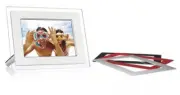
5 Your PhotoFrame ENGLISH 2. Your PhotoFrame 2.1 Product Overview 2.1.1 What’s in the box Digital PhotoFrame Power adaptor USB Cable to PC (male B type plug) Quick start guide Digital photo display 7FFI series Connect 2 Setup 3 Enjoy 1 Quick start guide User manual and Auto Run software on CD What e...
Page 9 - USB Connections; PhotoFrame; Product highlights
Tips: • Increase the memory of the PhotoFrame by permanently inserting permanently a memory card into it.This allows the same functions as the internal memory to be performed. • Two memory card slots can be used at the same time; therefore one can be dedicated for the extended memory, and the other ...
Page 10 - Getting star ted; Placing the product
3. Getting star ted 3.1 Placing the product The PhotoFrame should be placed on a flat surface and close to a power socket. Keep it away from high temperatures and high levels of moisture 3.2 Connecting to the mains Connect the supplied power cable from PhotoFrame to a power outlet. Click Note: For s...
Page 13 - Using your PhotoFrame; View Photos
4. Using your PhotoFrame 4.1 View Photos 4.1.1 View pre-stored photos Pre-stored photos can be viewed as either a slideshow or through the photo menu. 1 In the main menu select photos, select the source as Photo Frame. 2 Select an album. 3 Navigate through the album and view the images on the right ...
Page 19 - Delete Photos
4.4.3 Copy from a Photoframe to a PC/MAC Copy the photos on PhotoFrame to PC/MAC the same way you transfer the contents of a digital camera to PC/MAC. All photos are stored in the sub-directories of the \DCIM\on the PhotoFrame drive. 4.5 Delete Photos If you need to free up space on the PhotoFrame o...
Page 21 - Menu Navigation
5. Use more of your PhotoFrame 5.1 Menu Navigation The menu is navigated using the navigation controller and the menu buttons. When in a menu follow the onscreen instructions in the bottom right of the screen for details on how to navigate.• Navigate the controller left and right to cycle through th...
Page 26 - Create and manage Photo Albums
5.3 Create and manage Photo Albums 5.3.1 Create an Album To organize your photos you can create photo albums on your PhotoFrame or memory card and select which albums to be used in slide shows. There is a limit of 500 albums that can be created. 1 • Press the menu button to access the Main Menu. • N...
Page 29 - Create and Manage Slideshows
5.3.4 Copy Photos between Albums You can move or copy photos from one album to other album. 1 • Press the menu button to access the Main Menu. • Navigate right or press the OK button to access the Photo menu. 2 When in the thumb nail mode, navigate to move to the photo, and then press OK to select. ...
Page 39 - Event Reminder
5.5 Event Reminder Use this function to set reminders for special days. You can select the Photo to be displayed at a selected time and date. 5.5.1 Create an Event Reminder Step 1 Create New Alarm Event Reminder 1 • Press the menu button to access the Main Menu. • Navigate down to highlight the setu...
Page 44 - Brightness
6. Settings Use this section to setup PhotoFrame brightness levels, Time and date settings, turning off the beep sound, checking the PhotoFrame status and on-screen information display language and enable the delete function on your memory card. In addition, you can set your daily automatic turn-off...
Page 45 - Memory Card
2 Navigate down to go to language. 3 • Navigate righ t to enter the language menu. • Navigate up and down to select your preferred language (select between English, French, Spanish, Italian, Dutch, Danish, Chinese and Japanese). • Press the OK button to access the setup menu. The new setting will be...
Page 51 - Connectivity
7. Technical data Picture/Display 10ff2 • Effective viewing area: 199.8 x 132.48 mm• Resolution: 800 x 480 pixels (viewing area 720 x 480) • Viewing angle: @ C/R > 10, 120º (H) / 110º(V)• Lifetime, to 50% brightness: 20000 hr• Brightness: 300 cd/m²• Aspect ratio: 3:2• Panel resolution: 800x480• P...
Page 52 - Convenience
5ff2 • Power consumption: (System on) 4.3 W• Power LED indicator: Operation - Blue• Power mode supported: AC powered Note: Only the 7” and 10” PhotoFrame models have a built-in battery the 5” model does not. Convenience • Card Reader: Build-in (2x)• Photo format supported: JPEG photo (in DCF structu...
Page 53 - Is the LCD screen touch-enabled; No, it does not support direct photo printing.; on the side of the power button; on
8. Frequently asked questions Is the LCD screen touch-enabled ? The LCD screen is not touch-enabled. Use the buttons on the back to control Digital PhotoFrame. Can I switch between different slideshows photos by using different memory cards? Yes. When a memory card is connected to the Digital PhotoF...
Page 55 - Recycling Information for Customers
9. Ser vice and Warranty Recycling Information for Customers Philips establishes technically and economically viable objectives to optimize the environmental performance of the organization’s product, service and activities. From the planning, design and production stages, Philips emphasizes the imp...
Page 56 - FCC Declaration of Conformity; Philips
Federal Communications Commission (FCC) Notice (U.S. Only) Note: This equipment has been tested and found to comply with the limits for a Class B digital device, pursuant to Part 15 of the FCC Rules. These limits are designed to provide reasonable protection against harmful interference in a residen...
Page 59 - End of life directives - Recycling
Waste Electronics and Electrical Equipment (WEEE) This product is labelled with this symbol in accordance with European Directive 2002/96/EG to indicate that it must not be disposed of with your other household waste. Please check your local city office or waste disposal service for the return and r...