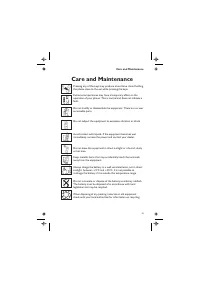
Page 3 - Safety Considerations
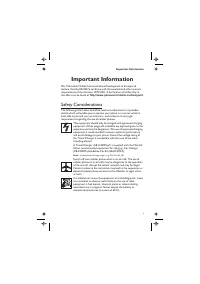
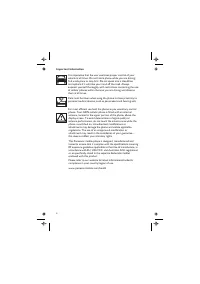
Important Information We, Matsushita Mobile Communications Development of Europe Ltd, declare, that the EB-GD76 conforms with the essential and other relevant requirements of the directive 1999/5/EC. A declaration of conformity to this effect can be found at http://www.panasonicmobile.com/support Sa...
Page 6 - Quick Reference
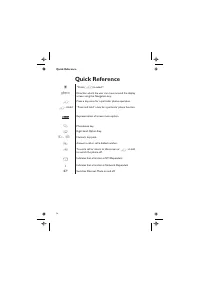
Quick Reference Q "Press ( Z ) to select". abcd Direction which the user can move around the display screen using the Navigation key. Z Press a key once for a particular phone operation. Z +Hold “Press and hold” a key for a particular phone function. Menu Representation of screen menu option...
Page 7 - Contents
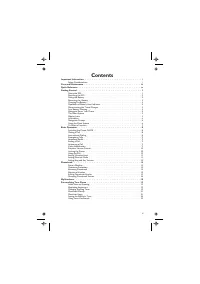
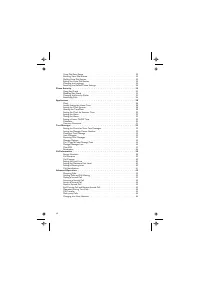
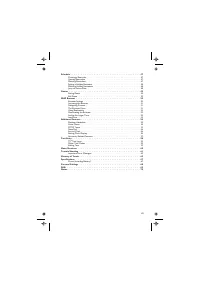
v Contents Important Information . . . . . . . . . . . . . . . . . . . . . . . . . . . . . . . . i Safety Considerations . . . . . . . . . . . . . . . . . . . . . . . . . . . . . . . . . i Care and Maintenance . . . . . . . . . . . . . . . . . . . . . . . . . . . . . . . . iiiQuick Reference . . . ....
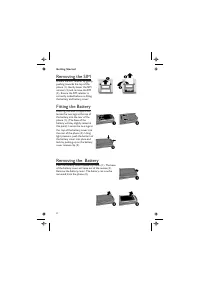
Page 11 - Fitting the SIM
Getting Started Thank you for purchasing this Panasonic digital cellular phone. This phone is designed to operate on the Global System for Mobile Communications (GSM), GSM900 or GSM1800. Ensure the battery is fully charged before use. Before operating this phone please read the “Important Informatio...
Page 13 - Charging the Battery; Connecting the Travel Charger; Operation of Battery Level Indicator
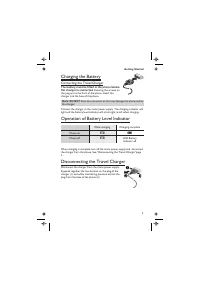
Charging the Battery Connecting the Travel Charger The battery must be fitted in the phone beforethe charger is connected. Ensuring the arrows on the plug are to the front of the phone. Insert the charger into the base of the phone. Note: DO NOT force the connector as this may damage the phone and/o...
Page 14 - Low Battery Warning; Getting to Know Your Phone; Location of Controls
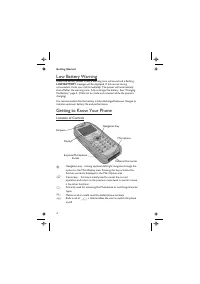
Low Battery Warning When the battery power is low a warning tone will sound and a flashing LOW BATTERY message will be displayed. If this occurs during conversation, finish your call immediately. The power will automatically shut off after the warning tone. Fully recharge the battery. See “Charging ...
Page 15 - Status Icons
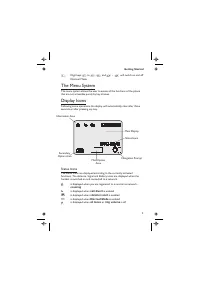
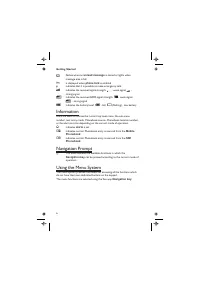
1 Digit keys 0 to 9 , * and # – # will switch on and off Discreet Mode The Menu System The menu system allows the user to access all the functions of the phone that are not accessible purely by key strokes. Display Icons Following some operations the display will automatically clear after three seco...
Page 17 - To Select a Function; Shortcuts
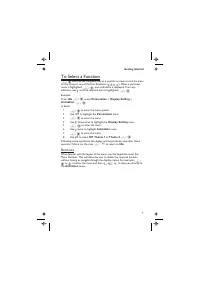
To Select a Function Z Q then use the navigation key as a joystick to move around the icons on the screen in any of the four directions ( a , b , c , d ). When a particular menu is highlighted, Z Q , and a submenu is displayed. From any submenu, use e until the required item is highlighted, Z Q Exam...
Page 18 - Switching the Phone On/Off; International Dialling
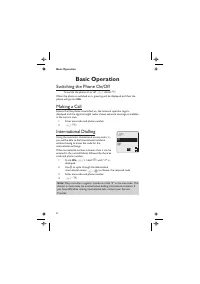
Basic Operation Switching the Phone On/Off To switch the phone on or off Z +Hold E When the phone is switched on a greeting will be displayed and then the phone will go into Idle . Making a Call Ensure that the phone is switched on, the network operator logo is displayed and the signal strength mete...
Page 19 - Ending a Call; Caller Identification
Emergency Calls To make an emergency call the antenna symbol ( S ) must be present. Enter 112 Z D or if no SIM is fitted to the phone Z QaQ Automatic Redial When a call is unsuccessful you may want the phone to redial the number again automatically.When your connection is unsuccessful, Z Q when Ok i...
Page 20 - Unlocking the Phone; Using the PIN
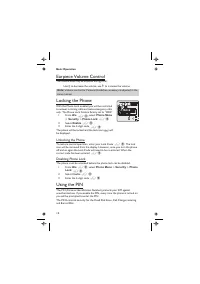
Earpiece Volume Control The volume level may be adjusted during a call: Use a to decrease the volume, use b to increase the volume Note: Volume control for Personal Handsfree accessory is adjusted in the same manner. Locking the Phone With the Phone Lock enabled you will be restricted to answer inco...
Page 21 - Enabling/Disabling the PIN; Setting Vibration Alert
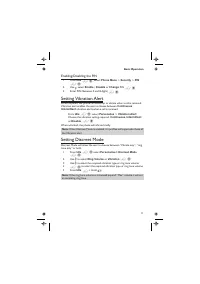
Enabling/Disabling the PIN 1 From Idle Z Q , select Phone Menu > Security > PIN Z Q 2 Use a select Enable / Disable or Change PIN Z Q 3 Enter PIN (Between 4 and 8 digits) Z Q Setting Vibration Alert When required, the phone can be set up to vibrate when a call is received. Vibration alert enab...
Page 22 - Setting Ring and Key Volume
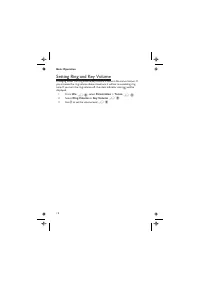
Setting Ring and Key Volume Changing either the ring volume/key volume is done in the same manner. If you increase the ring volume above maximum it will set an escalating ring tone. If you turn the ring volume off, the silent indicator icon ( [ ) will be displayed. 1 From Idle Z Q , select Personali...
Page 23 - Phonebook; Store a Number; To Store a Number in the SIM Phonebook; To Store a Number in the Mobile Phonebook
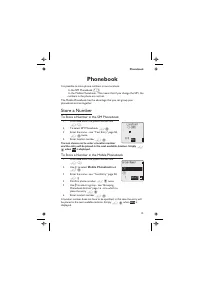
Phonebook It is possible to store phone numbers in two locations: In the SIM Phonebook ( Q ) In the Mobile Phonebook. This means that if you change the SIM, the numbers in the phone are not lost The Mobile Phonebook has the advantage that you can group your phonebook entries together. Store a Number...
Page 25 - Editing Phonebook Entries
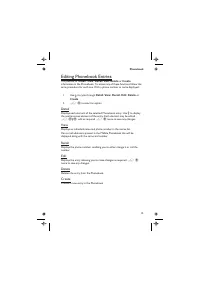
Editing Phonebook Entries It is possible to Detail , View , Recall , Edit , Delete or Create information in the Phonebook. To access any of these functions follow the same procedure for each one. With a phone number or name displayed: 1 Use e to cycle through Detail , View , Recall , Edit , Delete o...
Page 26 - Grouping Phonebook Entries; Retrieving a Number from a Group; Using Alert Profiles
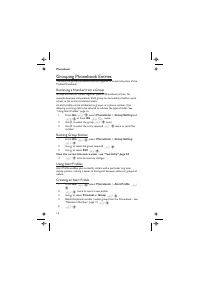
Grouping Phonebook Entries The ability to group phonebook entries together is an extra function of the Mobile Phonebook. Retrieving a Number from a Group Groups are used to collect together types of Phonebook entries, for example business and personal. Each group can be suitably titled for quick acc...
Page 27 - Review the Phonebook
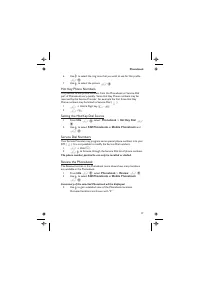
6 Use e to select the ring tone that you wish to use for this profile Z Q 7 Use e to select the picture Z Q Hot Key Phone Numbers It is possible to dial phone numbers from the Phonebook or Service Dial part of Phonebook very quickly. Some Hot Key Phone numbers may be reserved by the Service Provider...
Page 28 - Adding Numbers; Viewing Stored Numbers
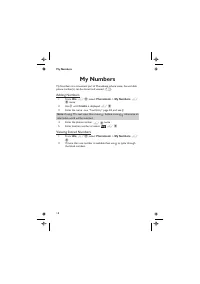
My Numbers My Numbers is a convenient part of Phonebook where voice, fax and data phone number(s) can be stored and viewed. ( Q ) Adding Numbers 1 From Idle Z Q , select Phonebook > My Numbers Z Q twice 2 Use e until Create is displayed Z Q 3 Enter the name - see “Text Entry” page 58, and use a N...
Page 29 - Add a Start-up Greeting; Setting up a Pre-defined Ring Tone
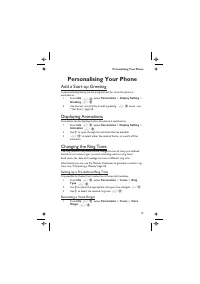
Personalising Your Phone Add a Start-up Greeting A personalised greeting can be programmed for when the phone is switched on. 1 From Idle Z Q , select Personalise > Display Setting > Greeting Z Q 2 Use the text entry facility to add a greeting Z Q twice - see “Text Entry” page 58 Displaying An...
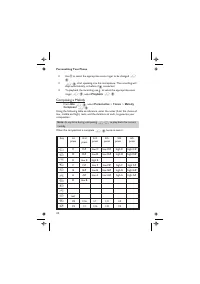
Page 30 - Composing a Melody
2 Use e to select the appropriate voice ringer to be changed Z Q 3 Z Q , start speaking into the microphone. The recording will stop automatically, or before if Q is selected 4 To playback the recording use e to select the appropriate voice ringer Z Q , select Playback Z Q Composing a Melody From Id...
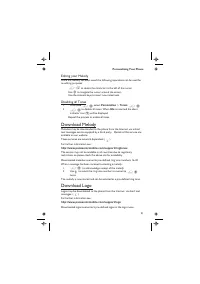
Page 31 - Download Melody
Editing your Melody Once the melody has been saved the following operations can be used for re-editing purposes: Z B to delete the character to the left of the cursor Use g to navigate the cursor around the screen Use the relevant keys to insert new notes/rests Disabling all Tones 1 From Idle Z Q , ...
Page 33 - Recalling Voice Dial Entries; Dialling Voice Dial Entries; Editing the Voice Dial Entries; Add
Recalling Voice Dial Entries From Idle move and hold the navigation key ( g ) in any one of the four directions a , b , c or d . Speak clearly the name you wish to recall (exactly as recorded) and wait.The above procedure will recall the phone number and the recorded Voice Dial entry is repeated; to...
Page 35 - Using Key Guard
Phone Security The phone features a number of security functions that protect against unauthorized use, and enable the user to restrict access to certain features - see “Using the PIN” page 10. It is recommended that all security codes are memorized. If it is necessary to make a note of any security...
Page 36 - Restricting Calls; Call Barring
Restricting Calls Call Barring The Call Bar function is used to restrict certain outgoing and/or incoming calls. Call Bar is controlled by a security password that is supplied by the Service Provider. When updating or checking the status of Call Bar the phone must be registered with a network. Diffe...
Page 37 - “Wild” Numbers
“Wild” Numbers Wild numbers are spaces that can be stored in a phone number. The “wild” numbers must be filled before the phone number is dialled. Used in conjunction with Fixed Dial calls can be restricted, for example, to a specific area by storing the area code of a phone and when recalled the re...
Page 38 - Clock
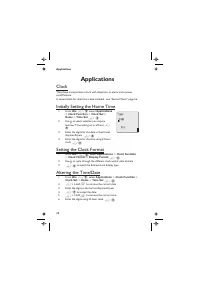
Applications Clock This phone incorporates a clock with date/time, an alarm and a power on/off feature.A second clock for dual time is also included - see “Second Clock” page 56. Initially Setting the Home Time 1 From Idle Z Q , select Applications > Clock Function > Clock Set > Home > T...
Page 39 - Disabling the Alarm
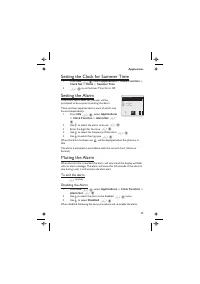
Setting the Clock for Summer Time 1 From Idle Z Q , select Applications > Clock Function > Clock Set > Home > Summer Time 2 Z Q to set Summer Time On or Off Setting the Alarm If the clock hasn’t been set, the user will be prompted to do so prior to setting the alarm.There are four separa...
Page 40 - Adjusting the Alarm Time; Setting a Power On/Off Time
Adjusting the Alarm Time 1 From Idle Z Q , select Applications > Clock Function > Alarm Set Z Q 2 Use e to select the alarm to be adjusted Z Q 3 Z + Hold B to remove the current alarm time 4 Enter the digits for the time Z Q 5 Use e to select the frequency of the alarm Z Q 6 Use e to select th...
Page 41 - Currency Convertor; Entering an Initial Conversion Rate; Swapping the Currency Conversion
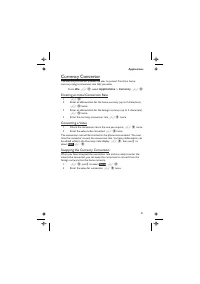
Currency Convertor The currency convertor enables the user to convert from/to a home currency using a conversion rate that you enter. From Idle Z Q , select Applications > Currency Z Q Entering an Initial Conversion Rate 1 Z Q 2 Enter an abbreviation for the home currency (up to 3 characters) Z Q...
Page 42 - Setting the Phone for Short Text Messages
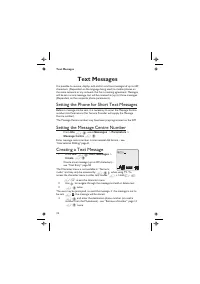
Text Messages It is possible to receive, display, edit and/or send text messages of up to 459 characters, (Dependant on the language being used) to mobile phones on the same network or any network that has a roaming agreement. Messages will be sent as one message, but will be received as (up to) thr...
Page 43 - Reply to a Message
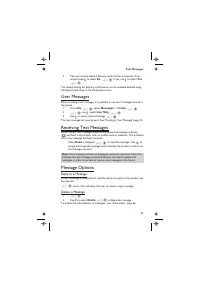
5 The user may be asked if delivery confirmation is required. If notrequired use e to select No Z Q . If yes, use e to select Yes Z Q The default setting for delivery confirmation can be enabled/disabled using the Report parameter in the Parameters menu. User Messages When creating a text message, i...
Page 44 - Edit a Message; Manage Messages Lists; Receive List
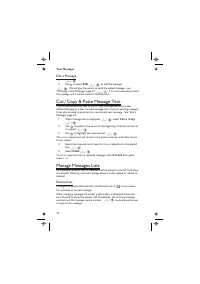
Edit a Message 1 Z Q 2 Use e to select Edit Z Q to edit the message Z Q , this will give the option to send the edited message - see “Creating a Text Message” page 32. Z B if it is not necessary to send the message and it will be stored in the Send List. Cut / Copy & Paste Message Text This func...
Page 45 - Chat SMS
Send List When a message has been sent or edited it will be stored in the Send List. Create This allows the user to create a new message or reply to a received message. Review Review allows you to check usage of the message area. Chat SMS Chat, will enable the user to read sent and received messages...
Page 46 - Parameters; Recipient Group; Auto Delete
Parameters From Idle Z Q , select Messages > Parameters Z Q The following parameters can be set: Recipient Group There are 5 different recipient groups, allowing you to store up to ten destinations in each.Recipient Group enables the user to pre-define the destination of text messages. Setting Re...
Page 48 - Recent Numbers; Calling the Last Dialled Number
Call Information Recent Numbers Recently dialled phone numbers will be stored in Last Dialled . If Caller Identification is available the caller’s phone number, for an answered call will be stored in the Answered menu and an unanswered call will be stored in the Unanswered menu. If Caller Identifica...
Page 49 - Call Duration; GPRS Call Duration
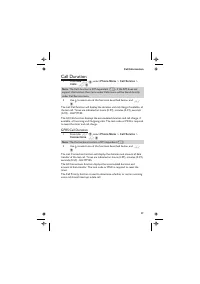
Call Duration 1 From Idle Z Q , select Phone Menu > Call Service > Calls Z Q Note: The Calls function is SIM dependent ( Q ). If the SIM does not support this function then items under Calls menu will be found directlyunder Call Service menu. 2 Use e to select one of the functions described be...
Page 51 - Call Identification
3 Enter a value (in units) at which time you would like the warning tosound Z Q twice Call Identification In the Call Service menu, the Caller’s ID and Withhold ID functions allow you to check the status of whether a Caller’s Identification is sent or can be received. (Withhold ID R ) Note: When che...
Page 52 - Diverting Calls; Holding a Call; Making a Second Call
Advanced Operation Diverting Calls Voice, fax and data calls can be diverted using different circumstances and to different numbers. For example you may wish voice calls to be diverted to Voicemail in the event that the phone is switched off. 1 From Idle Z Q select Phone Menu > Call Divert Z Q 2 ...
Page 53 - Receiving a Second Call; Accept a Second Call; Reject a Second Call; End Current Call and Receive Second Call; Swapping Between Calls; End Current Call; End Both Calls
Receiving a Second Call A second call can be received, if Call Waiting is switched on. This is enabled from the Phone Menu > Call Service menu. It is not possible to have more than one fax or data call. All voice calls must be ended before you can make or receive a fax or data call. ( Q ) Accept ...
Page 54 - Call Transfer; Adding to Multi-party
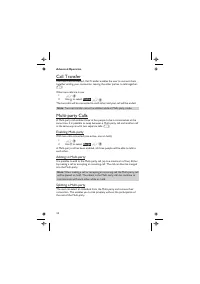
Call Transfer With two calls connected, Call Transfer enables the user to connect them together ending your connection, leaving the other parties to talk together. ( Q ) When two calls are in use: 1 Z Q 2 Use e to select Trans. Z Q The two calls will be connected to each other and your call will be ...
Page 55 - Ending Multi-party Calls; Ending all Connections
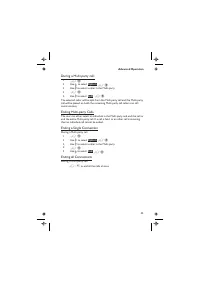
During a Multi-party call: 1 Z Q 2 Use e to select Option Z Q 3 Use e to select a caller in the Multi-party 4 Z Q 5 Use e to select Split Z Q The selected caller will be split from the Multi-party call and the Multi-party call will be placed on hold (the remaining Multi-party call callers can still ...
Page 56 - Changing to a New Network
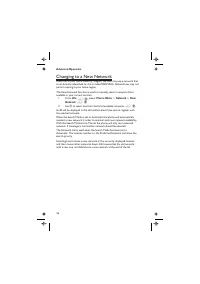
Changing to a New Network When not in your home Country / Region, the user may use a network that is not directly subscribed to, this is called ROAMING. National Law may not permit roaming in your home region.The New Network function is used to manually select a network that is available in your cur...
Page 57 - Creating a Reminder
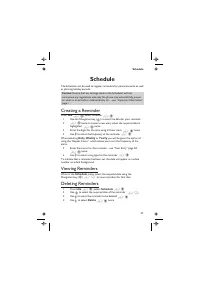
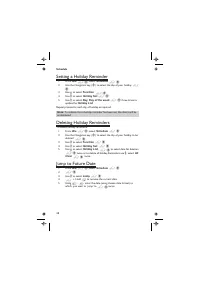
Schedule The Scheduler can be used to register reminders for personal events as well as planning holiday periods. Caution: Ensure that any settings made in the Scheduler will not contravene any regulations whereby the phone may automatically poweron when in an aircraft or medical facility etc. - see...
Page 59 - Racing Game
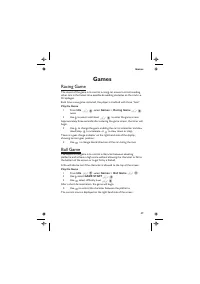
Games Racing Game The object of the game is to control a racing car around a circuit avoiding other cars in the fastest time possible & avoiding obstacles on the track i.e. Oil spillages.Each time a new game is started, the player is credited with three “lives”. Play the Game 1 From Idle Z Q sel...
Page 60 - WAP Browser; Browser Settings
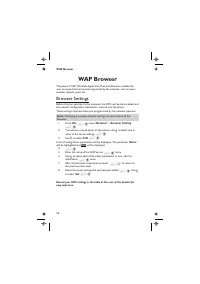
WAP Browser The phone’s WAP (Wireless Application Protocol) Browser enables the user to access Internet services supported by the network, such as news, weather reports, sport etc. Browser Settings Before Internet services can be accessed, the SIM must be data enabled and the relevant configuration ...
Page 61 - Activating the Browser; Navigating Content; The Browser Menu; Home Deck
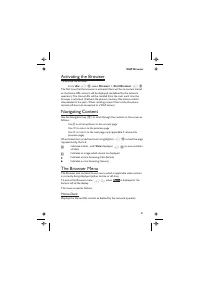
Activating the Browser To activate the Browser: From Idle Z Q , select Browser > Start Browser Z Q The first time that the browser is activated there will be no content stored so the Home URL content will be displayed (as defined by the network operator). The Home URL will be recalled from the ca...
Page 62 - Using Bookmarks
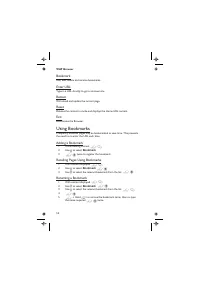
Bookmark Use, add, delete and rename bookmarks. Enter URL Type in a URL directly to go to a known site . Reload Will reload and update the current page. Reset Deletes the content in cache and displays the Home URL content. Exit Deactivates the Browser. Using Bookmarks Frequently accessed pages may b...
Page 63 - Deleting Bookmarks; Deactivating the Browser; Last Error
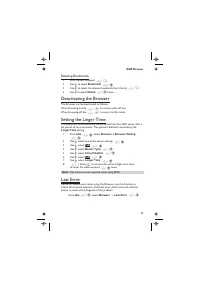
Deleting Bookmarks 1 With content displayed Z A 2 Use e to select Bookmark Z Q 3 Use e to select the relevant bookmark from the list, Z A 4 Use e to select Delete Z Q twice Deactivating the Browser The Browser can be deactivated as follows:When browsing on-line Z E to review cache off line. When bro...
Page 64 - Additional Features; Desktop Handsfree; Voice Memo; Record a Voice Memo
Additional Features Desktop Handsfree Desktop Handsfree enables you to hold a conversation without having to hold the phone to your ear. Note: Do NOT hold the phone to your ear in Handsfree mode. Swapping Between Handsfree and Handheld Calls During a Handheld call: 1 Z Q 2 Use e to select H’free Z Q...
Page 65 - DTMF Tones; Send DTMF Tones During a Call
Play Back a Voice Memo From Idle Z Q , select Applications > Voice Memo Play > Playback Z Q To stop playing, Z Q twice The Note Pad function is available during playback - see “Note Pad” page 56. Volume Control During Playback While playing back: Use e to adjust the volume of the voice memo De...
Page 66 - Setting Auto Adjustment
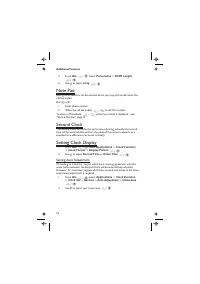
5 From Idle Z Q , select Personalise > DTMF Length Z Q 6 Use e to select Long Z Q Note Pad During a call numbers can be entered which you may wish to dial when the call has ended.During a call: 1 Enter phone number 2 When the call has ended Z D to call that number To store in Phonebook, Z A while...
Page 67 - Accessory Related Features
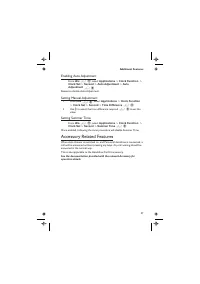
Enabling Auto Adjustment From Idle Z Q , select Applications > Clock Function > Clock Set > Second > Auto Adjustment > Auto Adjustment Z Q Repeat to disable Auto Adjustment. Setting Manual Adjustment 1 From Idle Z Q , select Applications > Clock Function > Clock Set > Second ...
Page 73 - Important Error Messages
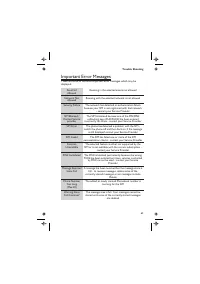
Important Error Messages These are some of the most important error messages which may be displayed: Area Not Allowed Roaming in the selected area is not allowed Network Not Allowed Roaming with the selected network is not allowed Security Failure The network has detected an authentication failure b...
Page 77 - Type
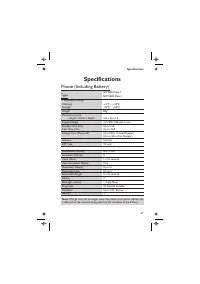
Specifications Phone (Including Battery) * Type GSM900 Class 4GSM1800 Class 1 Temperature RangeChargingStorage +5ºC - +35ºC-20ºC - +60ºC Weight 82g * Dimensions (mm) Height x Width x Depth 106 x 46 x 16 Supply Voltage 3.7V DC, 650mAh Li-ion Standby Time (hrs)Talk Time (Min) Up to 150Up to 360 Charge...
Page 78 - Personal Settings
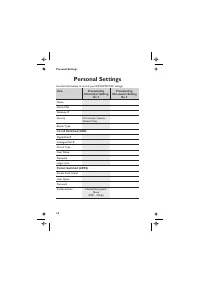
Personal Settings Use the table below to record your GSM/GPRS WAP settings. Item Provisioning Information Setting No 1 Provisioning Information Setting No 2 Name Home URL Gateway IP Security Non secure / Secure (Delete One) Bearer Type Circuit Switched (GSM) Digital Dial # Analogue Dial # Circuit Ty...