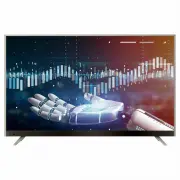
Page 3 - OWNER’S MANUAL; Please read this manual carefully before operating
Important Safety Instructions and Maintenance Important Safety Instructions 2 An outside antenna system should not be located in the vicinity of overhead power lines or other electric light or power circuits, or where it can fall into such power lines or circuits. When installing an outside antenna ...
Page 5 - Warning! Safety Instructions
Important Information 4 Table of Contents If a television is not positioned in a sufficiently stable location, it can be potentially hazardous due to falling. Many injuries, particularly to children, can be avoided by taking simple precautions such as:• Using cabinets or stands recommended by the ma...
Page 7 - Preparing; Separate Purchase; Magic Remote Control
Introduction Features 6 l TV adopts 65" TFT LED display screen l Zero X radiation complies to green environment protection requirement l Connect to computer directly to realize TV/monitor combo. l Android 6.0 l USB 2.0 l 16:9 wide screen l Auto tuning and fine tuning l HDMI input l Component Com...
Page 8 - Lifting and moving the TV; Mounting on the Table
7 Introduction Specifications NOTE S: • Design and specifications are subject to change without notice.• Weight and Dimension shown are approximate. 3840X2160 Digital: DVB-T/T2, DVB-CAnalog: PAL: BG, I, DK,SECAM: BG, D/K TV receive system Analog: Antenna: 46.25MHz-855.25MHzDigital : DVB-T/T2:5-12,21...
Page 9 - Securing TV to the Wall
8 8 Stand and wall-mounting instructions (optional) How to assemble the stand If you need to remove or assemble the stand please read the following instructions. - Before attaching/detaching the stand, make sure to turn off the TV.- Before performing work, spread cushioning over the base area to lay...
Page 10 - Mounting to the Wall
9 General Description Overview of back panel General Description Overview of back panel General Description Overview of back panel You can connect the TV with video devices such as DVD/VCD player, VCR and video camera to enjoy the high quality picture. Blu-ray disc player PC (HDMI-output) DVD player...
Page 11 - Connections; Satellite dish
10 General Description Overview of front panel The buttons on the lower-left panel control your TV’s basic features, including the on-screen menu.To use the more advanced features, you must use the remote control. Joystick 2 3 1 Directly in front the TV operation schematic diagram : 4 5 6 7 The cont...
Page 12 - Using Button
11 General Description Overview of Remote Control General Description Overview of Remote Control 1. INPUT: This button is used to switch among different sources. Select a source and press OK button to confirm.2. POWER: Press this button to switch to standby mode, and press it again to turn TV on.3. ...
Page 13 - Using Remote Control
12 General Description Overview of Remote Control 17. Digital buttons(0~9): To select channel with digital buttons.18. INFO: This button is used to display source information or current program information.19. RECALL: Switch to the previous program. 20. : Use as backward function in USB Video/Audio ...
Page 14 - Using Magic Remote Control
13 General Description Installing Batteries in the Remote Control Installing Batteries NOTES:• One loading of batteries will last for 1 year under normal use.• If you do not intend to use the remote controller for a long period of time, remove them to avoid damage due to leskage.• Do not use old and...
Page 15 - Registering Magic Remote Control; User Guide
14 External Connection Connecting VCR These instructions assume that you have already connected your TV to an antenna or a cable TV system. Skip step 1 if you have not yet connected to an antenna or a cable system. VCR Rear Panel TV Rear Panel White Red ANT ANT OUT S-VIDEO AUDIO OUT Red Blue Green V...
Page 16 - Troubleshooting
15 External Connection Connecting a Camcorder The rear panel jacks on your TV make it easy to connect a camcorder to your TV. They allow you to view the camcorder tapes without using a VCR. Each Camcorder has a different back panel configuration. When connecting a Camcorder or DVD, match the color o...
Page 17 - Specifications
16 External Connection Connecting DVD Player/Set-Top Box via HDMI This connection can only be made if there is a HDMI Output connector on the external device. What is HDMI? HDMI, or high-definition multimedia interface, is a next-generation interface that enables the transmission of digital audio an...
Page 19 - Open Source Software; Symbols
18 Supporing Signals Input Mode DTV Digital: DVB-T/T2 , DVB-C CVBS SECAM BG DK Resolution Input Component 480i 480p 720p 1080i HDMI 480p 720p 1080i 1080p 1080p 576i 576p 576p 3840x2160 60Hz60Hz 50Hz/60Hz50Hz/60Hz 50Hz/60Hz 50Hz/60Hz 60Hz Vertical Frequency 50Hz/60Hz 50Hz/60Hz 50Hz50Hz 50Hz 24Hz/25Hz...
Page 20 - Environmental Information; Appendix. India WEEE _ Provided sentence; Appendix. India WEEE _ Provided sentence
19 Basic Operation Turning the TV On and Off How to turn the TV on or off 1. Insert the power cord plug into a polarized AC outlet. 2. If TV is in standby mode, press POWER button on the remote control or button on the bottom panel of LED TV. 3. Normal picture will be displayed on the screen after 1...