Oricom WNS100 - User Manual
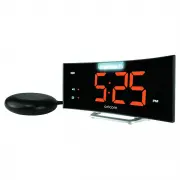
Oricom WNS100 Radio – User Manual, read for free online in PDF format. We hope this helps you resolve any issues you may have. If you have further questions, please contact us through the contact form.

1
3
2
4
INSTRUCTION MANUAL
KEEP THIS USER GUIDE FOR FUTURE REFERENCE
Always retain your proof of purchase in case of warranty service.
AUSTRALIA: www.oricom.com.au NEW ZEALAND: www.oricom.co.nz
TO SET TIME AND THE SNOOZE DURATION
1. Press
SET
once, the hour digits “
0
” flash. Press
▲
or
▼
to set the time in hours (hold
to advance rapidly).
2. Press
SET
again, the minute digits “
00
” flash. Press
▲
or
▼
to set the time in minutes.
(hold to advance rapidly).
3. Press
SET
again, the display shows “24Hr” and flashes. Press
▲
or
▼
to select “
12Hr
”
or “
24Hr
” time format. The
PM
LED will appear on the lower right to indicate the
afternoon time; there is no
AM
indicator.
4. Press
SET
again, the display shows “
05
” and flashes. Press
▲
or
▼
to select your
snooze time from 5 to 60 minutes.
5. Press
SET
again or if no key pressed for approx. 10 seconds to exit the setting mode.
TO SET THE ALARM
1. Press and hold
AL SET / AL STOP
,
the
LED and the hour digits flash. Press
▲
or
▼
to set the alarm in hours. (Hold to advance rapidly).
2. Press
AL SET / AL STOP
once again, the minute digits flash. Press
▲
or
▼
to set the
alarm in minutes. (Hold to advance rapidly).
3. Press
AL SET / AL STOP
again, LED displays “
HI
” (vibration at HI level), press
▲
or
▼
to select “
LO
” (vibration at Lo level)
4. Press
AL SET / AL STOP
once again, LED displays “
F-1 (ex. 800 Hz)
” and flash, press
▲
or
▼
to select the alarm tone (frequency) :
F-1 (low tone, 800 Hz), F-2 (mid tone, 1 KHz), F-3 (high tone, 1.5 KHz)
5. Press
AL SET / AL STOP
once again or no button around 10 seconds to exit the alarm
setting mode.
TO TURN ON/OFF AND SELECT THE ALARM MODE
1. At normal time display mode, press
AL SET / AL STOP
one at a time to activate the
alarm(s) and turn on corresponding alarm indicator(s) on the left side of the time display:
: only shaker activated
: both sound and shaker alarm activated
: both strobe light and shaker alarm activated
: both strobe light, sound and shaker alarm activated
2. Press
AL SET / AL STOP
once more to turn off all the alarms, all
,
and
alarm indicators are turned off.
Note:
To use the shaker alarm, please plug in the shaker plug to the back of the clock. If
user doesn’t want to use the shaker alarm, unplug the shaker plug from the clock.
TO ADJUST YOUR ALARM VOLUME (BUZZER)
You can turn the volume dial at the right side of your clock to adjust the alarm volume.
This alarm clock can be set to loud volume levels – please use with care.
Increase volume gradually to a comfortable level.
TO STOP AND RESET THE ALARM TO COME ON THE NEXT
DAY
When alarm is sounding, the corresponding alarm indicator flashes. Press
AL SET / AL
STOP
once to stop the alarm and reset it to come on the following day. After that, the
corresponding alarm indicator stays on the display.
TO USE SNOOZE (default snooze duration is 5 minutes)
When alarm is sounding, press
once, the alarm will stop temporarily and the
corresponding alarm indicator will keep flashing. The alarm will come on again after the
set snooze duration is over.
TO USE THE HI-MED-LO DIMMER (LED TIME DIGITS)
There is a 3-level brightness control for the LED clock display. Press
to adjust the
brightness (
HI / MED / LO
) of the LED display. This can only be done when the unit is not
alarming. At the start, the brightness is setting on Hi position.
CHARGE YOUR MOBILE PHONE WITH USB PORT
Connect the charging cable of your mobile phone to the USB port at the back of the clock
and then connect the other end to the micro USB charging socket on your mobile phone.
The clock will charge the mobile phone automatically.
Note : 1. Make sure the cable supplied with your mobile phone is used for charging.
2. Make sure the adaptor supplied with this clock (9V 1.5A) is used to power it.
3. It is not possible to charge an iPad® or notepad from the USB socket on this
clock.
CARE OF YOUR PRODUCT
1. Place your clock on a stable surface, away from sources of direct sunlight or excessive
heat or moisture.
BACKUP BATTERY INSTALLATION
Your clock requires one CR2032 lithium battery (not included) to provide backup power to
the clock in the event of a temporary power interruption.
1. Place your unit face down on a flat and soft surface.
2. Use a paper clip or similar to press down on the spring loaded pin and slide to open the
battery compartment door located on the back of the unit.
3. Insert one new CR2032 lithium battery into the battery compartment with the “+” side
facing up as indicated.
4. Slide to close battery compartment door, making sure the spring loaded pin is locked
in place.
If mains power is interrupted or the adaptor is unplugged, the LED clock
display will go off and the alarm will not function.
Please replace the battery every year to ensure that your device is not damaged.
INSTALLATION
Plug the supplied AC/DC adaptor (Model No. 2T0067) to an AC household outlet, and then
plug the DC jack to the back of the unit. Your clock is ready to work for you.
2. Protect your furniture when placing your unit on a natural wood and lacquered finish by
using a cloth or protective material between the unit and the furniture.
3. Clean your unit with a soft cloth moistened only with mild soap and water. Stronger
agents such as benzene, thinners or similar materials can damage the surface of the
unit. Make sure the unit is unplugged before cleaning.
4. Remove the back-up battery if the clock is not going to be used for a month or longer to
prevent possible corrosion. Should the battery compartment become corroded or dirty,
clean the compartment thoroughly and replace the battery.
SPECIFICATIONS
Alarm duration
: 1 hour
Snooze duration Adjustable
: 5 to 60 minutes
Default settings
Time format : 24 hour
Time : 0:00
Alarm : 6:00
Alarm and shaker level : HI
Alarm sound frequency : F-1
Snooze duration : 05 (5 minutes)
Audible alarm
: 95 dB at 1m
Express Warranty (Australia)
This Express Warranty is provided by Oricom International Pty Ltd ABN 46 086 116 369,
Unit 1, 4 Sovereign Place, South Windsor NSW 2756, herein after referred to as “Oricom”.
Oricom warrants that the product is free from defects in materials or workmanship during
the Express Warranty Period. This Express Warranty does not extend to any product from
which the serial number has been removed or was purchased outside of Australia.
The benefits of this Express Warranty are in addition to other rights and remedies you may
have under the Australian Consumer Law. Our goods come with guarantees that cannot
be excluded under the Australian Consumer Law. You are entitled to a replacement or
refund for a major failure and compensation for any other reasonably foreseeable loss or
damage. You are also entitled to have the goods repaired or replaced if the goods fail to
be of acceptable quality and the failure does not amount to a major failure. In the event
of a minor failure, Oricom reserves the right to choose to repair or replace the product.
The Express Warranty Period will be a period of 12 months beginning on the date of
purchase of the product evidenced by your dated sales receipt. You are required to provide
proof of purchase as a condition of receiving Express Warranty services.
You are entitled to a replacement product or repair of the product at our discretion
according to the terms and conditions of this document if your product is found to be
faulty within the Express Warranty Period. This Express Warranty extends to the original
purchaser only and is not transferable.
Products distributed by Oricom are manufactured using new materials or new and used
materials equivalent to new in performance and reliability. Spare parts may be new
or equivalent to new. Spare parts are warranted to be free from defects in material or
workmanship for thirty (30) days or for the remainder of the Express Warranty Period of
the Oricom branded product in which they are installed, whichever is longer. During the
Express Warranty Period, Oricom will where possible repair and if not replace the faulty
product or part thereof. All component parts removed under this Express Warranty become
the property of Oricom. In the unlikely event that your Oricom product has a recurring
failure, Oricom may always, subject to the Competition and Consumer Act 2010, at its
discretion, elect to provide you with a replacement product of its choosing that is at least
equivalent to your product in performance.
No change to the conditions of this Express Warranty is valid unless it is made in writing
and signed by an authorised representative of Oricom.
Oricom will not be liable under this Express Warranty, and to the extent permitted by
law will not be liable for any defect, loss, damage or injury arising out of or in connection
with a:
1. Failure by you to adhere to the warnings and follow the instructions set out in this user
guide for the proper installation and use of the product;
2. Willful misconduct or deliberate misuse by you of the product;
3. Any external cause beyond our control, including but not limited to power failure,
lightning or over voltage; or
4. Modification to the product or services carried out on the product by anyone other than
Oricom or Oricom’s authorised service provider.
How to make a claim under your Express Warranty in Australia
Oricom has a simple warranty process for you to follow:
•
Please call or email our Customer Support Team, 02 4574 8888 or support@oricom.
com.au.
•
A Customer Support Team member will verify after troubleshooting with you if your
product qualifies under warranty. If so, they will give you a Product Return Authorisation
number.
•
We will then email a Return Authorisation form and a Repair Notice (if necessary),
together with instructions on how to return the product for warranty service.
Please note that if a Customer Support Team member advises that your product does
not qualify for return, this warranty does not apply to your product. Products that are
authorised to be returned to Oricom in Australia must include all of the following:
•
A completed Return Authorisation form
•
A copy of your Proof of Purchase (please keep your original copy)
•
The faulty product, including all accessories.
Send the approved returns to:
Oricom International Pty Ltd
Locked Bag 658
South Windsor NSW 2756 Australia
Please note that this Express Warranty excludes expenses incurred by you in returning any
faulty product to us. You must arrange and pay any expenses incurred (including postage,
delivery, freight, transportation or insurance of the product) to return the faulty product
to us, however, we will arrange delivery of the repaired or replaced faulty product to you.
Important Information
Repair Notice
Please be aware that the repair of your products may result in the loss of any user-
generated data (such as stored telephone numbers, text messages and contact
information). Please ensure that you have made a copy of any data saved on your product
before sending for repair. Please also be aware that products presented for repair may be
replaced by refurbished products or parts of the same type rather than being repaired.
ORICOM CUSTOMER SUPPORT
Oricom ha ve a trained and dedica ted team of Customer Support Represent-
atives, each with the knowledge and resources to assist in answering your questions
quickly and efficiently.
Oricom Support - Australia
For all product enquiries, troubleshooting or to discuss the range of Oricom products, feel
free to contact Oricom or visit our website for answers to frequently asked questions.
02 4574 8888
Monday - Friday 8am – 6pm AEST
Email: [email protected]
www.oricom.com.au
Oricom Support - New Zealand
0800 674 266
Monday - Friday 10am - 8pm NZST
Email: [email protected]
Ref: 25072022
"Loading the manual" means you need to wait until the file loads and becomes available for online reading. Some manuals are very large, and the time they take to appear depends on your internet speed.