Page 3 - Welcome; , and enjoy your new
1 Welcome Welcome to the world of Motorola digital wireless communications! Motorola is a global leader in communications technology. We are pleased that you have chosen the Motorola V Series 60c wireless phone to keep you connected with ease. All Motorola phones are designed and manufactured to mee...
Page 5 - Menu Map; Main Menu; • Recent Calls; This is the standard menu; Shortcuts; Press
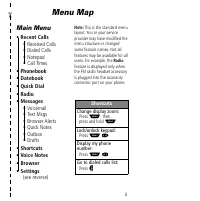
3 ✂ Menu Map Main Menu • Recent Calls • Received Calls• Dialed Calls• Notepad• Call Times • Phonebook• Datebook• Quick Dial• Radio• Messages • Voicemail• Text Msgs• Browser Alerts• Quick Notes• Outbox• Drafts • Shortcuts• Voice Notes• Browser• Settings (see reverse) Note: This is the standard menu l...
Page 6 - Settings Menu; Alert Detail; • Phone Status; • Incoming Call; • Security; • Personalize
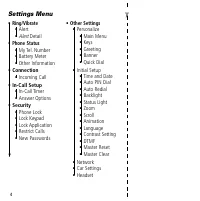
4 ✂ Settings Menu • Ring/Vibrate • Alert• Alert Detail • Phone Status • My Tel. Number• Battery Meter• Other Information • Connection • Incoming Call • In-Call Setup • In-Call Timer• Answer Options • Security • Phone Lock• Lock Keypad• Lock Application• Restrict Calls• New Passwords • Other Settings...
Page 7 - Phone Diagram
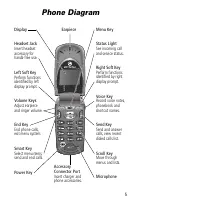
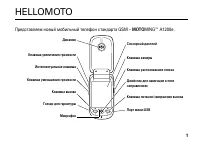
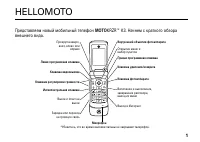
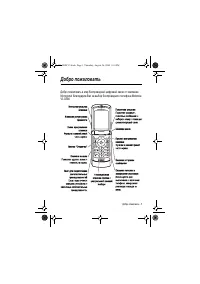
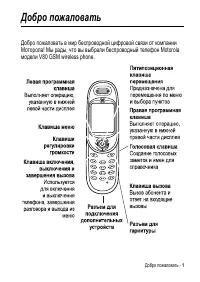
5 Phone Diagram Earpiece Headset Jack Insert headset accessory for hands-free use. Status Light See incoming calland service status. Volume Keys Adjust earpieceand ringer volume. Smart Key Select menu items, send and end calls. Voice Key Record voice notes, phonebook and shortcut names. Display Micr...
Page 8 - Contents
6 Contents Menu Map . . . . . . . . . . . . . . . . . . . . . . . . . . . . . . . . . . . . . . 3 Phone Diagram . . . . . . . . . . . . . . . . . . . . . . . . . . . . . . . . . . 5 About This Guide . . . . . . . . . . . . . . . . . . . . . . . . . . . . . . . 11 Safety and General Information . . ....
Page 9 - Using Features While On a Call
7 Contents Entering Numbers in the Notepad . . . . . . . . . . . . . . . . . . 40Terminating an Incoming Call . . . . . . . . . . . . . . . . . . . . . . 40Dialing With Speed Dial . . . . . . . . . . . . . . . . . . . . . . . . . . 41Dialing With One-Touch Dial . . . . . . . . . . . . . . . . . . . ...
Page 10 - Datebook
Contents 8 Synchronizing with TrueSync Software . . . . . . . . . . . . . . . 84Setting Up the Phonebook . . . . . . . . . . . . . . . . . . . . . . . . 85 Datebook . . . . . . . . . . . . . . . . . . . . . . . . . . . . . . . . . . . . . 86 Week View . . . . . . . . . . . . . . . . . . . . . . . . ...
Page 11 - Voice Notes
9 Contents Creating a Shortcut . . . . . . . . . . . . . . . . . . . . . . . . . . . . 103Using Shortcuts . . . . . . . . . . . . . . . . . . . . . . . . . . . . . . . 105 Voice Notes . . . . . . . . . . . . . . . . . . . . . . . . . . . . . . . . . . . 107 Recording a Voice Note . . . . . . . . . ....
Page 13 - About This Guide; Using Your Phone’s Features; phone. A reference guide for your phone is also; Navigating To a Menu Feature; and select; , then scroll to and select; to view the dialed calls list.; Find the Feature
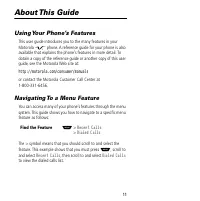
11 About This Guide Using Your Phone’s Features This user guide introduces you to the many features in your Motorola V phone. A reference guide for your phone is also available that explains the phone’s features in more detail. To obtain a copy of the reference guide or another copy of this user gui...
Page 14 - About This Guide; Optional Features
About This Guide 12 Optional Features Features marked with this label are optional network and/or subscription-dependent features. These features may not be offered by all service providers in all geographical areas. Contact your service provider for information about availability. Optional Accessor...
Page 15 - • United States Federal Communications Commission, Code
13 Safety and General Information IMPORTANT INFORMATION ON SAFE AND EFFICIENT OPERATION. READ THIS INFORMATION BEFORE USING YOUR PHONE. RF Operational Characteristics Your phone contains a transmitter and a receiver. When it is ON, it receives and transmits radio frequency (RF) energy. The phone ope...
Page 16 - Safety and General Information
Safety and General Information 14 • American National Standards Institute (ANSI) / Institute of Electrical and Electronic Engineers (IEEE) C95. 1-1992 • Institute of Electrical and Electronic Engineers (IEEE) C95.1- 1999 Edition • National Council on Radiation Protection and Measurements (NCRP) of t...
Page 17 - Antenna Care; Unauthorized antennas, modifications, or; Do NOT hold the antenna when the phone is in use.; Phone Operation; Speak directly into the; Use of; If you do not use a body-worn
15 Safety and General Information Portable Phone Operation and EME Exposure Antenna Care Use only the supplied or an approved replacement antenna. Unauthorized antennas, modifications, or attachments could damage the phone and may violate FCC regulations. Do NOT hold the antenna when the phone is in...
Page 18 - Data Operation; position the phone antenna at least one; Approved Accessories; Nearly every electronic device is susceptible to; Facilities
Safety and General Information 16 Data Operation When using any data feature of the phone, with or without an accessory cable, position the phone antenna at least one inch (2.5 centimeters) from your body. Approved Accessories For a list of approved Motorola accessories, visit our website at www.mot...
Page 19 - Medical Devices; Pacemakers
17 Safety and General Information Medical Devices Pacemakers The Health Industry Manufacturers Association recommends that a minimum separation of 6 inches (15 centimeters) be maintained between a handheld wireless phone and a pacemaker. These recommendations are consistent with the independent rese...
Page 20 - Other Medical Devices; Safety and General; Use While Driving; When using your phone while driving, please:; Operational Warnings; For Vehicles With an Air Bag
Safety and General Information 18 Other Medical Devices If you use any other personal medical device, consult the manufacturer of your device to determine if it is adequately shielded from RF energy. Your physician may be able to assist you in obtaining this information. Safety and General Use While...
Page 21 - Potentially Explosive Atmospheres; The areas with potentially explosive atmospheres referred; Blasting Caps and Areas
19 Safety and General Information Potentially Explosive Atmospheres Turn off your phone prior to entering any area with a potentially explosive atmosphere, unless the phone is a model specifically identified as being “Intrinsically Safe” for use in such areas (for example, Factory Mutual, CSA, or UL...
Page 22 - Operational Cautions; Antennas; If a damaged antenna comes into contact with your; Batteries
Safety and General Information 20 Operational Cautions Antennas Do not use any portable phone that has a damaged antenna. If a damaged antenna comes into contact with your skin, a minor burn can result. Batteries All batteries can cause property damage and/or bodily injury such as burns if a conduct...
Page 23 - Getting Started; Your phone and accessories may not look exactly as
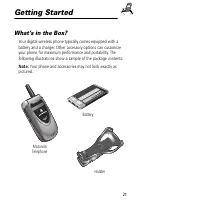
21 Getting Started What’s in the Box? Your digital wireless phone typically comes equipped with a battery and a charger. Other accessory options can customize your phone for maximum performance and portability. The following illustrations show a sample of the package contents. Note: Your phone and a...
Page 24 - Installing the Battery
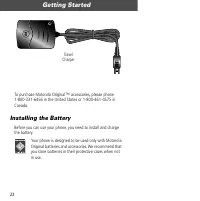
Getting Started 22 To purchase Motorola Original™ accessories, please phone 1-800-331-6456 in the United States or 1-800-461-4575 in Canada. Installing the Battery Before you can use your phone, you need to install and charge the battery. Your phone is designed to be used only with Motorola Original...
Page 25 - Do This
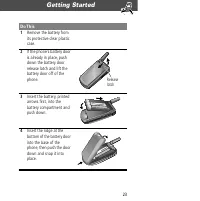
23 Getting Started Do This 1 Remove the battery from its protective clear plastic case. 2 If the phone’s battery door is already in place, push down the battery door release latch and lift the battery door off of the phone. 3 Insert the battery, printed arrows first, into the battery compartment and...
Page 26 - Charging the Battery; When your phone is turned on, the battery level indicator in
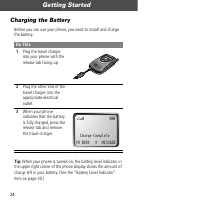
Getting Started 24 Charging the Battery Before you can use your phone, you need to install and charge the battery. Tip: When your phone is turned on, the battery level indicator in the upper right corner of the phone display shows the amount of charge left in your battery. (See the “Battery Level In...
Page 27 - Turning Your Phone On
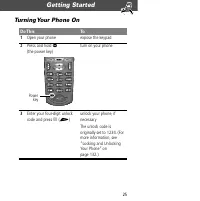
25 Getting Started Turning Your Phone On Do This To 1 Open your phone expose the keypad 2 Press and hold P (the power key) turn on your phone 3 Enter your four-digit unlock code and press OK ( + ) unlock your phone, if necessary The unlock code is originally set to 1234. (For more information, see “...
Page 28 - Sending a Call
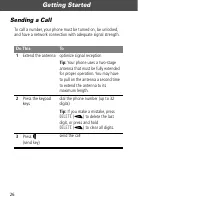
Getting Started 26 Sending a Call To call a number, your phone must be turned on, be unlocked, and have a network connection with adequate signal strength. Do This To 1 Extend the antenna optimize signal reception Tip: Your phone uses a two-stage antenna that must be fully extended for proper operat...
Page 29 - Ending a Call; From the idle display:; answer the call
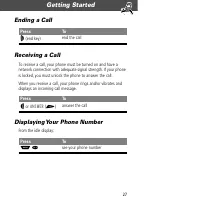
27 Getting Started Ending a Call Receiving a Call To receive a call, your phone must be turned on and have a network connection with adequate signal strength. If your phone is locked, you must unlock the phone to answer the call. When you receive a call, your phone rings and/or vibrates and displays...
Page 30 - About Your Phone; Display; idle display refers to
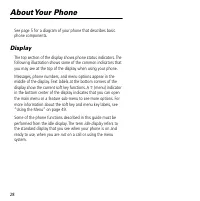
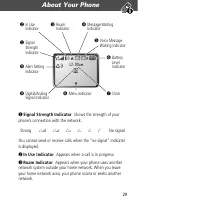
28 About Your Phone See page 5 for a diagram of your phone that describes basic phone components. Display The top section of the display shows phone status indicators. The following illustration shows some of the common indicators that you may see at the top of the display when using your phone. Mes...
Page 31 - About Your Phone; Signal Strength Indicator
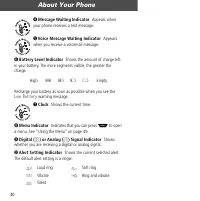
29 About Your Phone ➊ Signal Strength Indicator Shows the strength of your phone’s connection with the network. You cannot send or receive calls when the “no signal” indicator is displayed. ➋ In Use Indicator Appears when a call is in progress. ➌ Roam Indicator Appears when your phone uses another n...
Page 33 - Changing the Zoom Setting; Indication
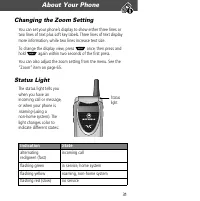
31 About Your Phone Changing the Zoom Setting You can set your phone’s display to show either three lines or two lines of text plus soft key labels. Three lines of text display more information, while two lines increase text size. To change the display view, press M once, then press and hold M again...
Page 34 - Turning on the status light will substantially reduce your; Volume Keys
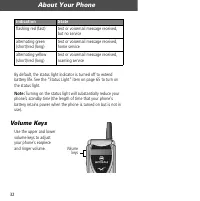
About Your Phone 32 By default, the status light indicator is turned off to extend battery life. See the “Status Light” item on page 65 to turn on the status light. Note: Turning on the status light will substantially reduce your phone’s standby time (the length of time that your phone’s battery ret...
Page 35 - Smart Key; When
33 About Your Phone You can also use the volume keys to scroll up or down through menus and lists. To change keypad volume, see “Select a Ring/Vibration for a Specific Event” on page 117. Smart Key The smart key gives you another way to perform many basic phone functions. It’s called the smart key b...
Page 36 - External Display; Set Phone Alert
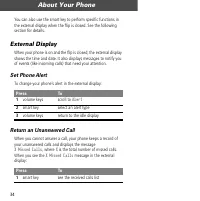
About Your Phone 34 You can also use the smart key to perform specific functions in the external display when the flip is closed. See the following section for details. External Display When your phone is on and the flip is closed, the external display shows the time and date. It also displays messa...
Page 37 - Battery Use
35 About Your Phone Note: Because the microphone and earpiece are unavailable when the phone is closed, you must use a headset or other hands-free device with this feature. Battery Use Caution: To prevent injuries or burns, do not allow metal objects to contact or short-circuit the battery terminals...
Page 38 - • Over extended periods of time, batteries gradually wear
About Your Phone 36 • Over extended periods of time, batteries gradually wear down and require longer charging times. This is normal. If you charge your battery regularly and notice a decrease in talk time or an increase in charging time, then it is probably time to purchase a new battery. • The mor...
Page 39 - activate automatic redial
37 Sending and Receiving Calls For basic instructions on how to send a call, end a call, and receive a call, see page 26 of the “Getting Started” section. Redialing a Number If you hear an ordinary busy signal, the phone number you dialed is busy. Using Automatic Redial If the network is busy, you h...
Page 40 - Sending and Receiving Calls; Caller ID; Returning an Unanswered Call
Sending and Receiving Calls 38 When the call goes through, your phone rings or vibrates once, displays Redial Successful , and then connects the call automatically. You must activate automatic redial in order to use the feature. See the “Auto Redial” item on page 64. Caller ID The calling line ident...
Page 41 - When you see; send the call
39 Sending and Receiving Calls Dialing an Emergency Number When the Phone is Locked Your service provider may program one or more emergency phone numbers that you can call even if your phone is locked or restricted. When you see Enter Unlock Code in the display: Press To 1 VIEW ( + ) see the receive...
Page 42 - Entering Numbers in the Notepad; While the phone is ringing or vibrating:; cancel the incoming call
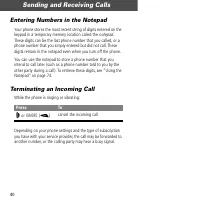
Sending and Receiving Calls 40 Entering Numbers in the Notepad Your phone stores the most recent string of digits entered on the keypad in a temporary memory location called the notepad. These digits can be the last phone number that you called, or a phone number that you simply entered but did not ...
Page 43 - Dialing With Speed Dial
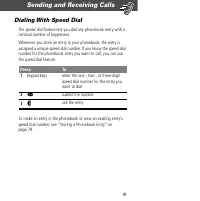
41 Sending and Receiving Calls Dialing With Speed Dial The speed dial feature lets you dial any phonebook entry with a minimal number of keypresses. Whenever you store an entry in your phonebook, the entry is assigned a unique speed dial number. If you know the speed dial number for the phonebook en...
Page 44 - Dialing With One-Touch Dial
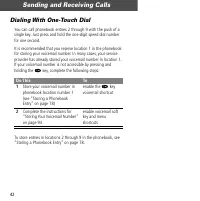
Sending and Receiving Calls 42 Dialing With One-Touch Dial You can call phonebook entries 2 through 9 with the push of a single key. Just press and hold the one-digit speed dial number for one second. It is recommended that you reserve location 1 in the phonebook for storing your voicemail number. I...
Page 45 - Dialing a Number In a Text Message
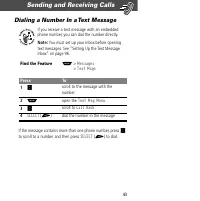
43 Sending and Receiving Calls Dialing a Number In a Text Message If you receive a text message with an embedded phone number, you can dial the number directly. Note: You must set up your inbox before opening text messages. See “Setting Up the Text Message Inbox” on page 96. If the message contains ...
Page 46 - Additional Dialing Features; Pause
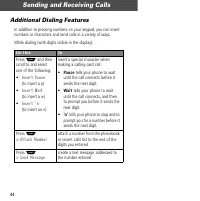
Sending and Receiving Calls 44 Additional Dialing Features In addition to pressing numbers on your keypad, you can insert numbers or characters and send calls in a variety of ways. While dialing (with digits visible in the display): Do This To Press M and then scroll to and select one of the followi...
Page 47 - You can also call numbers using these features:; or; entry to call
45 Sending and Receiving Calls You can also call numbers using these features: Do This To Call Press and release the voice key on the right side of your phone and say the entry’s name (in two seconds). a phone number using the voice dial feature See “Recording a Voice Name For a Phonebook Entry” on ...
Page 48 - Using Call Waiting
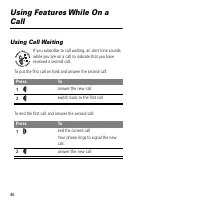
46 Using Features While On a Call Using Call Waiting If you subscribe to call waiting, an alert tone sounds while you are on a call to indicate that you have received a second call. To put the first call on hold and answer the second call: To end the first call and answer the second call: Press To 1...
Page 49 - Making a Three-Way Call
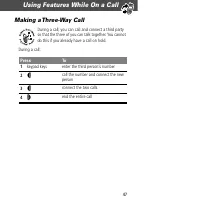
47 Using Features While On a Call Making a Three-Way Call During a call, you can call and connect a third party so that the three of you can talk together. You cannot do this if you already have a call on hold. During a call: Press To 1 keypad keys enter the third person’s number 2 N call the number...
Page 50 - Additional On-Call Features
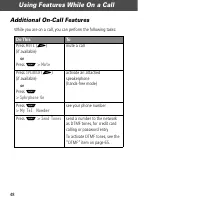
Using Features While On a Call 48 Additional On-Call Features While you are on a call, you can perform the following tasks: Do This To Press MUTE ( + ) (if available) or Press M > Mute mute a call Press SPEAKER ( + ) (if available) or Press M > Spkrphone On activate an attached speakerphone(ha...
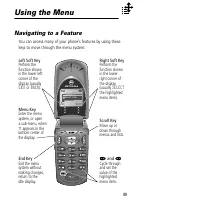
Page 51 - Using the Menu; Navigating to a Feature
49 Using the Menu Navigating to a Feature You can access many of your phone’s features by using these keys to move through the menu system: Main Menu ) Recent Calls ) Phonebook ) EXIT ) SELECT Menu Key Enter the menu system, or opena sub-menu, when M appears in the bottom center ofthe display. Right...
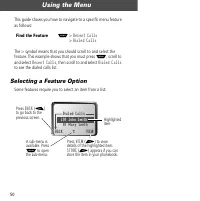
Page 52 - Selecting a Feature Option; Some features require you to select an item from a list:
Using the Menu 50 This guide shows you how to navigate to a specific menu feature as follows: The > symbol means that you should scroll to and select the feature. This example shows that you must press M , scroll to and select Recent Calls , then scroll to and select Dialed Calls to see the diale...
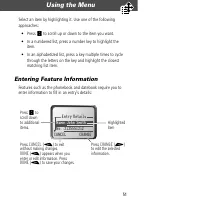
Page 53 - • Press; Entering Feature Information
51 Using the Menu Select an item by highlighting it. Use one of the following approaches: • Press S to scroll up or down to the item you want. • In a numbered list, press a number key to highlight the item. • In an alphabetized list, press a key multiple times to cycle through the letters on the key...
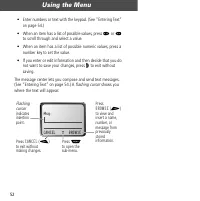
Page 55 - When you enter text, the flashing cursor changes to a
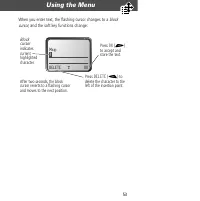
53 Using the Menu When you enter text, the flashing cursor changes to a block cursor, and the soft key functions change: Msg: T DELETE OK Press OK ( + ) to accept andstore the text. Press DELETE ( - ) to delete the character to theleft of the insertion point. Blockcursor indicatescurrenthighlightedc...
Page 56 - Entering Text; General Text Entry Rules
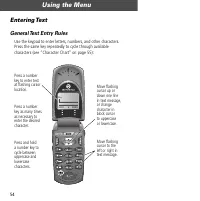
Using the Menu 54 Entering Text General Text Entry Rules Use the keypad to enter letters, numbers, and other characters. Press the same key repeatedly to cycle through available characters (see “Character Chart” on page 55): Msg: CANCEL ) ) BROWSE Move flashingcursor to theleft or right intext messa...
Page 57 - Character Chart
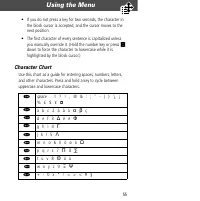
55 Using the Menu • If you do not press a key for two seconds, the character in the block cursor is accepted, and the cursor moves to the next position. • The first character of every sentence is capitalized unless you manually override it. (Hold the number key or press S down to force the character...
Page 58 - Predictive Text Entry with iTAP Software; Activating and Deactivating iTAP Software; Entering Words
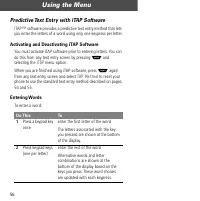
Using the Menu 56 Predictive Text Entry with iTAP Software iTAP™ software provides a predictive text entry method that lets you enter the letters of a word using only one keypress per letter. Activating and Deactivating iTAP Software You must activate iTAP software prior to entering letters. You can...
Page 59 - For example, to spell the word “act,” press
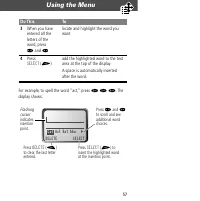
57 Using the Menu For example, to spell the word “act,” press 2 2 8 . The display shows: 3 When you have entered all the letters of the word, press * and # locate and highlight the word you want 4 Press SELECT ( + ) add the highlighted word to the text area at the top of the display A space is autom...
Page 60 - Entering Novel Words
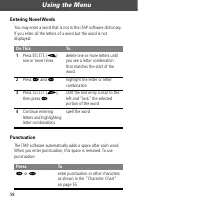
Using the Menu 58 Entering Novel Words You may enter a word that is not in the iTAP software dictionary. If you enter all the letters of a word but the word is not displayed: Punctuation The iTAP software automatically adds a space after each word. When you enter punctuation, this space is removed. ...
Page 61 - Capitalization
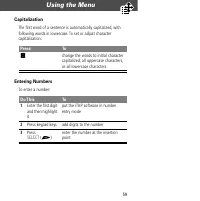
59 Using the Menu Capitalization The first word of a sentence is automatically capitalized, with following words in lowercase. To set or adjust character capitalization: Entering Numbers To enter a number: Press To S change the words to initial character capitalized, all uppercase characters, or all...
Page 62 - Deleting Letters and Words
Using the Menu 60 Deleting Letters and Words Place the cursor to the right of the text that you want to delete, and then do the following: Do This To Press DELETE ( - ) delete one letter at a time Press and hold DELETE ( - ) delete the entire word Continue to hold DELETE ( - ) delete the entire mess...
Page 63 - Menu Feature Descriptions
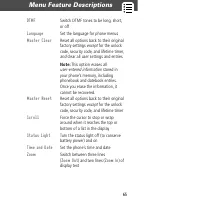
61 Menu Feature Descriptions This chapter describes all of your phone’s features in alphabetical order. Some descriptions also include page numbers where you can find more detailed information. If you would like to learn more about a specific feature, a reference guide for your phone is also availab...
Page 64 - Answer Options
Menu Feature Descriptions 62 D ATEBOOK M > Datebook Use the datebook calendar to schedule and review your appointments. See “Datebook” on page 86. I N- C ALL S ETUP Use the in-call setup menu to set the features that are active during a call, such as the in-call timer and call answering options. ...
Page 65 - Car Settings
63 Menu Feature Descriptions M ESSAGES M > Messages Adjust message settings, view and manage the various types of messages your phone can receive and/or send: O THER S ETTINGS Car Settings M > Settings > Other Settings > Car Settings Adjust hands-free car kit settings. You can set your p...
Page 66 - Headset
Menu Feature Descriptions 64 Headset M > Settings > Other Settings > Headset Set your phone to automatically answer calls after two rings when connected to a headset. See “Hands-Free Use” on page 120. Initial Setup M > Settings > Other Settings > Initial Setup Set many basic phone ...
Page 68 - Network
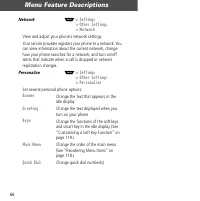
Menu Feature Descriptions 66 Network M > Settings > Other Settings > Network View and adjust your phone’s network settings. Your service provider registers your phone to a network. You can view information about the current network, change how your phone searches for a network, and turn on/...
Page 69 - Battery Meter; Dial pre-programmed customer service numbers.
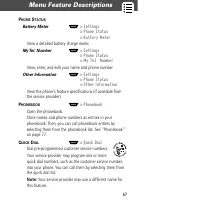
67 Menu Feature Descriptions P HONE S TATUS Battery Meter M > Settings > Phone Status > Battery Meter View a detailed battery charge meter. My Tel. Number M > Settings > Phone Status > My Tel. Number View, enter, and edit your name and phone number. Other Information M > Setting...
Page 70 - Call Times
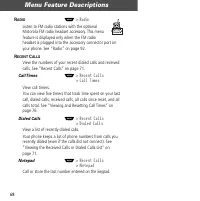
Menu Feature Descriptions 68 R ADIO M > Radio Listen to FM radio stations with the optional Motorola FM radio headset accessory. This menu feature is displayed only when the FM radio headset is plugged into the accessory connector port on your phone. See “Radio” on page 92. R ECENT C ALLS View th...
Page 71 - Received Calls; Lock Application
69 Menu Feature Descriptions You can use this notepad to view the last number you entered, even if you did not call the number. See “Using the Notepad” on page 74. Received Calls M > Recent Calls > Received Calls View a list of recently received calls. Your phone keeps a list of the numbers fr...
Page 72 - Lock Keypad; Create keypad or voice shortcuts to menu features.
Menu Feature Descriptions 70 Lock Keypad M > Settings > Security > Lock Keypad Lock and unlock your keypad. See “Locking and Unlocking Your Keypad” on page 134. New Passwords M > Settings > Security > New Passwords Change your unlock code (originally set to 1234) or your security c...
Page 75 - Option
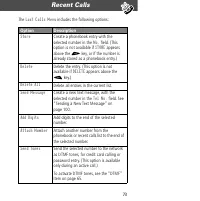
73 Recent Calls The Last Calls Menu includes the following options: Option Description Store Create a phonebook entry with the selected number in the No. field. (This option is not available if STORE appears above the + key, or if the number is already stored as a phonebook entry.) Delete Delete the...
Page 76 - Using the Notepad; To call the number stored in the notepad, press
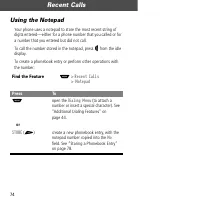
Recent Calls 74 Using the Notepad Your phone uses a notepad to store the most recent string of digits entered—either for a phone number that you called or for a number that you entered but did not call. To call the number stored in the notepad, press N from the idle display. To create a phonebook en...
Page 77 - . This time includes busy signals
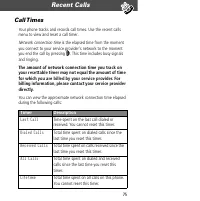
75 Recent Calls Call Times Your phone tracks and records call times. Use the recent calls menu to view and reset a call timer. Network connection time is the elapsed time from the moment you connect to your service provider's network to the moment you end the call by pressing O . This time includes ...
Page 78 - Viewing and Resetting Call Times
Recent Calls 76 Viewing and Resetting Call Times To view a call timer: To reset the call timer: Find the Feature M > Recent Calls Press To 1 S scroll to Call Times 2 SELECT ( + ) open the list of timers 3 S scroll to the timer you want 4 SELECT ( + ) view the recorded time Press To 1 RESET ( + ) ...
Page 79 - To see the list of names stored in your phonebook, press; from the idle display. Scroll to a name and; ) to view details of the phonebook entry as; Fields in a Phonebook Entry Form; Type
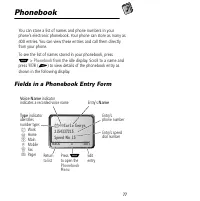
77 Phonebook You can store a list of names and phone numbers in your phone’s electronic phonebook. Your phone can store as many as 400 entries. You can view these entries and call them directly from your phone. To see the list of names stored in your phonebook, press M > Phonebook from the idle d...
Page 80 - Storing a Phonebook Entry; Enter Information
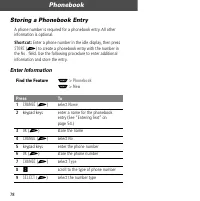
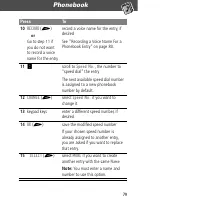
Phonebook 78 Storing a Phonebook Entry A phone number is required for a phonebook entry. All other information is optional. Shortcut: Enter a phone number in the idle display, then press STORE ( + ) to create a phonebook entry with the number in the No. field. Use the following procedure to enter ad...
Page 82 - Complete Phonebook Entry; Your phone can store a total of 20 voice names.
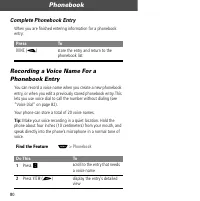
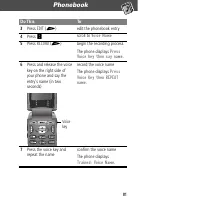
Phonebook 80 Complete Phonebook Entry When you are finished entering information for a phonebook entry: Recording a Voice Name For a Phonebook Entry You can record a voice name when you create a new phonebook entry, or when you edit a previously stored phonebook entry. This lets you use voice dial t...
Page 84 - Dialing a Phonebook Entry; Phonebook List; To call a number from the phonebook list:; Voice Dial; To call a number using voice dial:
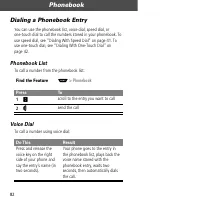
Phonebook 82 Dialing a Phonebook Entry You can use the phonebook list, voice dial, speed dial, or one-touch dial to call the numbers stored in your phonebook. To use speed dial, see “Dialing With Speed Dial” on page 41. To use one-touch dial, see “Dialing With One-Touch Dial” on page 42. Phonebook L...
Page 85 - Editing a Phonebook Entry
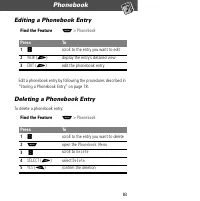
83 Phonebook Editing a Phonebook Entry Edit a phonebook entry by following the procedures described in “Storing a Phonebook Entry” on page 78. Deleting a Phonebook Entry To delete a phonebook entry: Find the Feature M > Phonebook Press To 1 S scroll to the entry you want to edit 2 VIEW ( + ) disp...
Page 86 - Checking Phonebook Capacity
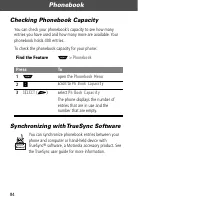
Phonebook 84 Checking Phonebook Capacity You can check your phonebook’s capacity to see how many entries you have used and how many more are available. Your phonebook holds 400 entries. To check the phonebook capacity for your phone: Synchronizing with TrueSync Software You can synchronize phonebook...
Page 87 - Setting Up the Phonebook
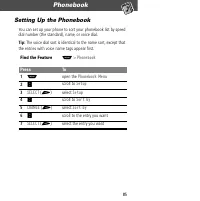
85 Phonebook Setting Up the Phonebook You can set up your phone to sort your phonebook list by speed dial number (the standard), name, or voice dial. Tip: The voice dial sort is identical to the name sort, except that the entries with voice name tags appear first. Find the Feature M > Phonebook P...
Page 88 - The datebook is organized by; Week View
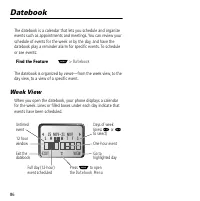
86 Datebook The datebook is a calendar that lets you schedule and organize events such as appointments and meetings. You can review your schedule of events for the week or by the day, and have the datebook play a reminder alarm for specific events. To schedule or see events: The datebook is organize...
Page 89 - Day View; Select a day in the week view and press; Event View; Select an event in the day view and press
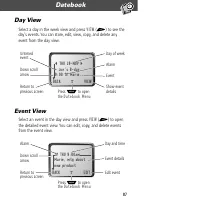
87 Datebook Day View Select a day in the week view and press VIEW ( + ) to see the day’s events. You can store, edit, view, copy, and delete any event from the day view. Event View Select an event in the day view and press VIEW ( + ) to open the detailed event view. You can edit, copy, and delete ev...
Page 90 - Storing a New Event; day
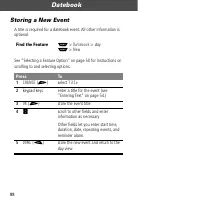
Datebook 88 Storing a New Event A title is required for a datebook event. All other information is optional. See “Selecting a Feature Option” on page 50 for instructions on scrolling to and selecting options. Find the Feature M > Datebook > day M > New Press To 1 CHANGE ( + ) select Title 2...
Page 91 - Changing Event Information
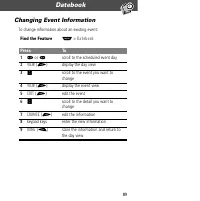
89 Datebook Changing Event Information To change information about an existing event: Find the Feature M > Datebook Press To 1 * or # scroll to the scheduled event day 2 VIEW ( + ) display the day view 3 S scroll to the event you want to change 4 VIEW ( + ) display the event view 5 EDIT ( + ) edi...
Page 92 - Copying an Event
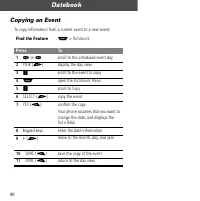
Datebook 90 Copying an Event To copy information from a current event to a new event: Find the Feature M > Datebook Press To 1 * or # scroll to the scheduled event day 2 VIEW ( + ) display the day view 3 S scroll to the event to copy 4 M open the Datebook Menu 5 S scroll to Copy 6 SELECT ( + ) co...
Page 93 - Deleting an Event
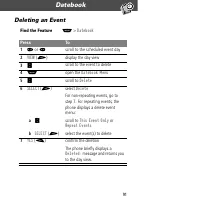
91 Datebook Deleting an Event Find the Feature M > Datebook Press To 1 * or # scroll to the scheduled event day 2 VIEW ( + ) display the day view 3 S scroll to the event to delete 4 M open the Datebook Menu 5 S scroll to Delete 6 SELECT ( + ) select Delete For non-repeating events, go to step 7. ...
Page 94 - Turning the Radio On and Off; Tuning a Station
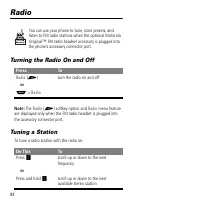
92 Radio You can use your phone to tune, store presets, and listen to FM radio stations when the optional Motorola Original™ FM radio headset accessory is plugged into the phone’s accessory connector port. Turning the Radio On and Off Note: The Radio ( + ) softkey option and Radio menu feature are d...
Page 95 - Storing a Preset; When you tune the station that you want to save:; Selecting a Preset; To select a preset radio station:
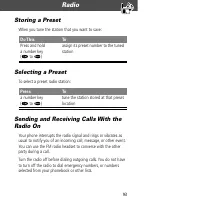
93 Radio Storing a Preset When you tune the station that you want to save: Selecting a Preset To select a preset radio station: Sending and Receiving Calls With the Radio On Your phone interrupts the radio signal and rings or vibrates as usual to notify you of an incoming call, message, or other eve...
Page 96 - Messages—Voicemail; Storing Your Voicemail Number; When you receive a voicemail message, your phone displays; store the number
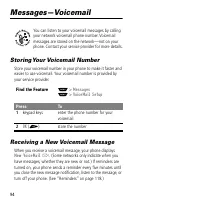
94 Messages—Voicemail You can listen to your voicemail messages by calling your network voicemail phone number. Voicemail messages are stored on the network—not on your phone. Contact your service provider for more details. Storing Your Voicemail Number Store your voicemail number in your phone to m...
Page 97 - From the new message notification:; Listening to a Voicemail Message; To listen to your voicemail messages at any time:
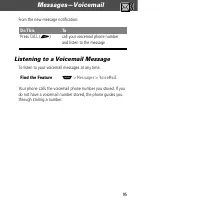
95 Messages—Voicemail From the new message notification: Listening to a Voicemail Message To listen to your voicemail messages at any time: Your phone calls the voicemail phone number you stored. If you do not have a voicemail number stored, the phone guides you through storing a number. Do This To ...
Page 98 - Messages—Text; Setting Up the Text Message Inbox
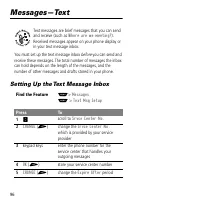
96 Messages—Text Text messages are brief messages that you can send and receive (such as Where are we meeting? ). Received messages appear on your phone display or in your text message inbox. You must set up the text message inbox before you can send and receive these messages. The total number of m...
Page 99 - Receiving a New Text Message
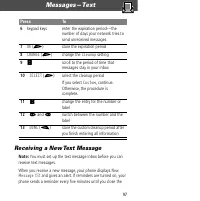
97 Messages—Text Receiving a New Text Message Note: You must set up the text message inbox before you can receive text messages. When you receive a new message, your phone displays New Message X and gives an alert. If reminders are turned on, your phone sends a reminder every five minutes until you ...
Page 100 - open the message
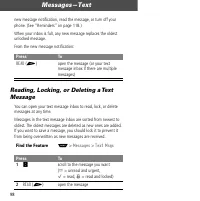
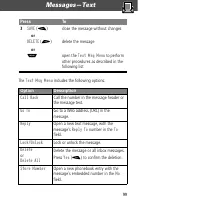
Messages—Text 98 new message notification, read the message, or turn off your phone. (See “Reminders” on page 118.) When your inbox is full, any new message replaces the oldest unlocked message. From the new message notification: Reading, Locking, or Deleting a Text Message You can open your text me...
Page 102 - Sending a New Text Message
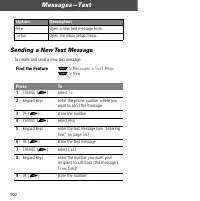
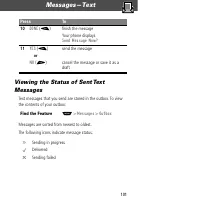
Messages—Text 100 Sending a New Text Message To create and send a new text message: New Open a new text message form. Setup Open the inbox setup menu. Find the Feature M > Messages > Text Msgs M > New Press To 1 CHANGE ( + ) select To 2 keypad keys enter the phone number where you want to s...
Page 104 - Standard Shortcuts
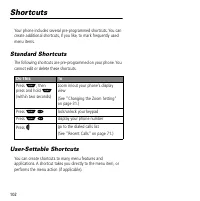
102 Shortcuts Your phone includes several pre-programmed shortcuts. You can create additional shortcuts, if you like, to mark frequently used menu items. Standard Shortcuts The following shortcuts are pre-programmed on your phone. You cannot edit or delete these shortcuts. User-Settable Shortcuts Yo...
Page 105 - Creating a Shortcut
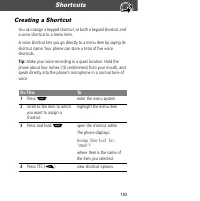
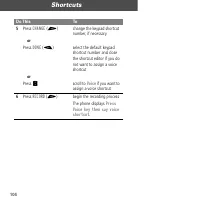
103 Shortcuts Creating a Shortcut You can assign a keypad shortcut, or both a keypad shortcut and a voice shortcut to a menu item. A voice shortcut lets you go directly to a menu item by saying its shortcut name. Your phone can store a total of five voice shortcuts. Tip: Make your voice recording in...
Page 107 - Using Shortcuts
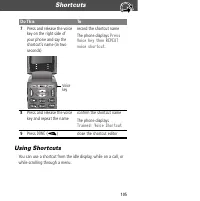
105 Shortcuts Using Shortcuts You can use a shortcut from the idle display, while on a call, or while scrolling through a menu. 7 Press and release the voice key on the right side of your phone and say the shortcut’s name (in two seconds) record the shortcut name The phone displays Press Voice key t...
Page 108 - Use a Keypad Shortcut
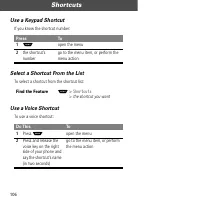
Shortcuts 106 Use a Keypad Shortcut If you know the shortcut number: Select a Shortcut From the List To select a shortcut from the shortcut list: Use a Voice Shortcut To use a voice shortcut: Press To 1 M open the menu 2 the shortcut’s number go to the menu item, or perform the menu action Find the ...
Page 109 - Recording a Voice Note; Make your voice recording in a quiet location. Hold the
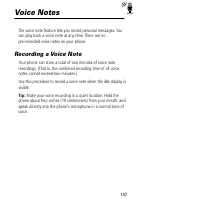
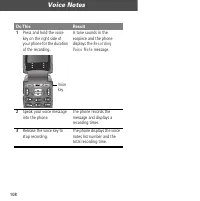
107 Voice Notes The voice note feature lets you record personal messages. You can play back a voice note at any time. There are no pre-recorded voice notes on your phone. Recording a Voice Note Your phone can store a total of two minutes of voice note recordings. (That is, the combined recording tim...
Page 111 - Viewing the Voice Notes List; Playing a Voice Note
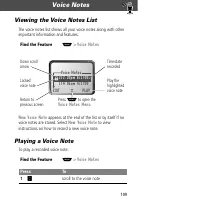
109 Voice Notes Viewing the Voice Notes List The voice notes list shows all your voice notes along with other important information and features. New Voice Note appears at the end of the list or by itself if no voice notes are stored. Select New Voice Note to view instructions on how to record a new...
Page 112 - You can play a voice note while taking a call. It won’t be; Playback Screen; While the voice note is playing, the playback screen is displayed.; play the voice note
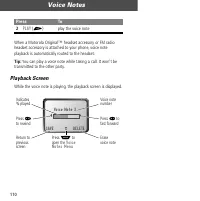
Voice Notes 110 When a Motorola Original™ headset accessory or FM radio headset accessory is attached to your phone, voice note playback is automatically routed to the headset. Tip: You can play a voice note while taking a call. It won’t be transmitted to the other party. Playback Screen While the v...
Page 113 - Voice Note Controls
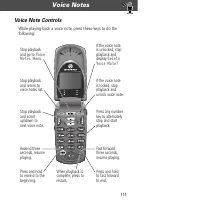
111 Voice Notes Voice Note Controls While playing back a voice note, press these keys to do the following: Stop playbackand return tovoice notes list. Stop playbackand go to Voice Notes Menu . Stop playbackand scrollup/down tonext voice note. Rewind three seconds, resume playing. Press and holdto re...
Page 114 - Locking and Unlocking a Voice Note
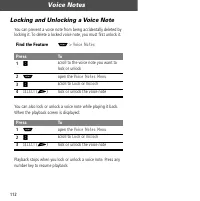
Voice Notes 112 Locking and Unlocking a Voice Note You can prevent a voice note from being accidentally deleted by locking it. To delete a locked voice note, you must first unlock it. You can also lock or unlock a voice note while playing it back. When the playback screen is displayed: Playback stop...
Page 115 - Deleting a Voice Note
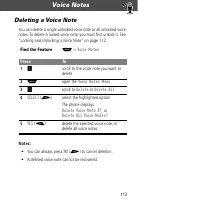
113 Voice Notes Deleting a Voice Note You can delete a single unlocked voice note or all unlocked voice notes. To delete a locked voice note, you must first unlock it. See “Locking and Unlocking a Voice Note” on page 112. Notes: • You can always press NO ( + ) to cancel deletion. • A deleted voice n...
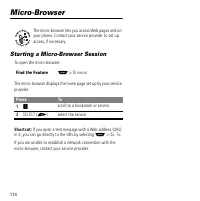
Page 116 - Starting a Micro-Browser Session; If you open a text message with a Web address (URL); select the service
114 Micro-Browser The micro-browser lets you access Web pages and on your phone. Contact your service provider to set up access, if necessary. Starting a Micro-Browser Session To open the micro-browser: The micro-browser displays the home page set up by your service provider. Shortcut: If you open a...
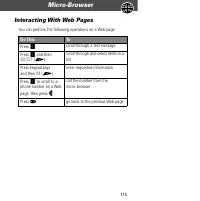
Page 117 - Interacting With Web Pages
115 Micro-Browser Interacting With Web Pages You can perform the following operations on a Web page: Do This To Press S scroll through a text message Press S and then SELECT ( + ) scroll through and select items in a list Press keypad keysand then OK ( + ) enter requested information Press S to scro...
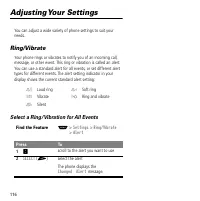
Page 118 - Adjusting Your Settings; Select a Ring/Vibration for All Events
116 Adjusting Your Settings You can adjust a wide variety of phone settings to suit your needs. Ring/Vibrate Your phone rings or vibrates to notify you of an incoming call, message, or other event. This ring or vibration is called an alert. You can use a standard alert for all events, or set differe...
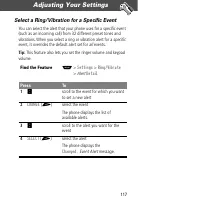
Page 119 - Adjusting Your Settings; Select a Ring/Vibration for a Specific Event
117 Adjusting Your Settings Select a Ring/Vibration for a Specific Event You can select the alert that your phone uses for a specific event (such as an incoming call) from 32 different preset tones and vibrations. When you select a ring or vibration alert for a specific event, it overrides the defau...
Page 120 - Reminders
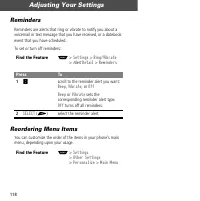
Adjusting Your Settings 118 Reminders Reminders are alerts that ring or vibrate to notify you about a voicemail or text message that you have received, or a datebook event that you have scheduled. To set or turn off reminders: Reordering Menu Items You can customize the order of the items in your ph...
Page 121 - Customizing a Soft Key Function
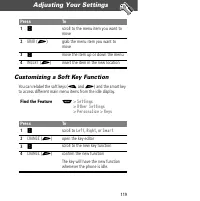
119 Adjusting Your Settings Customizing a Soft Key Function You can relabel the soft keys ( - and + ) and the smart key to access different main menu items from the idle display. Press To 1 S scroll to the menu item you want to move 2 GRAB ( + ) grab the menu item you want to move 3 S move the item ...
Page 122 - Automatic Answer
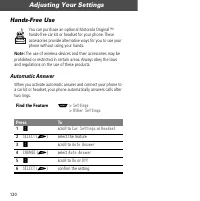
Adjusting Your Settings 120 Hands-Free Use You can purchase an optional Motorola Original™ hands-free car kit or headset for your phone. These accessories provide alternative ways for you to use your phone without using your hands. Note: The use of wireless devices and their accessories may be prohi...
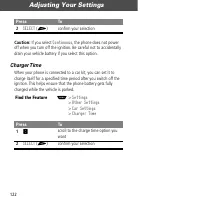
Page 124 - If you select; Charger Time; confirm your selection
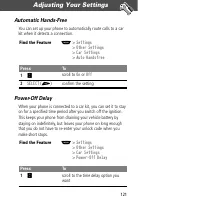
Adjusting Your Settings 122 Caution: If you select Continuous , the phone does not power off when you turn off the ignition. Be careful not to accidentally drain your vehicle battery if you select this option. Charger Time When your phone is connected to a car kit, you can set it to charge itself fo...
Page 125 - Data and Fax Calls; Set Up a Cable Connection
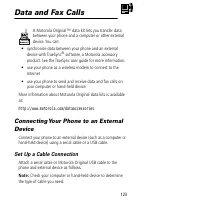
123 Data and Fax Calls A Motorola Original™ data kit lets you transfer data between your phone and a computer or other external device. You can: • synchronize data between your phone and an external device with TrueSync ® software, a Motorola accessory product. See the TrueSync user guide for more i...
Page 126 - Attaching a Serial Cable
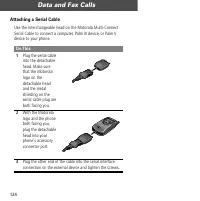
Data and Fax Calls 124 Attaching a Serial Cable Use the interchangeable head on the Motorola Multi-Connect Serial Cable to connect a computer, Palm III device, or Palm V device to your phone. Do This 1 Plug the serial cable into the detachable head. Make sure that the Motorola logo on the detachable...
Page 127 - Attaching a USB Cable; Install the Software; Sending a Data or Fax Call
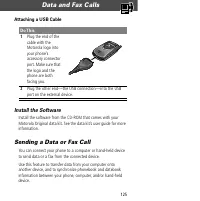
125 Data and Fax Calls Attaching a USB Cable Install the Software Install the software from the CD-ROM that comes with your Motorola Original data kit. See the data kit’s user guide for more information. Sending a Data or Fax Call You can connect your phone to a computer or hand-held device to send ...
Page 128 - Receiving a Data or Fax Call
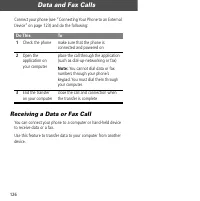
Data and Fax Calls 126 Connect your phone (see “Connecting Your Phone to an External Device” on page 123) and do the following: Receiving a Data or Fax Call You can connect your phone to a computer or hand-held device to receive data or a fax. Use this feature to transfer data to your computer from ...
Page 129 - Set Up Your Phone
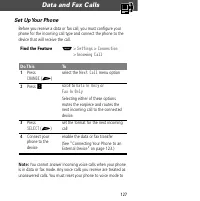
127 Data and Fax Calls Set Up Your Phone Before you receive a data or fax call, you must configure your phone for the incoming call type and connect the phone to the device that will receive the call. Note: You cannot answer incoming voice calls when your phone is in data or fax mode. Any voice call...
Page 130 - Transfer the Data or Fax
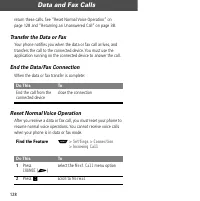
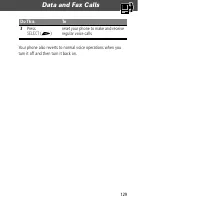
Data and Fax Calls 128 return these calls. See “Reset Normal Voice Operation” on page 128 and “Returning an Unanswered Call” on page 38. Transfer the Data or Fax Your phone notifies you when the data or fax call arrives, and transfers the call to the connected device. You must use the application ru...
Page 132 - Security; Assigning a New Code or Password
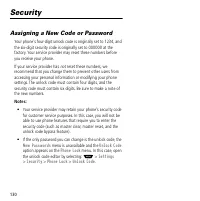
130 Security Assigning a New Code or Password Your phone’s four-digit unlock code is originally set to 1234, and the six-digit security code is originally set to 000000 at the factory. Your service provider may reset these numbers before you receive your phone. If your service provider has not reset...
Page 133 - If You Forget a Code or Password
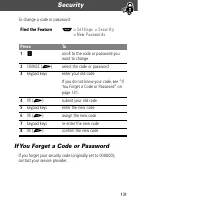
131 Security To change a code or password: If You Forget a Code or Password If you forget your security code (originally set to 000000), contact your service provider. Find the Feature M > Settings > Security > New Passwords Press To 1 S scroll to the code or password you want to change 2 C...
Page 134 - Locking and Unlocking Your Phone; Lock Your Phone Manually
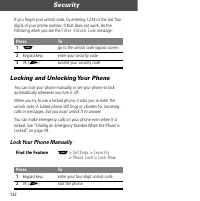
Security 132 If you forget your unlock code, try entering 1234 or the last four digits of your phone number. If that does not work, do the following when you see the Enter Unlock Code message: Locking and Unlocking Your Phone You can lock your phone manually or set your phone to lock automatically w...
Page 135 - Set Your Phone to Lock Automatically
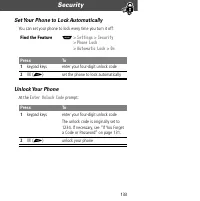
133 Security Set Your Phone to Lock Automatically You can set your phone to lock every time you turn it off: Unlock Your Phone At the Enter Unlock Code prompt: Find the Feature M > Settings > Security > Phone Lock > Automatic Lock > On Press To 1 keypad keys enter your four-digit unlo...
Page 136 - Locking and Unlocking Your Keypad
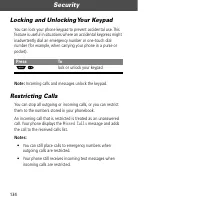
Security 134 Locking and Unlocking Your Keypad You can lock your phone keypad to prevent accidental use. This feature is useful in situations where an accidental keypress might inadvertently dial an emergency number or one-touch dial number (for example, when carrying your phone in a purse or pocket...
Page 138 - Troubleshooting; Question; in the
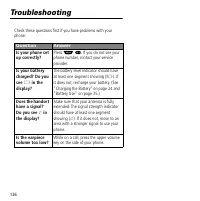
136 Troubleshooting Check these questions first if you have problems with your phone: Question Answer Is your phone set up correctly? Press M # . If you do not see your phone number, contact your service provider. Is your battery charged? Do you see B in the display? The battery level indicator shou...
Page 139 - The following refer to specific problems:; necessary to unmute the phone.; Problem
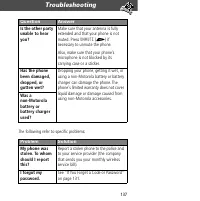
137 Troubleshooting The following refer to specific problems: Is the other party unable to hear you? Make sure that your antenna is fully extended and that your phone is not muted. Press UNMUTE ( + ) if necessary to unmute the phone. Also, make sure that your phone’s microphone is not blocked by its...
Page 140 - Be sure to press and hold; before making a call.
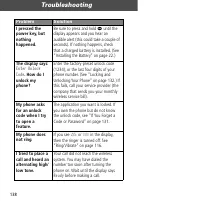
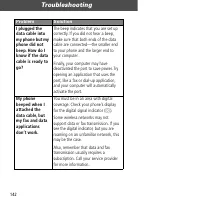
Troubleshooting 138 I pressed the power key, but nothing happened. Be sure to press and hold P until the display appears and you hear an audible alert (this could take a couple of seconds). If nothing happens, check that a charged battery is installed. (See “Installing the Battery” on page 22.) The ...
Page 141 - Your phone also may have the; feature turned on. If; Make sure tha t your antenna is fully
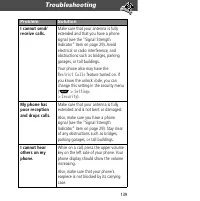
139 Troubleshooting I cannot send/receive calls. Make sure that your antenna is fully extended and that you have a phone signal (see the “Signal Strength Indicator” item on page 29). Avoid electrical or radio interference, and obstructions such as bridges, parking garages, or tall buildings. Your ph...
Page 143 - You can use the; You can also use the; feature
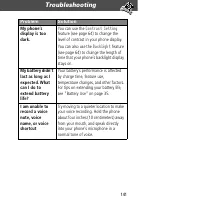
141 Troubleshooting My phone’s display is too dark. You can use the Contrast Setting feature (see page 64) to change the level of contrast in your phone display. You can also use the Backlight feature (see page 64) to change the length of time that your phone’s backlight display stays on. My battery...
Page 145 - Try pressing
143 Troubleshooting When sending data with the data cable, why does the computer show a connection rate of 19200 Kbps? 19200 Kbps is the data transfer rate of the connection between your computer and the phone. The rate of the connection between your phone and the network is displayed on your phone,...
Page 146 - Programming Instructions; Programming is normally done by a trained technician at
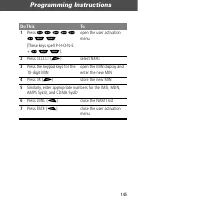
144 Programming Instructions Follow this procedure if you need to program your phone’s phone number or system ID. Note: Programming is normally done by a trained technician at the site of purchase. Users should not make changes other than ones in the following procedure. Before programming, ask your...
Page 148 - Tests for SAR are
146 Specific Absorption Rate Data This model phone meets the government’s requirements for exposure to radio waves. Your wireless phone is a radio transmitter and receiver. It is designed and manufactured not to exceed the emission limits for exposure to radio frequency (RF) energy set by the Federa...
Page 149 - after searching on FCC ID IHDT56AD1.
147 Before a phone model is available for sale to the public, it must be tested and certified to the FCC that it does not exceed the limit established by the government-adopted requirement for safe exposure. The tests are performed in positions and locations (e.g., at the ear and worn on the body) a...
Page 150 - FDA Update
148 The U.S. Food and Drug Administration's Center for Devices and Radiological Health Consumer Update on Mobile Phones FDA Update FDA has been receiving inquiries about the safety of mobile phones, including cellular phones and PCS phones. The following summarizes what is known—and what remains unk...
Page 151 - What kinds of phones are in question?
149 What kinds of phones are in question? Questions have been raised about hand-held mobile phones, the kind that have a built-in antenna that is positioned close to the user's head during normal telephone conversation. These types of mobile phones are of concern because of the short distance betwee...
Page 157 - Where can I find additional information?
155 are concerned about avoiding even potential risks, there are simple steps they can take to do so. For example, time is a key factor in how much exposure a person receives. Those persons who spend long periods of time on their hand-held mobile phones could consider holding lengthy conversations o...
Page 158 - and Radiological Health:
156 Federal Communications Commission (FCC) RF Safety Program (select “Information on Human Exposure to RF Fields from Cellular and PCS Radio Transmitters”): http://www.fcc.gov/oet/rfsafety World Health Organization (WHO) International Commission on Non-Ionizing Radiation Protection (select Qs &...
Page 159 - Warranty; I. What This Warranty Covers; • Products. Defects in materials and workmanship in wireless
157 Warranty Limited Warranty for Motorola Personal Communications Products Purchased in the United States and Canada I. What This Warranty Covers • Products. Defects in materials and workmanship in wireless cellular telephones, pagers, and/or two-way radios, and certain accessories that are sold wi...
Page 160 - II. What the Period of Coverage Is; From the date the Products are purchased by the first end-user:; IV. What We Will Do to Correct Warranty Problems; USA; Cellular
Warranty 158 II. What the Period of Coverage Is From the date the Products are purchased by the first end-user: • Products. The warranty is for one year. Exception: The warranty for Spirit GT series and Talkabout series two-way radio accessories is for 90 days. • Software. The warranty is for 90 day...
Page 161 - VI. What This Warranty Does Not Cover; • Products that are operated in combination with ancillary or; All Products
159 Warranty You will receive instructions on how to ship the Products to Motorola. You must ship the Products to us with freight, duties and insurance prepaid. Along with the Products you must include: (a) a copy of your receipt, bill of sale or other comparable proof of purchase; (b) a written des...
Page 162 - • Someone other than Motorola (or its authorized service
Warranty 160 • Someone other than Motorola (or its authorized service centers) tests, adjusts, installs, maintains, alters, modifies or services the Products in any way. Any of these voids the warranty. • Rechargeable batteries that: (a) are charged by other than the Motorola-approved battery charge...
Page 163 - • Failure of Products that is due primarily to any; VII. Some Other Limitations
161 Warranty • Failure of Products that is due primarily to any communication service or signal you may subscribe to or use with the Products. • Coil cords that are stretched or that have any broken modular tabs. • Products that are leased. Flat-rate repair rates may apply to Products not covered by...
Page 164 - VIII. Patent and Software Provisions
Warranty 162 by third parties, that the operation of the software products will be uninterrupted or error free, or that all defects in the software products will be corrected. In no event shall Motorola be liable, whether in contract or tort (including negligence) for damages in excess of the purcha...
Page 165 - IX. State Law and Other Jurisdiction Rights
163 Warranty Motorola will have no liability to you with respect to any claim of patent infringement that is based upon the combination of the Products or parts furnished under this limited warranty with ancillary equipment, as defined in VI., above. This is Motorola’s entire liability with respect ...
Page 166 - Canada
Warranty 164 To correspond with Motorola about the Products, please write us at http://www.motorola.com or at: USA Cellular 1-800-331-6456 Paging 1-800-548-9954 Two-Way 1-800-353-2729 TTY (Text Telephone) 1-888-390-6456 Canada All Products 1-800-461-4575 TTY (Text Telephone) 1-888-390-6456 In the US...
Page 167 - Patent Information; Manufactured under one or more of the following U.S. patents:
165 Patent Information Manufactured under one or more of the following U.S. patents: 429147543028454312074436522143695164369520436952243743704378603439096343982654400584440058544344614455534448662444919724523155454632945742434581602458174945859574593155459465746022184605987 4616314461752046285294629...
Page 172 - Other patents pending.
170 D384952D385271D385283D385555D385873D385874D385875D385877D385888D386175D386494D386757D387054D387055D387199D387346D388078D388079D388080 D388081D388082D388424D388429D388430D388775D388783D388793D389157D389476D389478D389488D389641D390221D390222D390509D391567D391955D391966 D393470D394256D394423D394425...
Page 173 - Export Law Assurances
171 Export Law Assurances This product is controlled under the export regulations of the United States of America and Canada. The Governments of the United States of America and Canada may restrict the exportation or re-exportation of this product to certain destinations. For further information con...
Page 174 - Index
172 Index A accessories optional 12, 92, 120, 123standard 21–22 accessory connector port 5 Add Digits feature 73 alert defined 116indicators 30, 116reminders 118setting 116setting in external display 34 type, selecting 117 alert setting indicator defined 30, 116illustration 29 animation 64antenna 26...
Page 179 - rearranging features; menu indicator
177 Index menu (continued) rearranging features 118–119 scroll feature 65 Text Msg Menu 99–100 using features 11, 50–53 Voice Notes Menu 109, 110, 111 menu indicator defined 28, 30illustration 29 menu key 5, 27, 49message deleting 98–99dialing number from 43drafts folder 63inbox setup 96–97locking 9...
Page 184 - volume
Index 182 volume earpiece 33keypad 117ringer 33, 117 volume keys 5, 32 W wait character 44warranty 157–164Web pages functions 115viewing 114 Z zoom setting 31, 65
Page 185 - Wireless Phone Safety Tips; “Safety is your most important call!”
✂ 183 Wireless Phone Safety Tips “Safety is your most important call!” Your Motorola wireless telephone gives you the powerful ability to communicate by voice— almost anywhere, anytime, wherever wireless phone service is available and safe conditions allow. But an important responsibility accompanie...
Page 186 - Position your wireless phone within easy reach.; Be; Use your wireless phone to call for help.
✂ 184 3 Position your wireless phone within easy reach. Be able to access your wireless phone without removing your eyes from the road. If you receive an incoming call at an inconvenient time, if possible, let your voice mail answer it for you. 4 Let the person you are speaking with know you are dri...