MAD-CATZ S.T.R.I.K.E.7 - User Manual
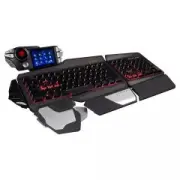
MAD-CATZ S.T.R.I.K.E.7 Keyboard – User Manual, read for free online in PDF format. We hope this helps you resolve any issues you may have. If you have further questions, please contact us through the contact form.
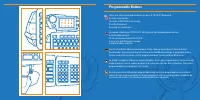
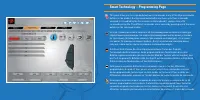
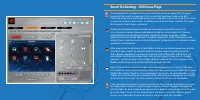
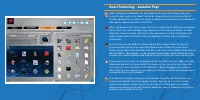
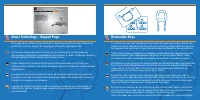
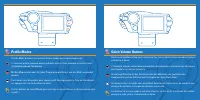
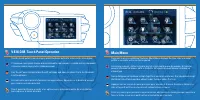
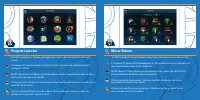
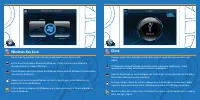

Table of Contents:
- Page 2 – Programmable Buttons
- Page 3 – Smart Technology – Programming Page
- Page 4 – Smart Technology – Edit Icons Page
- Page 5 – Smart Technology - Launcher Page
- Page 6 – Smart Technology – Support Page; Removable Keys
- Page 8 – Profile Modes; Quick Volume Buttons
- Page 9 – Main Menu
- Page 11 – Windows Key Lock; Clock
- Page 12 – Stopwatch; Countdown Timers
- Page 13 – Media Buttons; Volume
- Page 14 – Backlighting; Settings
- Page 15 – Journal
- Page 16 – TeamSpeak
USER MANUAL
BEDIENUNGSANLEITUNG
GUIDE D’UTILISATION
MANUALE D’USO
MANUAL DEL USUARIO
"Loading the manual" means you need to wait until the file loads and becomes available for online reading. Some manuals are very large, and the time they take to appear depends on your internet speed.
Summary
Programmable Buttons There are 24 programmable buttons on your S.T.R.I.K.E.7 Keyboard: 4 on the side module 12 on the V.E.N.O.M. touchscreen 3 on the thumb rest 5 around the arrow keys На вашей клавиатуре S.T.R.I.K.E.7 доступны 24 программируемые кнопки: 4 на боковом модуле; 12 на сенсорном экране V...
Smart Technology – Programming Page This page allows you to assign keyboard macro commands to any of the 24 programmable buttons on the product. Each programmable button can have up to three commands assigned to it (enabled by the three modes on the keyboard) ), giving a total of 72 commands per pro...
Smart Technology – Edit Icons Page Each programmed command on the screen can have an icon assigned to it. This page shows you the current assignments to the screen that have been made on the Edit Commands page. Click a command on the screen, and then click an icon from the list. Click assign icon to...