LG OLED55G2PUA - User Manual
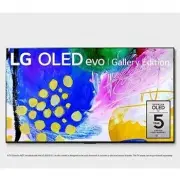
LG OLED55G2PUA TV – User Manual, read for free online in PDF format. We hope this helps you resolve any issues you may have. If you have further questions, please contact us through the contact form.


Table of Contents:
- Page 2 – Optional Extras
- Page 3 – Warning! Safety instructions
- Page 4 – Installation; Lifting and moving the TV
- Page 5 – Securing TV to the Wall; Mounting to the Wall
- Page 6 – Precautions for Safety; Before Installation
- Page 7 – How to fix anchors and screws; After Installation
- Page 8 – Starting TV; Turning on the TV
- Page 9 – Connections; HDMI; USB; IR Blaster
- Page 10 – Specifications
- Page 11 – Product Information; Open Source Software Notice
- Page 12 – Troubleshooting
- Page 13 – Precautions for Protecting the OLED TV Screen; Images that are likely to cause image
- Page 14 – Regulatory
- Page 15 – NOTE TO CABLE/TV INSTALLER; Symbols
- Page 16 – THE CONSUMER TECHNOLOGY INDUSTRY CARES; PROPER TELEVISION PLACEMENT MATTERS; TUNE IN TO SAFETY; WALL OR CEILING MOUNT YOUR TELEVISION; MOVING AN OLDER TELEVISION TO A NEW PLACE IN YOUR HOME
- Page 17 – OWNER’S MANUAL; EXTERNAL CONTROL
- Page 18 – KEY CODES
- Page 19 – EXTERNAL CONTROL DEVICE SETUP; Image shown may differ from your TV.; USB IN; converter which is not made nor provided by LG.; The connection interface may differ from your TV.
- Page 20 – Customer Computer
- Page 21 – Communication Parameters; Communication code : ASCII code; Command reference list; COMMAND1 COMMAND2
- Page 22 – Transmission / Receiving Protocol; Transmission; : Space – ASCII code ‘0x20’; OK Acknowledgement; data of the PC computer.; Error Acknowledgement; non-viable functions or communication errors.; Real data mapping (Hexadecimal
- Page 25 – South Korea and Japan Model
- Page 26 – For Japan Model
- Page 27 – For Plasma TV
ENGLISH
_in
de
x
Safety and Reference
OWNER’S MANUAL
Please read this manual carefully
before operating your set and retain
it for future reference.
Printed in Korea
Copyright © 2022 LG Electronics Inc.
All Rights Reserved.
The model and serial number of the product are
located on the back and on one side of the product.
Record them below in case you ever need service.
Model
Serial No.
OLED55G2PUA
OLED65G2PUA
OLED77G2PUA
OLED77Z2PUA
OLED83G2PUA
OLED97G2PUA
*MFL718562322210REV03*
Supplier`s Declaration of
Conformity
Trade Name LG
Responsible
Party
LG Electronics USA,
Inc.
Address
111 Sylvan Avenue,
North Building,
Englewood Cliffs,
NJ 07632
lg.environmental@
lge.com
LG Customer Information Center
For inquires or comments, visit www.
lg.com or call;
1-800-243-0000 USA, Consumer
User
1-888-865-3026 USA, Commercial
User
1-888-542-2623 CANADA
Register your product Online!
www.lg.com
"Loading the manual" means you need to wait until the file loads and becomes available for online reading. Some manuals are very large, and the time they take to appear depends on your internet speed.
Was this manual helpful?
About this manual
- Brand
- LG
- Model
- OLED55G2PUA
- Document type
- User Manual
- Category
- TV
- Language(s)
- English
- Pages
- 29
- File size
- 3 MB
- Format
Summary
2 Important Safety Instruction • Read these instructions. • Keep these instructions. • Heed all warnings. • Follow all instructions. • Do not use this apparatus near water. • Clean only with dry cloth. • Do not block any ventilation openings. Install in accordance with the manufacturer’s instruction...
3 Warning! Safety instructions CAUTION RISK OF ELECTRIC SHOCK DO NOT OPEN CAUTION: TO REDUCE THE RISK OF ELECTRIC SHOCK DO NOT REMOVE COVER (OR BACK). NO USER SERVICEABLE PARTS INSIDE. REFER TO QUALIFIED SERVICE PERSONNEL. The symbol is intended to alert the user to the presence of uninsulated dange...
4 • If any of the following occur, unplug the product immediately and contact your local customer service. - The product has been damaged. - If water or another substance enters the product (like an AC adapter, power cord, or TV). - If you smell smoke or other odors coming from the TV - When lightni...
Ask a question
Related manuals
Popular LG TVs





More LG TVs models
 LG OLED55CXAUA User Manual
 LG OLED55CXPUA User Manual
 LG OLED55E6P User Manual
 LG OLED55E7P User Manual
 LG OLED55E8PUA User Manual
 LG OLED55G1PUA User Manual
 LG OLED55G3PUA User Manual
 LG OLED55G4SUB User Manual
 LG OLED55GXPUA User Manual
 LG OLED65A1AUA User Manual
 LG OLED65A1PUA User Manual
 LG OLED65A1RLA User Manual