LG OLED55B7P - User Manual
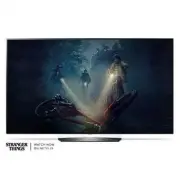
LG OLED55B7P TV – User Manual, read for free online in PDF format. We hope this helps you resolve any issues you may have. If you have further questions, please contact us through the contact form.


Table of Contents:
- Page 2 – ENGLISH; Warning! Important Safety
- Page 4 – Preparing
- Page 5 – Optional Extras
- Page 6 – Using the Joystick Button; Basic Functions; Mounting on a Table
- Page 7 – Mounting on a Wall
- Page 8 – Other Connections; Magic Remote Functions
- Page 10 – How to Register the Magic Remote; Licenses
- Page 11 – Television System; Specifications
- Page 12 – Regulatory; FCC NOTICE; FCC Radio Frequency Interference
- Page 15 – THE CONSUMER ELECTRONICS INDUSTRY CARES; TUNE IN TO SAFETY; MOVING AN OLDER TELEVISION TO A NEW PLACE IN; PROPER TELEVISION PLACEMENT MATTERS
- Page 17 – OWNER’S MANUAL; EXTERNAL CONTROL
- Page 18 – KEY CODES
- Page 19 – EXTERNAL CONTROL DEVICE SETUP; USB to Serial converter with USB Cable; USB IN
- Page 20 – Customer Computer
- Page 21 – Communication Parameters; Command reference list
- Page 22 – Transmission / Receiving Protocol; Transmission; OK Acknowledgement; Error Acknowledgement; Real data mapping (Hexadecimal
www.lg.com
OLED55B7P
OLED55C7P
OLED55E7P
OLED65B7P
OLED65C7P
OLED65E7P
Please read this manual carefully before operating your set and
retain it for future reference.
Safety and Reference
*MFL69707602*
P/NO : MFL69707602 (1701-REV01)
OLEDB7_C7_E7-U_MFL69707602_S_e.indd 1
2017-01-13 2:06:58
"Loading the manual" means you need to wait until the file loads and becomes available for online reading. Some manuals are very large, and the time they take to appear depends on your internet speed.
Was this manual helpful?
About this manual
- Brand
- LG
- Model
- OLED55B7P
- Document type
- User Manual
- Category
- TV
- Language(s)
- English
- Pages
- 37
- File size
- 11.3 MB
- Format
Summary
2 ENGLISH Warning! Important Safety instructions Read these instructions. Keep these instructions. Heed all warnings. Follow all instructions. CAUTION RISK OF ELECTRIC SHOCK DO NOT OPEN CAUTION : TO REDUCE THE RISK OF ELECTRIC SHOCK DO NOT REMOVE COVER (OR BACK). NO USER SERVICEABLE PARTS INSIDE. RE...
4 ENGLISH • Handle the adapter carefully to avoid dropping or striking it. An impact could damage the adapter. • Keep the product away from direct sunlight. • Never touch this apparatus or antenna during a lightning storm. • When mounting a TV on the wall, make sure not to install the TV by hanging ...
5 ENGLISH • Make sure that the screws are fastened tightly. (If they are not fastened securely enough, the TV may tilt forward after being installed.) • Do not fasten the screws with excessive force otherwise they may be worn out and become loose. • Make sure to wring any excess water or cleaner fro...
Ask a question
Related manuals
Popular LG TVs





More LG TVs models
 LG OLED55A2PUA User Manual
 LG OLED55B2PUA User Manual
 LG OLED55B3PSA User Manual
 LG OLED55B3PUA User Manual
 LG OLED55B6P User Manual
 LG OLED55B7A User Manual
 LG OLED55B7T User Manual
 LG OLED55B8PUA User Manual
 LG OLED55B9PUA User Manual
 LG OLED55BXPTA User Manual
 LG OLED55BXPUA User Manual
 LG OLED55C1AUB User Manual