LG LG855 - User Manual
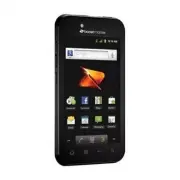
LG LG855 Cell Phone – User Manual, read for free online in PDF format. We hope this helps you resolve any issues you may have. If you have further questions, please contact us through the contact form.


Table of Contents:
- Page 2 – Welcome; Get Up & Running – Fast
- Page 3 – LG Marquee
- Page 4 – Your Device
- Page 5 – Access Your Account at; From Your Boost Phone; From Any Other Phone; Manage Your Account
- Page 6 – Setting Up Your Device
- Page 8 – Making & Answering Calls; Making Calls
- Page 10 – Download Boost ID
- Page 11 – Contacts; Creating a New Contacts Entry
- Page 12 – Synchronizing Your Google Account
- Page 14 – Setting Up a Microsoft
- Page 15 – Messaging; Composing Text Messages
- Page 16 – Create and Send Email; Composing and Sending an Email
- Page 17 – Accessing the Market
- Page 18 – To turn Wi-Fi on and connect to a; Launching a Web
- Page 19 – Viewing Your Pictures; Pictures and Videos
- Page 21 – Additional Support
- Page 22 – Important Safety Information; General Precautions; Safety and Warranty Information
- Page 24 – Maintaining Safe Use of and Access to
- Page 26 – Caring for the Battery
- Page 29 – Manufacturer’s Warranty
Get started
All you need to know to get going.
"Loading the manual" means you need to wait until the file loads and becomes available for online reading. Some manuals are very large, and the time they take to appear depends on your internet speed.
Was this manual helpful?
About this manual
- Brand
- LG
- Model
- LG855
- Document type
- User Manual
- Category
- Cell Phone
- Language(s)
- English
- Pages
- 32
- File size
- 1.3 MB
- Format
Summary
Welcome Get Up & Running – Fast This guide gives you directions on the basics of getting started with Boost Mobile and your new LG Marquee. Follow simple, step-by-step instructions to learn how to: + Manage Your Account + Power Up Your Device + Enter Contacts + Send Text & Email + Browse &am...
LG Marquee + Android ™ 2.3 with Access to Android Market ™ + 4” High Resolution NOVA Touchscreen+ 5MP Camera with 3x Zoom & Video+ GPS Enabled+ Stereo Bluetooth ® Technology + Easy Access to Gmail ™ and Google Talk ™ + Wireless Web Enabled+ Switch Between Portrait and Landscape+ Speakerphone wit...
Your Device Charger/ Accessory Port Earpiece Home Key Search Key Back Key Menu Key Proximity Sensor Touch Screen Camera Lens Power/Lock Key Flash Speaker Fingertip Cutout 3.5mm Headset Jack Volume Keys Quick Launch Key
Ask a question
Related manuals
Popular LG Cell Phones

More LG Cell Phones models
 LG GR500 User Manual
 LG GT365 User Manual
 LG GT550 User Manual
 LG GU295 User Manual
 LG GW370 User Manual
 LG LGL55C User Manual
 LG LGMP260 User Manual
 LG LGMS659 User Manual
 LG LML211BL User Manual
 LG LML212VL User Manual
 LG LML413DL User Manual
 LG LML414DL User Manual
 LG VX3100 User Manual
 LG VX4500 User Manual
 LG C1300 User Manual
 LG C1300I User Manual
 LG C1500 User Manual
 LG C2000 User Manual
 LG CE110 User Manual