Page 2 - LIMITED WARRANTY STATEMENT
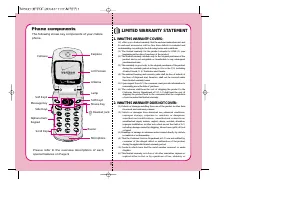
P h o n e c o m p o n e n t s P h o n e c o m p o n e n t s The following shows key components of your mobilephone. Antenna Earpiece LCD Screen Soft Key1 Soft Key2Mouse Key Microphone Scroll Keys Lamp Buzzer Side Keys Headset Jack Cellcase Message Key AlphanumericKeypad Please refer to the overview ...
Page 3 - 0 D r i v e r S a f e t y T i p s
Your wireless telephone gives you the powerful ability tocommunicate by voice-almost anywhere, anytime. But animportant responsibility accompanies the benefits of wirelessphones, one that every user must uphold. When driving a car, driving is your first responsibility. Whenusing your wireless phone ...
Page 6 - SUBJECT
T h e L G - T M 5 1 0 p h o n e h a s b e e n d e s i g n e d t o operate on the latest digital mobile communicationtechnology, Code Division Multiple Access (CDMA).This CDMA digital technology has greatly enhancedvoice clarity and can provide a variety of advancedfeatures. Currently, CDMA mobile co...
Page 7 - I n t r o d u c t i o n; Highlights
I n t r o d u c t i o n Highlights C o n g r a t u l a t i o n s ! Y o u r n e w m o b i l e p h o n e w i l lc h a n g e y o u r w a y o f c o m m u n i c a t i n g a n d i s ac o m p a c t , l i g h t w e i g h t p e r s o n a l c o m m u n i c a t i o nsystem with added features for the person on...
Page 8 - CAUTION; Vehicle Mounted External; Important Information; Safety Instructions; B e f o r e Yo u S t a r t
2 3 radio frequency (RF) electromagnetic energy emitted by FCCregulated transmitters. Those guidelines are consistent witht h e s a f e t y s t a n d a r d p r e v i o u s l y s e t b y b o t h U . S . a n dinternational standards bodies. The design of this phonecomplies with the FCC guidelines and ...
Page 9 - Introduction; C o n t e n t s
FCC Part 15 Class B Compliance This device and its accessories comply with part 15of FCC rules. Operation is subject to the followingtwo conditions: (1) This device and its accessoriesmay not cause harmful interference, and (2) thisd e v i c e a n d i t s a c c e s s o r i e s m u s t a c c e p t a ...
Page 11 - Cautions; Chapter 1. Getting Started; Phone Overview; Function Key
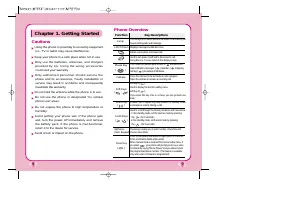
Cautions Using the phone in proximity to receiving equipment (i.e., TV or radio) may cause interference. Keep your phone in a safe place when not in use. Only use the batteries, antennas, and chargers provided by LG. Using the wrong accessoriescould void your warranty. Only authorized personnel shou...
Page 12 - Onscreen Icons; Icons Descriptions; Entering Information Using T9 Text Input; Key Functions
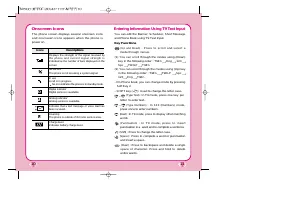
Onscreen Icons The phone screen displays several onscreen iconsand onscreeen icons appears when the phone ispower on. 10 Icons Descriptions Displays the strength of the signal received byt h e p h o n e a n d c u r r e n t s i g n a l s t r e n g t h i sindicated as the number of bars displayed on t...
Page 13 - Typing In T9 Mode; to complete the word and add a space.; Using the NEXT Key
Input mode T9 Text Input provides five modes for entering text,numbers, special characters and punctuation. T9En (T9) Mode Type text using one keystroke per letter. The defaultis T9 modes. Eng (Multi-tap) Mode Use ENG mode to add words to the T9 database. 123 (Numbers) Mode Type numbers using one ke...
Page 14 - Adding Words to the T9 Database; mode; to change letter case to Eng mode; Using the Battery Pack; Installing the Battery
Adding Words to the T9 Database If a word is not in the T9 database, add it using“ E n g ( M u l t i - t a p ) m o d e ” t e x t e n t r y . T h e w o r d i sautomatically added to the T9 database when youreturn to T9 mode. For example, follow these steps : 1. Press : to change letter case to Eng(mu...
Page 15 - Battery Charge Level; Using the Desktop Charger
Battery Charge Level The battery charge level is shown on the top right ofthe LCD screen. When the battery charge level becomes low, the lowbattery sensor will alert you in three ways: Soundingan audible tone, blinking the battery icon outline, anddisplaying “LOW BATTERY WARNING!” . If the battery c...
Page 16 - Turning the Phone On and Off; Turning the Phone On; Turning the Phone Off; Making a Call; Chapter 2. Basic Functions; Correcting Dialing Mistakes; Receiving Calls
Turning the Phone On and Off Turning the Phone On 1. Install a charged battery pack or connect the phone to an external power source such as thecigarette lighter adapter or car kit. 2. Press for a few seconds until the red light on the middle of the phone flashes.F u l l y e x t e n d t h e a n t e ...
Page 17 - Using Quick Mode; Manner Mode; Lock Mode; Call Waiting; Menu
20 2. Press to disconnect the call. In call waiting mode, the present call is on hold as you answer another incoming call. This service is provided by your service provider. When the call waiting function is activated, your phone will beep to let you know if you have an incoming call. Your phone may...
Page 18 - OR
Redialing Calls 1. Press to redial the last number in call history. You can also redial any of the last 10 numbers you have dialed. The last 10 numbers can bestored in the call history list. (See the “RecentCall History List” on page 43) Adjusting the Volume The volume key on the top of left side(Si...
Page 19 - (see “Dialing a call from; Enter memory location number 1 to 199 except; Caller ID; Personal Phone Book Memory; Saving Numbers on Your Personal Phone Book
Mini Display Small LCD on outer of folder is called as Caller LCD. It displays the latest one of the following information until the cellcase is open. And the event status will be displayed on main LCD on cellcase open. Caller LCD will display the following information: - Time and date. - Caller’s i...
Page 20 - Retrieving Telephone Numbers; R e t r i e v i n g P h o n e N u m b e r s U s i n g M e m o r y; Dialing a call from Phone Book; Retrieving by Name Search
26 27 5. Press Soft Key 1 Find . The phone then searches for names with that c h a r a c t e r s t r i n g . ( S e a r c h e s w i l l i g n o r edifference between upper case and lower caseletters.) 6. You will see a list of matches. 7. Press Soft Key 1 View to see specifics in that memory location...
Page 21 - O n e - T o u c h D i a l i n g : O n e - t o u c h d i a l i n g i s a; Dialing from a Memory List; Advanced Phone Book Feature
28 29 O n e - T o u c h D i a l i n g : O n e - t o u c h d i a l i n g i s a c o n v e n i e n t f e a t u r e w h i c h e n a b l e s y o u t o d i a l frequently used numbers in your personal phone book by pressing a key (for memory location 1 through 8). Entry 9 is designated to Emergency Call. ...
Page 23 - Chapter 3. Menu Features; General Guidelines to MENU; Sound
32 Chapter 3. Menu Features 33 General Guidelines to MENU Access and Settings 1. Press Soft Key 1 Menu . The three menu items will appear on the display screen. 2. Press , or to go through the list of menu features. 3. Press the corresponding number to the menu item that you want to select. Then the...
Page 24 - Display; System
34 When you enter a service area, the phone displays“Entering Service Area” message. When you leave a service area, the phone displays“Leaving Service Area” message. 4. Call Connect (Menu ) Alert tone notify the user of the time when the call isconnected. Display (Menu ) Backlight (Menu ) C h o o s ...
Page 26 - Security; New Lock Code; Voice Service
2) Select (multiplication) using Keys. 3) Press and in order. 4) Select [ ] using Soft Key 1. Then you will see the result of calculation “2500”. Security (Menu ) Lock code is commonly last 4 digit of your phone.( Y o u m u s t e n t e r t h e l o c k c o d e a f t e r p r e s s i n g [Menu] ). If y...
Page 27 - Browser Start
- Voice Recording : You can record conversation over the phone. - Voice Memo : When you are not available to answer the phone,the caller can leave the message into voice mail. - Auto Answering Machine : When you are not available to answer the incomingcall, you may set your phone as auto answeringma...
Page 28 - Chapter 4. Book Features; Call History; Outgoing; Recent Call History List
42 Chapter 4. Book Features 43 Call History (Book ) Allows you to view the 30 most recently dialed phonenumbers. Once you exceed the 30-number storagelimit, the oldest call history record is overwritten.These calls are divided into 3 types of calls. Outgoing (Book ) Allows you to view list of all ou...
Page 29 - Phone Book; Find Entry; Find Name
44 45 Phone Book (Book ) Find Entry (Book ) 1. Press Soft Key 2 Book . 2. Press [Phone Book] [Find Entry] 3. Your phone will prompt you to enter entry by displaying “Enter Entry #” on display screen. 4. Enter entry. If you press Soft Key 1 Ok without entering any entry, you may view all the listsave...
Page 30 - Scheduler; Add Event
46 47 5. After selecting Email label from level, press to move to the available entery where to edit or delete. 6. To save, press Soft Key 1 Save . To delete Email address : Move to the Phone book from either Find Email or Find Entry andafter selecting the Email label, press to move to the memory lo...
Page 31 - Wake Up; Set Alarm; Save; Erase Alarm; Viewing Your Telephone Number; To view your phone number :
48 Wake Up ( Book ) Set Alarm ( Book ) Current time will show upon entering menu. Set time for alarm and press Soft Key 1 Save . At alarm time “Wake Up” will appear on the display screen and alarm will wake up you. Ringing (or vibration) will stop when any key is pressed or Cellcase is opened. Ring ...
Page 32 - Chapter 5. Message Features; Types of Menu
Chapter 5. Message Features 49 Text message, page and voice mailbox become availableas soon as the power is on. You can access the abovetypes of messages using the Message Key ( ). In addition, you can make a call to the call back number bypressing the during a message check. T h e p h o n e c a n s...
Page 33 - New Message Alert; . T h e p h o n e d i s p l a y s t h e m e s s a g e o n t h e; Voice; Checking of Voice Mailbox; Send Message; Send To : On this feature, multi sending address is
50 New Message Alert There are four ways your phone alerts you of newmessage. 1 . T h e p h o n e d i s p l a y s t h e m e s s a g e o n t h e display screen. 2. One of four types is heard (if selected). 3. The red light blinks. 4. The message icon is displayed on the display screen [ ]. In the cas...
Page 34 - New Text; Reading Newly Received Text Messages
52 53 Send : Used to send the message. Save : Used to save sending address, call back number, user data, current time. Option : Send, CB#, Priority, Deferred, Validity, Delivery ack are available option. Canned : Allows you to record the most frequently used word up to 10. 10 texts : Yes, No, Call m...
Page 35 - Erase Message; Erase Inbox; Old Text
54 55 : Multi-sending address. Option menu is available. Option menu includes View, Erase and Cancel. Resend : Allows you to retransmit the selected message. View : Shows the message saved in current. The view menu has Three sub menu of Resend,Open, Erase. - Resend : Allows you to retransmit the sel...
Page 36 - Browser Msg; Chapter 6. Functions Used During a Call
56 Setting ( ) There are many ways your phone alert you of a newvoice mail message : - By displaying a message on the screen. - By sounding a beep or vibration. - By flashing a lamp. Alert ( ) A l l o w s y o u t o s e l e c t t h e a l e r t t y p e f o r a n e wmessage. Alert types are 2 alerts, 4...
Page 37 - Chapter 7. Mini Browser; Overview; Quality of Browser; Accessing the MiniBrowser; Start MiniBrowser; Sel; Ending MiniBrowser Session
58 Chapter 7. Mini Browser 59 The MiniBrowser feature allowsy o u t o v i e w i n t e r n e t c o n t e n tspecially designed for mobilephone interface. Access and selections within this feature are service providerdependent. F o r s p e c i f i c i n f o r m a t i o n o n M i n i B r o w s e r a c ...
Page 38 - crolling Up/Down by Item; View Browser Menu; Soft Keys; Soft Key 1
60 Ending browser calls - Users should be able to end abrowser session by pressing . Navigating through the Browser While using the MiniBrowser, you will find that on thes c r e e n i t e m s m a y b e p r e s e n t e d i n o n e o f t h efollowing ways: n u m b e r e d o p t i o n s ( s o m e o p t...
Page 39 - Soft Key 2; Initiating a phone call from the MiniBrowser; Finding a bookmark
62 Soft Key 2 : T h e S o f t K e y 2 i s u s e d p r i m a r i l y f o r s e c o n d a r y options, or a menu of secondary options. Entering Text, Numbers, or Symbols When you are prompted to enter text, the currenttext entry method will appear on the Soft Key 2 asa l p h a , s m a r t , N u m b e ...
Page 41 - Cigar Lighter Charger; Chapter 8. Accessories
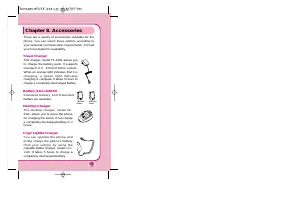
65 There are a variety of accessories available for thephone. You can select these options according toyour personal communication requirements. Consultyour local dealer for availability. Travel Charger This charger, model TC-10W, allows youto charge the battery pack. It supportss t a n d a r d U . ...
Page 42 - Menu Tree
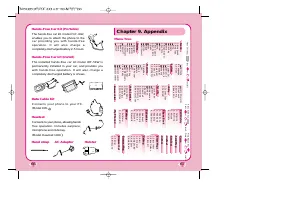
66 Hands-Free Car Kit (Portable) The hands-free car kit, model PHF-30W , enables you to attach the phone to thec a r p r o v i d i n g y o u w i t h h a n d s - f r e eo p e r a t i o n . I t w i l l a l s o c h a r g e acompletely discharged battery in 5 hours. Hands-Free Car kit (Install) The inst...
Page 43 - Chapter 10. Safety Guidelines; Safety Information
68 Chapter 10. Safety Guidelines 69 Safety Information Exposure to Radio Frequency Signal Your wireless handheld portable telephone is a low power radiotransmitter and receiver. When it is ON, it receives and also sendsout radio frequency(RF) signals. European and international agencies have set sta...
Page 44 - FDA Consumer Update
70 consistent with the independent research by and recommendationsof Wireless Technology Research. Persons with pacemakers; Should ALWAYS keep the phone more than six inches from their pacemaker when the phone is turned ON; Should not carry the phone in a breast pocket; Should use the ear opposite t...