Page 2 - Phone components; Driver Safety Tips
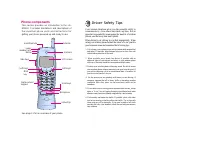
Phone components This section provides an introduction to the LG-DM110. It includes illustrations and descriptions oft h e i m p o r t a n t p h o n e p a r t s a n d i n s t r u c t i o n s f o rgetting your phone powered up and ready to use. See page 11 for an overview of your phone. Antenna Earpi...
Page 3 - L IMITED WARRANTY STATEMENT
1. WHAT THIS WARRANTY COVERS : LG offers you a limited warranty that the enclosed subscriber unit andits enclosed accessories will be free from defects in material andworkmanship, according to the following terms and conditions:(1) The limited warranty for the product extends for ONE (1) year beginn...
Page 4 - I n t r o d u c t i o n; Highlights
I n t r o d u c t i o n 3 Highlights Congratulations on your purchase of the LG-DM110phone that has been designed to operate with thelatest digital mobile communication technology, codedivision multiple access (CDMA). This CDMA digitaltechnology has greatly enhanced voice clarity andcan provide vari...
Page 5 - Safety Instructions; B e f o r e Yo u S t a r t; CAUTION; Vehicle Mounted External
4 5 Important Information This user’s guide contains important information onthe use and operation of this phone. Please read allthe information carefully for optimal performance andto prevent any damage to or misuse of the phone. Any changes or modifications not expresslyapproved in this user’s gui...
Page 6 - C o n t e n t s; FCC Part 15 Class B Compliance
6 7 Introduction 3 Highlights 3 Important Information 4 Check Components 4 Before You Start 4 FCC RF EXPOSURE INFORMATION 4 Chapter 1 Getting Started 10 Cautions 10 Phone Overview 11 LCD Icons 12 Using the Battery Pack 13 Chapter 2 Basic Functions 16 Turning the Phone On and Off 16 Making a Call 16 ...
Page 8 - Chapter 1. Getting Started; Cautions; Function Key
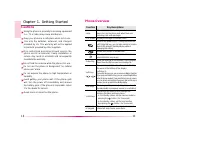
11 Chapter 1. Getting Started 10 Cautions Using the phone in proximity to receiving equipment (i.e., TV or radio) may cause interference. Keep your phone in a safe place when not in use. Use only the batteries, antennas, and chargers provided by LG. The warranty will not be appliedto products provid...
Page 9 - LCD Icons; Icons Descriptions; Using the Battery Pack; Installing the Battery
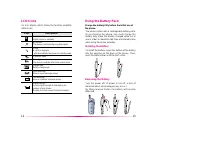
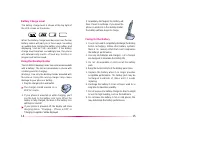
13 12 LCD Icons Icons Descriptions Digital indicatorDigital service is available. NO serviceThe phone is not receiving a system signal. In useA call is in progress. No icon indicates the phone is in standby mode. In manner mode RoamingThe phone is outside of its home service area. Charge levelBatter...
Page 10 - Battery Charge Level; Using the Desktop Holder
15 14 Battery Charge Level The battery charge level is shown at the top right ofthe LCD screen on the phone. When the battery charge level becomes low, the lowbattery sensor will alert you in three ways: Soundingan audible tone, blinking the battery icon outline, anddisplaying “LOW BATTERY WARNING” ...
Page 11 - Turning the Phone On and Off; Turning the Phone On; Making a Call; Chapter 2. Basic Functions; Correcting Dialing Mistakes; Receiving Calls
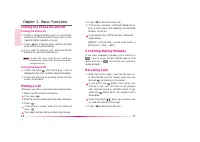
17 16 Turning the Phone On and Off Turning the Phone On 1. Install a charged battery pack or connect the phone to an external power source such as thecigarette lighter adapter or car kit. 2. Press for a few seconds until the red light at the top of the phone flashes. If you want to make a call, full...
Page 12 - Using Quick Mode; Manner Mode; Set-up of Lock Function; Call Waiting; Redialing Calls Manually; Adjusting the Volume
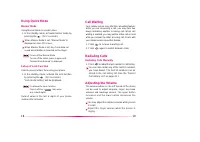
19 18 Using Quick Mode Manner Mode Using Manner Mode in a public place. 1. In the standby mode, activate manner mode by pressing the . (for 2 seconds) When Manner Mode is set, “Manner Mode” is displayed on the LCD screen. When Manner Mode is set, Key Tone dose not sound and Vibration is selected as ...
Page 13 - OR; Key Lock; Speed Dialing; (see “Dialing Number
20 21 The ringer volume can also be adjusted through Menu feature. If you adjust the ringer volume to minimum, the LCD displays “-Ringer Off-” and you will not hearthe ringer sound. The key beep volume is adjusted through Menu feature. The message volume is adjusted through Menu feature. Power Save ...
Page 14 - Caller ID; Use of Caller ID; Phone Book Features; Two Types of Phone Books; Saving Numbers to Your Personal Phone Book
23 22 Caller ID This feature enables the phone number of the callert o b e d i s p l a y e d w h e n y o u r e c e i v e t h e c a l l . Y o ushould check if the cellular service carrier providesthis feature. Use of Caller ID The phone number of the caller will be displayed ont h e L C D s c r e e n...
Page 15 - Entering information using the keypad; Entering text using “Eng” mode.
24 25 Entering information using the keypad The phone has four modes for entering characters To toggle the modes in an entry field, press until the desired mode is displayed. ENG : Enters characters by pressing each corresponding key until the character you want is displayed. “ENG” indicates upper c...
Page 16 - Modifying Personal Phone Book; By pressing Soft Key 1
27 26 For multi line editing in SMS Edit, the functions ofseveral keys will work differently. (Next) : In T9 mode, press to display other matching words. (Space) : In multi - tap mode, press to complete a word or punctuation and to insert space. (Space) : In T9 mode or numeric mode, press to complet...
Page 17 - Editing Stored Memory Location; Edit Entry; Deleting Phone Numbers in Memory; Dialing Numbers from Your Phone Book
28 29 new telephone number, followed by addition ofnecessary settings such as Label or Secret . Editing Stored Memory Location Edit Entry 1. Locate corresponding Entry by name or Entry #. 2. By pressing Soft Key 1 OPT in Entry View the sub-menu will appear. 3. Select “Edit Entry” in the sub-menu. 4....
Page 18 - Advanced Phone Book Feature
31 1) Press the first digit and second digit, then press . Three-Touch Dialing (Speed Dialing) : This dialingfeature enables you to dial numbers in your phonebook through three keys (for location 100 to 199). 1) Press the first digit and second digit. 2) Press and hold the key of the third digit. Di...
Page 19 - Chapter 3. Menu Features; General Guidelines to MENU; Sound
33 32 Key Beep (MENU ) Set Key beep length and touch tone playback speed. Normal : Sends out a tone for a fixed period of time only even if you keep the button pressed. Long : Sends out a continuous tone for as long as you keep the button pressed. Key Volume (MENU ) Adjust the key beep volume (the s...
Page 20 - Display; System
35 34 4.Call Connect (MENU ) A l e r t s o u n d t o n o t i f y t h e u s e r w h e n t h e c a l l i sconnected. Display (MENU ) Backlight (MENU ) Choose the settings of the LCD and keypad backlight.“10 seconds” turns the backlight off 10 seconds afterthe last key was pressed. “30 seconds” waits 3...
Page 21 - Call Information; Features
37 36 Call Information (MENU ) Last Call (MENU ) Displays duration of last call in minutes and seconds. Home Calls (MENU ) Displays the total number and time (minutes andseconds) of all calls made while in the home system(i.e. not roaming), since last reset. You can reset itby pressing Soft Key 1 OP...
Page 22 - Browser Start
39 38 Utility (MENU ) Country (MENU ) You can search for the national code of all countriesin the world.(total 123 countries) Calculator (MENU ) You can calculate simple mathematics. (Can beentered up to the second decimal place) For example) 25 100=2500 1) Press and in order. 2) Select using button...
Page 23 - Call History; Chapter 4. Book Features; Phone Book
41 40 Call History (BOOK ) The phone maintains a list of the calls made, inclusiveof Outgoing, Incoming and Missed calls. The most recent entry is stored at the top. Once all30 locations are filled, the next entry will drop theoldest entry. Depending on the operating mode andavailable features, each...
Page 24 - Find Email; Add Email; Viewing Your Telephone Number; To view your phone number :
42 43 Find Name (BOOK ) 1. Press Soft Key 2 BOOK 2. Press [Phone Book] [Find Name] 3. Enter the character(s) that you want to search for (such as the few letters of the name). 4. Press Soft Key 1 FIND The phone then searches for names with thatcharacter string. (Searches will ignore differencebetwee...
Page 25 - Chapter 5. Message Features; Types of Menu; The phone displays the message on the screen.; New Text; Reading Newly Received Text Messages
45 44 Chapter 5. Message Features Text message, page and voice mailbox becomea v a i l a b l e a s s o o n a s t h e p o w e r i s o n . Y o u c a na c c e s s t h e a b o v e t y p e s o f m e s s a g e s u s i n g t h emessage key . In addition, you can make a call to the call back number by press...
Page 26 - Old Text; ) Lists messages opened but not deleted by; Voice; Checking of Voice Mailbox; Send Msg
46 47 Protect? : Select auto-delete disable function. Ittoggles between function disable and enable eachtime by selection. A “ ” will be added on head of message when you select [Protect?]. Auto Delete function: In the case of message storage is full, the oldest message is automaticallyr e p l a c e...
Page 28 - Erase All; Setting; Alert
The Option menu has open, erase, cancel sub menu - Open : ‘Open’ is used to copy the saved message to destination address, callback, and userdata field. - Erase : ‘Erase’ is used to delete the list on the line. - Cancel : ‘Cancel’ is used to transmit the cancellation message for the message of which...
Page 29 - Auto Save; Chapter 6 Functions used during a call
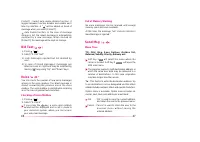
Auto Save ( ) Setting menu to save sent messages in the outboxautomatically. Browser Msg ( ) , Browser Set ( ) See “Chapter 7. MiniBrowser” on page 54~ 59 53 52 Chapter 6 Functions used during a call Mute (During a call : MENU ) Switching microphone on and off during in a call. When the microphone i...
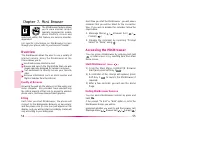
Page 30 - Chapter 7. Mini Browser; Overview; Quality of Browser; Accessing the MiniBrowser; Start MiniBrowser; SEL; Ending MiniBrowser Session
54 55 Chapter 7. Mini Browser The MiniBrowser feature allowsy o u t o v i e w i n t e r n e t c o n t e n tspecially designed for mobilephone interface. Access and selections within this feature are service provider-dependent. F o r s p e c i f i c i n f o r m a t i o n o n M i n i B r o w s e r a c...
Page 31 - crolling Up/Down by Item; View Browser Menu; Soft Keys; Soft Key 1
57 Ending browser calls - Users should be able to enda browser session by press and hold . Navigating through the Browser While using the MiniBrowser, you will find that on-s c r e e n i t e m s m a y b e p r e s e n t e d i n o n e o f t h efollowing ways: numbered options (some options may not ben...
Page 33 - Cigar Lighter Charger; Chapter 8. Accessories; Data Cable Kit
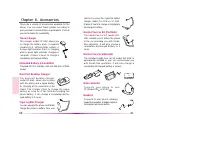
60 61 There are a variety of accessories available for thephone. You can select these options according toyour personal communication requirements. Consultyour local dealer for availability. Travel Charger This charger, model TC-10W, allows youto charge the battery pack. It supportsstandard U.S. 120...
Page 34 - Menu Tree
62 Chapter 9. Appendix Menu Tree Press Soft Key 1 MENU . Press or / to scroll. Press Soft Key 2 BOOK . Press or / to scroll. Call History 1. Outgoing 2. Incoming 3. Missed 4. Added Phone Book 1. Find Entry 2. Find Name 3. Add Entry 4. Find Email 5. Add Email PC-Sync My Phone # Sound 1. Ring Sound2. ...
Page 35 - Safety Information; Chapter 10. Safety Guidelines
63 Safety Information Exposure to Radio Frequency Signal Your wireless handheld portable telephone is a low power radiotransmitter and receiver. When it is ON, it receives and also sendsout radio frequency(RF) signals. European and international agencies have set standards andrecommendations for the...
Page 37 - FDA Consumer Update
67 between the phone’s antenna—the primary source of the RF—andthe person’s head. The exposure to RF from mobile phones inwhich the antenna is located at greater distances from the user (onthe outside of a car, for example) is drastically lower than that fromhand-held phones, because a person’s RF e...