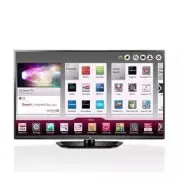
Page 2 - ENG; ENGLISH; IMPORTANT SAFETY INSTRUCTIONS; Do not use this apparatus near water.; WARNING; : This product contains chemicals; Wash hands after handling.
ENG ENGLISH 2 IMPORTANT SAFETY INSTRUCTIONS IMPORTANT SAFETY INSTRUCTIONS y y Protect the power cord from being walked on or pinched particularly at plugs, convenience receptacles, and the point where they exit from the apparatus. y y Only use attachments/accessories specified by the manufacturer. y...
Page 3 - Warning; - To reduce the risk of fire or
IMPORTANT SAFETY INSTRUCTIONS ENG ENGLISH 3 IMPORTANT SAFETY INSTRUCTIONS y y Protect the power cord from being walked on or pinched particularly at plugs, convenience receptacles, and the point where they exit from the apparatus. Short-circuit Breaker Power Supply y y Only use attachments/accessori...
Page 4 - Do not dispose of batteries in a fire.
ENG ENGLISH 4 IMPORTANT SAFETY INSTRUCTIONS IMPORTANT SAFETY INSTRUCTIONS y y Grounding (Except for devices which are not grounded.) Ensure that you connect the earth ground wire to prevent possible electric shock (i.e. a TV with a three-prong grounded AC plug must be connected to a three-prong grou...
Page 5 - FCC NOTICE
IMPORTANT SAFETY INSTRUCTIONS ENG ENGLISH 5 IMPORTANT SAFETY INSTRUCTIONS y y Cleaning When cleaning, unplug the power cord and wipe gently with a soft cloth to prevent scratching. Do not spray water or other liquids directly on the TV as electric shock may occur. Do not clean with chemicals such as...
Page 6 - LICENSES / OPEN SOURCE SOFTWARE NOTICE; LICENSES
ENG ENGLISH 6 LICENSES / OPEN SOURCE SOFTWARE NOTICE TABLE OF CONTENTS LICENSES Supported licenses may differ by model. For more information about licenses, visit ‘www.lg.com’. Manufactured under license from Dolby Laboratories. “Dolby” and the double-D symbol are trademarks of Dolby Laboratories. T...
Page 7 - NOTE; TABLE OF CONTENTS
LICENSES / OPEN SOURCE SOFTWARE NOTICE ENG ENGLISH 7 TABLE OF CONTENTS LICENSES Supported licenses may differ by model. For more information about licenses, visit ‘www.lg.com’. Manufactured under license from Dolby Laboratories. “Dolby” and the double-D symbol are trademarks of Dolby Laboratories. T...
Page 8 - INSTALLATION PROCEDURE / ASSEMBLING AND PREPARING; INSTALLATION PROCEdURE; Open the package and make sure all the accessories are included.; ASSEMBLING ANd PREPARING; Unpacking; CAUTION
ENG ENGLISH 8 INSTALLATION PROCEDURE / ASSEMBLING AND PREPARING ASSEMBLING AND PREPARING INSTALLATION PROCEdURE 1 Open the package and make sure all the accessories are included. 2 Attach the stand to the TV set. 3 Connect an external device to the TV set. 4 Make sure the network connection is avail...
Page 9 - ASSEMBLING AND PREPARING
INSTALLATION PROCEDURE / ASSEMBLING AND PREPARING ENG ENGLISH 9 ASSEMBLING AND PREPARING INSTALLATION PROCEdURE 1 Open the package and make sure all the accessories are included. 2 Attach the stand to the TV set. 3 Connect an external device to the TV set. 4 Make sure the network connection is avail...
Page 10 - How to use the ferrite core; Optional Extras; Video Call Camera; LG Audio Device
ENG ENGLISH 10 ASSEMBLING AND PREPARING ASSEMBLING AND PREPARING NOTE y y How to use the ferrite core - If there are three ferrite cores, follow as shown in Figures 1-1, Figure 2, Figure 3- If there are four ferrite cores, follow as shown in Figures 1-2, Figure 2, Figure 3 1 Use the ferrite core to ...
Page 12 - Parts and Buttons; Button; Lifting and Moving the TV; Buttons; Remote Control Sensors
ENG ENGLISH 12 ASSEMBLING AND PREPARING ASSEMBLING AND PREPARING Parts and Buttons Button Description / Scrolls through the saved channels. / Adjusts the volume level. Selects the highlighted menu option or confirms an input. Accesses the main menus, or saves your input and exits the menus. Changes ...
Page 14 - Mounting on a Table; Lift and tilt the TV into its upright position on; Adjusting the angle of the TV to suit view; Setting up the TV; Attaching the Stand; Stand Body
ENG ENGLISH 14 ASSEMBLING AND PREPARING ASSEMBLING AND PREPARING Mounting on a Table 1 Lift and tilt the TV into its upright position on a table.- Leave a 10 cm (4 inches) (minimum) space from the wall for proper ventilation. 2 Connect the power cord to a wall outlet. Adjusting the angle of the TV t...
Page 15 - Mounting on a Wall; Model
ASSEMBLING AND PREPARING ENG ENGLISH 15 ASSEMBLING AND PREPARING Mounting on a Table 1 Lift and tilt the TV into its upright position on a table.- Leave a 10 cm (4 inches) (minimum) space from the wall for proper ventilation. 10 cm 10 cm 10 cm 10 cm 2 Connect the power cord to a wall outlet. y y Do ...
Page 16 - Insert and tighten the eye-bolts, or TV; Tidying Cables; Install the power cord holder and power
ENG ENGLISH 16 ASSEMBLING AND PREPARING ASSEMBLING AND PREPARING y y Disconnect the power before moving or installing the TV. y y If you install the TV on a ceiling or slanted wall, it may fall and result in severe injury. Use an authorized LG wall mount and contact the local dealer or qualified per...
Page 18 - MAKING CONNECTIONS; Connecting to an Antenna or Cable; Copper wire; Connecting to a HD Receiver, DVD Player or VCR; HDMI Connection; HDMI is the best way to connect a device.
ENG ENGLISH 18 MAKING CONNECTIONS MAKING CONNECTIONS MAKING CONNECTIONS You can connect various external devices to the TV. Supported external devices are: HD receivers, DVD players, VCRs, audio systems, USB storage devices, PC, gaming devices, and other external devices. For more information on ext...
Page 19 - Choose any HDMI IN input port to connect.
MAKING CONNECTIONS ENG ENGLISH 19 MAKING CONNECTIONS MAKING CONNECTIONS You can connect various external devices to the TV. Supported external devices are: HD receivers, DVD players, VCRs, audio systems, USB storage devices, PC, gaming devices, and other external devices. For more information on ext...
Page 20 - DVI to HDMI Connection; When using the HDMI/DVI cable, Single link is only supported.; WHITE; Connecting to a Mobile Phone
ENG ENGLISH 20 MAKING CONNECTIONS MAKING CONNECTIONS DVI to HDMI Connection Transmits the digital video signal from an external device to the TV. Connect the external device and the TV with the DVI-HDMI cable as shown in the following illustration. To transmit an audio signal, connect an audio cable...
Page 21 - This only works for the MHL-enabled phone.; Mobile phone
MAKING CONNECTIONS ENG ENGLISH 21 MAKING CONNECTIONS DVI to HDMI Connection Transmits the digital video signal from an external device to the TV. Connect the external device and the TV with the DVI-HDMI cable as shown in the following illustration. To transmit an audio signal, connect an audio cable...
Page 22 - Component Connection; Composite Connection
ENG ENGLISH 22 MAKING CONNECTIONS MAKING CONNECTIONS Component Connection Transmits analog video and audio signals from an external device to the TV. Connect the external device and the TV with a component cable as shown in the following illustration. y y If cables are installed incorrectly, it coul...
Page 24 - Connecting to a PC; HDMI Connection or DVI to HDMI Connection; Choose method A or B to make connection.; Method A: HdMI Connection; PC; Method B: dVI to HdMI Connection
ENG ENGLISH 24 MAKING CONNECTIONS MAKING CONNECTIONS Connecting to a PC y y It is recommended to use an HDMI connection for the best image quality. y y Depending on the graphics card, DOS mode video may not work if a HDMI to DVI Cable is in use. y y In PC mode, there may be noise associated with the...
Page 26 - Connecting to an Audio System; Digital Optical Audio Connection; Digital Audio System; Connecting a USB Device
ENG ENGLISH 26 MAKING CONNECTIONS MAKING CONNECTIONS Connecting to an Audio System You may use an optional external audio system instead of the built-in speaker. Digital Optical Audio Connection Transmits a digital audio signal from the TV to an external device. Connect the external device and the T...
Page 27 - USB IN
MAKING CONNECTIONS ENG ENGLISH 27 MAKING CONNECTIONS Connecting to an Audio System You may use an optional external audio system instead of the built-in speaker. Digital Optical Audio Connection Transmits a digital audio signal from the TV to an external device. Connect the external device and the T...
Page 28 - REMOTE CONTROL
ENG ENGLISH 28 REMOTE CONTROL REMOTE CONTROL REMOTE CONTROL Below is a description of the remote control. Your remote control may look slightly different. To install batteries, open the battery cover, insert the batteries (1.5 V AAA) matching the and ends to the label inside the compartment, and clo...
Page 30 - WATCHING TV; Turning the TV on for the first
ENG ENGLISH 30 WATCHING TV USING THE USER GUIDE y y To display images in the best quality for your home environment, select Home Use . y y Store Demo is suitable for the retail environment. y y If you select Store Demo , any customized settings will switch back to the default settings of Store Demo ...
Page 31 - USING THE USER GUIDE; OK; USING THE USER GUIdE; SMART
WATCHING TV ENG ENGLISH 31 USING THE USER GUIDE 4 When the basic settings are complete, press the OK button. 5 To turn the TV off, press the power button on the remote control. USING THE USER GUIdE User Guide allows you to more easily access the detailed TV information. 1 Press SMART button to acces...
Page 32 - SPECIFICATIONS; Component supported mode
ENG ENGLISH 32 SPECIFICATIONS SPECIFICATIONS SPECIFICATIONS Product specifications may be changed without prior notice due to upgrade of product functions. Power requirement AC 100 - 240 V ~ 50 / 60 Hz Television System NTSC-M, ATSC, 64 & 256 QAM Program Coverage VHF 2-13, UHF 14-69, CATV 1-135,...
Page 34 - MAINTENANCE; Cleaning Your TV; Power Cord; Remove the accumulated dust or dirt on the power cord regularly.; TROUBLESHOOTING; EXTERNAL CONTROL dEVICE SETUP
ENG ENGLISH 34 MAINTENANCE TROUBLESHOOTING / EXTERNAL CONTROL DEVICE SETUP MAINTENANCE Cleaning Your TV Clean your TV regularly to keep it at peak performance and to extend the product lifespan. y y Before Cleaning, turn the power off and disconnect the power cord and all other cables. y y When the ...
Page 35 - TROUBLESHOOTING / EXTERNAL CONTROL DEVICE SETUP
MAINTENANCE ENG ENGLISH 35 TROUBLESHOOTING / EXTERNAL CONTROL DEVICE SETUP MAINTENANCE Cleaning Your TV Clean your TV regularly to keep it at peak performance and to extend the product lifespan. Screen, Frame, Cabinet and Stand To remove dust or light dirt, wipe the surface with a dry, clean, and so...
Page 40 - The model and serial number of the TV is located; MODEL; LG Customer Information Center; CANADA; Register your product Online!
The model and serial number of the TV is located on the back and one side of the TV. Record it below should you ever need service. MODEL SERIAL LG Customer Information Center For inquires or comments, visit www.lg.com or call; 1-800-243-0000 USA, Consumer User 1-888-865-3026 USA, Commercial User 1-8...
Page 41 - OWNER’S MANUAL; EXTERNAL CONTROL
OWNER’S MANUAL EXTERNAL CONTROL DEVICE SETUP Please read this manual carefully before operating the set and retain it for future reference. www.lg.com
Page 42 - KEY CODES
2 ENG ENGLISH 2 KEY CODES KEY CODES • This feature is not available for all models. Code (Hexa) Function Note Code (Hexa) Function Note 00 CH +, PR + R/C Button 45 Q.Menu R/C Button 01 CH -, PR - R/C Button 4C List, - (ATSC Only) R/C Button 02 Volume + R/C Button 53 List R/C Button 03 Volume - R/C B...
Page 43 - EXTERNAL CONTROL DEVICE SETUP; Image shown may differ from your TV.; USB to Serial converter with USB Cable; USB Type; which is not made nor provided by LG.
3 ENG ENGLISH 3 EXTERNAL CONTROL DEVICE SETUP EXTERNAL CONTROL DEVICE SETUP • Image shown may differ from your TV. Connect the USB to Serial converter/RS-232C input jack to an external control device (such as a computer or an A/V control system) to control the product’s functions externally. Note: T...
Page 44 - Customer Computer
4 ENG ENGLISH 4 EXTERNAL CONTROL DEVICE SETUP RS-232C with RS-232C Cable (Legacy) Phone jack Type • You need to purchase the phone-jack to RS-232 cable required for the connection between the PC and the TV, which is specified in the manual. * For other models, connect to the USB port. USB IN (TV) (P...
Page 45 - Communication Parameters; Communication code : ASCII code; Command reference list; COMMAND1 COMMAND2
5 ENG ENGLISH 5 EXTERNAL CONTROL DEVICE SETUP Communication Parameters • Baud rate : 9600 bps (UART) • Data length : 8 bits • Parity : None • Stop bit : 1 bit • Communication code : ASCII code • Use a crossed (reverse) cable. Command reference list (Depending on model) COMMAND1 COMMAND2 DATA (Hexade...
Page 46 - Transmission / Receiving Protocol; Transmission; : Space – ASCII code ‘0x20’; OK Acknowledgement; data of the PC computer.; Error Acknowledgement; viable functions or communication errors.; Real data mapping (Hexadecimal
6 ENG ENGLISH 6 EXTERNAL CONTROL DEVICE SETUP Transmission / Receiving Protocol Transmission [Command1][Command2][ ][Set ID][ ][Data][Cr] [Command 1] : First command to control the TV. (j, k, m or x) [Command 2] : Second command to control the TV. [Set ID] : You can adjust the [Set ID] to choose des...
Page 50 - Digital; For Plasma TV
10 ENG ENGLISH 10 EXTERNAL CONTROL DEVICE SETUP [Data 01][Data 02]: Major Channel Number Data 01: High byte Channel Data Data 02: Low byte Channel Data - 00 01 ~ 27 0F (Decimal: 1 ~ 9999) [Data 03][Data 04]: Minor/Branch Channel Number (Don’t care in Satellite) Data 03: High byte Channel Data Data 0...