Laser SPK-QC002 - User Manual
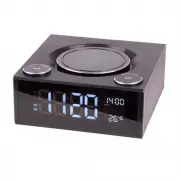
Laser SPK-QC002 Radio – User Manual, read for free online in PDF format. We hope this helps you resolve any issues you may have. If you have further questions, please contact us through the contact form.

Usb charging (5V/3A output)
There are 3 USB ports at the back of the speaker. Simply
connect your portable device using a USB cable to begin
charging.
Please open the NFC Function if your device support the
NFC. Then put the device touch the NFC position on upon
of speaker. It will connect the device automatically.
NFC
Qi wireless Charger(Android / Iphone)
In standby mode, put the mobile phone for wireless
charging on center upon of speaker. If your mobile phone can
not support wireless charger, will need wireless charger
receiver to completely charging.
Specification
Driver: 5W*2
Wireless Range: 10 Meters
Frequency Range: 60Hz~18KHz
USB Charging Port: DC5V 3A
Build-in 3 sleep songs and 3 alarm sounds in system.
Build-ins storge music playing (3 songs)
1.In standby mode, Long press the Alarm/Snooze button and
aud1 will show on the LED display. Turn Mode/ Time button
to adjust volume. The aud1 music will be off automatically
until playing 30 minutes. Short press Alarm/ Snooze button
music off.
2. Choose aud2: Long press the Alarm/Snooze button, long
press again after saw aud1 on the LED display. Same
operation to choose aud3 music.
2
1
Product Feature
Play/Pause
Sleep Function
Aarm Clock
Setting Button
Aux in,BT,FM
Mode
Power Button
Time Setting
Button
MODE
Digital Display
Built-in Microphone
for Hand-Free Talk
Mobile Charging
Near Field Communication
NFC
Alarm1
Alarm2
AUX Line-in
1A Output
Charging USB Port
Power Adapter
6
4
Set Time (At standby Mode)
12 Hour/24 Hour Mode
Set Alarm (At standby Mode)
1. Tap the MODE/Time to make the hour blink,
Clockwise or anticlockwise turn MODE/Time to set the hour.
2. Short press MODE/Time again to make the minute blink.
Clockwise or anticlockwise turn MODE/Time to set the
minute.
3. Short press again MODE/Time or wait 15 seconds then
Setting have finished.
While in current time display, Long press Alarm1 and
Alarm 2 at the same time to switch from 12 hour mode
to 24 hour mode.
1.Short press the Alarm/SNOOZE button. The ALARM 1 icon
will show in the top right corner. The hour begin blink and turn
Mode/Time button for hour setting. Same operation to set
minute. Turn Mode/Time button for alarm sounds choice
(FM/F01/F02/F03) aftter finished setting alarm. Tap Alarm/Snooze
to finish and move to Alarm 2.
2. Same operation for Alarm 2 setting.
3. Long press alarm 1 or alarm 2 for turn on/off alarm.
FM Radio Mode
Short Press the MODE/Time from bluetooth mode enter
FM Radio mode. FM indicator light show on the LED display.
Long press ALARM/SNOOZE button will begin to search
the radio automatically. P01 will be showing on the LED
display when searched the radio.The first radio will play
automatically after all radios has been searched. Turn
left or right of Alarm/Snooze button to choose the radio.
5
Bluetooth Mode
1.Long Press MODE/Time button to power on. And enter the
bluetooth mode & BT indicator light will be blink on the LED
display. Meanwhile the blue Led light of bottom will be bright.
2.Open the Bluetooth of device and search SPK-QC002 in the
list of bluetooth for initial pairing.Will sounds little bell when
sucess pairing. Then can play the music of device. Short
press ALARM/SNOOZE button to pause the music play/
answer phone/ hang up phone.
Audio AUX Mode
1. Short Press the MODE/Time from FM Mode enter AUX
Mode. Aux indicator light showing on the LED display.
2. Use a 3.5mm audio cable to connect your portable media
device to the AUX Jack at back of the speaker.
Snooze
1.Short Press the Alarm/Snooze button to snooze for 9 minutes
when alarm ring. snooze Z icon would be blink in the top right
corner. Long Press the Alarm/Snooze button to cancel the
SNOOZE function.
2.When the alarm sounds, short press/ turn Mode/Time to turn
off alarm.
Temperature Unit
To switch the temperature unit from Celsius to Fahrenheit,
short press alarm1 and alarm2 at the same time.
3
Qi Wireless Charging Alarm Clock
Bluetooth Speaker
SPK-QC002
Warranty Against Defects
Laser Corporation Pty Ltd (“Laser”) warrants your new product to be free from defects in materials and
workmanship for 12 months, from the date of purchase, provided that the product is used in accordance
with accompanying recommendations or instructions where provided. The benefit of this warranty is in
addition to your rights under the Australian Consumer Law and to other rights and remedies of the
consumer under a law in relation to the goods or services to which the warranty relates. Through a
network of retailers and resellers, Laser will provide you with your choice of a repair, exchange (where
possible) or refund (within Dead on Arrival period) for this product if it becomes defective within the
warranty period. This warranty will no longer apply where the defect is a result of alteration, accident,
misuse, abuse, normal wear and tear, neglect or improper storage. Please retain your receipt as proof of
purchase How to make a product warranty claim:
Step 1: Find your receipt which proves the date of purchase. Where the date of purchase cannot be
verified, your place of purchase or Laser will make an assessment based on the date of manufacture, the
condition of the
Laser Product and the type of defect.
Step 2a): Contact your place of purchase. They will assess the nature of the fault and repair, replace or fund
the product as per their store refund or warranty policy.
Step 2b): If your place of purchase cannot be contacted, then you can contact Laser. Customer Service with
details of your defective Laser Product:
Phone: (02) 9870 3355; or Email: [email protected] or online www.laserco.com.au/warranty (click on
“Consumers (End Users)”). Our business address is at 1/6-8 Byfield Street, North Ryde, NSW 2113
Step 3: Laser will issue you with a Return Authorisation (RA) number within 48 hours. When requested,
send us the defective Product and a copy of your receipt. Laser will cover the cost of the return delivery.
Step 4: Wait for us to contact you. Once we have received your defective Laser Product for inspection, we
will inform you of our assessment of your claim within 7 days. When we contact you, we will firstly let you
know whether you have a valid claim under this Warranty, and if so, we will inform you whether your
defective Laser Product will be replaced or repaired, together with the number of days you can expect to
wait to receive your replaced or repaired Laser Product.
Step 5: For further details on warranty cover and returns, please check Terms and Conditions for Warranty
Returns section on http://www.laserco.com.au/warranty
Our goods come with guarantees that cannot be excluded under the Australian Consumer Law. You are
entitled to a replacement or refund for a major failure and compensation for any other reasonably
foreseeable loss or damage. You are also entitled to have the goods repaired or replaced if the goods fail to
be of acceptable quality and the failure does not amount to a major failure.
"Loading the manual" means you need to wait until the file loads and becomes available for online reading. Some manuals are very large, and the time they take to appear depends on your internet speed.