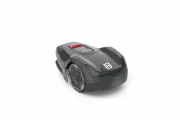
Page 2 - Contents
Contents 1 Safety 1.1 Safety definitions................................................... 31.2 General safety instructions....................................31.3 Safety instructions for installation..........................41.4 Safety instructions for operation............................41.5 Sa...
Page 3 - Safety; Safety definitions
1 Safety 1.1 Safety definitions Warnings, cautions and notes are used to point out specially important parts of the manual. WARNING: Used if there is a risk of injury or death for the operator or bystanders if the instructions in the manual are not obeyed. CAUTION: Used if there is a risk of damage ...
Page 5 - To lift and move the product
1.7 To lift and move the product WARNING: The product must be set to OFF before you lift the product. The product is disabled when the indicator on the ON/OFF button goes off. CAUTION: Do not lift the product when it is parked in the charging station. It can cause damage to the charging station and/...
Page 6 - Introduction
2 Introduction 2.1 Introduction Serial number: Product number: PIN code: The serial number and the product number are on the product rating plate and on the product carton.• Register your product on www.husqvarna.com. Enter the serial number of the product, the product number and the date of purchas...
Page 9 - LED indicator on the keypad
• Text written in bold is one of the buttons on the product. 2.6 Keypad The keypad on the product is used to enter the PIN code and to select an operation mode for the product. Refer to Operating modes on page 24. The buttons on the keypad with flashing lights are the available operating modes for t...
Page 12 - Installation; Main components for installation; To examine where to put the charging
3 Installation 3.1 Introduction - Installation Refer to www.husqvarna.com for more information about installation and instruction videos.We recommend you to update the firmware before you install the product to make sure that the product has the latest firmware. Refer to Download firmware over the a...
Page 16 - wire
To make an island, isolate areas in the work area with the boundary wire. We recommend to isolate all stable objects in the work area.Some obstacles are resistant to a collision, for example, trees or bushes that are more than 15 cm / 5.9 in. in height. The product will collide with the obstacle and...
Page 17 - Installation of the product
• Starting point (C). Refer to To set the starting point on page 22. • Minimum distance 60 cm / 2 ft. from the starting point to perpendicular to the boundary wire (D). Refer to Support on page 6. • Where the guide wire is connected to the boundary wire (E). • Guide corridor (F). The product always ...
Page 20 - After the installation of the product; To do a visual check of the charging; To install the Automower
7. Put the boundary wire or the guide wire into position with stakes. 8. Connect the charging station to the power outlet. 3.9 After the installation of the product 3.9.1 To do a visual check of the charging station 1. Make sure that the indicator LED lamp on the charging station has a green light. ...
Page 21 - Settings; operating time
4 Settings Use the Automower ® Connect app for product settings. The factory settings are applicable for almost all work areas, but the settings can be adapted to the conditions for each work area. 4.1 Schedule In Schedule you can change the schedule settings for the product.The Schedule function co...
Page 22 - Passage Mowing
Note: The frost sensor is at the inner side of the chassis. There can be a temperature difference compared to the ambient temperature. 4.3 Installation In Installation you can change the installation settings of the product. 4.3.1 Lawn Coverage and Systematic Passage Mowing If the work area includes...
Page 23 - mower house; Connect
4.4 Accessories In Accessories you can change the settings of the product accessories. 4.4.1 Avoid collisions with Husqvarna mower house If you have installed a Husqvarna mower house 9 , the wear on the product and the mower house decreases when you select Avoid house collisions. In the factory sett...
Page 24 - Operation; To start the product
5 Operation 5.1 To use the ON/OFF button WARNING: Read and understand the safety chapter before you use the product. • Push the ON/OFF button for 3 seconds to set the product to ON. Make sure that the LED indicator comes on. • The product is ON and in power save mode if the LED indicator flashes. Pu...
Page 28 - Maintenance; Maintenance schedule
6 Maintenance 6.1 Introduction - maintenance WARNING: Set the product to OFF before you do maintenance on the product. WARNING: Use protective gloves. For better operation and lifetime of the product, make sure to clean the product regularly and replace worn parts.When the product is new, examine th...
Page 29 - Clean the product; To clean the chassis and blade disc
To prepare Weekly Every year Every third year Last step Use a software service tool to do a function test of the functions of the product. O 6.3 Clean the product CAUTION: Do not use a high-pressure washer to clean the product. Do not use solvents for cleaning. Husqvarna recommends to use a special ...
Page 30 - Replacement of the blades
6.3.5 To clean the charging station WARNING: Disconnect the power supply from the power outlet before maintenance, or when you clean the charging station or power supply. CAUTION: Do not use a high-pressure washer or running water to clean the charging station. Note: The product cannot enter the cha...
Page 32 - Troubleshooting
7 Troubleshooting 7.1 Introduction - troubleshooting In this chapter you can find information and help about faults and symptoms of the product. You can find more information and FAQ (Frequently Asked Questions) on www.husqvarna.com. 7.2 Fault messages The fault messages in the table below are shown...
Page 36 - Information and warning messages
7.3 Information and warning messages The information messages in the table below are shown in the app. Speak to your Husqvarna service if the same message shows frequently. Message Cause Action Settings restored A Reset all user settings has been done. Usual operation of the product. FlexiFence prob...
Page 37 - Indicator lamp in the charging station
7.4 Indicator lamp in the charging station The indicator lamp in the charging station must show a solid or flashing green light for a correct installation. If not, follow the instructions in the troubleshooting table below.Speak to your Husqvarna service for more information. Light Cause Action Gree...
Page 39 - Find breaks in the loop wire
Symptoms Cause Action There is an error with the installation of new firmware via FOTA. The firmware did not download correctly. Push a button on the display to start the firm- ware installation again. If the problem stays speak to your Husqvarna service. The product is parked for hours in the charg...
Page 41 - Transportation, storage and disposal; To put the product into storage; To install the storage hook on the wall
8 Transportation, storage and disposal 8.1 Transportation The supplied Li-ion batteries obey the Dangerous Goods Legislation requirements.• Obey all applicable national regulations. • Obey the special requirement on package and labels for commercial transportations, including by third parties and fo...
Page 43 - Technical data
9 Technical data 9.1 Technical data Dimensions Automower ® Aspire ™ R4 Length, cm / in. 55 / 21.7 Width, cm / in. 33 / 13.0 Height, cm / in. 22 / 8.7 Weight, kg / lb 5.9 / 13.0 Electrical system Automower ® Aspire ™ R4 Battery, Lithium-Ion 18 V/2.0 Ah Art.No 590 21 42-02, 590 21 42-04, 590 21 42-06,...
Page 45 - Registered trademarks
Husqvarna AB does not guarantee full compatibility between the product and other types of wireless systems such as remote controls, radio transmitters, hearing loops, underground electric animal fencing or similar.The products are made in England or the Czech Republic. Refer to information on the ra...