Huion RTE-100 - User Manual
Huion RTE-100 Tablet – User Manual, read for free online in PDF format. We hope this helps you resolve any issues you may have. If you have further questions, please contact us through the contact form.
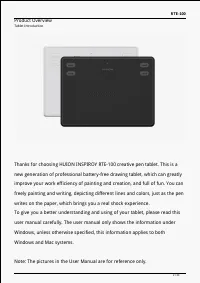
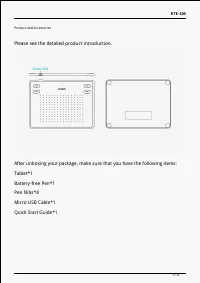
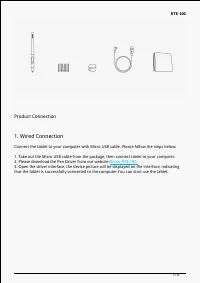
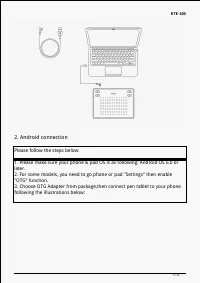
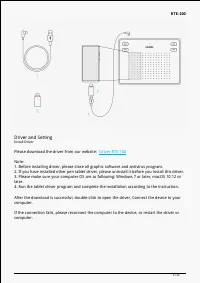
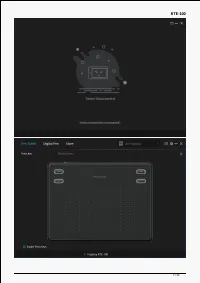
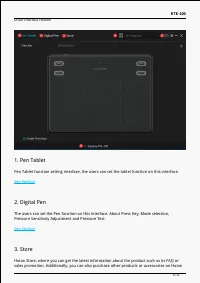
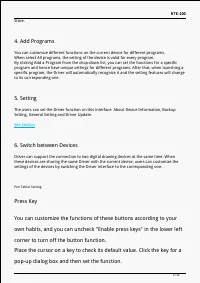
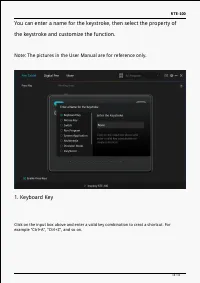
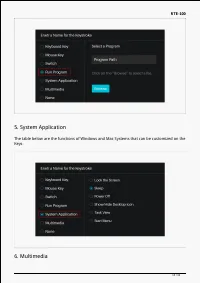
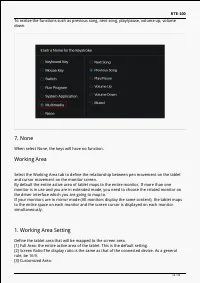
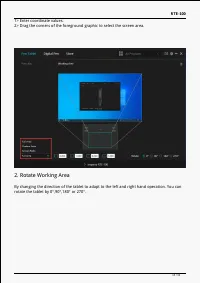
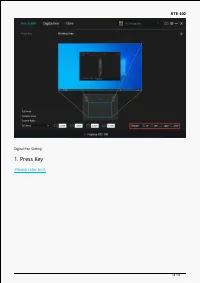
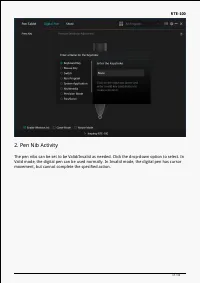
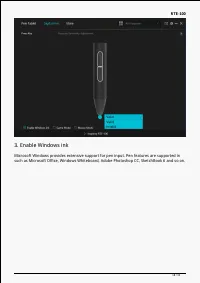
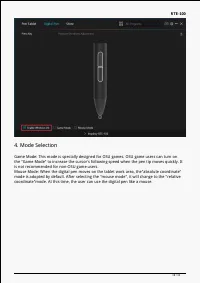
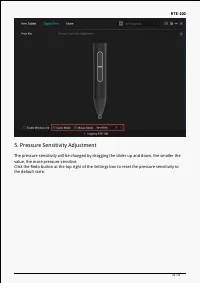
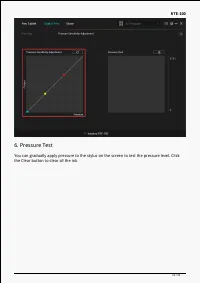
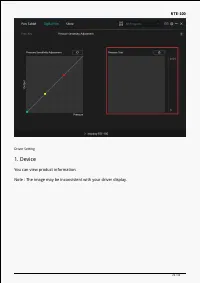
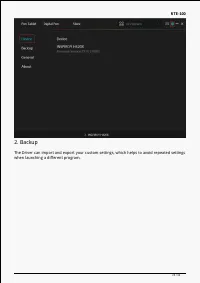
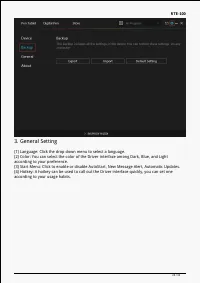
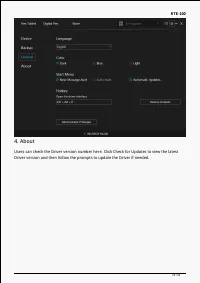
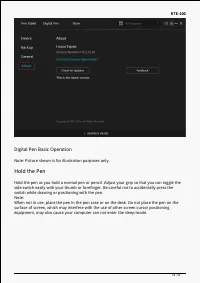
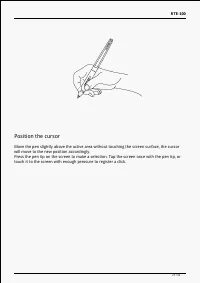
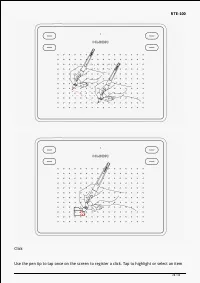
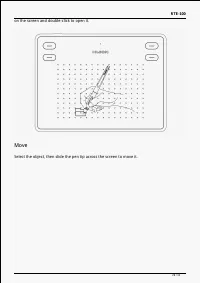
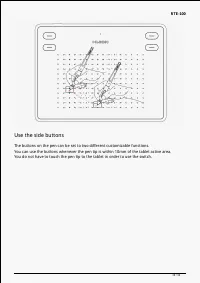
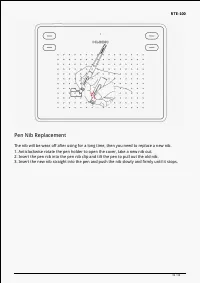
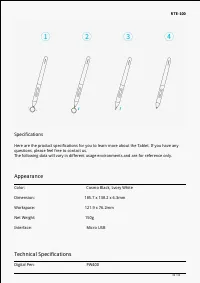
Table of Contents:
- Page 2 – Product Overview; writes on the paper, which brings you a real shock experience.
- Page 3 – Please see the detailed product introduction.
- Page 4 – Product Connection; Please download the Pen Driver from our website:
- Page 5 – Android connection; Please follow the steps below:
- Page 6 – Driver and Setting; Please download the driver from our website:
- Page 8 – See Section
- Page 9 – Switch between Devices; Press Key
- Page 10 – Note: The pictures in the User Manual are for reference only.
- Page 13 – System Application
- Page 14 – When select None, the keys will have no function.; Working Area; and cursor movement on the monitor screen.; Working Area Setting; Define the tablet area that will be mapped to the screen area.
- Page 15 – Rotate Working Area
- Page 17 – movement, but cannot complete the specified action.
- Page 18 – Enable Windows ink
- Page 19 – is not recommended for non-OSU game users.
- Page 20 – Pressure Sensitivity Adjustment
- Page 21 – the Clear button to clear all the ink.
- Page 22 – You can view product information.
- Page 23 – when launching a different program.
- Page 26 – Digital Pen Basic Operation; Note: Picture shown is for illustration purposes only.; Hold the Pen; switch while drawing or positioning with the pen.
- Page 27 – Position the cursor; will move to the new position accordingly.
- Page 28 – Click
- Page 29 – on the screen and double-click to open it.; Move
- Page 30 – Use the side buttons
- Page 31 – Pen Nib Replacement
- Page 32 – Specifications; Appearance
- Page 33 – OS Compatibility; Troubleshooting Solutions; There is no pressure in the graphics software but the cursor moves.
RTE-100
Contents
...................................................... 2
.................................................... 2
................................................ 3
.................................................... 4
..................................................... 6
........................................................ 6
................................................. 7
..................................................... 9
.................................................... 16
....................................................... 22
.............................................. 26
........................................................ 32
.............................................. 33
1 / 34
"Loading the manual" means you need to wait until the file loads and becomes available for online reading. Some manuals are very large, and the time they take to appear depends on your internet speed.
Was this manual helpful?
About this manual
- Brand
- Huion
- Model
- RTE-100
- Document type
- User Manual
- Category
- Tablet
- Language(s)
- English
- Pages
- 34
- File size
- 2.7 MB
- Format
Summary
RTE-100 Product Overview Tablet Introduction Thanks for choosing HUION INSPIROY RTE-100 creative pen tablet. This is a new generation of professional battery-free drawing tablet, which can greatly improve your work efficiency of painting and creation, and full of fun. You can freely painting and wri...
RTE-100 Product and Accessories Please see the detailed product introduction. After unboxing your package, make sure that you have the following items: Tablet*1 Battery-free Pen*1 Pen Nibs*8 Micro USB Cable*1 Quick Start Guide*1 3 / 34
RTE-100 Product Connection 1. Wired Connection Connect the tablet to your computer with Micro USB cable. Please follow the steps below: 1. Take out the Micro USB cable from the package, then connect tablet to your computer. 2. Please download the Pen Driver from our website: Driver-RTE-100. 3. Open ...