Hisense 32A4G - User Manual
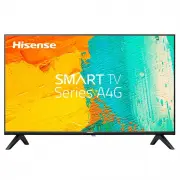
This user manual covers a Hisense smart television, detailing its core functionalities and setup processes. The guide emphasizes safety precautions, including proper placement, power handling, and environmental protection to prevent hazards like electrical shocks or fires. It also addresses installation–such as wall mounts and stands–and explains key components like the remote control’s buttons and rear ports (HDMI, USB, LAN). Network connectivity is covered for wired/wireless setups, while connection guides clarify how to link external devices (audio, antennas, USB storage) via cables or HDMI. Technical specs outline dimensions, resolution, power requirements, and compatibility features for different models.


Table of Contents:
- Page 1 – Quick Setup Guide Introduction
- Page 2 – Warranty and Disclaimer
- Page 3 – Product Safety and Disposal
- Page 4 – Television Placement Safety
- Page 5 – General Television Safety Guidelines
- Page 6 – Electrical and Environmental Safety Precautions
- Page 7 – Operation and Maintenance Safety
- Page 8 – Manual Contents and Accessories
- Page 9 – TV Stand and Wall Mount Installation
- Page 10 – Wall Mount Bracket Installation
- Page 11 – Front Panel Component Functions
- Page 12 – Rear Ports and Connections
- Page 13 – Network Connectivity Setup
- Page 14 – External Device Connections
- Page 15 – External Audio Connections
- Page 16 – USB Device Connectivity
- Page 17 – Remote Control Operation Guide
- Page 18 – Remote Battery Installation and Range
- Page 19 – Initial TV Setup Procedure
- Page 20 – Television Technical Specifications (32" and 40")
- Page 21 – Television Technical Specifications (43")
- Page 22 – Freeview Plus Service Information
English
ES-A210119-1
QUICK SETUP GUIDE
Before using the TV, please read this guide thoroughly and
retain it for future reference. For more detailed instructions,
please see the User Manual or the E-manual.
32A4G
40A4G
43A4G
"Loading the manual" means you need to wait until the file loads and becomes available for online reading. Some manuals are very large, and the time they take to appear depends on your internet speed.
Was this manual helpful?
About this manual
- Brand
- Hisense
- Model
- 32A4G
- Document type
- User Manual
- Category
- TV
- Language(s)
- English
- Pages
- 22
- File size
- 1.5 MB
- Format
Summary
Instructions for using the Quick Setup Guide before operating the television and directing users to the full User Manual or E-manual for detailed information.
Terms of use, liability limitations regarding third-party content and services accessed through the television, and user obligations concerning third-party rights.
Safety precautions including warnings about voltage, prohibition on opening the back cover, identification symbols for Class II product and AC voltage, and instructions for proper electrical and electronic equipment disposal.
Ask a question
Related manuals
Popular Hisense TVs


More Hisense TVs models
 Hisense 85A7KAU User Manual
 Hisense 85R7 User Manual
 Hisense 85S8 User Manual
 Hisense 85U7KAU User Manual
 Hisense 24F33 User Manual
 Hisense 24P2 User Manual
 Hisense 32A4HAU User Manual
 Hisense 32A4KAU User Manual
 Hisense 32N4 User Manual
 Hisense 32R4 User Manual
 Hisense 39N4 User Manual
 Hisense 40A4G User Manual