Gigabyte B650 - User Manual
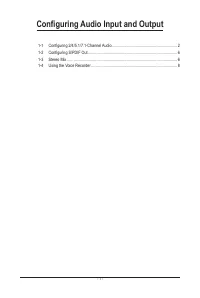
This User Manual covers configuring audio input/output for multi-channel systems, including setup for 2/4/5.1/7.1-channel setups via hardware jacks or software adjustments. It details default configurations for different jack arrangements–such as headphone, stereo, and surround sound–and explains how to modify audio routing in Windows using tools like the Realtek Audio Console or Sound settings. Topics include speaker/sound effect customization, S/PDIF digital output, Stereo Mix recording, and voice recorder functionality.
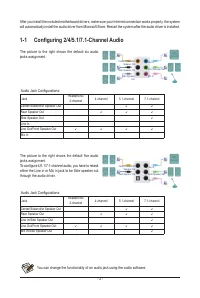
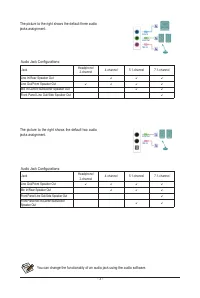
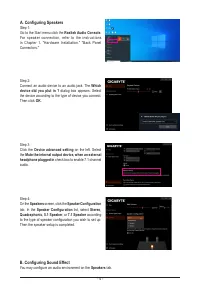
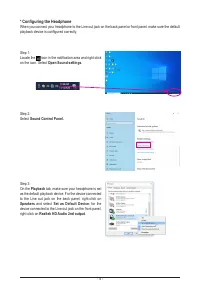
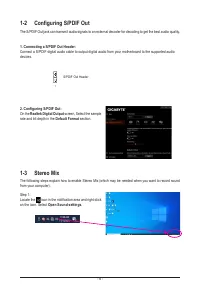
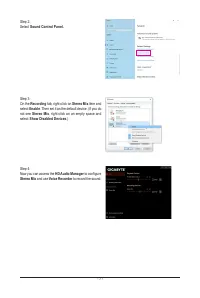
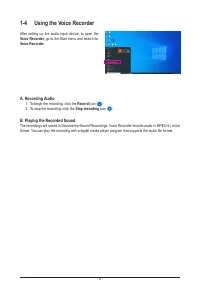
Table of Contents:
- Page 1 – Audio Input and Output Configuration Overview
- Page 2 – Audio Jack Configuration for Multi-Channel Systems
- Page 3 – Default Audio Function Assignments
- Page 4 – Realtek Audio Console Configuration in Windows
- Page 5 – Setting Default Playback Device
- Page 6 – Digital Audio Output and Recording Enablement
- Page 7 – Enabling and Configuring Stereo Mix Recording
- Page 8 – Voice Recorder Application Usage and File Management
"Loading the manual" means you need to wait until the file loads and becomes available for online reading. Some manuals are very large, and the time they take to appear depends on your internet speed.
Was this manual helpful?
About this manual
- Brand
- Gigabyte
- Model
- B650
- Document type
- User Manual
- Category
- Motherboard
- Language(s)
- English
- Pages
- 8
- File size
- 1.6 MB
- Format
Summary
Table of contents detailing configuration procedures for multi-channel audio, S/PDIF output, stereo mix, and voice recorder settings.
Instructions and diagrams for configuring audio jacks (Line In, Mic In, Side Speaker Out) across 2, 4, 5.1, and 7.1-channel audio systems.
Tables showing default assignments for Line In, Line Out, and Mic In functions across different jack types for two-jack and three-jack setups.
Ask a question
Related manuals
More Gigabyte Motherboards models
 Gigabyte GA P67A UD4 rev 1 1 User Manual
 Gigabyte GA PH67A UD3 rev 1 1 User Manual
 Gigabyte GA X58A UD3R rev 1 0 User Manual
 Gigabyte GA X58A UD5 rev 1 0 User Manual
 Gigabyte GA X58A UD7 rev 1 0 User Manual
 Gigabyte X299 UD4 Pro User Manual
 Gigabyte GA 8I848P rev 1 x User Manual
 Gigabyte GA 8I848P rev 2 x User Manual
 Gigabyte GA 8IG1000 Pro rev 2 x User Manual
 Gigabyte GA 8IG1000 rev 1 x User Manual
 Gigabyte GA 8IG1000 rev 3 x User Manual
 Gigabyte GA 8IPE1000 rev 1 x User Manual
 Gigabyte GA 8IPE1000 rev 3 x User Manual
 Gigabyte GA 770T D3L rev 1 x User Manual
 Gigabyte GA 770T D3L rev 3 1 User Manual
 Gigabyte GA 870A UD3 rev 2 2 User Manual
 Gigabyte GA 880GA UD3H rev 2 2 User Manual
 Gigabyte GA EX58 DS4 rev 1 0 User Manual
 Gigabyte GA EX58 UD3R rev 1 6 User Manual
 Gigabyte GA EX58 UD3R rev 1 7 User Manual