Fanimation FPD8520BNBL - User Manual
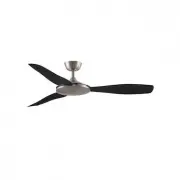
Fanimation FPD8520BNBL Ceiling Fan – User Manual, read for free online in PDF format. We hope this helps you resolve any issues you may have. If you have further questions, please contact us through the contact form.


f a n Sy n c W i r e l e s s R o u te r G u i d e
c r e a te d 1 2 . 1 5 . 2 2
1
f a n S y n c W i r e l e s s R o u t e r G u i d e
Fanimation fanSync WiFi Controls must pair to a 2.4GHz WiFi network.
Most smart home devices like
smart bulbs, video door bells, etc. use 2.4GHz, this is because the signal distance is much stronger than 5G.
Once paired, you can control your ceiling fan on any WiFi network or via your cellular signal on your smart phone. For
most users, pairing will be quick and simple but, depending on the type of wireless router you have, you may need a
little more information to get started.
How do I find my WiFi network?
To identify your connected WiFi network(s), open the “Settings” application on your smartphone and look under
“WiFi.”
What type of router do I have & how do I pair it to my fanSync WiFi receiver?
If you are unsure of what type of router you have, you can enter the make and model number into an internet
search engine for more information. Here are the most common router types:
Single-band Routers
Dual-band/Tri-band/Mesh Routers
Many routers support only a single 2.4GHz band with a single
WiFi name displayed on the WiFi screen of your smartphone.
If this is your setup, you should be able to pair on this WiFi
network and the fanSync Control will automatically join your
network.
Most common setup
Many newer routers support both 2.4GHz and 5GHz bands.
You can easily use Fanimation fanSync WiFi Controls on these
new routers by connecting to the 2.4GHz band.
There are two main types of dual-band routers—selectable
dual-band and simultaneous, as well as Mesh routers.
Here is how to identify which setup you have:
Selectable Dual-band Routers
These routers let you switch between the 2.4GHz and 5GHz
bands. This is likely your setup if there are two different WiFi
names displayed on your smartphone’s WiFi search screen
(likely one ending in -2.4G and one ending in -5G).
If this is your setup, you must connect to the WiFi network
that ends in -2.4G to be able to pair.
Simultaneous Dual-band Routers
These routers allow use of both bands at the same time, all
under a single WiFi name displayed on the WiFi search screen
of your smartphone.
If this is your setup, you should be able to pair on a 2.4GHz
WiFi network. Reference your router’s user manual to find
out how to set up on a 2.4G network.
Mesh WiFi Routers
These new routers such as Eero, Nest WiFi and Orbi operate
with a simultaneous dual-band, with a single WiFi name
displayed on the WiFi search screen of your smart phone.
If you have Eero for example: You can temporarily disable
the 5GHz band by tapping on Eero App->Settings >
Troubleshooting > ‘My device won’t connect’, then tap on
“Temporarily pause 5GHz” button. This will disable 5GHz for
10 minutes, which can help pair 2.4GHz only devices.
Fanimation fanSync WiFi Controls
must pair to a 2.4GHz WiFi network.
WHAT IF I SEE ONLY ONE WIFI
NETWORK NAME BUT I STILL
CAN’T PAIR?
> See page 2
"Loading the manual" means you need to wait until the file loads and becomes available for online reading. Some manuals are very large, and the time they take to appear depends on your internet speed.


