Page 2 - Table of Contents
EN-2 Table of Contents B EFORE Y OU S TART ....................................................................................... 5 P ACKAGE C ONTENTS ...................................................................................... 5 P RODUCT O VERVIEW ...........................................
Page 5 - Before You Start; Package Contents
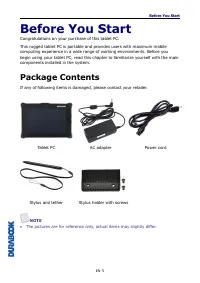
Before You Start EN-5 Before You Start Congratulations on your purchase of this tablet PC. This rugged tablet PC is portable and provides users with maximum mobile computing experience in a wide range of working environments. Before you begin using your tablet PC, read this chapter to familiarize yo...
Page 6 - Product Overview; Front View
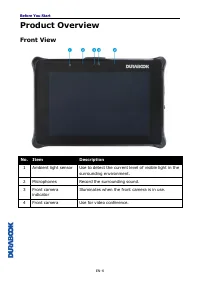
Before You Start EN-6 Product Overview Front View No. Item Description 1 Ambient light sensor Use to detect the current level of visible light in the surrounding environment. 2 Microphones Record the surrounding sound. 3 Front camera indicator Illuminates when the front camera is in use. 4 Front cam...
Page 7 - Back View
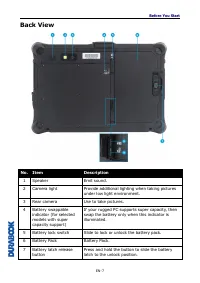
Before You Start EN-7 Back View No. Item Description 1 Speaker Emit sound. 2 Camera light Provide additional lighting when taking pictures under low light environment. 3 Rear camera Use to take pictures. 4 Battery swappable indicator (for selected models with super capacity support) If your rugged P...
Page 8 - Right View
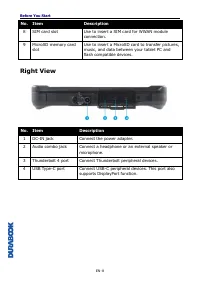
Before You Start EN-8 No. Item Description 8 SIM card slot Use to insert a SIM card for WWAN module connection. 9 MicroSD memory card slot Use to insert a MicroSD card to transfer pictures, music, and data between your tablet PC and flash compatible devices. Right View No. Item Description 1 DC-IN j...
Page 9 - Left View; Top View
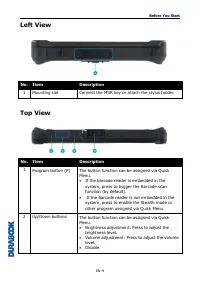
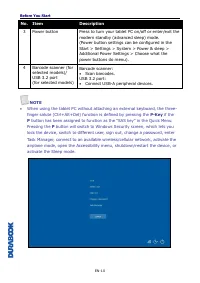
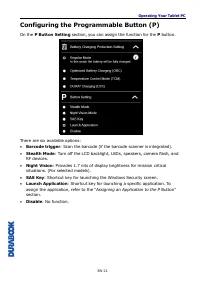
Before You Start EN-9 Left View No. Item Description 1 Mounting slot Connect the MSR key or attach the stylus holder. Top View No. Item Description 1 Program button (P) The button function can be assigned via Quick Menu. • If the barcode reader is embedded in the system, press to trigger the Barcode...
Page 11 - Bottom View; Status Indicators
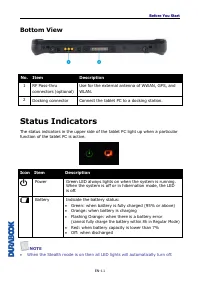
Before You Start EN-11 Bottom View No. Item Description 1 RF Pass-thru connectors (optional) Use for the external antenna of WWAN, GPS, and WLAN. 2 Docking connector Connect the tablet PC to a docking station. Status Indicators The status indicators in the upper side of the tablet PC light up when a...
Page 12 - Getting Started; Installing the Battery
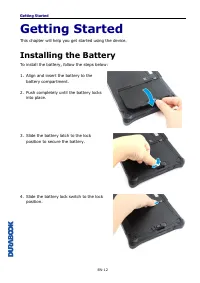
Getting Started EN-12 Getting Started This chapter will help you get started using the device. Installing the Battery To install the battery, follow the steps below: 1. Align and insert the battery to the battery compartment. 2. Push completely until the battery locks into place. 3. Slide the batter...
Page 13 - Charging the Battery
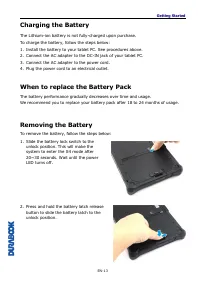
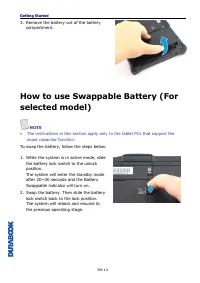
Getting Started EN-13 Charging the Battery The Lithium-ion battery is not fully-charged upon purchase. To charge the battery, follow the steps below: 1. Install the battery to your tablet PC. See procedures above. 2. Connect the AC adapter to the DC-IN jack of your tablet PC. 3. Connect the AC adapt...
Page 15 - Connecting the Power; Connecting the Adapter
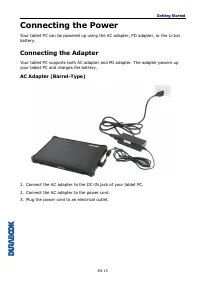
Getting Started EN-15 Connecting the Power Your tablet PC can be powered up using the AC adapter, PD adapter, or the Li-Ion battery. Connecting the Adapter Your tablet PC supports both AC adapter and PD adapter. The adapter powers up your tablet PC and charges the battery. AC Adapter (Barrel-Type) 1...
Page 16 - Using Battery Power
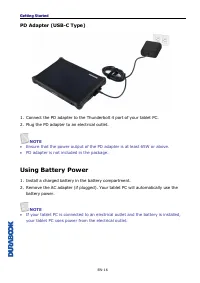
Getting Started EN-16 PD Adapter (USB-C Type) 1. Connect the PD adapter to the Thunderbolt 4 port of your tablet PC. 2. Plug the PD adapter to an electrical outlet. NOTE • Ensure that the power output of the PD adapter is at least 65W or above. • PD adapter is not included in the package. Using Batt...
Page 17 - Configuring the Power Settings
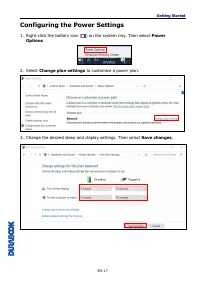
Getting Started EN-17 Configuring the Power Settings 1. Right-click the battery icon ( ) on the system tray. Then select Power Options . 2. Select Change plan settings to customize a power plan. 3. Change the desired sleep and display settings. Then select Save changes .
Page 18 - Starting Your Tablet PC; Turning On Your Device; Turning Off Your Device
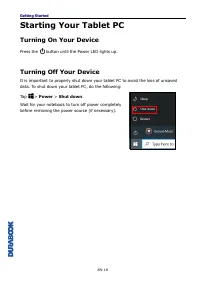
Getting Started EN-18 Starting Your Tablet PC Turning On Your Device Press the button until the Power LED lights up. Turning Off Your Device It is important to properly shut down your tablet PC to avoid the loss of unsaved data. To shut down your tablet PC, do the following: Tap > Power > Shut...
Page 19 - Operating Your Tablet PC; Using the Quick Menu; Quick Menu Overview
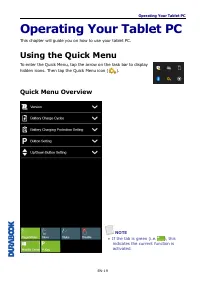
Operating Your Tablet PC EN-19 Operating Your Tablet PC This chapter will guide you on how to use your tablet PC. Using the Quick Menu To enter the Quick Menu, tap the arrow on the task bar to display hidden icons. Then tap the Quick Menu icon ( ). Quick Menu Overview NOTE • If the tab is green (i.e...
Page 20 - Viewing the Version Information; Viewing the Battery Charge Cycles
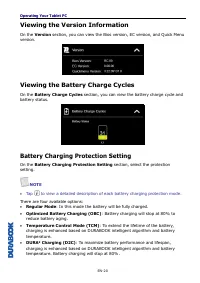
Operating Your Tablet PC EN-20 Viewing the Version Information On the Version section, you can view the Bios version, EC version, and Quick Menu version. Viewing the Battery Charge Cycles On the Battery Charge Cycles section, you can view the battery charge cycle and battery status. Battery Charging...
Page 22 - Configuring the Up/Down Button; Assigning an Application to the P Button
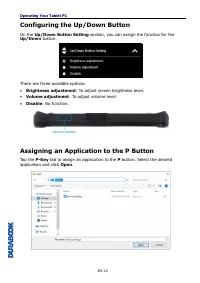
Operating Your Tablet PC EN-22 Configuring the Up/Down Button On the Up/Down Button Setting section, you can assign the function for the Up/Down button. There are three available options: • Brightness adjustment : To adjust screen brightness level. • Volume adjustment : To adjust volume level. • Dis...
Page 23 - Accessing the Mobility Center
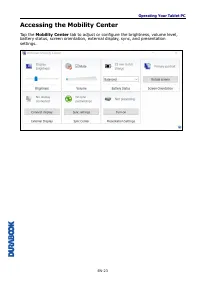
Operating Your Tablet PC EN-23 Accessing the Mobility Center Tap the Mobility Center tab to adjust or configure the brightness, volume level, battery status, screen orientation, external display, sync, and presentation settings.
Page 24 - Using the Camera; Opening the Camera App
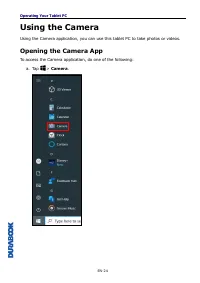
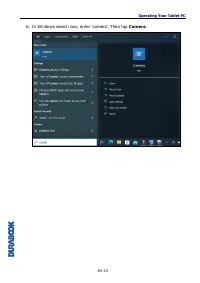
Operating Your Tablet PC EN-24 Using the Camera Using the Camera application, you can use this tablet PC to take photos or videos. Opening the Camera App To access the Camera application, do one of the following: a. Tap > Camera .
Page 26 - Taking Photos
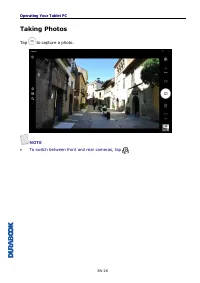
Operating Your Tablet PC EN-26 Taking Photos Tap to capture a photo. NOTE • To switch between front and rear cameras, tap .
Page 27 - Recording Videos
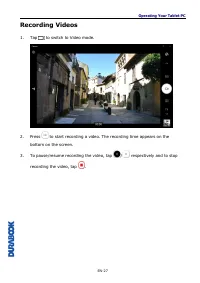
Operating Your Tablet PC EN-27 Recording Videos 1. Tap to switch to Video mode. 2. Press to start recording a video. The recording time appears on the bottom on the screen. 3. To pause/resume recording the video, tap / respectively and to stop recording the video, tap .
Page 28 - Setting a Flash Mode
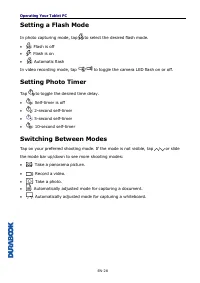
Operating Your Tablet PC EN-28 Setting a Flash Mode In photo capturing mode, tap to select the desired flash mode. • : Flash is off • : Flash is on • : Automatic flash In video recording mode, tap / to toggle the camera LED flash on or off. Setting Photo Timer Tap to toggle the desired time delay. •...
Page 29 - Adjusting Focus
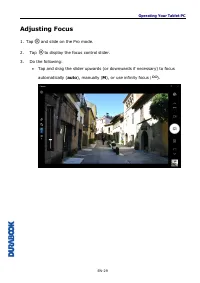
Operating Your Tablet PC EN-29 Adjusting Focus 1. Tap and slide on the Pro mode. 2. Tap to display the focus control slider. 3. Do the following: • Tap and drag the slider upwards (or downwards if necessary) to focus automatically ( auto ), manually ( M ), or use infinity focus ( ).
Page 30 - Adjusting Brightness
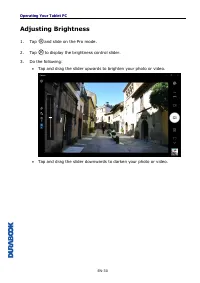
Operating Your Tablet PC EN-30 Adjusting Brightness 1. Tap and slide on the Pro mode. 2. Tap to display the brightness control slider. 3. Do the following: • Tap and drag the slider upwards to brighten your photo or video. • Tap and drag the slider downwards to darken your photo or video.
Page 31 - Configuring Camera Settings
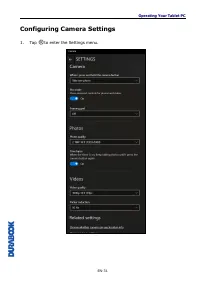
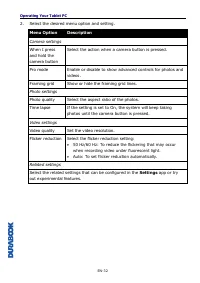
Operating Your Tablet PC EN-31 Configuring Camera Settings 1. Tap to enter the Settings menu.
Page 33 - Viewing Photos/Videos
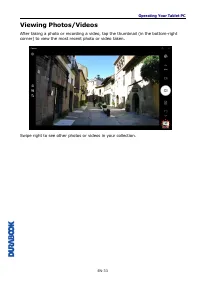
Operating Your Tablet PC EN-33 Viewing Photos/Videos After taking a photo or recording a video, tap the thumbnail (in the bottom-right corner) to view the most recent photo or video taken. Swipe right to see other photos or videos in your collection.
Page 34 - Making Connections; Installing the SIM Card
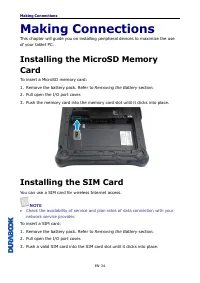
Making Connections EN-34 Making Connections This chapter will guide you on installing peripheral devices to maximize the use of your tablet PC. Installing the MicroSD Memory Card To insert a MicroSD memory card: 1. Remove the battery pack. Refer to Removing the Battery section. 2. Pull open the I/O ...
Page 35 - Connecting the Microphone/Headset
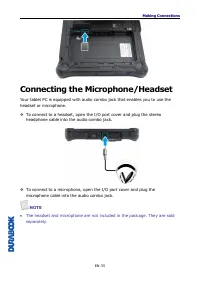
Making Connections EN-35 Connecting the Microphone/Headset Your tablet PC is equipped with audio combo jack that enables you to use the headset or microphone. ❖ To connect to a headset, open the I/O port cover and plug the stereo headphone cable into the audio combo jack. ❖ To connect to a microphon...
Page 36 - Installing the Stylus Holder
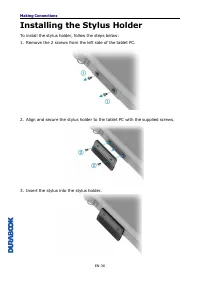
Making Connections EN-36 Installing the Stylus Holder To install the stylus holder, follow the steps below: 1. Remove the 2 screws from the left side of the tablet PC. 2. Align and secure the stylus holder to the tablet PC with the supplied screws. 3. Insert the stylus into the stylus holder.
Page 37 - Connecting USB Devices
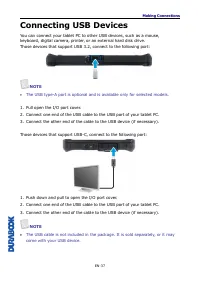
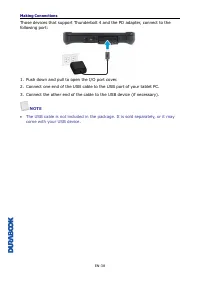
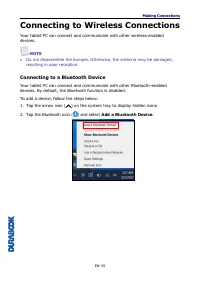
Making Connections EN-37 Connecting USB Devices You can connect your tablet PC to other USB devices, such as a mouse, keyboard, digital camera, printer, or an external hard disk drive. Those devices that support USB 3.2, connect to the following port: NOTE • The USB type-A port is optional and is av...
Page 39 - Connecting to Wireless Connections; Connecting to a Bluetooth Device
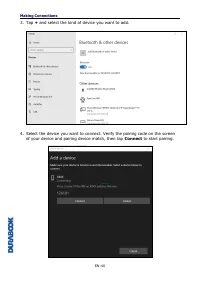
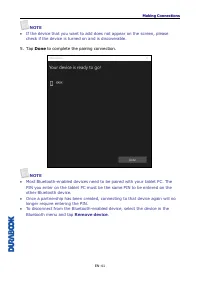
Making Connections EN-39 Connecting to Wireless Connections Your tablet PC can connect and communicate with other wireless-enabled devices. NOTE • Do not disassemble the bumper. Otherwise, the antenna may be damaged, resulting in poor reception. Connecting to a Bluetooth Device Your tablet PC can co...
Page 42 - Connecting to a Wireless Local Area Network
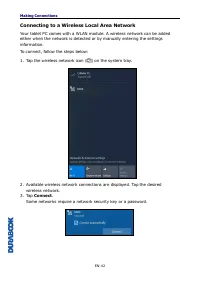
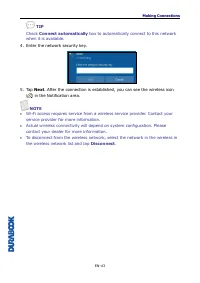
Making Connections EN-42 Connecting to a Wireless Local Area Network Your tablet PC comes with a WLAN module. A wireless network can be added either when the network is detected or by manually entering the settings information. To connect, follow the steps below: 1. Tap the wireless network icon ( )...
Page 44 - Connecting to a Wireless Wide Area Network (WWAN)
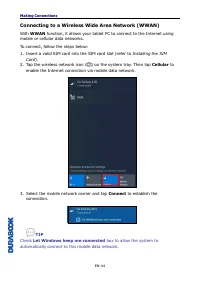
Making Connections EN-44 Connecting to a Wireless Wide Area Network (WWAN) With WWAN function, it allows your tablet PC to connect to the Internet using mobile or cellular data networks. To connect, follow the steps below: 1. Insert a valid SIM card into the SIM card slot (refer to Installing the SI...
Page 45 - BIOS Setup Menu; Starting the BIOS Setup Utility
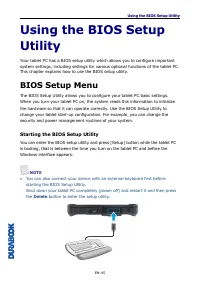
Using the BIOS Setup Utility EN-45 Using the BIOS Setup Utility Your tablet PC has a BIOS setup utility which allows you to configure important system settings, including settings for various optional functions of the tablet PC. This chapter explains how to use the BIOS setup utility. BIOS Setup Men...
Page 46 - Main Menu
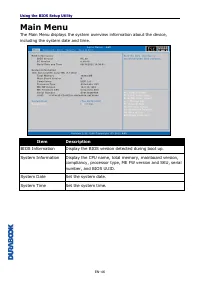
Using the BIOS Setup Utility EN-46 Main Menu The Main Menu displays the system overview information about the device, including the system date and time. Item Description BIOS Information Display the BIOS version detected during boot up. System Information Display the CPU name, total memory, mainboa...
Page 47 - Advanced Menu
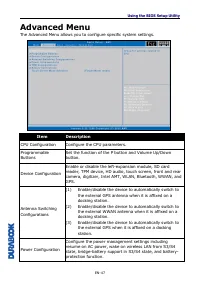
Using the BIOS Setup Utility EN-47 Advanced Menu The Advanced Menu allows you to configure specific system settings. Item Description CPU Configuration Configure the CPU parameters. Programmable Buttons Set the function of the P button and Volume Up/Down button. Device Configuration Enable or disabl...
Page 48 - Boot Menu
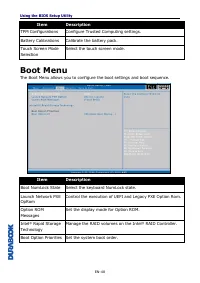
Using the BIOS Setup Utility EN-48 Item Description TPM Configurations Configure Trusted Computing settings. Battery Calibrations Calibrate the battery pack. Touch Screen Mode Selection Select the touch screen mode. Boot Menu The Boot Menu allows you to configure the boot settings and boot sequence....
Page 49 - Security Menu
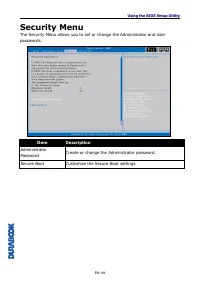
Using the BIOS Setup Utility EN-49 Security Menu The Security Menu allows you to set or change the Administrator and User passwords. Item Description Administrator Password Create or change the Administrator password. Secure Boot Customize the Secure Boot settings.
Page 51 - Protecting Your Tablet PC; General Storage and Handling Guidelines
Maintaining and Caring for Your Tablet PC EN-51 Maintaining and Caring for Your Tablet PC Taking care of your tablet PC will reduce the risk of damage to your device and ensure that it operates properly. To help you maintain the quality and function of your tablet PC, this chapter provides guideline...
Page 52 - Display and Touchscreen Guidelines
Maintaining and Caring for Your Tablet PC EN-52 the device can become very hot during operation. • Keep your tablet PC at least 13 cm (5 inches) away from electrical appliances that can generate a strong magnetic field such as a TV, refrigerator, motor, or a large audio speaker. • Avoid moving your ...
Page 53 - Battery Pack Guidelines
Maintaining and Caring for Your Tablet PC EN-53 Battery Pack Guidelines • Do not expose the battery to temperatures below 0 ° C (32 ° F) or above 45 ° C (113 ° F). This may adversely affect the battery pack. • While the battery may not provide 100% capacity at temperature extremes, its capacity is r...
Page 54 - Battery Charging Recommendations; Modern Standby Mode
Maintaining and Caring for Your Tablet PC EN-54 Battery Charging Recommendations The battery is a consumable item that will eventually wear out and need replacement. NOTE • If the battery pack has deteriorated, ensure it is replaced with a new one. The lifespan of the battery depends upon its usage....
Page 55 - Cleaning Your Tablet PC
Maintaining and Caring for Your Tablet PC EN-55 Cleaning Your Tablet PC Cleaning the Outside Case • Disconnect external power and turn off the device. • Remove the battery. • Add a small amount of water to a soft cloth and clean the device case. Do not use paper products because they can scratch the...
Page 56 - Traveling With Your Tablet PC
Maintaining and Caring for Your Tablet PC EN-56 Traveling With Your Tablet PC Before traveling with your tablet PC, make sure you prepare and follow the precautions described below: • Back up the data on your hard drive to a flash drive or other storage device. As an added precaution, bring an extra...
Page 57 - Troubleshooting; Preliminary Checklist; Battery Problems
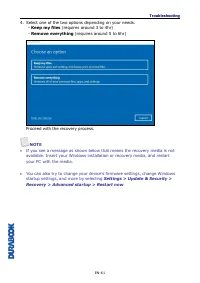
Troubleshooting EN-57 Troubleshooting This chapter advises you on what actions to take when solving common computer problems that may be caused by issues with hardware or software. Preliminary Checklist Here are the initial steps you should follow before taking further actions when encountering any ...
Page 59 - BT Wireless Transmission Problems; Display Problems; Hard Disk Problems
Troubleshooting EN-59 BT Wireless Transmission Problems I cannot connect to another device with BT wireless technology. • Ensure that you have activated BT feature on both devices. • Make sure that the distance between the two devices is within the acceptable limit and that there are no walls or oth...
Page 62 - Other Problems
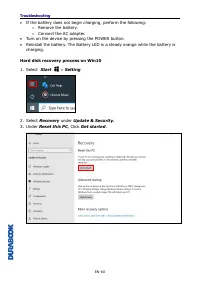
Troubleshooting EN-62 Other Problems The device won’t turn on . • Make sure a fully charged battery is properly installed. • Connect external power to charge the battery if it is not charged. • If you are using the AC adapter, check the electrical outlet you are using to make sure it is working prop...
Page 63 - Appendix; Copyright
Appendix EN-63 Appendix Copyright Copyright © 2022. All rights reserved. No part of this user manual may be transmitted, stored in a retrieval system, or translated into any language or computer language, in any form or by any means, without the prior written permission of the manufacturer. Informat...
Page 66 - Regulatory Statement; Declaration of Conformity; RF exposure warning
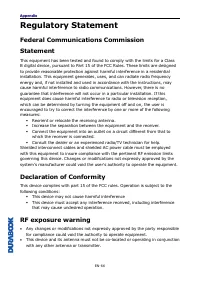
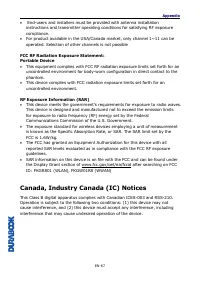
Appendix EN-66 Regulatory Statement Federal Communications Commission Statement This equipment has been tested and found to comply with the limits for a Class B digital device, pursuant to Part 15 of the FCC Rules. These limits are designed to provide reasonable protection against harmful interferen...
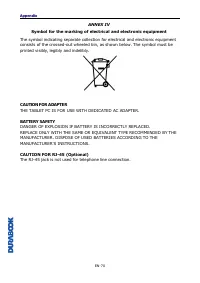
Page 68 - Battery Disposal
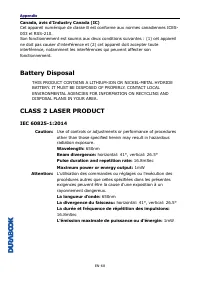
Appendix EN-68 Canada, avis d'Industry Canada (IC) Cet appareil numé rique de classe B est conforme aux normes canadiennes ICES-003 et RSS-210. Son fonctionnement est soumis aux deux conditions suivantes : (1) cet appareil ne doit pas causer d'interfé rence et (2) cet appareil doit accepter toute in...
Page 71 - Safety Instructions
Appendix EN-71 Safety Instructions Always observe these safety instructions to ensure safe operation when handling the device. • Do not place this device on an unstable table or surface. The device may fall, causing serious damage to its housing and components. • Do not cover the device or block its...
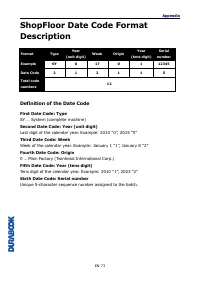
Page 73 - Definition of the Date Code
Appendix EN-73 ShopFloor Date Code Format Description Format Type Year (unit digit) Week Origin Year (tens digit) Serial number Example SY 0 17 0 1 12345 Date Code 2 1 2 1 1 5 Total code numbers 12 Definition of the Date Code First Date Code: Type SY … System (complete machine) Second Date Code: Yea...