Page 3 - DellTM Venue Pro With Windows Phone 7; Getting Started Guide
Dell™ Venue Pro With Windows Phone 7 Getting Started Guide Guide de mise en route Handbuch zum Einstieg Guida introduttiva Guía de introducción
Page 6 - Important information
Important information WARNING: The microSD card and the built-in memory on your phone act as a single storage system. Do not attempt to remove or replace the microSD card. Removing the microSD card will render your phone unusable.
Page 7 - Know your phone
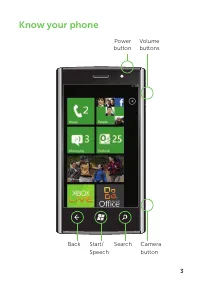
3 Know your phone Back Start/ Speech Search Camera button Volume buttons Power button
Page 8 - Start screen
4 Start screen The Start screen displays tiles that provide easy access to your favorite or frequently used features, applications, contacts, web pages, and so on. The tiles are updated dynamically to notify new text messages, e-mails, missed calls, and latest feeds from social networking sites. Fli...
Page 9 - Personalize it
5 Personalize it You can “pin” an application, media item, or favorite contact to the Start screen to add it as a tile. To pin an item, touch and hold the item until the context menu appears, and then touch pin to start or pin favorites to start . To pin a contact, touch the People tile on the Start...
Page 10 - Sign into your phone
6 Sign into your phone A Windows Live ID is the e-mail address you use to sign in to services like Xbox LIVE ® , Zune ® , Hotmail ® , and so on. If you can’t remember the e-mail address you use: For Xbox LIVE: On your Xbox 360 ® console, sign in with your gamertag, then press the Guide button on you...
Page 11 - Make a call
7 Make a call You can make a call by selecting a contact from the contacts list, dialing a number using the keypad, or by using speech commands. Using the contacts list: Touch the 1. People tile on the Start screen. Flick the contacts list and touch the desired contact. 2. Touch the phone number you...
Page 12 - Speak to act
8 Speak to act The voice recognition feature on your phone allows you to use speech commands to make calls, start applications, and search the Internet. Touch and hold until the voice application opens, and then use speech commands. To make a call, say the • contact’s name. For example, “Call Andrew...
Page 13 - Search becomes find
9 Search becomes find Search is your one-button gateway to all kinds of answers. Want to find a contact? Touch Search from People or call history. Looking for an e-mail message? Touch Search in e-mail. Or touch it in Maps to find an address, coffee shop, zoo, or any other place. Looking for a movie ...
Page 14 - Import your contacts
10 Import your contacts When you set up your e-mail or Facebook account, your contacts are imported automatically into your people hub. And when you add Facebook, your friends’ feeds appear in your people hub, their photos show up in your pictures hub, and your own feeds pop up in your Me tile. To s...
Page 15 - Screen orientation
11 Screen orientation The screen reorients automatically depending on the way you hold the phone. Rotate the phone sideways to change the orientation of the screen from portrait to landscape mode, and vice versa. In landscape mode, the screen content expands to fit the screen. NOTE: The Start screen...
Page 16 - Touch screen gestures
12 Touch screen gestures The multi-touch screen on your phone allows you to use your finger to move the screen content, scroll through menus, view photos, and so on. Flick – allows you to quickly scroll through lists, menus, or pages, and move sideways in hubs. Slide a finger quickly in the directio...
Page 18 - Smart text input
14 Smart text input To type text in a text field, you can either use the on-screen keyboard or the slide-out physical QWERTY keyboard. On-screen keyboard: The on-screen keyboard appears when you touch any text field. The keyboard layout varies based on the selected field. For example, the @ and .com...
Page 20 - Messaging
16 Messaging The Messaging screen displays a list of message conversations representing all the received and sent messages. To send a text message: Touch the 1. Messaging tile on the Start screen. Touch 2. in the messaging screen. Enter the name of the recipient in the 3. To: field using one of the ...
Page 21 - Stay in sync
17 Stay in sync To sync your music, videos, pictures, and updates from your computer to your phone (or vice versa), you will need the Zune software. Connect your phone to 1. your computer using the cable. Go to 2. windowsphone.com to install the Zune software. Open the Zune software, 3. then follow ...
Page 23 - More information
19 More information For more information about using your phone, see the User’s Manual available at support.dell.com/manuals . Information in this document is subject to change without notice. © 2010 Dell Inc. All rights reserved. Reproduction of these materials in any manner whatsoever without the ...
Page 25 - DellTM Venue Pro avec Windows Phone 7; Guide de mise en route
Dell™ Venue Pro avec Windows Phone 7 Guide de mise en route
Page 26 - Informations importantes
Informations importantes AVERTISSEMENT : La carte microSD et la mémoire intégrée constituent un seul et même système de stockage dans votre téléphone. Ne tentez pas de retirer ou de remplacer la carte microSD. Le retrait de la carte microSD rendrait votre téléphone inutilisable.
Page 27 - Connaître votre téléphone
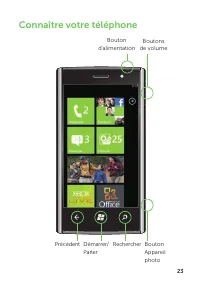
23 Connaître votre téléphone Boutons de volume Bouton d'alimentation Précédent Démarrer/ Parler Rechercher Bouton Appareil photo
Page 28 - Écran Démarrer
24 Écran Démarrer L'écran Démarrer affiche des mosaïques qui vous permettent d'accéder facilement à vos fonctionnalités favorites ou fréquemment utilisées (applications, contacts, pages Web, etc.). Les mosaïques sont actualisées de manière dynamique pour notifier de l'arrivée de nouveaux éléments (m...
Page 30 - Connectez-vous sur votre téléphone
26 Connectez-vous sur votre téléphone Un identifi ant Windows Live ID est l’adresse e-mail que vous utilisez pour vous connecter à des services tels que Xbox LIVE ® , Zune ® , Hotmail ® , etc. Si vous avez oublié l’adresse e-mail que vous utilisez : Pour Xbox LIVE : sur votre console Xbox 360 ® , con...
Page 31 - Passer un appel
27 Passer un appel Vous pouvez passer un appel en sélectionnant un contact dans la liste des contacts, en composant un numéro au clavier ou en utilisant les commandes vocales. À partir de la liste des contacts : Touchez la mosaïque 1. Contacts dans l'écran Démarrer. Tapotez la liste des contacts et ...
Page 32 - Parler pour agir
28 Parler pour agir La fonctionnalité de reconnaissance vocale de votre téléphone vous permet d'utiliser les commandes vocales pour passer des appels, démarrer des applications et effectuer des recherches sur Internet. Touchez et maintenez la pression jusqu'à ce que l'application vocale s'ouvre. Vou...
Page 33 - Rechercher devient trouver
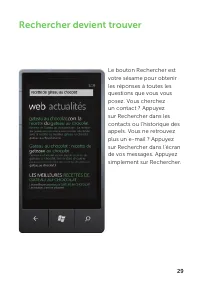
29 Rechercher devient trouver Le bouton Rechercher est votre sésame pour obtenir les réponses à toutes les questions que vous vous posez. Vous cherchez un contact ? Appuyez sur Rechercher dans les contacts ou l’historique des appels. Vous ne retrouvez plus un e-mail ? Appuyez sur Rechercher dans l’é...
Page 34 - Importez vos contacts
30 Importez vos contacts Lorsque vous configurez votre compte e-mail ou Facebook, vos contacts sont automatiquement importés dans le hub Contacts . Et quand vous ajoutez Facebook, les flux de vos amis sont affichés dans le hub Contacts , leurs photos dans le hub Images et vos flux dans la vignette Moi.P...
Page 35 - Orientation de l'écran
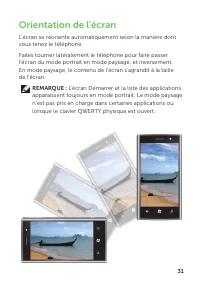
31 Orientation de l'écran L'écran se réoriente automatiquement selon la manière dont vous tenez le téléphone. Faites tourner latéralement le téléphone pour faire passer l'écran du mode portrait en mode paysage, et inversement. En mode paysage, le contenu de l'écran s'agrandit à la taille de l'écran....
Page 36 - Gestes de l'écran tactile
32 Gestes de l'écran tactile L'écran multitouch de votre téléphone vous permet d'utiliser votre doigt pour déplacer le contenu de l'écran, pour défiler dans des menus, pour visualiser des photos, etc. Tapoter – vous permet de défiler rapidement dans des listes, des menus ou des pages, et pour vous d...
Page 38 - Saisie intelligente de texte
34 Saisie intelligente de texte Pour taper du texte dans un champ de texte, vous pouvez utiliser le clavier à l'écran ou le clavier QWERTY physique coulissant. Clavier visuel : Le clavier visuel apparaît dès que vous touchez un champ de texte. Sa disposition varie selon le champ sélectionné. Par exe...
Page 40 - Messagerie
36 Messagerie L'écran Messagerie affiche une liste de conversations représentant tous les messages reçus et envoyés. Pour envoyer un message de texte : Touchez la mosaïque 1. Messagerie dans l'écran Démarrer. Touchez 2. dans l'écran Messagerie. Entrez le nom du destinataire dans le champ 3. À : de l...
Page 41 - Restez synchronisé
37 Restez synchronisé Pour synchroniser votre musique, vos vidéos, vos images et les mises à jour de votre ordinateur avec votre téléphone (ou inversement), le logiciel Zune est nécessaire. Connectez votre téléphone 1. à votre ordinateur avec le câble. Accédez 2. à www.windowsphone.com pour installe...
Page 43 - Informations complémentaires
39 Informations complémentaires Pour en savoir plus sur l'utilisation de votre téléphone, reportez-vous au Manuel d'utilisation disponible sur support.dell.com/manuals . Les informations contenues dans ce document sont sujettes à modification sans préavis. © 2010 Dell Inc. Tous droits réservés. Tout...
Page 45 - DellTM Venue Pro mit Windows Phone 7; Handbuch zum Einstieg
Dell™ Venue Pro mit Windows Phone 7 Handbuch zum Einstieg
Page 46 - Wichtige Informationen
Wichtige Informationen WARNUNG: Die microSD-Karte und der integrierte Speicher in Ihrem Telefon fungieren als ein Speichersystem zusammen. Versuchen Sie nicht, die microSD-Karte zu entfernen oder auszutauschen. Durch das Entfernen der microSD-Karte wird Ihr Telefon unbrauchbar.
Page 47 - Telefon-Bedienelemente
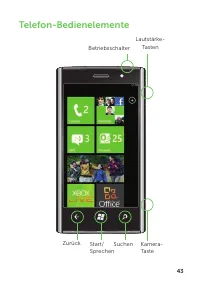
43 Telefon-Bedienelemente Zurück Start/Sprechen Suchen Kamera-Taste Lautstärke- Tasten Betriebsschalter
Page 48 - Startbildschirm
44 Startbildschirm Im Startbildschirm werden Kacheln angezeigt, über die Sie auf Ihre bevorzugten oder häufig genutzten Funktionen, Anwendungen, Kontakte, Webseiten usw. zugreifen können. Die Kacheln werden dynamisch aktualisiert, um neue Textmitteilungen, E-Mails, verpasste Anrufe und aktuelle Meld...
Page 49 - Personalisieren
45 Personalisieren Sie können eine Anwendung, ein Medienelement oder bevorzugte Kontakte als Kachel auf dem Startbildschirm „anheften“. Um ein Element anzuheften, halten Sie es angetippt, bis das Kontextmenü angezeigt wird, und tippen Sie dann auf Pin to Start (An Start anheften) oder Pin Favorites ...
Page 50 - Auf Ihrem Handy anmelden
46 Auf Ihrem Handy anmelden Eine Windows Live ® ID besteht aus der E-Mail-Adresse und dem Kennwort, mit dem Sie sich bei Windows Live-Diensten wie Messenger, Hotmail ® oder Xbox LIVE ® , Zune ® Tag usw. anmelden. Wenn Sie sich nicht an Ihre verwendete E-Mail-Adresse erinnern, gehen Sie wie folgt vor...
Page 51 - Anrufen
47 Anrufen Um Anrufe zu tätigen, wählen Sie einen Kontakt aus der Kontaktliste aus, geben Sie die Nummer über die Tastatur ein oder verwenden Sie Sprachbefehle. Verwenden der Kontaktliste: Tippen Sie im Startbildschirm auf die Kachel 1. People (Kontakte). Durchblättern Sie die Kontaktliste und tippe...
Page 52 - Spracheingabe
48 Spracheingabe Mit der Spracherkennungsfunktion in Ihrem Telefon können Sie Sprachbefehle verwenden, um Anrufe zu führen, Anwendungen zu Starten oder im Internet zu suchen. Halten Sie angetippt, bis die Sprachanwendung geöffnet wird, und verwenden Sie dann Sprachbefehle. Um eine Person anzurufen, ...
Page 53 - Finden statt suchen
49 Finden statt suchen Mit der Suche haben Sie die Möglichkeit, über eine einzige Taste Antworten auf Ihre Fragen zu erhalten. Sie möchten nach einem Kontakt suchen? Drücken Sie unter „Kontakte“ oder in der Anrufliste die Suchtaste. Sie suchen nach einer bestimmten E-Mail? Drücken Sie im E-Mail-Berei...
Page 54 - Ihre Kontakte importieren
50 Ihre Kontakte importieren Wenn Sie Ihr E-Mail- oder Facebook-Konto einrichten, werden Ihre Kontakte automatisch in den Kontaktbereich importiert. Wenn Sie Facebook hinzufügen, werden die Feeds Ihrer Freunde im Kontaktbereich , ihre Fotos im Bilderbereich und alle Ihre eigenen Feeds in der Kachel ...
Page 55 - Bildschirmausrichtung
51 Bildschirmausrichtung Die Bildschirmausrichtung wird automatisch angepasst, je nachdem wie Sie das Telefon halten. Drehen Sie das Telefon auf die Seite, um die Ausrichtung von Hoch- auf Querformat zu ändern und umgekehrt. Im Querformat wird der Bildschirminhalt auf die Bildschirmgröße angepasst. ...
Page 61 - Immer auf dem Laufenden
57 Immer auf dem Laufenden Zum Synchronisieren Ihrer Musik, Videos, Bilder und Updates von Ihrem Computer auf Ihr Handy (oder umgekehrt) benötigen Sie die Zune-Software. Unter www.zune.net finden Sie die vollständigen Zune-Systemanforderungen. Schließen Sie Ihr Handy 1. mit dem Kabel an Ihren Comput...
Page 62 - Musik und Videos
58 Musik und Videos Über den Knoten Music + Videos (Musik und Videos) können Sie schnell auf Musik, Videos, Podcasts, FM-Radio und Medienanwendungen zugreifen. Zum Öffnen des Knotens Music + Videos (Musik und Videos) tippen Sie im Startbildschirm auf die Kachel Music + Videos (Musik und Videos). Um ...
Page 63 - Weitere Informationen
59 Weitere Informationen Weitere Informationen zur Verwendung Ihres Telefons finden Sie im Benutzerhandbuch unter support.dell.com/manuals . Irrtümer und technische Änderungen vorbehalten. © 2010 Dell Inc. Alle Rechte vorbehalten. Die Vervielfältigung oder Wiedergabe dieser Unterlagen in jeglicher W...
Page 65 - DellTM Venue Pro con Windows Phone 7; Guida introduttiva
Dell™ Venue Pro con Windows Phone 7 Guida introduttiva
Page 66 - Informazioni importanti
Informazioni importanti AVVERTENZA: la scheda microSD e la memoria integrata nel telefono agiscono come unico sistema di storage. Non tentare di rimuovere o sostituire la scheda microSD. La rimozione della scheda microSD renderà il telefono inutilizzabile.
Page 67 - Introduzione al telefono
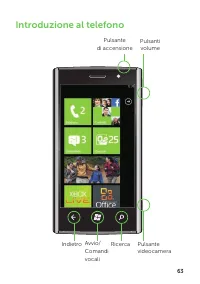
63 Introduzione al telefono Ricerca Pulsanti volume Pulsante di accensione Indietro Avvio/ Comandi vocali Pulsante videocamera
Page 68 - Schermata Start
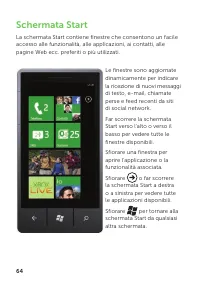
64 Schermata Start La schermata Start contiene finestre che consentono un facile accesso alle funzionalità, alle applicazioni, ai contatti, alle pagine Web ecc. preferiti o più utilizzati. Le finestre sono aggiornate dinamicamente per indicare la ricezione di nuovi messaggi di testo, e-mail, chiamat...
Page 69 - Possibilità di personalizzazione
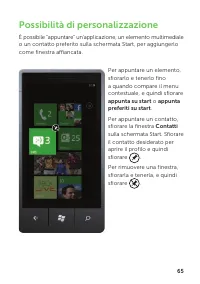
65 Possibilità di personalizzazione È possibile "appuntare" un'applicazione, un elemento multimediale o un contatto preferito sulla schermata Start, per aggiungerlo come finestra affiancata. Per appuntare un elemento, sfiorarlo e tenerlo fino a quando compare il menu contestuale, e quindi sf...
Page 70 - Il telefono è la tua chiave di accesso
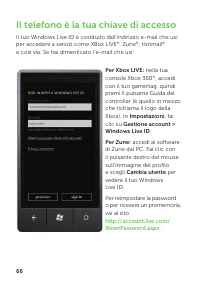
66 Il telefono è la tua chiave di accesso Il tuo Windows Live ID è costituito dall’indirizzo e-mail che usi per accedere a servizi come XBox LIVE ® , Zune ® , Hotmail ® e così via. Se hai dimenticato l’e-mail che usi: Per Xbox LIVE: nella tua console Xbox 360 ® , accedi con il tuo gamertag, quindi p...
Page 71 - Effettuare una chiamata
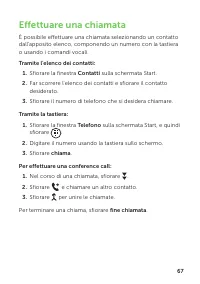
67 Effettuare una chiamata È possibile effettuare una chiamata selezionando un contatto dall'apposito elenco, componendo un numero con la tastiera o usando i comandi vocali. Tramite l'elenco dei contatti: Sfiorare la finestra 1. Contatti sulla schermata Start. Far scorrere l'elenco dei contatti e sf...
Page 72 - Agisci grazie ai comandi vocali
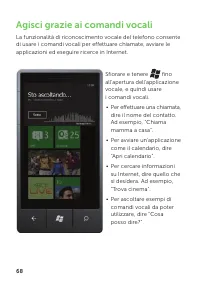
68 Agisci grazie ai comandi vocali La funzionalità di riconoscimento vocale del telefono consente di usare i comandi vocali per effettuare chiamate, avviare le applicazioni ed eseguire ricerce in Internet. Sfiorare e tenere fino all'apertura dell'applicazione vocale, e quindi usare i comandi vocali....
Page 73 - Chi cerca trova
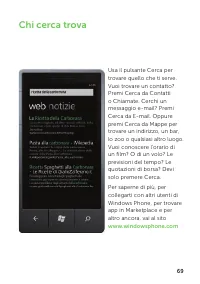
69 Chi cerca trova Usa il pulsante Cerca per trovare quello che ti serve. Vuoi trovare un contatto? Premi Cerca da Contatti o Chiamate. Cerchi un messaggio e-mail? Premi Cerca da E-mail. Oppure premi Cerca da Mappe per trovare un indirizzo, un bar, lo zoo o qualsiasi altro luogo. Vuoi conoscere l’or...
Page 74 - Importa i tuoi contatti
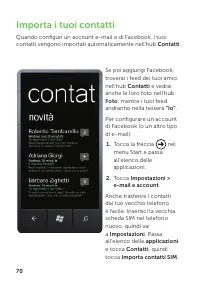
70 Importa i tuoi contatti Quando configuri un account e-mail o di Facebook, i tuoi contatti vengono importati automaticamente nell’hub Contatti . Se poi aggiungi Facebook, troverai i feed dei tuoi amici nell’hub Contatti e vedrai anche le loro foto nell’hub Foto , mentre i tuoi feed andranno nella t...
Page 75 - Orientamento delle schermate
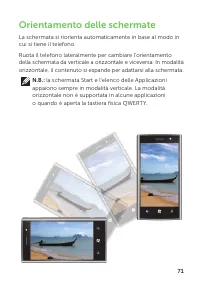
71 Orientamento delle schermate La schermata si riorienta automaticamente in base al modo in cui si tiene il telefono. Ruota il telefono lateralmente per cambiare l'orientamento della schermata da verticale a orizzontale e viceversa. In modalità orizzontale, il contenuto si espande per adattarsi all...
Page 76 - Comandi gestuali del touchscreen
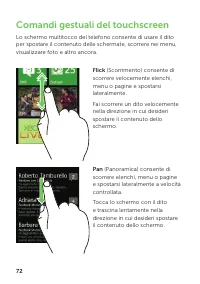
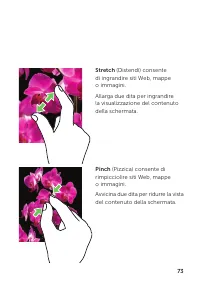
72 Comandi gestuali del touchscreen Lo schermo multitocco del telefono consente di usare il dito per spostare il contenuto delle schermate, scorrere nei menu, visualizzare foto e altro ancora. Flick (Scorrimento) consente di scorrere velocemente elenchi, menu o pagine e spostarsi lateralmente. Fai s...
Page 78 - Inserimento intelligente del testo
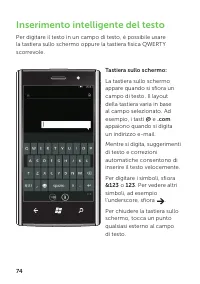
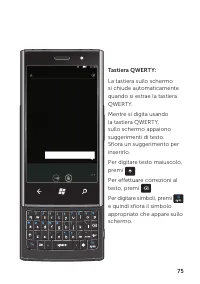
74 Inserimento intelligente del testo Per digitare il testo in un campo di testo, è possibile usare la tastiera sullo schermo oppure la tastiera fisica QWERTY scorrevole. Tastiera sullo schermo: La tastiera sullo schermo appare quando si sfiora un campo di testo. Il layout della tastiera varia in ba...
Page 80 - SMS
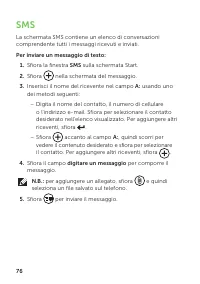
76 SMS La schermata SMS contiene un elenco di conversazioni comprendente tutti i messaggi ricevuti e inviati. Per inviare un messaggio di testo: Sfiora la finestra 1. SMS sulla schermata Start. Sfiora 2. nella schermata del messaggio. Inserisci il nome del ricevente nel campo 3. A: usando uno dei me...
Page 81 - Sincronizza
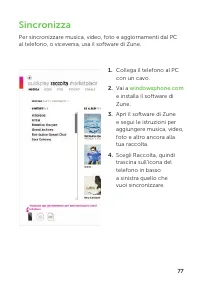
77 Sincronizza Per sincronizzare musica, video, foto e aggiornamenti dal PC al telefono, o viceversa, usa il software di Zune. Collega il telefono al PC 1. con un cavo. Vai a 2. windowsphone.com e installa il software di Zune. Apri il software di Zune 3. e segui le istruzioni per aggiungere musica, ...
Page 83 - Maggiori informazioni
79 Maggiori informazioni Per maggiori informazioni sull'utilizzo del telefono, consulta il Manuale per l'utente disponibile all'indirizzo support.dell.com/manuals . Le informazioni contenute in questo documento sono soggette a modifica senza preavviso . © 2010 Dell Inc. Tutti i diritti riservati . È...
Page 85 - Guía de introducción
Dell™ Venue Pro con Windows Phone 7 Guía de introducción
Page 86 - Información importante
Información importante AVISO: La tarjeta micro SD y la memoria integrada del teléfono actúan como un único sistema de almacenamiento. No intente quitar o colocar la tarjeta micro SD. Quitando la tarjeta el teléfono se vuelve inservible.
Page 87 - Conozca su teléfono
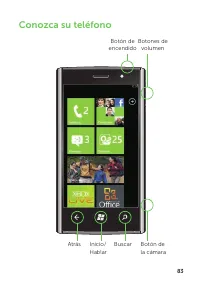
83 Conozca su teléfono Atrás Inicio/ Hablar Buscar Botón de la cámara Botón de encendido Botones de volumen
Page 88 - Pantalla de inicio
84 Pantalla de inicio La pantalla de inicio muestra unos mosaicos que facilitan el acceso a las funciones, aplicaciones, contactos, páginas web, etc. favoritos o usados con frecuencia. Los mosaicos se actualizan dinámicamente para notificar nuevos mensajes de texto, correos electrónicos, llamadas pe...
Page 89 - Personalícelo
85 Personalícelo Puede "fijar" una aplicación, elemento multimedia o contacto favorito en la pantalla de inicio para agregarla como mosaico. Para fijar un elemento, tóquelo hasta que aparezca el menú contextual y, a continuación, toque fijar para iniciar o fijar favoritos para iniciar . Para...
Page 90 - Inicia sesión en el teléfono
86 Inicia sesión en el teléfono Un Windows Live ID es la dirección de correo electrónico que utilizas para iniciar sesión en Xbox LIVE ® , Zune ® , Windows Live Messenger, Hotmail ® y otros servicios. Si has olvidado la dirección de correo electrónico que utilizas: Para Xbox LIVE: en la consola Xbox...
Page 91 - Cómo hacer una llamada
87 Cómo hacer una llamada Puede hacer llamadas seleccionando un contacto de la lista de contactos, marcando un número mediante el teclado o usando los comandos de voz. Usando la lista de contactos: Toque el mosaico 1. Gente de la pantalla de inicio. Pase la lista de contactos y toque el que desee. 2...
Page 92 - Marcación mediante voz
88 Marcación mediante voz La función de reconocimiento de voz del teléfono le permite usar los comandos de voz para hacer llamadas, iniciar aplicaciones y buscar en Internet. Mantenga tocado hasta que se abra la aplicación de voz y, a continuación, use los comandos de voz. Para hacer una llamada, • ...
Page 93 - Buscar es encontrar
89 Buscar es encontrar El botón Buscar es la puerta de acceso a todo tipo de respuestas. ¿Deseas buscar un contacto? Presiona Buscar en Contactos o en Llamadas. ¿Buscas un mensaje de correo electrónico? Presiona Buscar en el correo electrónico. Para buscar una dirección, una cafetería, un zoo o cual...
Page 94 - Importa los contactos
90 Importa los contactos Los contactos se importan automáticamente en el centro de contactos al configurar tu cuenta de correo electrónico o de Facebook. Y cuando agregues una cuenta de Facebook, tus amigos aparecerán en el centro de contactos , las fotos se mostrarán en el centro de imágenes y las f...
Page 95 - Orientación de la pantalla
91 Orientación de la pantalla La pantalla se reorienta automáticamente dependiendo de la forma de sujetar el teléfono. Gire el teléfono lateralmente para cambiar la orientación de la pantalla de vertical a horizontal y viceversa. En el modo horizontal, el contenido de la pantalla se amplia para enca...
Page 96 - Posturas en la pantalla táctil
92 Posturas en la pantalla táctil La pantalla multitoque del teléfono le permite usar los dedos para mover el contenido, desplazarse por los menús, ver fotos, etc. Pasar: le permite desplazarse rápidamente a través de listas, menús o páginas, así como moverse lateralmente por grupos. Mueva un dedo r...
Page 98 - Entrada de texto inteligente
94 Entrada de texto inteligente Para escribir texto en un campo de texto, puede usar el teclado en pantalla o el teclado físico deslizante QWERTY. Teclado en pantalla: El teclado en pantalla aparece al tocar cualquier campo de texto. El diseño del teclado varía en función del campo seleccionado. Por...
Page 100 - Mensajes
96 Mensajes La pantalla Mensajes muestra una lista de conversaciones de mensajes que representan todos los mensajes recibidos y enviados. Para enviar un mensaje de texto: Toque el mosaico 1. Mensaje de la pantalla de inicio. Toque 2. en la pantalla de mensajes. Introduzca el nombre del destinatario ...
Page 101 - Siempre sincronizado
97 Siempre sincronizado Para sincronizar música, vídeos, imágenes y actualizaciones del equipo al teléfono (y viceversa), necesitarás el software de Zune. Conecta el teléfono al 1. equipo mediante el cable. Entra en 2. www.windowsphone.com para instalar el software de Zune. Abre el software de Zune ...
Page 103 - Más información
99 Más información Para obtener más información acerca del uso del teléfono, consulte el Manual del usuario que se encuentra disponible en support.dell.com/manuals . La información contenida en este documento puede modificarse sin notificación previa. © 2010 Dell Inc. Todos los derechos reservados. ...