Page 2 - and tells you how to avoid the problem.
Notes, Notices, and Cautions NOTE: A NOTE indicates important information that helps you make better use of your computer. NOTICE: A NOTICE indicates either potential damage to hardware or loss of data and tells you how to avoid the problem. CAUTION: A CAUTION indicates a potential for property dama...
Page 3 - C o n t e n t s; Finding Information; Index
Contents 3 C o n t e n t s Finding Information . . . . . . . . . . . . . . . . . . . . 5 Setting Up Your Computer . . . . . . . . . . . . . . . . 11 Transferring Information to a New Computer . . . . . . . . . . . . . . . . . . . . . . 11 Turning Off Your Computer . . . . . . . . . . . . . 16 About ...
Page 4 - Contents
Page 5 - What Are You Looking For?
Quick Reference Guide 5 Finding Information NOTE: Some features or media may be optional and may not ship with your computer. Some features or media may not be available in certain countries. NOTE: Additional information may ship with your computer. What Are You Looking For? Find It Here • A diagnos...
Page 11 - Quick Reference Guide; Setting Up Your Computer; Transferring Information to a New Computer; old; Operating
Quick Reference Guide 11 Setting Up Your Computer Transferring Information to a New Computer You can use your operating system "wizards" to help you transfer files and other data from one computer to another—for example, from an old computer to a new computer. For instructions, see the follo...
Page 12 - Microsoft Windows XP; The Microsoft; How to Set Up a Direct Cable; Operating System; To prepare a new computer for the file transfer:
12 Quick Reference Guide Microsoft Windows XP The Microsoft Windows XP operating system provides the Files and Settings Transfer Wizard to move data from a source computer to a new computer. You can transfer data, such as: • E-mail messages • Toolbar settings • Window sizes • Internet bookmarks You ...
Page 13 - not
Quick Reference Guide 13 3 On the Which computer is this? screen, click New Computer → Next . 4 On the Do you have a Windows XP CD? screen, click I will use the wizard from the Windows XP CD → Next . 5 When the Now go to your old computer screen appears, go to your old or source computer. Do not cli...
Page 14 - To run the Files and Settings Transfer Wizard without the
14 Quick Reference Guide Running the Files and Settings Transfer Wizard Without the Operating System Disc To run the Files and Settings Transfer Wizard without the Operating System disc, you must create a wizard disc that will allow you to create a backup image file to removable media. To create a w...
Page 15 - To transfer data to the new computer:; For more information about this procedure, search; Microsoft Windows Vista
Quick Reference Guide 15 To transfer data to the new computer: 1 On the Now go to your old computer screen on the new computer, click Next . 2 On the Where are the files and settings? screen, select the method you chose for transferring your settings and files and click Next . Follow the instruction...
Page 16 - Turning Off Your Computer; To avoid losing data, save and close all open files and exit all open; In the Microsoft Windows XP operating system
16 Quick Reference Guide Turning Off Your Computer NOTICE: To avoid losing data, save and close all open files and exit all open programs before you turn off your computer. 1 Shut down the operating system: a Save and close all open files and exit all open programs. b In the Microsoft Windows XP ope...
Page 17 - About Your Computer; Front View
Quick Reference Guide 17 About Your Computer Front View 1 display 2 device status lights 3 keyboard 4 touch pad 5 display latch 6 speaker 7 touch pad buttons 8 keyboard status lights 9 power button 4 1 3 8 7 2 6 9 5
Page 19 - Back View; serial connector
Quick Reference Guide 19 Back View 1 USB connectors (2) 2 modem connector (RJ-11) 3 network connector (RJ-45) 4 S-video TV-out connector 5 serial connector 6 video connector 7 AC adapter connector 8 air vents 8 1 2 3 4 5 6 7
Page 20 - Bottom View
20 Quick Reference Guide Bottom View 1 memory module/modem/WLAN Mini-Card/coin-cell battery cover 2 battery-bay latch release 3 battery charge gauge/health gauge 4 battery 5 docking-device connector 6 air vents 7 hard drive 1 5 4 2 7 3 6
Page 21 - Using a Battery; Battery Performance; For information about the Dell warranty for your computer, see the; Using optical drives.
Quick Reference Guide 21 Using a Battery Battery Performance NOTE: For information about the Dell warranty for your computer, see the Product Information Guide or separate paper warranty document that shipped with your computer. For optimal computer performance and to help preserve BIOS settings, op...
Page 22 - Checking the Battery Charge; Power Meter; Dell QuickSet Battery Meter; Help; Microsoft Windows Power Meter; pressing and holding
22 Quick Reference Guide CAUTION: Using an incompatible battery may increase the risk of fire or explosion. Replace the battery only with a compatible battery purchased from Dell. The battery is designed to work with your Dell computer. Do not use a battery from other computers with your computer. C...
Page 23 - Check the Battery Charge; To check the battery charge,; Check the Battery Health; To check the battery health using the charge gauge,
Quick Reference Guide 23 The battery operating time is largely determined by the number of times it is charged. After hundreds of charge and discharge cycles, batteries lose some charge capacity—or battery health. That is, a battery can show a status of "charged" but maintain a reduced charg...
Page 24 - on page 26 for information about accessing QuickSet or the; Conserving Battery Power; Perform the following actions to conserve battery power:; on conserving battery power.; Power Management Modes; Standby and Sleep Mode; To enter standby mode in Windows XP, click the
24 Quick Reference Guide You can change the settings for the battery alarms in QuickSet or the Power Options Properties window. See "Configuring Power Management Settings" on page 26 for information about accessing QuickSet or the Power Options Properties window. Conserving Battery Power Per...
Page 25 - Hibernate Mode; You cannot remove devices or undock your computer while your; Press the power button.; Some PC Cards or Express Cards may not operate correctly after the
Quick Reference Guide 25 Depending on how you set the power management options in the Power Options Properties window or the QuickSet Power Management Wizard, you may also use one of the following methods: • Press the power button. • Close the display. • Press <Fn><Esc>. To exit standby ...
Page 26 - Configuring Power Management Settings; Windows XP; lick the; Windows Vista; Click the Windows Vista Start button; Charging the Battery; With Dell ExpressChargeTM, when the computer is turned off, the AC
26 Quick Reference Guide To exit hibernate mode, press the power button. The computer may take a short time to exit hibernate mode. You cannot make the computer exit hibernate mode by pressing a key or touching the touch pad. For more information on hibernate mode, see the documentation that came wi...
Page 27 - The battery is too hot to start charging if the; Replacing the Battery; Using an incompatible battery may increase the risk of fire or; User’s Guide
Quick Reference Guide 27 The battery is too hot to start charging if the light flashes alternately green and orange. Disconnect the computer from the electrical outlet and allow the computer and the battery to cool to room temperature. Then connect the computer to an electrical outlet to continue ch...
Page 28 - Storing a Battery; Troubleshooting; Follow these tips when you troubleshoot your computer:
28 Quick Reference Guide To replace the battery, follow the removal procedure in reverse order and press down until the battery-bay latch release fully engages. Storing a Battery Remove the battery when you store your computer for an extended period of time. A battery discharges during prolonged sto...
Page 29 - Lockups and Software Problems; Before you begin any of the procedures in this section, follow the; The computer does not start up; You may lose data if you are unable to perform an operating system; A program stops responding; Click the; A program crashes repeatedly; If necessary, uninstall and then reinstall; A program is designed for an earlier Windows operating system
Quick Reference Guide 29 Lockups and Software Problems CAUTION: Before you begin any of the procedures in this section, follow the safety instructions in the Product Information Guide . The computer does not start up E N S U R E T H A T T H E P O W E R C A B L E I S F I R M L Y C O N N E C T E D T O...
Page 30 - A solid blue screen appears; If you are unable to get a response by pressing a; Other software problems; C D; Dell Diagnostics
30 Quick Reference Guide Windows Vista : The Program Compatibility Wizard configures a program so that it runs in an environment similar to non-Windows Vista operating system environments. 1 Click Start → Control Panel → Programs → Use an older program with this version of Windows. 2 In the welcome ...
Page 31 - When to Use the Dell Diagnostics; Drivers and Utilities; Starting the Dell Diagnostics From Your Hard Drive; Shut down the computer.; Drivers and Utilities
Quick Reference Guide 31 When to Use the Dell Diagnostics If you experience a problem with your computer, perform the checks in "Lockups and Software Problems" on page 29 and run the Dell Diagnostics before you contact Dell for technical assistance. It is recommended that you print these pro...
Page 32 - The next steps change the boot sequence for one time only. On the; Run the 32 Bit Dell Diagnostics
32 Quick Reference Guide • During the assessment, answer any questions that appear. • If a failure is detected, the computer stops and beeps. To stop the assessment and restart the computer, press <Esc>; to continue to the next test, press <y>; to retest the component that failed, press ...
Page 33 - Dell Diagnostics Main Menu; After the Dell Diagnostics loads and the; The Service Tag for your computer is located at the top of each test; If you run a test from the; Option
Quick Reference Guide 33 Dell Diagnostics Main Menu 1 After the Dell Diagnostics loads and the Main Menu screen appears, click the button for the option you want. 2 If a problem is encountered during a test, a message appears with an error code and a description of the problem. Write down the error ...
Page 34 - Configuration
34 Quick Reference Guide 4 When the tests are completed, if you are running the Dell Diagnostics from the Drivers and Utilities disc , remove the disc. 5 When the tests are complete, close the test screen to return to the Main Menu screen. To exit the Dell Diagnostics and restart the computer, close...
Page 39 - Guide de référence rapide
w w w . d e l l . c o m | s u p p o r t . d e l l . c o m Dell™ Latitude™ D530 Guide de référence rapide Modèle PP17L
Page 40 - Remarques, avis et précautions; Une REMARQUE indique des informations importantes qui peuvent
Remarques, avis et précautions REMARQUE : Une REMARQUE indique des informations importantes qui peuvent vous aider à mieux utiliser votre ordinateur. AVIS : Un AVIS vous avertit d’un risque d'endommagement du matériel ou de perte de données et vous indique comment éviter le problème. PRÉCAUTION : Un...
Page 41 - Ta b l e d e s m a t i è r e s; Recherche d'informations; Indice analitico
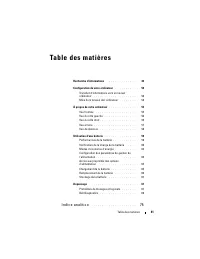
Table des matières 41 Ta b l e d e s m a t i è r e s Recherche d'informations . . . . . . . . . . . . . . . 43 Configuration de votre ordinateur . . . . . . . . . . . 50 Transfert d'informations vers un nouvel ordinateur . . . . . . . . . . . . . . . . . . . . . 50 Mise hors tension de l'ordinateur ...
Page 42 - Table des matières
Page 43 - Cherchez ici
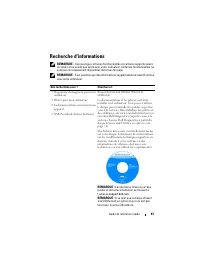
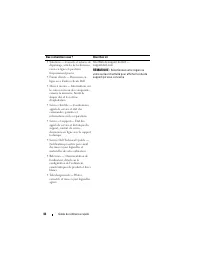
Guide de référence rapide 43 Recherche d'informations REMARQUE : Il se peut que certaines fonctionnalités et certains supports soient en option et ne soient pas livrés avec votre ordinateur. Certaines fonctionnalités ne sont pas nécessairement disponibles dans tous les pays. REMARQUE : Il est possib...
Page 50 - Configuration de votre ordinateur; Transfert d'informations vers un nouvel ordinateur; ancien; paramètres de la barre d'outils; How to Set Up a Direct Cable Connection Between Two
50 Guide de référence rapide Configuration de votre ordinateur Transfert d'informations vers un nouvel ordinateur Utilisez les « Assistants » de votre système d'exploitation pour faciliter le transfert de fichiers et de toute autre donnée d'un ordinateur à l'autre, par exemple, d'un ancien ordinateu...
Page 51 - Pour préparer un nouvel ordinateur au transfert de fichiers :
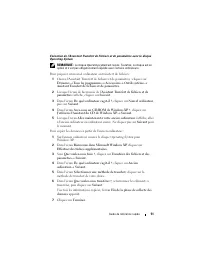
Guide de référence rapide 51 Exécution de l'Assistant Transfert de fichiers et de paramètres avec le disque Operating System REMARQUE : Le disque Operating system est requis. Toutefois, ce disque est en option et n'est pas obligatoirement expédié avec certains ordinateurs. Pour préparer un nouvel or...
Page 52 - Pour transférer les données vers le nouvel ordinateur :
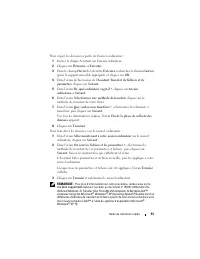
52 Guide de référence rapide Pour transférer les données vers le nouvel ordinateur : 1 Dans l'écran Allez maintenant à votre ancien ordinateur sur le nouvel ordinateur, cliquez sur Suivant . 2 Dans l'écran Où sont les fichiers et les paramètres ? , sélectionnez la méthode de transfert de vos paramèt...
Page 53 - Pour copier les données à partir de l'ancien ordinateur :; Pour plus d'informations sur cette procédure, rendez-vous sur le
Guide de référence rapide 53 Pour copier les données à partir de l'ancien ordinateur : 1 Insérez le disque Assistant sur l'ancien ordinateur. 2 Cliquez sur Démarrer → Exécuter . 3 Dans le champ Ouvrir de la fenêtre Exécuter , recherchez le chemin fastwiz (pour le support amovible approprié) et cliqu...
Page 54 - Mise hors tension de l'ordinateur; Sous le système d'exploitation Microsoft Windows XP
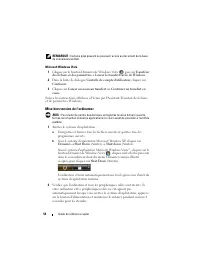
54 Guide de référence rapide REMARQUE : Certains pays peuvent ne pas avoir accès au document de la base de connaissances Dell. Microsoft Windows Vista 1 Cliquez sur le bouton Démarrer de Windows Vista , puis sur Transférer des fichiers et des paramètres → Lancer le transfert facile de Windows . 2 Da...
Page 55 - À propos de votre ordinateur; Vue frontale
Guide de référence rapide 55 À propos de votre ordinateur Vue frontale 1 écran 2 voyants d'état de l'appareil 3 clavier 4 tablette tactile 5 loquet de l'écran 6 haut-parleur 7 boutons de la tablette tactile 8 voyants d'état du clavier 9 bouton d'alimentation 4 1 3 8 7 2 6 9 5
Page 56 - Vue du côté gauche; capteur infrarouge
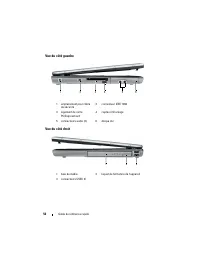
56 Guide de référence rapide Vue du côté gauche Vue du côté droit 1 emplacement pour câble de sécurité 2 connecteur IEEE 1394 3 logement de carte PC/ExpressCard 4 capteur infrarouge 5 connecteurs audio (2) 6 disque dur 1 baie de média 2 loquet de fermeture de l'appareil 3 connecteurs USB ( 2) 3 5 2 ...
Page 57 - Vue arrière; connecteur de sortie TV S-vidéo
Guide de référence rapide 57 Vue arrière 1 connecteurs USB (2) 2 connecteur modem (RJ-11) 3 connecteur réseau (RJ-45) 4 connecteur de sortie TV S-vidéo 5 connecteur série 6 connecteur vidéo 7 connecteur d'adaptateur secteur 8 entrées d'air 8 1 2 3 4 5 6 7
Page 58 - Vue de dessous; batterie
58 Guide de référence rapide Vue de dessous 1 module de mémoire/modem/Carte Mini WLAN/cache de pile bouton 2 loquet de fermeture de la baie de batterie 3 indicateur de charge/jauge d'état de la batterie 4 batterie 5 connecteur de la station d'accueil 6 entrées d'air 7 unité de disque dur 1 5 4 2 7 3...
Page 59 - Utilisation d'une batterie; Performances de la batterie; Guide d'information sur le produit; Utilisation de lecteurs optiques.
Guide de référence rapide 59 Utilisation d'une batterie Performances de la batterie REMARQUE : Pour obtenir des informations sur la garantie Dell de votre ordinateur, reportez-vous au Guide d'information sur le produit ou au document de garantie fourni avec votre ordinateur. Pour un fonctionnement o...
Page 60 - Vérification de la charge de la batterie; La jauge de batterie Dell QuickSet, la fenêtre; Jauge de batterie Dell QuickSet; Aide; Jauge d'alimentation Microsoft Windows; de la barre des tâches.
60 Guide de référence rapide Vous pouvez vérifier le niveau de charge de la batterie avant de l'insérer dans l'ordinateur. Vous pouvez également définir des options de gestion de l'alimentation afin que l'ordinateur vous alerte lorsque le niveau de charge de la batterie est bas. PRÉCAUTION : L'utili...
Page 61 - Indicateur de charge; appuyant et en maintenant enfoncé; Vérification du niveau de charge de la batterie; appuyez; Vérification de l'état de fonctionnement de la batterie
Guide de référence rapide 61 Indicateur de charge En appuyant une fois sur le bouton d'état de l'indicateur de charge de la batterie ou en appuyant et en maintenant enfoncé ce bouton, vous pouvez vérifier les éléments suivants : • Le niveau de charge de la batterie (appuyez et relâchez le bouton d'é...
Page 62 - Alerte de batterie faible; Préservation de l'alimentation de la batterie; Propriétés des options d'alimentation; Pour savoir comment économiser l'énergie de la batterie, reportez-
62 Guide de référence rapide Alerte de batterie faible AVIS : Pour éviter la perte ou la corruption de vos données, enregistrez votre travail immédiatement après avoir reçu une alerte de niveau de batterie faible. Branchez ensuite l'ordinateur sur une prise secteur ou installez une seconde batterie ...
Page 63 - Mode Veille; en mode Veille, vous risquez de perdre des données.; Pour passer en mode Veille sous Windows XP, cliquez sur le bouton; Mode Mise en veille prolongée
Guide de référence rapide 63 Modes d'économie d'énergie Mode Veille Le mode Veille (mode de mise en veille sous Microsoft Windows Vista) conserve l'énergie en éteignant l'écran et le disque dur au bout d'une période d'inactivité prédéterminée (un délai). Lorsque l'ordinateur quitte le mode Veille, i...
Page 64 - Démarrer; Certaines cartes PC ou ExpressCard peuvent ne pas fonctionner; Configuration des paramètres de gestion de l'alimentation
64 Guide de référence rapide Pour passer manuellement en mode Mise en veille prolongée sous Windows XP, cliquez sur le bouton Démarrer , puis sur Arrêter l'ordinateur , maintenez la touche <Maj> enfoncée et cliquez sur Mettre en veille prolongée . Pour passer manuellement en mode Mise en veill...
Page 65 - Accès aux propriétés des options d'alimentation; liquez sur le bouton; Cliquez sur le bouton Démarrer de Windows Vista; Chargement de la batterie; À l'aide de DellTM ExpressChargeTM, l'adaptateur secteur charge une; Guide
Guide de référence rapide 65 Accès aux propriétés des options d'alimentation Windows XP C liquez sur le bouton Démarrer , pointez sur Panneau de configuration → Performances et maintenance , puis cliquez sur Options d'alimentation . Windows Vista Cliquez sur le bouton Démarrer de Windows Vista , sur...
Page 66 - Remplacement de la batterie; L'utilisation d'une batterie non compatible peut accroître le; de votre
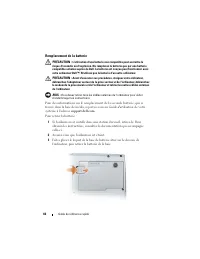
66 Guide de référence rapide Remplacement de la batterie PRÉCAUTION : L'utilisation d'une batterie non compatible peut accroître le risque d'incendie ou d'explosion. Ne remplacez la batterie que par une batterie compatible achetée auprès de Dell. La batterie est conçue pour fonctionner avec votre or...
Page 67 - Stockage de la batterie; Dépannage; Les procédures présentées dans ce document concernent; Problèmes de blocages et logiciels; Avant de commencer toute procédure de cette section, consultez; L'ordinateur ne démarre pas
Guide de référence rapide 67 Pour remplacer la batterie, suivez la procédure de retrait en ordre inverse et appuyez sur le loquet de fermeture de la baie de batterie jusqu'à ce qu'il s'enclenche complètement. Stockage de la batterie Retirez la batterie de l'ordinateur lorsque vous rangez ce dernier ...
Page 68 - L'ordinateur ne répond plus; Vous pouvez perdre des données si vous n'arrivez pas à arrêter; Un programme ne répond plus; Cliquez sur l'onglet; Un programme se bloque régulièrement; réinstallez le programme.
68 Guide de référence rapide L'ordinateur ne répond plus AVIS : Vous pouvez perdre des données si vous n'arrivez pas à arrêter correctement le système d'exploitation. É T E I G N E Z L ' O R D I N A T E U R — Si vous n'obtenez aucune réponse lorsque vous appuyez sur une touche du clavier ou lorsque ...
Page 69 - Panneau de configuration; Un écran bleu uni apparaît; Si vous n'obtenez aucune réponse lorsque vous appuyez; Autres problèmes logiciels; sur votre ordinateur.; Quand utiliser Dell Diagnostics
Guide de référence rapide 69 1 Cliquez sur Démarrer → Panneau de configuration → Programmes → Use an older program with this version of Windows (Utiliser un programme antérieur avec cette version de Windows). 2 Dans l'écran d'accueil, cliquez sur Suivant . 3 Suivez les instructions qui s'affichent à...
Page 70 - Lancez Dell Diagnostics à partir de votre disque dur ou du disque; Démarrage de Dell Diagnostics à partir du disque dur; Connectez l'ordinateur à une prise secteur.; Si vous n'avez pas appuyé sur la touche assez vite, le logo du
70 Guide de référence rapide pour obtenir de l'aide.Nous vous recommandons d'imprimer ces procédures avant de commencer. AVIS : Dell Diagnostics ne fonctionne qu'avec les ordinateurs Dell. REMARQUE : Il se peut que le disque Drivers and Utilities soit en option et qu'il ne vous ait pas été livré ave...
Page 71 - Booting Dell Diagnostic Utility Partition.; Les étapes suivantes modifient la séquence d'amorçage pour; Sélectionnez l'option
Guide de référence rapide 71 L'ordinateur lance l'évaluation du système de préamorçage avec une série de diagnostics intégrés qui effectue un test préalable de la carte système, du clavier, du disque dur et de l'écran. • Répondez à toutes les questions qui s'affichent pendant l'évaluation. • Si une ...
Page 72 - Exécuter Dell Diagnostics 32 bits; Menu principal de Dell Diagnostics; Menu; Le numéro de service de votre ordinateur est situé en haut de
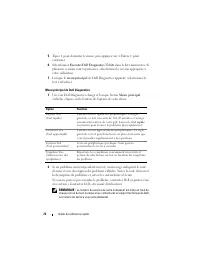
72 Guide de référence rapide 5 Tapez 1 pour démarrer le menu, puis appuyez sur <Entrée> pour continuer. 6 Sélectionnez Exécuter Dell Diagnostics 32 bits dans la liste numérotée. Si plusieurs versions sont répertoriées, sélectionnez la version appropriée à votre ordinateur. 7 Lorsque le menu pr...
Page 73 - Si vous exécutez un test à partir de l'option; Onglet
Guide de référence rapide 73 3 Si vous exécutez un test à partir de l'option Custom Test (Test personnalisé) ou Symptom Tree (Arborescence des symptômes), cliquez sur l'onglet approprié décrit dans le tableau suivant pour obtenir plus d'informations. 4 Si vous exécutez Dell Diagnostics à partir du d...
Page 79 - Guia de Referência Rápida
w w w . d e l l . c o m | s u p p o r t . d e l l . c o m Dell™ Latitude™ D530 Guia de Referência Rápida Modelo PP17L
Page 80 - Notas, Avisos e Advertências; e descreve como evitar o problema.
Notas, Avisos e Advertências NOTA: uma NOTA apresenta informações importantes para ajudar você a usar melhor o computador. AVISO: um AVISO indica um potencial de danos ao hardware ou a perda de dados e descreve como evitar o problema. ADVERTÊNCIA: uma ADVERTÊNCIA indica um potencial de danos à propr...
Page 81 - Í n d i c e; Como obter informações; Índice remissivo
Índice 81 Í n d i c e Como obter informações . . . . . . . . . . . . . . . . 83 Como configurar o computador . . . . . . . . . . . . . 89 Como transferir informações para o novo computador . . . . . . . . . . . . . . . . . . . . 89 Como desligar o computador . . . . . . . . . . . 94 Sobre o seu comp...
Page 82 - Índice
Page 83 - Alguns recursos ou mídia podem ser opcionais e, portanto não serem
Guia de Referência Rápida 83 Como obter informações NOTA: Alguns recursos ou mídia podem ser opcionais e, portanto não serem fornecidos com o seu computador. El es podem não estar disponíveis em certos países. NOTA: Informações adicionais poderão ser fornecidas com o seu computador. O que você está ...
Page 89 - Como configurar o computador; Como transferir informações para o novo computador; antigo; sistema
Guia de Referência Rápida 89 Como configurar o computador Como transferir informações para o novo computador Você pode usar os “assistentes” do seu sistema operacional para ajudar você a transferir arquivos e outros dados de um computador para outro, por exemplo, de um computador antigo para um novo...
Page 90 - O sistema operacional Microsoft; How to Set Up a Direct Cable Connection Between Two Computers in; sistema operacional; Este procedimento precisa do disco do
90 Guia de Referência Rápida Microsoft Windows XP O sistema operacional Microsoft Windows XP tem o assistente para transferência de arquivos e configurações que ajuda você a mover dados do computador de origem para um novo computador. Você pode transferir dados como: • Mensagens de e-mail • Configur...
Page 91 - Para preparar o novo computador para a transferência de arquivos:
Guia de Referência Rápida 91 Para preparar o novo computador para a transferência de arquivos: 1 Inicie o Assistente para transferência de arquivos e configurações. Clique em Iniciar → Todos os programas → Acessórios → Ferramentas do sistema → Assistente para transferência de arquivos e configuraçõe...
Page 93 - Para transferir os dados para o novo computador:; What Are The Different Methods To
Guia de Referência Rápida 93 Para transferir os dados para o novo computador: 1 Na tela Agora vá para o computador antigo do novo computador, clique em Avançar . 2 Na tela Onde estão os arquivos e configurações? , selecione o método desejado para a transferência e clique em Avançar . Siga as instruç...
Page 94 - Como desligar o computador; Desligue o sistema operacional:
94 Guia de Referência Rápida Como desligar o computador AVISO: Para evitar a perda de dados, salve e feche todos os arquivos abertos e saia de todos os programas que também estiverem abertos antes de desligar o computador. 1 Desligue o sistema operacional: a Salve e feche todos os arquivos que estiv...
Page 95 - Sobre o seu computador; Vista frontal
Guia de Referência Rápida 95 Sobre o seu computador Vista frontal 1 tela 2 luzes de status do dispositivo 3 teclado 4 touch pad 5 trava da tela 6 alto-falante 7 botões do touch pad 8 luzes de status do teclado 9 botão liga/desliga 4 1 3 8 7 2 6 9 5
Page 97 - Vista traseira
Guia de Referência Rápida 97 Vista traseira 1 conectores USB (2) 2 conector do modem (RJ-11) 3 conector da rede (RJ-45) 4 conector de saída de TV S-vídeo 5 conector serial 6 conector de vídeo 7 conector do adaptador CA 8 aberturas de ventilação 8 1 2 3 4 5 6 7
Page 98 - Vista inferior; bateria
98 Guia de Referência Rápida Vista inferior 1 tampa do compartimento do módulo de memória/modem/miniplaca WLAN/bateria de célula tipo moeda 2 aba de liberação da trava do compartimento de bateria 3 indicador de carga/indicador de saúde da bateria 4 bateria 5 conector do dispositivo de acoplamento 6 ...
Page 99 - Como usar a bateria; Desempenho da bateria; Guia de Informações do Produto; Usar unidades ópticas.
Guia de Referência Rápida 99 Como usar a bateria Desempenho da bateria NOTA: Para obter informações sobre a garantia Dell do seu computador, consulte o Guia de Informações do Produto ou o documento de garantia em separado enviado com o computador. Para obter um desempenho ótimo do computador e ajuda...
Page 100 - Como verificar a carga da bateria; Medidor de energia; Medidor de bateria do Dell QuickSet; Ajuda; Medidor de energia do Microsoft Windows
100 Guia de Referência Rápida Você pode verificar a carga da bateria antes de inseri-la no computador. Você pode também definir opções de gerenciamento de energia para ser alertado quando a carga da bateria estiver baixa. ADVERTÊNCIA: O uso de uma bateria incompatível pode aumentar o risco de incênd...
Page 101 - Indicador de carga; pressionar e segurar; Verificar a carga da bateria; pressione; Verificar a saúde da bateria; pressione e; Advertência sobre bateria com pouca carga
Guia de Referência Rápida 101 Indicador de carga Se você pressionar uma vez ou pressionar e segurar o botão de status no indicador de carga da bateria, você pode verificar a: • carga da bateria (para verificar a carga, pressione e solte o botão de status) • saúde da bateria (para verificar a saúde, ...
Page 102 - Power Options Properties; Como conservar a carga da bateria; Para conservar a carga da bateria, faça o seguinte:; Modos de gerenciamento de energia; Modo de espera e modo de dormir; Você pode perder dados, se faltar energia CA ou se a bateria se
102 Guia de Referência Rápida Uma janela pop-up avisa quando a carga da bateria está esgotada em aproximadamente 90%. Se houver duas baterias instaladas, a advertência de bateria com pouca carga indicará que a carga combinada das duas baterias está esgotada em aproximadamente 90%. O computador entra...
Page 103 - Modo de hibernação; Você não pode remover dispositivos ou desacoplar o computador
Guia de Referência Rápida 103 Para entrar no modo de espera no Windows XP, clique no botão Iniciar , clique em Desligar o computador e depois clique em Em espera . Para entrar no modo de suspensão do Windows Vista, clique no botão Iniciar do Windows Vista e, em seguida, clique em Dormir . Dependendo...
Page 104 - (Propriedades das opções de energia) ou; Como configurar parâmetros de gerenciamento de energia; lique no botão; Clique no botão Iniciar do Windows Vista
104 Guia de Referência Rápida Dependendo de como você configurar as opções de gerenciamento de energia na janela Power Options Properties (Propriedades das opções de energia) ou o assistente de gerenciamento de energia do QuickSet, use um dos métodos a seguir para entrar no modo de hibernação: • Pre...
Page 105 - Como carregar a bateria; Com o DellTM ExpressChargeTM, quando o computador está desligado, o; A bateria estará muito quente para começar a carregar se a luz; Como trocar a bateria; O uso de uma bateria incompatível pode aumentar o risco de; guia do usuário
Guia de Referência Rápida 105 Como carregar a bateria Quando você conecta o computador a uma tomada elétrica ou instala uma bateria em um computador conectado a uma tomada elétrica, ele verifica a carga e a temperatura da bateria. Se necessário, o adaptador CA carregará então a bateria e manterá a s...
Page 106 - Para remover a bateria:; Como armazenar a bateria; Solução de problemas; Siga estas dicas para solucionar problemas do computador:
106 Guia de Referência Rápida Para remover a bateria: 1 Se o computador estiver conectado a um dispositivo de acoplamento, (acoplado), desconecte-o. Consulte a documentação fornecida com o dispositivo de acoplamento para obter instruções. 2 Certifique-se de que o computador esteja desligado. 3 Desli...
Page 107 - Problemas de travamento e de software; Antes de começar qualquer procedimento desta seção, siga as; O computador não inicializa; Pode haver perda de dados se você não conseguir executar o; Um programa pára de responder; Clique na guia; Um programa trava repetidamente; estão contidas na documentação ou em um disquete, CD ou DVD.
Guia de Referência Rápida 107 • Se uma mensagem de erro aparecer na tela, anote a mensagem exata. Essa mensagem pode ajudar a equipe do suporte técnico a diagnosticar e resolver o(s) problema(s). • Se uma mensagem de erro aparecer em um programa, consulte a documentação do programa. NOTA: Os procedi...
Page 108 - Iniciar; Siga as instruções da tela.; Exibição de uma tela inteiramente azul; Se não houver nenhuma resposta quando você; Outros problemas de software
108 Guia de Referência Rápida Programa foi criado para um sistema operacional Windows mais antigo E X E C U T A R O A S S I S T E N T E D E C O M P A T I B I L I D A D E D E P R O G R A M A S — Windows XP : O assistente de compatibilidade de programas configura o programa para funcionar em ambientes...
Page 109 - Quando usar o Dell Diagnostics; Drivers; Como iniciar o Dell Diagnostics a partir do disco rígido; Desligue o computador.
Guia de Referência Rápida 109 Dell Diagnostics ADVERTÊNCIA: Antes de começar qualquer procedimento desta seção, siga as instruções de segurança descritas no Guia de Informações do Produto . Quando usar o Dell Diagnostics Se o computador apresentar algum problema, faça os testes descritos em “Problem...
Page 110 - Durante a avaliação, responda a todas as perguntas apresentadas; As etapas a seguir alteram a seqüência de inicialização para ser
110 Guia de Referência Rápida • Pressione e segure a tecla <Fn> e ao mesmo tempo ligue o computador. NOTA: Se você receber uma mensagem dizendo que nenhuma partição do utilitário de diagnóstico foi encontrada, execute o Dell Diagnostics a partir do disco opcional Drivers and Utilities (Drivers...
Page 111 - Menu principal do Dell Diagnostics; menu; Opção
Guia de Referência Rápida 111 3 Quando a lista de dispositivos de inicialização aparecer, destaque CD/DVD/CD-RW Drive (Unidade de CD/DVD/CD-RW) e pressione <Enter>. 4 Selecione a opção Boot from CD-ROM (Inicializar a partir do CD-ROM) no menu apresentado e pressione <Enter>. 5 Digite 1 p...
Page 112 - Guia
112 Guia de Referência Rápida 2 Se for encontrado algum problema durante um teste, aparecerá uma mensagem mostrando o código de erro e uma descrição do problema. Anote esse código e a descrição do problema e siga as instruções da tela.Se você não conseguir resolver a condição de erro, entre em conta...
Page 115 - Guía de referencia rápida
w w w . d e l l . c o m | s u p p o r t . d e l l . c o m Dell™ Latitude™ D530 Guía de referencia rápida Modelo PP17L
Page 116 - Notas, avisos y precauciones; y le explica cómo evitar el problema.
Notas, avisos y precauciones NOTA: una NOTA indica información importante que le ayuda a hacer un mejor uso del ordenador. AVISO: un AVISO indica la posibilidad de daños en el hardware o pérdida de datos y le explica cómo evitar el problema. PRECAUCIÓN: una PRECAUCIÓN indica un posible daño material...
Page 117 - C o n t e n i d o; Búsqueda de información
Contenido 117 C o n t e n i d o Búsqueda de información . . . . . . . . . . . . . . . . 119 Configuración del ordenador . . . . . . . . . . . . . . 126 Transferencia de información a un ordenador nuevo . . . . . . . . . . . . . . . . . . . . . . . . 126 Cómo apagar el ordenador . . . . . . . . . . ....
Page 118 - Contenido
Page 119 - Su ordenador puede incluir información adicional.
Guía de referencia rápida 119 Búsqueda de información NOTA: Algunos medios o funciones pueden ser opcionales y no venir incluidos con el ordenador. Es posible que algunas funciones o medios no estén disponibles en determinados países. NOTA: Su ordenador puede incluir información adicional. ¿Qué busc...
Page 126 - Configuración del ordenador; Transferencia de información a un ordenador nuevo; antiguo; El sistema operativo Microsoft
126 Guía de referencia rápida Configuración del ordenador Transferencia de información a un ordenador nuevo Puede utilizar los “asistentes” del sistema operativo para ayudarle a transferir archivos y otros datos de un ordenador a otro (por ejemplo, de un ordenador antiguo a uno nuevo . Para obtener ...
Page 127 - No haga
Guía de referencia rápida 127 Ejecución del Asistente para transferencia de archivos y configuraciones con el disco Operating System (Sistema operativo) NOTA: para este procedimiento es necesario el disco Operating System (Sistema operativo). Este disco es opcional, por lo que es posible que no se e...
Page 128 - Para transferir información al ordenador nuevo:
128 Guía de referencia rápida Para transferir información al ordenador nuevo: 1 En la pantalla Diríjase al ordenador antiguo del ordenador nuevo, haga clic en Siguiente . 2 En la pantalla Seleccione la ubicación de archivos y configuraciones , seleccione el método que ha elegido para transferir los ...
Page 129 - Para copiar datos del ordenador antiguo:; sitio web
Guía de referencia rápida 129 Para copiar datos del ordenador antiguo: 1 En el ordenador antiguo, inserte el disco del asistente. 2 Haga clic en Inicio → Ejecutar . 3 En el campo Abrir de la ventana Ejecutar , busque la ruta de acceso de fastwiz (en los medios extraíbles adecuados) y haga clic en Ac...
Page 130 - Cómo apagar el ordenador; En el sistema operativo Microsoft Windows XP
130 Guía de referencia rápida Microsoft Windows Vista 1 Haga clic en el botón Inicio de Windows Vista y, a continuación, haga clic en Transferir archivos y configuraciones → Iniciar Windows Easy Transfer . 2 En el cuadro de diálogo User Account Control (Control de cuenta de usuario), haga clic en Co...
Page 131 - Acerca de su ordenador; Vista anterior
Guía de referencia rápida 131 Acerca de su ordenador Vista anterior 1 Pantalla 2 Indicadores luminosos del dispositivo 3 Teclado 4 Superficie táctil 5 Seguro de la pantalla 6 Altavoz 7 Botones de la superficie táctil 8 Indicadores luminosos del teclado 9 Botón de encendido 4 1 3 8 7 2 6 9 5
Page 132 - Vista lateral izquierda; Ranura para cable de seguridad
132 Guía de referencia rápida Vista lateral izquierda Vista lateral derecha 1 Ranura para cable de seguridad 2 Conector IEEE 1394 3 Ranura para tarjeta PC/tarjeta ExpressCard 4 Sensor de infrarrojos 5 Conectores de sonido (2) 6 Unidad de disco duro 1 Compartimento de medios 2 Pasador de liberación d...
Page 133 - Vista posterior
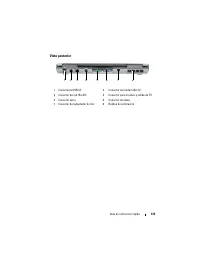
Guía de referencia rápida 133 Vista posterior 1 Conectores USB (2) 2 Conector de módem (RJ-11) 3 Conector de red (RJ-45) 4 Conector para S-vídeo y salida de TV 5 Conector serie 6 Conector de vídeo 7 Conector del adaptador de CA 8 Rejillas de ventilación 8 1 2 3 4 5 6 7
Page 134 - Uso de la batería; Rendimiento de la batería; Guía de información del producto
134 Guía de referencia rápida Vista inferior Uso de la batería Rendimiento de la batería NOTA: Para obtener más información acerca de la garantía de Dell para su ordenador, consulte la Guía de información del producto o el documento de garantía sobre papel que se envía con el ordenador. 1 Cubierta d...
Page 135 - Uso de unidades ópticas.
Guía de referencia rápida 135 Para el rendimiento óptimo del ordenador y para facilitar la conservación de la configuración del BIOS, utilice su ordenador portátil Dell con la batería principal instalada en todo momento. Se proporciona una batería en su compartimento correspondiente como equipamient...
Page 136 - Comprobación de la carga de la batería; El medidor de la batería Dell QuickSet, la ventana y el icono; Medidor de la batería Dell QuickSet; Ayuda; Medidor de energía de Microsoft Windows; de la
136 Guía de referencia rápida PRECAUCIÓN: el uso de baterías incompatibles puede aumentar el riesgo de incendio o explosión. Sustituya la batería únicamente por baterías de Dell. La batería está diseñada para funcionar con ordenadores Dell. No utilice las baterías de otros ordenadores en su ordenado...
Page 137 - Medidor de carga; Al pulsar o; Para comprobar la carga de la batería,; Comprobación del estado de consumo de la batería; Puede comprobar el estado de consumo de la batería de dos maneras:; pulse y mantenga
Guía de referencia rápida 137 Medidor de carga Al pulsar o mantener pulsado el botón de estado del medidor de carga de la batería, podrá comprobar: • La carga de la batería (se comprueba pulsando y soltando el botón de estado) • El estado de consumo de la batería (se comprueba pulsando y manteniendo...
Page 138 - Advertencia de batería baja; Propiedades de Opciones de energía; Conservación de energía de la batería
138 Guía de referencia rápida Advertencia de batería baja AVISO: Para evitar la pérdida de datos o que éstos resulten dañados, tras una advertencia de batería baja guarde inmediatamente el trabajo. A continuación, conecte el ordenador a una toma de alimentación eléctrica o instale una segunda baterí...
Page 139 - Modos de administración de energía; Modo de espera y suspensión; Para entrar en el modo de espera en Windows XP, haga clic en el botón; Modo de hibernación; encuentre en el modo de hibernación.
Guía de referencia rápida 139 Modos de administración de energía Modo de espera y suspensión El modo de espera (modo de suspensión en Microsoft Windows Vista) ahorra energía al apagar la pantalla y la unidad de disco duro tras un período predeterminado de inactividad (tiempo de espera). Cuando el or...
Page 140 - , mantenga presionada la tecla; Configuración de los valores de administración de energía; Haga clic en el botón
140 Guía de referencia rápida El ordenador pasa al modo de hibernación si la carga de la batería alcanza un nivel extremadamente bajo.Para entrar manualmente en el modo de hibernación de Windows XP, haga clic en el botón Inicio , en Apagar ordenador , mantenga presionada la tecla <Mayús> y, a ...
Page 141 - Haga clic en el botón Inicio; Carga de la batería; parpadea alternando entre el verde y el naranja. Desconecte el; Sustitución de la batería; el uso de baterías incompatibles puede aumentar el riesgo de
Guía de referencia rápida 141 Windows Vista Haga clic en el botón Inicio de Windows Vista, en Panel de control , en Sistema y mantenimiento y, a continuación, en Opciones de energía . Carga de la batería Cuando conecte el ordenador a una toma de alimentación eléctrica o instale una batería mientras ...
Page 142 - Guía del usuario; Almacenamiento de una batería
142 Guía de referencia rápida Para obtener información acerca de cómo sustituir la segunda batería, que está ubicada en el compartimento de medios, consulte la Guía del usuario para su sistema en support.dell.com . Para extraer la batería: 1 Si el ordenador está conectado (acoplado) a un dispositivo...
Page 143 - Solución de problemas; Bloqueos y problemas de software; antes de comenzar cualquiera de los procedimientos de esta; El ordenador no se inicia; si el ordenador no responde cuando se pulsa una tecla del
Guía de referencia rápida 143 Solución de problemas Siga estas sugerencias al solucionar los problemas del ordenador: • Si agregó o extrajo una pieza antes de que empezará el problema, revise los procedimientos de instalación y asegúrese de que dicha pieza está instalada correctamente. • Si no funci...
Page 144 - Un programa no responde; documentación correspondiente o en un disquete, CD o DVD.; Inicio; Aparece una pantalla azul fija; Si el ordenador no responde cuando se pulsa una tecla del
144 Guía de referencia rápida Un programa no responde F I N A L I C E E L P R O G R A M A : 1 Pulse <Ctrl><Shift><Esc> simultáneamente para acceder al Administrador de tareas. 2 Haga clic en la ficha Aplicaciones . 3 Haga clic para seleccionar el programa que haya dejado de respond...
Page 145 - Otros problemas de software; Cuándo utilizar los Dell Diagnostics (Diagnósticos Dell); El disco
Guía de referencia rápida 145 Otros problemas de software C O M P R U E B E L A D O C U M E N T A C I Ó N D E L S O F T W A R E O P Ó N G A S E E N C O N T A C T O C O N E L F A B R I C A N T E D E S O F T W A R E P A R A O B T E N E R I N F O R M A C I Ó N S O B R E L A S O L U C I Ó N D E P R O B ...
Page 146 - Inicio de los Dell Diagnostics desde la unidad de disco duro; Apague el ordenador.; si no lo hace inmediatamente, aparecerá el logotipo del sistema
146 Guía de referencia rápida Inicio de los Dell Diagnostics desde la unidad de disco duro Los Dell Diagnostics se encuentran en una partición oculta de la utilidad de diagnóstico en la unidad de disco duro. NOTA: si el ordenador no puede mostrar una imagen en la pantalla, póngase en contacto con De...
Page 147 - Booting Dell Diagnostic
Guía de referencia rápida 147 Si la evaluación del sistema antes de la inicialización se realiza correctamente, recibirá el mensaje Booting Dell Diagnostic Utility Partition. Press any key to continue (Iniciando la partición de la utilidad Dell Diagnostics. Pulse cualquier tecla para continuar). 5 P...
Page 148 - Menú principal de Dell Diagnostics (Diagnósticos Dell); Main; la etiqueta de servicio del ordenador se encuentra en la parte; Si ejecuta una prueba mediante la opción; Opción
148 Guía de referencia rápida Menú principal de Dell Diagnostics (Diagnósticos Dell) 1 Una vez se hayan cargado los Dell Diagnostics y aparezca la pantalla Main Menu (Menú principal), haga clic en el botón de la opción que desee. 2 Si se produce un problema durante una prueba, aparecerá un mensaje c...
Page 149 - Ficha
Guía de referencia rápida 149 4 Cuando las pruebas hayan finalizado, si ejecuta los Dell Diagnostics desde el disco Drivers and Utilities (Controladores y utilidades) , retire el disco. 5 Cuando las pruebas hayan terminado, cierre la pantalla de la prueba para volver a la pantalla Main Menu (Menú pr...
Page 153 - volver a instalar, 125
Índice 153 volver a instalar, 125 Windows XP modo de espera, 139modo de hibernación, 139volver a instalar, 125