Page 2 - Abbreviations and Acronyms; User’s Guide
For information on other documentation included with your computer, see "Finding Information" on page 5. Notes, Notices, and Cautions NOTE: A NOTE indicates important information that helps you make better use of your computer. NOTICE: A NOTICE indicates either potential damage to hardware o...
Page 3 - Contents; Index
Contents 3 Contents Finding Information . . . . . . . . . . . . . . . . . . . . . . . . . . . . . . . . 5 Setting Up Your Computer . . . . . . . . . . . . . . . . . . . . . . . . . . . . . 8 About Your Computer . . . . . . . . . . . . . . . . . . . . . . . . . . . . . . . . 9 Front View . . . . . . ...
Page 7 - To view
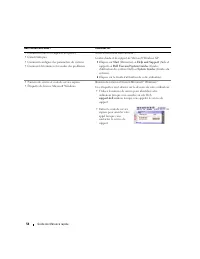
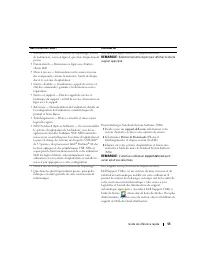
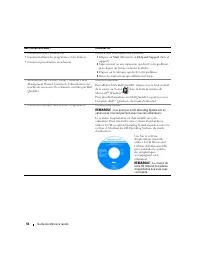
Quick Reference Guide 7 • Software upgrades and troubleshooting hints • Frequently asked questions, hot topics, and general health of your computing environment Dell Support Utility The Dell Support Utility is an automated upgrade and notification system installed on your computer. This support prov...
Page 8 - Setting Up Your Computer; Unpack the accessories box.
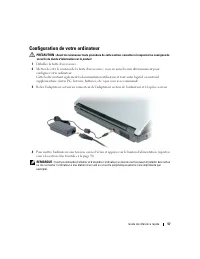
8 Quick Reference Guide Setting Up Your Computer CAUTION: Before you begin any of the procedures in this section, follow the safety instructions in the Product Information Guide . 1 Unpack the accessories box. 2 Set aside the contents of the accessories box, which you will need to complete the setup...
Page 9 - About Your Computer; Front View
Quick Reference Guide 9 About Your Computer Front View 1 display latch release 2 display latches (2) 3 display 4 keyboard status lights 5 touch pad 6 touch pad buttons (2) 7 speakers (2) 8 device status lights 9 keyboard 10 power button 1 9 2 8 3 7 10 4 5 6
Page 10 - Left Side View
10 Quick Reference Guide Left Side View Right Side View Back View 1 modem connector 2 network connector 3 video connector 4 USB connectors (3) 5 microphone connector 6 headphone connector 7 ExpressCard slot 8 ExpressCard slot release button 1 optical drive bay 2 optical-drive-tray eject button 3 sec...
Page 11 - Bottom View; Using a Battery; Battery Performance
Quick Reference Guide 11 Bottom View Using a Battery Battery Performance NOTE: For information about the Dell warranty for your computer, see the Product Information Guide or separate paper warranty document that shipped with your computer. For optimal computer performance and to help preserve BIOS ...
Page 12 - Using optical drives; Checking the Battery Charge; Power Meter; DellTM QuickSet Battery Meter; Help; Microsoft
12 Quick Reference Guide NOTE: Battery operating time (the time the battery can hold a charge) decreases over time. Depending on how often the battery is used and the conditions under which it is used, you may need to purchase a new battery during the life of your computer. NOTE: It is recommended t...
Page 13 - Power Options Properties; Conserving Battery Power; Perform the following actions to conserve battery power:; Power Management Modes; Standby Mode; To enter standby mode:
Quick Reference Guide 13 Low-Battery Warning NOTICE: To avoid losing or corrupting data, save your work immediately after a low-battery warning. Then connect the computer to an electrical outlet. If the battery runs completely out of power, hibernate mode begins automatically. A pop-up window warns ...
Page 14 - Hibernate Mode; To manually enter hibernate mode:; Configuring Power Management Settings
14 Quick Reference Guide To exit standby mode, press the power button or open the display, depending on how you set the power management options. You cannot make the computer exit standby mode by pressing a key or touching the touch pad. Hibernate Mode Hibernate mode conserves power by copying syste...
Page 15 - Charging the Battery; The battery is too hot to start charging if the; Replacing the Battery
Quick Reference Guide 15 Charging the Battery NOTE: When the computer is turned off, the AC adapter charges a completely discharged battery to 80 percent in about 1 hour and to 100 percent in approximately 2 hours. Charge time is longer with the computer turned on. You can leave the battery in the c...
Page 16 - To remove the battery:; Storing a Battery; Troubleshooting; Lockups and Software Problems
16 Quick Reference Guide To remove the battery: 1 If the computer is connected to a docking device (docked), undock it. See the documentation that came with your docking device for instructions. 2 Ensure that the computer is turned off. 3 Slide the battery-bay latch lock on the bottom of the compute...
Page 17 - The Program Compatibility Wizard configures a program
Quick Reference Guide 17 The computer does not start up E N S U R E T H A T T H E A C A D A P T E R I S F I R M L Y C O N N E C T E D T O T H E C O M P U T E R A N D T O T H E E L E C T R I C A L O U T L E T . The computer stops responding NOTICE: You might lose data if you are unable to perform an ...
Page 18 - and search for the keyword; Dell Diagnostics; When to Use the Dell Diagnostics; Start the Dell Diagnostics from either your hard drive or from the; Starting the Dell Diagnostics From Your Hard Drive; Shut down the computer.
18 Quick Reference Guide B A C K U P Y O U R F I L E S I M M E D I A T E L Y . U S E A V I R U S - S C A N N I N G P R O G R A M T O C H E C K T H E H A R D D R I V E , F L O P P Y D I S K S , O R C D S . S A V E A N D C L O S E A N Y O P E N F I L E S O R P R O G R A M S A N D S H U T D O W N Y O U...
Page 19 - Starting the Dell Diagnostics From the Drivers and Utilities CD; Run the 32 Bit Dell Diagnostics
Quick Reference Guide 19 b Press and hold the <Fn> key while starting the computer. NOTE: If you see a message stating that no diagnostics utility partition has been found, run the Dell Diagnostics from the Drivers and Utilities CD. The computer runs the Pre-boot System Assessment, a series of...
Page 20 - Dell Diagnostics Main Menu; Main; Custom Test
20 Quick Reference Guide Dell Diagnostics Main Menu 1 After the Dell Diagnostics loads and the Main Menu screen appears, click the button for the option you want. 2 If a problem is encountered during a test, a message appears with an error code and a description of the problem. Write down the error ...
Page 25 - Snelle referentiegids
w w w . d e l l . c o m | s u p p o r t . d e l l . c o m Dell™ Latitude™ 120L Snelle referentiegids Model PP21L
Page 26 - Opmerkingen, kennisgevingen en waarschuwingen; Afkortingen en acroniemen; Gebruikershandleiding
Voor informatie over verdere documentatie die is meegeleverd met uw computer, zie "Informatie zoeken" op pagina 29. Opmerkingen, kennisgevingen en waarschuwingen OPMERKING: Een OPMERKING duidt belangrijke informatie aan voor een beter gebruik van de computer. KENNISGEVING: Een KENNISGEVING d...
Page 27 - Inhoud
Inhoud 27 Inhoud Informatie zoeken . . . . . . . . . . . . . . . . . . . . . . . . . . . . . . . . 29 Computer uitpakken en opstarten . . . . . . . . . . . . . . . . . . . . . . . . 33 Over de computer . . . . . . . . . . . . . . . . . . . . . . . . . . . . . . . . 34 Vooraanzicht . . . . . . . . . ...
Page 33 - Computer uitpakken en opstarten; Haal de onderdelen uit de accessoiredoos.
Snelle referentiegids 33 Computer uitpakken en opstarten LET OP: Voordat u met een van de procedures in dit gedeelte begint, moet u de veiligheidsinstructies in de Productinformatiegids raadplegen. 1 Haal de onderdelen uit de accessoiredoos. 2 Leg de onderdelen klaar, u hebt deze nodig om de compute...
Page 34 - Over de computer; Vooraanzicht
34 Snelle referentiegids Over de computer Vooraanzicht 1 schermontgrendeling 2 schermvergrendelingen (2) 3 scherm 4 statuslampjes toetsenbord 5 touchpad 6 touchpad-knoppen (2) 7 luidsprekers (2) 8 statuslampjes apparaat 9 toetsenbord 10 aan/uit-knop 1 9 2 8 3 7 10 4 5 6
Page 35 - Linkerzijaanzicht
Snelle referentiegids 35 Linkerzijaanzicht Rechterzijaanzicht Achteraanzicht 1 modemconnector 2 netwerkaansluiting 3 videoaansluiting 4 USB-connectors (3) 5 microfoonaansluiting 6 aansluiting koptelefoon 7 ExpressCard-sleuf 8 ontgrendelknop voor ExpressCard 1 mediacompartiment 2 ontgrendelknop voor ...
Page 36 - Onderaanzicht; Batterijen gebruiken; Batterijprestatie
36 Snelle referentiegids Onderaanzicht Batterijen gebruiken Batterijprestatie OPMERKING: Zie de Productinformatiegids of het aparte garantiedocument dat met uw computer is meegeleverd voor informatie over de Dell-garantie voor uw computer. Voor een optimale prestatie van de computer en om de BIOS-in...
Page 37 - Het gebruik van optische stuurprogramma's; De lading van de batterij controleren; De Dell QuickSet batterijmeter, de Microsoft Windows; DellTM QuickSet-batterijmeter; Klik vervolgens op
Snelle referentiegids 37 OPMERKING: De werkduur van de batterij (de tijd gedurende welke de batterij stroom kan bieden) wordt met de tijd minder. Afhankelijk van de frequentie waarmee de batterij wordt gebruikt en de gebruiksomstandigheden kan het zijn dat u tijdens de levensduur van de computer een...
Page 38 - Batterijwaarschuwing; Power Options; De levensduur van de batterij behouden; Gebruik de Energiebeheer Wizard of het; Energiebeheermodi; Hoe zet u de computer standby?
38 Snelle referentiegids Als de computer op een stopcontact is aangesloten, wordt het pictogram weergegeven. Batterijwaarschuwing KENNISGEVING: Om te voorkomen dat gegevens beschadigd raken of verloren gaan, moet u uw werk direct opslaan als u een waarschuwing ontvangt dat de batterij bijna leeg is....
Page 39 - Slaapstand; De slaapstand wordt geactiveerd als de batterij bijna leeg is.; Instellingen voor energiebeheer definiëren
Snelle referentiegids 39 – Klap uw computer dicht. – Druk op <Fn><Esc>. Om de standby-modus uit te schakelen, drukt u op het aan/uit-knopje of opent u de computer, afhankelijk van de instellingen in uw energiebeheer-opties. Dit gebeurt niet als u alleen op een toets drukt of het touchpad...
Page 40 - Voor toegang tot het venster; De batterij opladen; De batterij is te warm om te beginnen met opladen als het; De batterij vervangen
40 Snelle referentiegids • Voor toegang tot het venster Power Options Properties (Energiebeheer-eigenschappen), klikt u op Start → Control Panel (Besturingspaneel) → Power Options (Energie-opties). Voor informatie over een veld in het venster Power Options Properties (Energiebeheer-eigenschappen), k...
Page 41 - De batterij verwijderen:; Een batterij opslaan; Problemen oplossen; Lock-ups en softwareproblemen; De computer start niet op
Snelle referentiegids 41 De batterij verwijderen: 1 Als de computer is aangesloten op een dockingstation, koppelt u het dockingstation los. Raadpleeg de documentatie bij het dockingstation voor instructies over het loskoppelen. 2 Zorg ervoor dat de computer uitstaat. 3 Schuif het vergrendelmechanism...
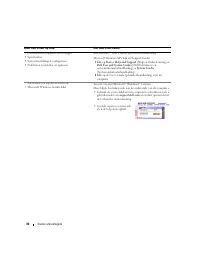
Page 42 - De computer reageert niet; Klik op het programma dat niet meer reageert en klik op; Windows; Met de Programmacompatibiliteits-wizard; Er verschijnt een blauw venster
42 Snelle referentiegids C O N T R O L E E R O F D E N E T A D A P T E R G O E D I S A A N G E S L O T E N O P D E C O M P U T E R E N H E T S T O P C O N T A C T . De computer reageert niet KENNISGEVING: U loopt het risico gegevens te verliezen als u het besturingssysteem niet afsluit. Z E T D E C ...
Page 43 - en zoek op het trefwoord; Wanneer het Dell-diagnoseprogramma te gebruiken; bekend als de; Het Dell-diagnoseprogramma starten vanaf de vaste schijf; Sluit de computer af.
Snelle referentiegids 43 M A A K D I R E C T E E N R E S E R V E K O P I E V A N U W B E S T A N D E N . G E B R U I K E E N A N T I V I R U S P R O G R A M M A O M D E V A S T E S C H I J F , D E D I S K E T T E S T A T I O N S O F C D ’ S T E S C A N N E N . B E W A A R E N S L U I T A L L E O P E...
Page 45 - Hoofdmenu Dell Diagnostics; Main menu
Snelle referentiegids 45 6 Selecteer Run the 32 Bit Dell Diagnostics (Start de 32-bits Dell Diagnose) in de genummerde lijst. Als er meerdere versies worden aangegeven, moet u de versie selecteren die op uw computer van toepassing is. 7 Als het venster Main menu (Hoofdmenu) van Dell Diagnostics (Del...
Page 48 - Wizard
48 Index 48 Index R wettelijke bepalingen, 29 S servicelabel, 3 0 software notebook system, 3 1problemen, 4 2 s py w a re , 43 s t a n d b y - m o d u s , 3 8 support website, 31 V veiligheidsinstructies, 2 9 W waarborg informatie, 29 Wi n d o w s X P slaapstand, 3 9standby-modus, 38 Wizard Programm...
Page 49 - Guide de référence rapide
w w w . d e l l . c o m | s u p p o r t . d e l l . c o m Dell™ Latitude™ 120L Guide de référence rapide Modèle PP21L
Page 50 - Guide
Pour accéder au reste de la documentation qui accompagne votre ordinateur, reportez-vous à la section «Recherche d'informations» à la page 53. Remarques, avis et précautions REMARQUE : Une REMARQUE fournit des informations importantes qui vous aident à mieux utiliser votre ordinateur. AVIS : Un AVIS...
Page 51 - Table des matières
Table des matières 51 Table des matières Recherche d'informations . . . . . . . . . . . . . . . . . . . . . . . . . . . . 53 Configuration de votre ordinateur . . . . . . . . . . . . . . . . . . . . . . . . 57 À propos de votre ordinateur . . . . . . . . . . . . . . . . . . . . . . . . . . 58 Vue fr...
Page 57 - Configuration de votre ordinateur
Guide de référence rapide 57 Configuration de votre ordinateur PRÉCAUTION : Avant de commencer toute procédure de cette section, consultez et respectez les consignes de sécurité du Guide d'information sur le produit . 1 Déballez la boîte d'accessoires. 2 Mettez de côté le contenu de la boîte d'acces...
Page 58 - À propos de votre ordinateur; Vue frontale
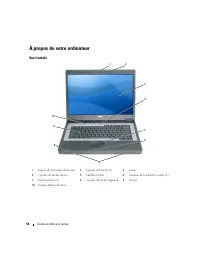
58 Guide de référence rapide À propos de votre ordinateur Vue frontale 1 loquet de fermeture de l'écran 2 loquets de l'écran (2) 3 écran 4 voyants d'état du clavier 5 tablette tactile 6 boutons de la tablette tactile (2) 7 haut-parleurs (2) 8 voyants d'état de l'appareil 9 clavier 10 bouton d'alimen...
Page 59 - Vue du côté gauche
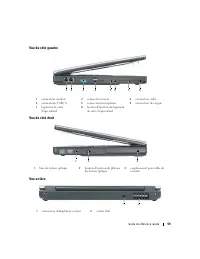
Guide de référence rapide 59 Vue du côté gauche Vue du côté droit Vue arrière 1 connecteur modem 2 connecteur réseau 3 connecteur vidéo 4 connecteurs USB (3) 5 connecteur microphone 6 connecteur de casque 7 logement de carte ExpressCard 8 bouton d'éjection du logement de carte ExpressCard 1 baie de ...
Page 60 - Vue de dessous; Utilisation d'une batterie; Performances de la batterie
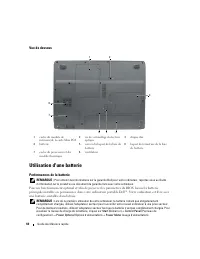
60 Guide de référence rapide Vue de dessous Utilisation d'une batterie Performances de la batterie REMARQUE : Pour obtenir des informations sur la garantie Dell pour votre ordinateur, reportez-vous au Guide d'information sur le produit ou au document de garantie livré avec votre ordinateur. Pour un ...
Page 61 - Utilisation de lecteurs optiques.; Vérification de la charge de la batterie; La jauge de batterie Dell QuickSet, la fenêtre de la; Jauge de batterie Dell QuickSet; dans la
Guide de référence rapide 61 REMARQUE : L'autonomie de la batterie (la période durant laquelle la batterie reste chargée) diminue avec le temps. Selon la fréquence d'utilisation et les conditions de fonctionnement de la batterie, il est possible que vous deviez en acheter une autre au cours de la du...
Page 62 - Jauge de Microsoft; de la barre des tâches.; Alerte de batterie faible; Power; Préservation de l'alimentation de la batterie; Mode Veille
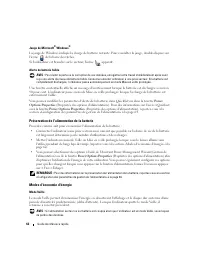
62 Guide de référence rapide Jauge de Microsoft ® Windows ® La jauge de Windows indique la charge de batterie restante. Pour consulter la jauge, double-cliquez sur l'icône de la barre des tâches. Si l'ordinateur est branché sur le secteur, l'icône apparaît. Alerte de batterie faible AVIS : Pour évit...
Page 63 - Pour passer en mode Veille :; Mode Mise en veille prolongée; Pour passer en mode Mise en veille prolongée manuellement :
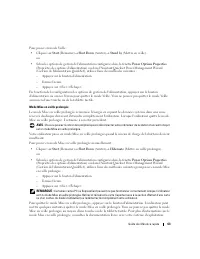
Guide de référence rapide 63 Pour passer en mode Veille : • Cliquez sur Start (Démarrer) → Shut Down (Arrêter) → Stand by (Mettre en veille). ou • Selon les options de gestion de l'alimentation configurées dans la fenêtre Power Options Properties (Propriétés des options d'alimentation) ou dans l'Ass...
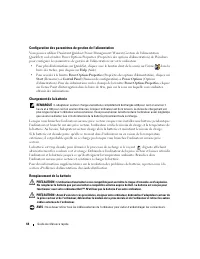
Page 64 - Configuration des paramètres de gestion de l'alimentation; Chargement de la batterie; clignote affichant; Remplacement de la batterie
64 Guide de référence rapide Configuration des paramètres de gestion de l'alimentation Vous pouvez utiliser l'Assistant Quickset Power Management Wizard (Gestion de l'alimentation QuickSet) ou la fenêtre Power Options Properties (Propriétés des options d'alimentation) de Windows pour configurer les ...
Page 65 - Pour retirer la batterie :; Stockage de la batterie; Dépannage; Blocages et problèmes logiciels
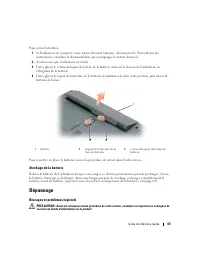
Guide de référence rapide 65 Pour retirer la batterie : 1 Si l'ordinateur est connecté à une station d'accueil (amarré), déconnectez-le. Pour obtenir des instructions, consultez la documentation qui accompagne la station d'accueil. 2 Assurez-vous que l'ordinateur est éteint. 3 Faites glisser le verr...
Page 66 - Cliquez sur le programme qui ne répond plus, puis sur
66 Guide de référence rapide L'ordinateur ne démarre pas A S S U R E Z - V O U S Q U E L ' A D A P T A T E U R S E C T E U R E S T S O L I D E M E N T B R A N C H É S U R L ' O R D I N A T E U R E T À L A P R I S E S E C T E U R . L'ordinateur ne répond plus AVIS : Vous pouvez perdre des données si ...
Page 67 - Si vous observez un ralentissement des; Quand utiliser Dell Diagnostics; u CD; Démarrage de Dell Diagnostics à partir de votre disque dur
Guide de référence rapide 67 • Assurez-vous que le programme est correctement installé et configuré. • Assurez-vous que les pilotes de périphérique n'entrent pas en conflit avec le programme. • Le cas échéant, supprimez, puis réinstallez le programme. S A U V E G A R D E Z V O S F I C H I E R S I M ...
Page 68 - Connectez l'ordinateur à une prise secteur.; Insérez le CD
68 Guide de référence rapide 3 Connectez l'ordinateur à une prise secteur. 4 Il existe deux manières de lancer Dell Diagnostics : a Allumez l'ordinateur. Lorsque le logo DELL™ apparaît, appuyez immédiatement sur <F12>. Sélectionnez Diagnostics à partir du menu de démarrage et appuyez sur <E...
Page 69 - Tapez; Main Menu de Dell Diagnostics; Une fois Dell Diagnostics chargé et lorsque l'écran
Guide de référence rapide 69 5 Tapez 1 pour démarrer le menu, puis appuyez sur <Entrée> pour continuer. 6 Sélectionnez Run the 32 Bit Dell Diagnostics (Exécuter Dell Diagnostics 32 bits) dans la liste numérotée. Si plusieurs versions sont répertoriées, sélectionnez la version appropriée à votr...
Page 70 - Si vous exécutez un test à partir de l'option
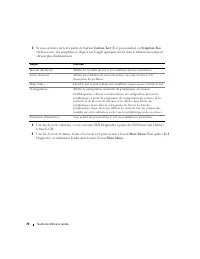
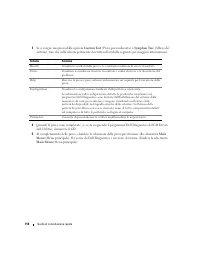
70 Guide de référence rapide 3 Si vous exécutez un test à partir de l'option Custom Test (Test personnalisé) ou Symptom Tree (Arborescence des symptômes), cliquez sur l'onglet approprié décrit dans le tableau suivant pour obtenir plus d'informations. 4 Une fois les tests effectués, si vous exécutez ...
Page 73 - Schnellreferenzhandbuch
w w w . d e l l . c o m | s u p p o r t . d e l l . c o m Dell™ Latitude™ 120L Schnellreferenzhandbuch Modell PP21L
Page 74 - Anmerkungen, Hinweise und Vorsichtshinweise; Abkürzungen und Akronyme; Benutzerhandbuch
Informationen über andere Ihrem Computer beigefügte Dokumentation, finden Sie in „Informationsquellen“ auf Seite 77. Anmerkungen, Hinweise und Vorsichtshinweise ANMERKUNG: Eine ANMERKUNG macht auf wichtige Informationen aufmerksam, mit denen Sie den Computer besser einsetzen können. HINWEIS: Ein HIN...
Page 75 - Inhalt; Stichwortverzeichnis
Inhalt 75 Inhalt Informationsquellen . . . . . . . . . . . . . . . . . . . . . . . . . . . . . . . 77 Einrichten Ihres Computers . . . . . . . . . . . . . . . . . . . . . . . . . . . 81 Wissenswertes über Ihren Computer . . . . . . . . . . . . . . . . . . . . . . 82 Vorderansicht . . . . . . . . . ....
Page 80 - Zur Anzeige der
80 Schnellreferenzhandbuch • Anleitungen zum Arbeiten unter Windows XP• So arbeiten Sie mit Programmen und Dateien• So können Sie Ihren Desktop individuell gestalten Windows Hilfe- und Supportcenter 1 Klicken Sie auf Start → Hilfe und Support . 2 Geben Sie ein Wort oder einen Ausdruck ein, das bzw. ...
Page 81 - Einrichten Ihres Computers; Packen Sie das Zubehör aus.
Schnellreferenzhandbuch 81 Einrichten Ihres Computers VORSICHT: Bevor Sie Arbeiten an den in diesem Abschnitt beschriebenen Komponenten ausführen, lesen Sie erst die Sicherheitshinweise im Produktinformationshandbuch . 1 Packen Sie das Zubehör aus. 2 Legen Sie die für das Einrichten des Computers er...
Page 82 - Wissenswertes über Ihren Computer; Vorderansicht
82 Schnellreferenzhandbuch Wissenswertes über Ihren Computer Vorderansicht 1 Bildschirmfreigabevor-richtung 2 Bildschirmverriegelun-gen ( 2) 3 Bildschirm 4 Tastaturstatusanzeigen 5 Touchpad 6 Touchpad-Tasten (2) 7 Lautsprecher (2) 8 Gerätestatusanzeigen 9 Tastatur 10 Netzschalter 1 9 2 8 3 7 10 4 5 ...
Page 83 - Linke Ansicht
Schnellreferenzhandbuch 83 Linke Ansicht Rechte Ansicht Rückansicht 1 Modemanschluss 2 Netzwerkanschluss 3 Monitoranschluss 4 USB-Anschlüsse (3) 5 Mikrofonanschluss 6 Kopfhöreranschluss 7 ExpressCard-Steckplatz 8 Freigabetaste für ExpressCard-Steckplatz 1 Schacht für optisches Laufwerk 2 Auswurftast...
Page 84 - Unterseite; Verwenden eines Akkus; Akkuleistung
84 Schnellreferenzhandbuch Unterseite Verwenden eines Akkus Akkuleistung ANMERKUNG: Informationen über die Dell-Garantie für Ihren Computer finden Sie in Ihrem Produktinformations- handbuch oder in der gedruckten Garantiebescheinigung, die im Lieferumfang Ihres Computers enthalten ist. Für eine opti...
Page 85 - Verwenden von optischen Laufwerken; Prüfen des Akkuladezustands; Die Akkuanzeige von Dell QuickSet, die Microsoft Windows-
Schnellreferenzhandbuch 85 ANMERKUNG: Da der Akku beim Kauf des Computers möglicherweise nicht vollständig geladen ist, verwenden Sie ein Netzteil, um Ihren neuen Computer vor der ersten Verwendung an eine Steckdose anzuschließen und den Akku zu laden. Sie erzielen die besten Ergebnisse, wenn Sie de...
Page 86 - Akkuanzeige von Dell QuickSet; und anschließend auf; Eigenschaften von; Einsparen von Akkuenergie; Die folgenden Maßnahmen helfen Ihnen, Akkuenergie zu sparen:
86 Schnellreferenzhandbuch Akkuanzeige von Dell QuickSet Ist Dell QuickSet installiert, drücken Sie <Fn><F3>, um die Akkuanzeige von QuickSet anzuzeigen. In der Akkuanzeige werden Status, Akkuzustand, Ladestand und Ladedauer des Akkus im Computer angezeigt. Um weitere Informationen über ...
Page 87 - Energieverwaltungsmodi; Ruhemodus; So rufen Sie den Ruhemodus manuell auf:
Schnellreferenzhandbuch 87 Energieverwaltungsmodi Standby-Modus Im Standby-Modus kann Strom gespart werden, indem der Bildschirm und die Festplatte nach einer festgelegen Zeitspanne der Inaktivität (Zeitlimit) ausgeschaltet werden. Beim Verlassen des Standby-Modus wird der gleiche Betriebszustand wi...
Page 88 - Konfigurieren von Energieverwaltungseinstellungen; Bei abwechselnd grün und gelb blinkender
88 Schnellreferenzhandbuch – Drücken Sie den Netzschalter. – Schließen Sie den Bildschirm. – Drücken Sie <Fn><Esc>. ANMERKUNG: Manche PC Cards oder ExpressCards arbeiten möglicherweise nicht mehr korrekt, nachdem der Computer aus dem Ruhemodus zurückkehrt. Entfernen Sie die Karte und set...
Page 89 - Ersetzen des Akkus; So entfernen Sie den Akku:
Schnellreferenzhandbuch 89 Ersetzen des Akkus VORSICHT: Bei Verwendung eines ungeeigneten Akkus besteht Brand- oder Explosionsgefahr. Ersetzen Sie die Akkus nur mit einem kompatiblen Akku von Dell. Der Akku ist für den Einsatz in Ihrem Dell™-Computer vorge-sehen. Verwenden Sie keinesfalls den Akku e...
Page 90 - Lagern eines Akkus; Beheben von Störungen; Probleme mit Absturz und Software; Der Computer startet nicht; Wenn der Computer nicht mehr reagiert und auch nicht durch; Ein Programm reagiert nicht mehr oder stürzt wiederholt ab; Ein Programm ist für ein früheres Microsoft; Der „Programmkompatibilitäts-Assistent“
90 Schnellreferenzhandbuch Lagern eines Akkus Entfernen Sie den Akku, wenn Sie den Computer für längere Zeit lagern möchten. Akkus entladen sich während einer längeren Lagerzeit. Nach einer längeren Lagerung sollten Sie den Akku vor der Benutzung vollständig aufladen (siehe „Aufladen des Akkus“ auf ...
Page 91 - Ein blauer Bildschirm wird angezeigt; Andere Probleme mit der Software; Wenn die Leistung Ihres Computers gering ist, Ihr Com-; Wann man Dell Diagnostics benutzt
Schnellreferenzhandbuch 91 Ein blauer Bildschirm wird angezeigt D E N C O M P U T E R A U S S C H A L T E N — Wenn der Computer nicht mehr reagiert und auch nicht durch Drücken einer Taste auf der Tastatur bzw. Bewegen der Maus aktiviert werden kann, halten Sie den Netzschalter mindestens acht bis z...
Page 92 - Drivers; Starten von Dell Diagnostics von Ihrer Festplate aus; Fahren Sie den Computer herunter.
92 Schnellreferenzhandbuch HINWEIS: Das Programm „Dell Diagnostics“ kann nur auf Dell™ Computern ausgeführt werden. ANMERKUNG: Die Drivers and Utilities CD ist optional und ist möglicherweise nicht im Lieferumfang Ihres Computers enthalten. Starten Sie das Programm Dell Diagnostics entweder über Ihr...
Page 93 - Starten von Dell Diagnostics von der Drivers and Utilities CD; Dell Diagnostics Hauptmenü; Hauptmenü
Schnellreferenzhandbuch 93 5 Drücken Sie eine beliebige Taste, um Dell Diagnostics von der Diagnostics-Dienstprogrammpartition auf der Festplatte zu starten. Starten von Dell Diagnostics von der Drivers and Utilities CD 1 Legen Sie die Drivers and Utilities CD ein . 2 Fahren Sie den Computer herunte...
Page 95 - Produktinformationshandbuch,
Stichwortverzeichnis 95 Stichwortverzeichnis A A kk u Aufladen, 8 8Energie einsparen, 8 6Energieanzeige, 8 6entfernen, 89ersetzen, 89lagern, 9 0Leistung, 8 4Prüfen des Ladezustands, 85 Akkubetriebsdauer, 8 5 Assistenten Programmkompatibilitäts- Assistent, 9 0 Aufkleber Microsoft Windows, 7 8Service-...
Page 97 - Guida di consultazione rapida
w w w . d e l l . c o m | s u p p o r t . d e l l . c o m Dell™ Latitude™ 120L Guida di consultazione rapida Modello PP21L
Page 98 - Abbreviazioni ed acronimi; del
Per informazioni su altra documentazione fornita assieme al computer, consultare "Ricerca di informazioni" a pagina 101. N.B., Avvisi e Attenzione N.B. Un N.B. indica informazioni importanti che contribuiscono a migliorare l'utilizzo del computer. AVVISO: Un AVVISO indica un danno potenziale...
Page 99 - Sommario; Indice analitico
Sommario 99 Sommario Ricerca di informazioni . . . . . . . . . . . . . . . . . . . . . . . . . . . . 101 Installazione del computer . . . . . . . . . . . . . . . . . . . . . . . . . . 105 Informazioni sul computer . . . . . . . . . . . . . . . . . . . . . . . . . . . 106 Vista anteriore . . . . . . ...
Page 104 - Per visualizzare la
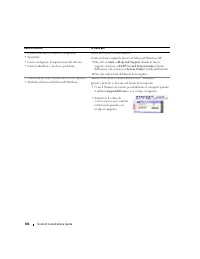
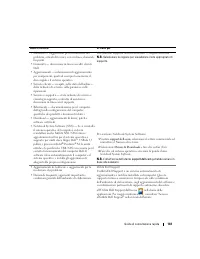
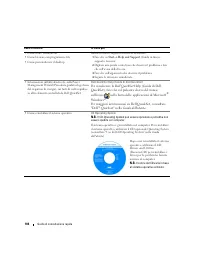
104 Guida di consultazione rapida • Come usare Windows XP• Come lavorare con programmi e file• Come personalizzare il desktop Guida in linea e supporto tecnico di Windows 1 Fare clic su Start → Help and Support (Guida in linea e supporto tecnico). 2 Digitare una parola o una frase che descriva il pr...
Page 105 - Installazione del computer; Disimballare la scatola degli accessori.
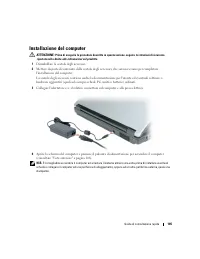
Guida di consultazione rapida 105 Installazione del computer ATTENZIONE: Prima di eseguire le procedure descritte in questa sezione, seguire le istruzioni di sicurezza riportate nella Guida alle informazioni sul prodotto . 1 Disimballare la scatola degli accessori. 2 Mettere da parte il contenuto de...
Page 106 - Informazioni sul computer; Vista anteriore
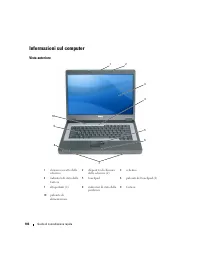
106 Guida di consultazione rapida Informazioni sul computer Vista anteriore 1 chiusura a scatto dello schermo 2 dispositivi di chiusura dello schermo (2) 3 schermo 4 indicatori di stato della tastiera 5 touchpad 6 pulsanti del touchpad (2) 7 altoparlanti (2) 8 indicatori di stato della periferica 9 ...
Page 107 - Vista laterale sinistra
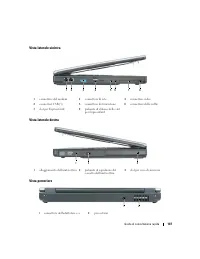
Guida di consultazione rapida 107 Vista laterale sinistra Vista laterale destra Vista posteriore 1 connettore del modem 2 connettore di rete 3 connettore video 4 connettori USB (3) 5 connettore del microfono 6 connettore delle cuffie 7 slot per ExpressCard 8 pulsante di sblocco dello slot per Expres...
Page 108 - Vista inferiore; Uso della batteria; Rendimento della batteria
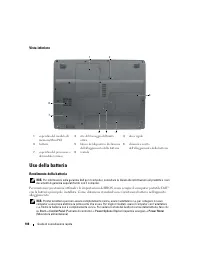
108 Guida di consultazione rapida Vista inferiore Uso della batteria Rendimento della batteria N.B. Per informazioni sulla garanzia Dell per il computer, consultare la Guida alle informazioni sul prodotto o i vari documenti di garanzia separati forniti con il computer. Per mantenere prestazioni otti...
Page 109 - Uso di unità ottiche; Controllo del livello di carica della batteria; Battery Meter (Misuratore alimentazione) di DellTM QuickSet
Guida di consultazione rapida 109 N.B. L’autonomia della batteria (il periodo di tempo che la batteria può rimanere carica) diminuisce con il passare del tempo. A seconda della frequenza di utilizzo della batteria e delle condizioni in cui viene utilizzata, può essere necessario acquistare una nuova...
Page 110 - nella; Misuratore alimentazione di Microsoft; sulla barra delle applicazioni.; Avviso di batteria scarica; Risparmio di autonomia della batteria; Modalità di gestione del risparmio di energia; Modalità standby
110 Guida di consultazione rapida Per maggiori informazioni su QuickSet, fare clic con il pulsante destro del mouse sull'icona nella barra delle applicazioni e fare clic su Help (Guida). Misuratore alimentazione di Microsoft ® Windows ® Il Misuratore alimentazione di Windows indica il livello di car...
Page 111 - Per attivare la modalità standby, seguire la procedura descritta.; Modalità di sospensione
Guida di consultazione rapida 111 Per attivare la modalità standby, seguire la procedura descritta. • Fare clic su Start → Shut Down (Spegni computer) → Standby . oppure • A seconda delle impostazioni dell'opzioni di gestione del risparmio di energia selezionate nella finestra Power Options Properti...
Page 112 - Ricarica della batteria; La batteria è troppo calda per essere caricata se l'indicatore; Sostituzione della batteria
112 Guida di consultazione rapida Configurazione delle impostazioni della gestione del risparmio di energia È possibile utilizzare Power Management Wizard (Procedura guidata di gestione del risparmio di energia) di QuickSet o Proprietà - Opzioni risparmio energia di Windows per configurare le impost...
Page 113 - Per rimuovere la batteria:; Conservazione della batteria; Risoluzione dei problemi; Blocchi e problemi relativi al software
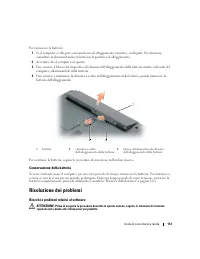
Guida di consultazione rapida 113 Per rimuovere la batteria: 1 Se il computer è collegato a una periferica di alloggiamento (inserito), scollegarlo. Per istruzioni, consultare la documentazione fornita con la periferica di alloggiamento. 2 Accertarsi che il computer sia spento. 3 Fare scorrere il bl...
Page 114 - Fare clic sul programma che non sta rispondendo e poi su; Verifica guidata compatibilità programmi
114 Guida di consultazione rapida Il computer non si avvia A C C E R T A R S I C H E L ' A D A T T A T O R E C . A . S I A S A L D A M E N T E C O L L E G A T O A L C O M P U T E R E A L L A P R E S A E L E T T R I C A . Il computer smette di rispondere AVVISO: È possibile perdere dati se non si eff...
Page 115 - Se necessario, disinstallare e quindi reinstallare il programma.; Quando utilizzare il programma Dell Diagnostics; Si consiglia di stampare queste procedure prima di iniziare.; Avviare il programma Dell Diagnostics dal disco rigido o dal CD; Avvio del programma Dell Diagnostics dal disco rigido; Arrestare il sistema.
Guida di consultazione rapida 115 • Verificare che i driver della periferica non siano in conflitto col programma. • Se necessario, disinstallare e quindi reinstallare il programma. E S E G U I R E I M M E D I A T A M E N T E U N B A C K U P D E I F I L E . U T I L I Z Z A R E U N P R O G R A M M A ...
Page 116 - Booting
116 Guida di consultazione rapida 4 Il programma Diagnostics può essere richiamato in uno dei modi seguenti: a Accendere il computer. Quando viene visualizzato il logo della DELL™, premere immediatamente <F12>. Selezionare Diagnostics dal menu di avvio e premere <Invio>. N.B. Se si atten...
Page 117 - Selezionare; Main Menu (Menu principale) di Dell Diagnostics
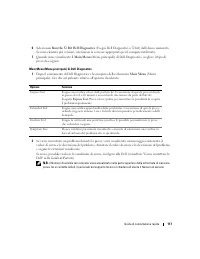
Guida di consultazione rapida 117 6 Selezionare Run the 32 Bit Dell Diagnostics (Esegui Dell Diagnostics a 32 bit) dall'elenco numerato. Se sono elencate più versioni, selezionare la versione appropriata per il computer utilizzato. 7 Quando viene visualizzato il Main Menu (Menu principale) di Dell D...
Page 118 - Se si esegue una prova dalle opzioni
118 Guida di consultazione rapida 3 Se si esegue una prova dalle opzioni Custom Test (Prova personalizzata) o Symptom Tree (Albero dei sintomi), fare clic sulla scheda pertinente descritta nella tabella seguente per maggiori informazioni. 4 Quando le prove sono completate, se si sta eseguendo il pro...
Page 121 - Guía de referencia rápida
w w w . d e l l . c o m | s u p p o r t . d e l l . c o m Dell™ Latitude™ 120L Guía de referencia rápida Modelo PP21L
Page 122 - Guía del usuario
Para obtener información sobre otra documentación incluida con el ordenador, consulte el apartado “Búsqueda de información” en la página 125. Notas, avisos y precauciones NOTA: Una NOTA indica información importante que le ayudar a hacer un mejor uso del ordenador. AVISO: Un AVISO indica la posibili...
Page 123 - Contenido; Índice
Contenido 123 Contenido Búsqueda de información . . . . . . . . . . . . . . . . . . . . . . . . . . . 125 Configuración del ordenador . . . . . . . . . . . . . . . . . . . . . . . . . 128 Acerca de su ordenador . . . . . . . . . . . . . . . . . . . . . . . . . . . . 129 Vista anterior . . . . . . . ...
Page 128 - Configuración del ordenador; Desempaquete la caja de accesorios.
128 Guía de referencia rápida Configuración del ordenador PRECAUCIÓN: Antes de comenzar cualquiera de los procedimientos de esta sección, siga las instrucciones de seguridad que se encuentran en la Guía de información del producto . 1 Desempaquete la caja de accesorios. 2 Saque el contenido de la ca...
Page 129 - Acerca de su ordenador; Vista anterior
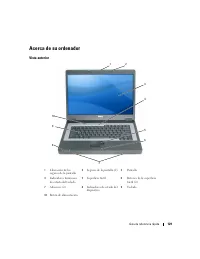
Guía de referencia rápida 129 Acerca de su ordenador Vista anterior 1 Liberación de los seguros de la pantalla 2 Seguros de la pantalla (2) 3 Pantalla 4 Indicadores luminosos de estado del teclado 5 Superficie táctil 6 Botones de la superficie táctil (2) 7 Altavoces (2) 8 Indicadores de estado del d...
Page 130 - Vista lateral izquierda
130 Guía de referencia rápida Vista lateral izquierda Vista lateral derecha Vista posterior 1 Conector para módem 2 Conector de red 3 Conector de vídeo 4 Conectores USB (3) 5 Conector para micrófono 6 Conector para auriculares 7 Ranura para tarjeta Express 8 Botón de liberación de la ranura de la ta...
Page 131 - Vista inferior; Uso de la batería; Rendimiento de la batería
Guía de referencia rápida 131 Vista inferior Uso de la batería Rendimiento de la batería NOTA: Para obtener información sobre la garantía de Dell aplicable a su ordenador, consulte la Guía de información del producto o el documento de garantía que se entrega por separado con el ordenador. Para el re...
Page 132 - Uso de unidades ópticas; Comprobación de la carga de la batería; El medidor de batería QuickSet de Dell, la ventana; Medidor de batería DellTM QuickSet; de; Medidor de energía de Microsoft; de la barra de tareas.
132 Guía de referencia rápida NOTA: El tiempo de funcionamiento de la batería (el tiempo que la batería puede mantener una carga) disminuye con el tiempo. En función de la frecuencia y las condiciones de uso de la batería, es posible que deba comprar una nueva batería durante la vida útil del ordena...
Page 133 - Advertencia de batería baja; Conservación de la energía de la batería; Modo de espera; Para entrar en el modo de espera:
Guía de referencia rápida 133 Advertencia de batería baja AVISO: Para evitar la pérdida de datos o que éstos resulten dañados, tras una advertencia de batería baja guarde inmediatamente el trabajo. A continuación, conecte el ordenador a una toma de alimentación eléctrica. Si la carga de la batería s...
Page 134 - Modo de hibernación; Para entrar manualmente en el modo de hibernación:; Configuración de los valores de Administración de energía
134 Guía de referencia rápida Para salir del modo de espera, pulse el botón de alimentación o abra la pantalla, dependiendo de cómo haya configurado las opciones de administración de energía. No es posible hacer que el ordenador salga del modo de espera pulsando una tecla ni tocando la superficie tá...
Page 135 - Carga de la batería; parpadea; Sustitución de la batería; Para extraer la batería:
Guía de referencia rápida 135 Carga de la batería NOTA: Cuando el ordenador está apagado, el adaptador de CA carga una batería completamente descargada al 80% en alrededor de 1 hora y al 100% en aproximadamente 2 horas. El tiempo de carga aumenta con el ordenador encendido. Puede dejar la batería en...
Page 136 - Almacenamiento de una batería; Solución de problemas; Bloqueos y problemas con el software; El ordenador no se inicia; El ordenador no responde
136 Guía de referencia rápida Para volver a colocar la batería, siga el procedimiento de extracción en orden inverso. Almacenamiento de una batería Extraiga la batería cuando vaya a guardar el ordenador durante un período largo. Las baterías se descargan durante los almacenamientos prolongados. Desp...
Page 137 - Un programa no responde o se bloquea repetidamente; Haga clic en el programa que no responde y pulse; El Asistente para compatibilidad de; Aparece una pantalla azul fija
Guía de referencia rápida 137 A P A G U E E L O R D E N A D O R — Si no puede conseguir que responda pulsando una tecla o moviendo el ratón, pulse el botón de alimentación durante unos 8 ó 10 segundos como mínimo hasta que se apague el ordenador. A continuación, reinícielo. Un programa no responde o...
Page 138 - Si el ordenador tiene un bajo rendimiento, recibe; Cuándo utilizar los Dell Diagnostics; Se recomienda imprimir estos procesos antes de empezar.; Inicio de los Dell Diagnostics desde la unidad de disco duro; Apague el ordenador.
138 Guía de referencia rápida R E A L I C E I N M E D I A T A M E N T E U N A C O P I A D E S E G U R I D A D D E L O S A R C H I V O S . U T I L I C E U N P R O G R A M A D E D E T E C C I Ó N D E V I R U S P A R A C O M P R O B A R E L D I S C O D U R O , L O S D I S C O S F L E X I B L E S O L O ...
Page 140 - Menú principal de Dell Diagnostics
140 Guía de referencia rápida Menú principal de Dell Diagnostics 1 Una vez se hayan cargado los Dell Diagnostics y aparezca la pantalla Main Menu (Menú principal), haga clic en el botón de la opción que desea. 2 Si se produce un problema durante una prueba, aparecerá un mensaje con un código de erro...
Page 141 - Drivers and
Guía de referencia rápida 141 4 Cuando las pruebas hayan finalizado, si está ejecutando Dell Diagnostics desde el CD Drivers and Utilities, extraiga el CD. 5 Cuando las pruebas hayan finalizado, cierre la pantalla de prueba para volver a la pantalla Main Menu (Menú principal). Para salir de Dell Dia...