Page 2 - and tells you how to avoid the problem.
Notes, Notices, and Cautions NOTE: A NOTE indicates important information that helps you make better use of your computer. NOTICE: A NOTICE indicates either potential damage to hardware or loss of data and tells you how to avoid the problem. CAUTION: A CAUTION indicates a potential for property dama...
Page 3 - C o n t e n t s; Resources; Index
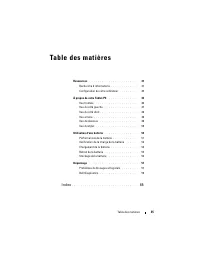
Contents 3 C o n t e n t s Resources . . . . . . . . . . . . . . . . . . . . . . . . . 5 Finding Information . . . . . . . . . . . . . . . . . . 5 Setting Up Your Computer . . . . . . . . . . . . . 12 About Your Tablet-PC . . . . . . . . . . . . . . . . . . 12 Front View . . . . . . . . . . . . . . ...
Page 4 - Contents
Page 5 - Quick Reference Guide; Finding Information; Additional information may ship with your Tablet-PC.
Quick Reference Guide 5 Resources Finding Information NOTE: Some features or media may be optional and may not ship with your Tablet- PC. Some features or media may not be available in certain countries. NOTE: Additional information may ship with your Tablet-PC. NOTE: You must use the optical drive ...
Page 6 - in Windows; User’s Guide
6 Quick Reference Guide • Notebook System Software (NSS) Documentation and drivers are already installed on your Tablet-PC. You can use the Drivers and Utilities media to reinstall drivers (see “Reinstalling Drivers and Utilities” in your User’s Guide ) or to run the Dell Diagnostics (see "Dell ...
Page 10 - Follow the instructions on the screen.
10 Quick Reference Guide • Software upgrades and troubleshooting hints — Frequently asked questions, hot topics, and general health of your computing environment Dell Support Utility The Dell Support Utility is an automated upgrade and notification system installed on your Tablet-PC. This support pr...
Page 12 - Setting Up Your Computer; Before you begin any of the procedures in this section, follow the; Unpack the accessories box.; mode and that the display is closed when you travel.
12 Quick Reference Guide Setting Up Your Computer CAUTION: Before you begin any of the procedures in this section, follow the safety instructions in the Product Information Guide . 1 Unpack the accessories box. 2 Set aside the contents of the accessories box, which you will need to complete the setu...
Page 13 - Front View
Quick Reference Guide 13 Front View 1 grip 2 display 3 ambient light sensor (with Dual-bulb CCFL LCD option only) 4 device status lights 5 digital array microphone 6 biometric reader 7 touch pad 8 touch pad buttons 9 track stick buttons 10 keyboard 11 track stick 12 rotating hinge 13 digital array m...
Page 14 - Left Side View
14 Quick Reference Guide Left Side View 1 pen indicator LED 2 pen 3 external wireless WAN antenna NOTE: The external antenna is only provided with WWAN cards and is not included in the standard system configuration. The system comes with a plug that needs to be removed prior to installing the antenn...
Page 16 - Bottom View
16 Quick Reference Guide Bottom View NOTE: Your Tablet-PC’s Microsoft ® Windows ® License label is located under the main battery in the battery bay of your Tablet-PC (see "Removing the Battery" on page 22). CAUTION: Do not block, push objects into, or allow dust to accumulate in the air ven...
Page 17 - Pen View; Using a Battery; Using an incompatible battery may increase the risk of fire or
Quick Reference Guide 17 Pen View Using a Battery CAUTION: Using an incompatible battery may increase the risk of fire or explosion. Replace the battery only with a compatible battery purchased from Dell. The battery is designed to work with your Dell computer. Do not use a battery from other comput...
Page 18 - Battery Performance; For information about the Dell warranty for your computer, see the; Using optical drives.
18 Quick Reference Guide Battery Performance NOTE: For information about the Dell warranty for your computer, see the Product Information Guide or separate paper warranty document that shipped with your computer. For optimal computer performance and to help preserve BIOS settings, operate your Dell™...
Page 19 - Checking the Battery Charge; Power Meter; DellTM QuickSet Battery Meter; Help; Charge Gauge; releasing; Check the Battery Charge; press
Quick Reference Guide 19 Checking the Battery Charge The following features provide information on the battery charge: • Dell QuickSet Battery Meter • Microsoft Windows Power Meter window and Power icon ( in Windows Vista and in Windows XP) • Battery charge gauge and health gauge • Low-battery warni...
Page 20 - Check the Battery Health; press and hold
20 Quick Reference Guide Check the Battery Health NOTE: You can check battery health in one of two ways: by using the charge gauge on the battery as described below or by using the Battery Meter in Dell QuickSet. For information about QuickSet, right-click the icon in the taskbar, and click Help . T...
Page 21 - Select; Some PC Cards or Express Cards may not operate correctly after the; Charging the Battery; With DellTM ExpressChargeTM, when the computer is turned off, the AC
Quick Reference Guide 21 3 Select Enable hibernation . 4 Click Apply and OK . To enter Hibernate mode: 1 Type the <Ctrl><Alt><Del> key sequence. 2 Select Shut Down → Hibernate . If you have set you set the power management options to Hibernate in the Power Options Properties window...
Page 22 - The battery is too hot to start charging if the; Removing the Battery; To remove the battery:
22 Quick Reference Guide The battery is too hot to start charging if the light flashes alternately green and orange. Disconnect the computer from the electrical outlet and allow the computer and the battery to cool to room temperature. Then connect the computer to an electrical outlet to continue ch...
Page 23 - Storing a Battery; Troubleshooting; Lockups and Software Problems; The Tablet-PC does not start up; You may lose data if you are unable to perform an operating system
Quick Reference Guide 23 To replace the battery, follow the removal procedure in reverse order. Storing a Battery Remove the battery when you store your computer for an extended period of time. A battery discharges during prolonged storage. After a long storage period, fully recharge the battery (se...
Page 24 - If you are unable to get a response by pressing a; A program stops responding; If necessary, uninstall and then; A program is designed for an earlier Windows operating system; The Program Compatibility; Windows Vista
24 Quick Reference Guide T U R N T H E T A B L E T - P C O F F — If you are unable to get a response by pressing a key on your keyboard or touching your display with the pen or your finger, press and hold the power button for at least 8 to 10 seconds (until the Tablet-PC turns off), and then restart...
Page 25 - In the welcome screen, click; A solid blue screen appears; Other software problems; Ensure that the program is installed and configured properly.; D V D; Dell Diagnostics
Quick Reference Guide 25 3 In the welcome screen, click Next . 4 Follow the instructions on the screen. A solid blue screen appears T U R N T H E T A B L E T - P C O F F — If you are unable to get a response by pressing a key on your keyboard or touching your display with the pen or your finger, pre...
Page 26 - When to Use the Dell Diagnostics; See “Using the System Setup Program” in your; Drivers and Utilities; Starting the Dell Diagnostics From Your Hard Drive; Start the Dell Diagnostics in one of the following two ways:
26 Quick Reference Guide When to Use the Dell Diagnostics If you experience a problem with your Tablet-PC, perform the checks in Lockups and Software Problems (see "Lockups and Software Problems" on page 23), and run the Dell Diagnostics before you contact Dell for technical assistance. It i...
Page 27 - been found, run the Dell Diagnostics from the; to wait until you see the Microsoft; Run the 32 Bit Dell Diagnostics
Quick Reference Guide 27 The Tablet-PC runs the Pre-boot System Assessment (PSA), a series of initial tests of your system board, keyboard, display, memory, hard drive, etc. • During the assessment, answer any questions that appear. • If failures are detected during the Pre-boot System Assessment, w...
Page 28 - Main Menu; Dell Diagnostics Main Menu; Main; Test System; Extended Test
28 Quick Reference Guide 7 When the Dell Diagnostics Main Menu appears, select the test you want to run. Dell Diagnostics Main Menu 1 After the Dell Diagnostics loads and the Main Menu appears, click the button for the option you want. NOTE: It is recommended that you select Test System to run a com...
Page 29 - The Service Tag for your Tablet-PC is located at the top of each test; If you run a test from the; Tab
Quick Reference Guide 29 3 If a problem is encountered during a test, a message appears with an error code and a description of the problem. Write down the error code and problem description and contact Dell (see “Contacting Dell” in your User’s Guide ). NOTE: The Service Tag for your Tablet-PC is l...
Page 34 - Remarques, avis et précautions; Une REMARQUE indique des informations importantes qui peuvent
Remarques, avis et précautions REMARQUE : Une REMARQUE indique des informations importantes qui peuvent vous aider à mieux utiliser votre ordinateur. AVIS : Un AVIS vous avertit d’un risque d'endommagement du matériel ou de perte de données et vous indique comment éviter le problème. PRÉCAUTION : Un...
Page 35 - Ta b l e d e s m a t i è r e s; Ressources
Table des matières 35 Ta b l e d e s m a t i è r e s Ressources . . . . . . . . . . . . . . . . . . . . . . . 37 Recherche d'informations . . . . . . . . . . . . . 37 Configuration de votre ordinateur . . . . . . . . . 45 À propos de votre Tablet-PC . . . . . . . . . . . . . . 45 Vue frontale . . . ...
Page 36 - Table des matières
Page 37 - Guide de référence rapide; Recherche d'informations; Pour accéder au support
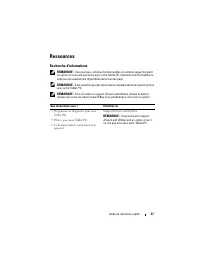
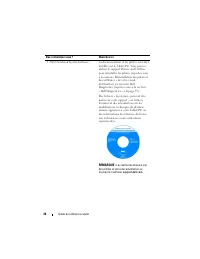
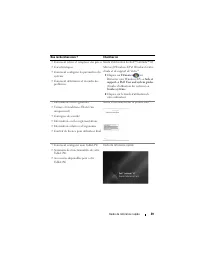
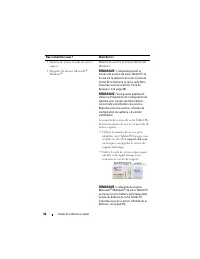
Guide de référence rapide 37 Ressources Recherche d'informations REMARQUE : Il se peut que certaines fonctionnalités et certains supports soient en option et ne soient pas livrés avec votre Tablet-PC. Certaines fonctionnalités ne sont pas nécessairement disponibles dans tous les pays. REMARQUE : Il ...
Page 45 - Configuration de votre ordinateur; Avant de commencer toute procédure de cette section, consultez; À propos de votre Tablet-PC; mode Portable et que l'écran est fermé lors de vos déplacements.
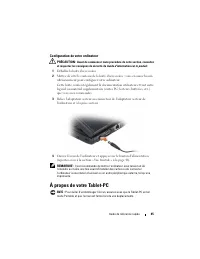
Guide de référence rapide 45 Configuration de votre ordinateur PRÉCAUTION : Avant de commencer toute procédure de cette section, consultez et respectez les consignes de sécurité du Guide d'information sur le produit . 1 Déballez la boîte d'accessoires. 2 Mettez de côté le contenu de la boîte d'acces...
Page 46 - Vue frontale
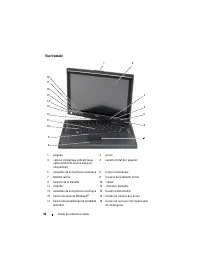
46 Guide de référence rapide Vue frontale 1 poignée 2 écran 3 capteur d'éclairage ambiant (avec option LCD CCFL double ampoule uniquement) 4 voyants d'état de l'appareil 5 ensemble de microphone numérique 6 lecteur biométrique 7 tablette tactile 8 boutons de la tablette tactile 9 boutons de la manet...
Page 47 - Vue du côté gauche; DEL du stylet
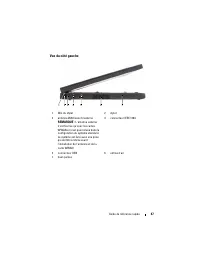
Guide de référence rapide 47 Vue du côté gauche 1 DEL du stylet 2 stylet 3 antenne WAN sans fil externe REMARQUE : L'antenne externe n'est fournie qu'avec les cartes WWAN et n'est pas incluse dans la configuration du système standard. Le système est livré avec une prise qui doit être retirée avant l...
Page 49 - Vue de dessous; Ne bloquez pas les entrées d'air de l'ordinateur et n'insérez pas
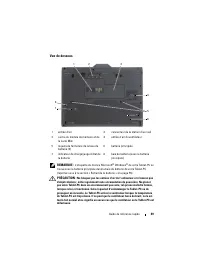
Guide de référence rapide 49 Vue de dessous REMARQUE : L'étiquette de licence Microsoft ® Windows ® de votre Tablet-PC se trouve sous la batterie principale dans la baie de batterie de votre Tablet-PC (reportez-vous à la section « Retrait de la batterie » à la page 55). PRÉCAUTION : Ne bloquez pas l...
Page 50 - Vue du stylet; Utilisation d'une batterie; L'utilisation d'une batterie non compatible peut accroître le
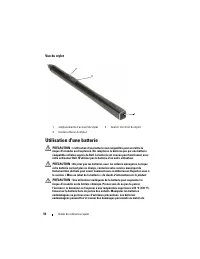
50 Guide de référence rapide Vue du stylet Utilisation d'une batterie PRÉCAUTION : L'utilisation d'une batterie non compatible peut accroître le risque d'incendie ou d'explosion. Ne remplacez la batterie que par une batterie compatible achetée auprès de Dell. La batterie est conçue pour fonctionner ...
Page 51 - Performances de la batterie; Guide d'information sur le produit; Utilisation de lecteurs optiques.
Guide de référence rapide 51 Performances de la batterie REMARQUE : Pour obtenir des informations sur la garantie Dell de votre ordinateur, reportez-vous au Guide d'information sur le produit ou au document de garantie fourni avec votre ordinateur. Pour un fonctionnement optimal et afin de préserver...
Page 52 - Vérification de la charge de la batterie; Alimentation; Jauge de batterie DellTM QuickSet; Aide; Indicateur de charge; relâchez; Vérification du niveau de charge de la batterie; Pour vérifier le niveau de charge de la batterie,
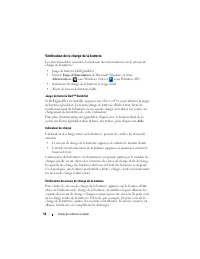
52 Guide de référence rapide Vérification de la charge de la batterie Les fonctionnalités suivantes fournissent des informations sur le niveau de charge de la batterie : • Jauge de batterie Dell QuickSet • Fenêtre Jauge d'alimentation de Microsoft Windows et icône Alimentation ( sous Windows Vista e...
Page 53 - Vérification de l'état de fonctionnement de la batterie; pendant au moins 3 secondes. Si aucun voyant ne; Alerte de batterie faible; Propriétés des options d'alimentation
Guide de référence rapide 53 Vérification de l'état de fonctionnement de la batterie REMARQUE : Vous pouvez vérifier l'état de fonctionnement de la batterie de l'une des deux manières suivantes : en utilisant l'indicateur de charge de la batterie comme décrit ci-dessous ou en utilisant la jauge de b...
Page 54 - Pour activer le mode Mise en veille prolongée :; Certaines cartes PC ou ExpressCard peuvent ne pas fonctionner; Chargement de la batterie
54 Guide de référence rapide Pour activer le mode Mise en veille prolongée : 1 Cliquez sur Démarrer → Panneau de configuration → Performances et maintenance → Options d'alimentation . 2 Cliquez sur l'onglet Mise en veille prolongée . 3 Sélectionnez Enable hibernation (Activer la mise en veille prolo...
Page 55 - Guide; Retrait de la batterie
Guide de référence rapide 55 REMARQUE : À l'aide de Dell™ ExpressCharge™, l'adaptateur secteur charge une batterie complètement déchargée à 80 pour cent en environ 1 heure et à 100 pour cent en environ 2 heures, lorsque l'ordinateur est hors tension. La durée de chargement est plus longue lorsque l'...
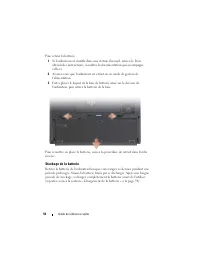
Page 56 - Pour retirer la batterie :; Stockage de la batterie
56 Guide de référence rapide Pour retirer la batterie : 1 Si l'ordinateur est installé dans une station d'accueil, retirez-le. Pour obtenir des instructions, consultez la documentation qui accompagne celle-ci. 2 Assurez-vous que l'ordinateur est éteint ou en mode de gestion de l'alimentation. 3 Fait...
Page 57 - Dépannage; Problèmes de blocages et logiciels; Le Tablet-PC ne démarre pas; Vous pouvez perdre des données si vous n'arrivez pas à arrêter; Si vous n'obtenez aucune réponse lorsque vous; Un programme ne répond plus; Cliquez sur l'onglet; Un programme se bloque régulièrement; La documentation de la plupart des logiciels, le CD ou le DVD qui les; puis réinstallez le programme.
Guide de référence rapide 57 Dépannage Problèmes de blocages et logiciels PRÉCAUTION : Avant de commencer toute procédure de cette section, consultez et respectez les consignes de sécurité du Guide d'information sur le produit . Le Tablet-PC ne démarre pas V É R I F I E Z Q U E L E C Â B L E D ' A L...
Page 58 - Un écran bleu uni apparaît; Autres problèmes logiciels
58 Guide de référence rapide Un programme est conçu pour une version antérieure d'un système d'exploitation Windows E X É C U T E Z L ' A S S I S T A N T C O M P A T I B I L I T É D E S P R O G R A M M E S — L'Assistant Compatibilité des programmes configure un programme pour qu'il fonctionne dans u...
Page 59 - C D; Quand utiliser Dell Diagnostics; pour étudier les informations de
Guide de référence rapide 59 • Assurez-vous que le programme est correctement installé et configuré. • Assurez-vous que les pilotes de périphérique n'entrent pas en conflit avec le programme. • Le cas échéant, supprimez, puis réinstallez le programme. S A U V E G A R D E Z I M M É D I A T E M E N T ...
Page 60 - Lancement de Dell Diagnostics à partir de votre disque dur; Diagnostics
60 Guide de référence rapide Lancement de Dell Diagnostics à partir de votre disque dur Dell Diagnostics se trouve dans une partition cachée (utilitaire de diagnostics) de votre disque dur. REMARQUE : Si aucune image n'apparaît sur l'écran de votre Tablet-PC, contactez Dell (reportez-vous à la secti...
Page 61 - support
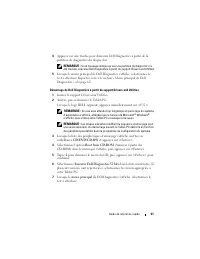
Guide de référence rapide 61 4 Appuyez sur une touche pour démarrer Dell Diagnostics à partir de la partition de diagnostics du disque dur. REMARQUE : Si un message indique qu'aucune partition de diagnostic n'a été trouvée, exécutez Dell Diagnostics à partir du support Drivers and Utilities . 5 Lors...
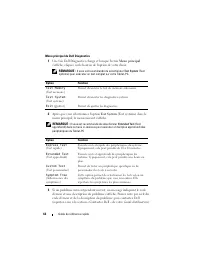
Page 62 - Menu principal de Dell Diagnostics; Une fois Dell Diagnostics chargé et lorsque l'écran; Après que vous sélectionnez l'option; Il vous est recommandé de sélectionner
62 Guide de référence rapide Menu principal de Dell Diagnostics 1 Une fois Dell Diagnostics chargé et lorsque l'écran Menu principal s'affiche, cliquez sur le bouton de l'option de votre choix. REMARQUE : Il vous est recommandé de sélectionner Test System (Test système) pour exécuter un test complet...
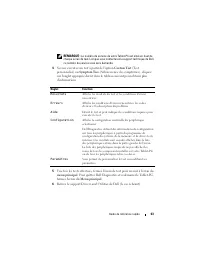
Page 63 - Si vous exécutez un test à partir de l'option; Onglet
Guide de référence rapide 63 REMARQUE : Le numéro de service de votre Tablet-PC est situé en haut de chaque écran de test. Lorsque vous contacterez le support technique de Dell, ce numéro de service vous sera demandé. 4 Si vous exécutez un test à partir de l'option Custom Test (Test personnalisé) ou...
Page 68 - Notas, Avisos e Advertências; e descreve como evitar o problema.
Notas, Avisos e Advertências NOTA: uma NOTA apresenta informações importantes para ajudar você a usar melhor o computador. AVISO: um AVISO indica um potencial de danos ao hardware ou a perda de dados e descreve como evitar o problema. ADVERTÊNCIA: uma ADVERTÊNCIA indica um potencial de danos à propr...
Page 69 - Í n d i c e; Recursos; índice remissivo
índice 69 Í n d i c e Recursos . . . . . . . . . . . . . . . . . . . . . . . . . 71 Como obter informações . . . . . . . . . . . . . . 71 Como configurar o computador . . . . . . . . . . 79 Sobre o Tablet PC . . . . . . . . . . . . . . . . . . . . 79 Vista frontal . . . . . . . . . . . . . . . . . ....
Page 70 - índice
Page 71 - Guia de Referência Rápida; Como obter informações; Para acessar a mídia
Guia de Referência Rápida 71 Recursos Como obter informações NOTA: Alguns dos recursos ou mídias podem ser opcionais e, portanto, não serem fornecidos com o seu Tablet PC; Eles podem não estar disponíveis em certos países. NOTA: É possível que informações adicionais sejam fornecidas com o seu Tablet...
Page 79 - Como configurar o computador; Antes de começar qualquer procedimento descrito nesta seção,; Abra a caixa de acessórios.; Sobre o Tablet PC; esteja no modo “notebook” e que a tela esteja fechada.
Guia de Referência Rápida 79 Como configurar o computador ADVERTÊNCIA: Antes de começar qualquer procedimento descrito nesta seção, leia as instruções de segurança contidas no Guia de Informações do Produto . 1 Abra a caixa de acessórios. 2 Separe os itens da caixa de acessórios necessários para a c...
Page 80 - Vista frontal
80 Guia de Referência Rápida Vista frontal 1 pegador do tablet 2 tela 3 sensor de luz ambiente (apenas com a opção de LCD com duas lâmpadas CCFL) 4 luzes de status do dispositivo 5 microfone de matriz digital 6 leitor biométrico 7 touch pad 8 botões do touch pad 9 botões do track stick 10 teclado 11...
Page 81 - Vista lateral esquerda
Guia de Referência Rápida 81 Vista lateral esquerda 1 LED indicador da caneta 2 caneta 3 antena externa de WAN sem fio NOTA: A antena externa é fornecida somente com placas WWAN e não está incluída na configuração padrão de sistemas. O sistema é fornecido com um plugue que precisa ser removido antes...
Page 83 - Vista inferior; Não bloqueie, não introduza objetos e nem permita o acúmulo de
Guia de Referência Rápida 83 Vista inferior NOTA: A etiqueta de licença do Microsoft ® Windows ® do Tablet PC está localizada sob a bateria principal, no compartimento de baterias do Tablet PC (consulte “Como remover a bateria” na página 89). ADVERTÊNCIA: Não bloqueie, não introduza objetos e nem pe...
Page 84 - Vista da caneta; Como usar a bateria; O uso de uma bateria incompatível pode aumentar o risco de
84 Guia de Referência Rápida Vista da caneta Como usar a bateria ADVERTÊNCIA: O uso de uma bateria incompatível pode aumentar o risco de incêndio ou de explosão. Substitua a bateria somente por uma bateria compatível adquirida da Dell. A bateria foi projetada para funcionar com este computador Dell™...
Page 85 - Desempenho da bateria; Guia de Informações do Produto; Usar unidades ópticas
Guia de Referência Rápida 85 Desempenho da bateria NOTA: Para obter informações sobre a garantia Dell do seu computador, consulte o Guia de Informações do Produto ou o documento de garantia em separado enviado com o computador. Para obter um desempenho otimizado do computador e para ajudar a preserv...
Page 86 - Como verificar a carga da bateria; Medidor de energia; Medidor de bateria do DellTM QuickSet; Ajuda; Indicador de carga; Com o indicador de carga da bateria, você pode verificar:; Verificar a carga da bateria; Para verificar a carga da bateria,
86 Guia de Referência Rápida Como verificar a carga da bateria Os seguintes recursos fornecem informações sobre a carga da bateria: • Medidor de bateria do Dell QuickSet • A janela Medidor de energia do Microsoft Windows e o ícone de energia ( no Windows Vista e no Windows XP) • Indicador de carga e...
Page 87 - Verificar a saúde da bateria; Para verificar a saúde da bateria usando o indicador de carga,; Advertência sobre bateria com pouca carga; Para evitar corromper ou perder dados, salve o seu trabalho; Power Options Properties
Guia de Referência Rápida 87 Verificar a saúde da bateria NOTA: Existem duas maneiras de verificar a saúde da bateria: usando o indicador de carga da bateria, conforme descrito a seguir, ou usando o medidor de bateria no Dell QuickSet. Para obter informações sobre o QuickSet, clique com o botão dire...
Page 88 - Para ativar o modo de hibernação:; Como carregar a bateria
88 Guia de Referência Rápida Para ativar o modo de hibernação: 1 Clique em Iniciar → Painel de controle → Desempenho e manutenção → Opções de energia . 2 Clique na guia Hibernar . 3 Selecione Ativar Hibernação . 4 Clique em Aplicar e em OK . Para entrar no modo de hibernação: 1 Digite a seqüência de...
Page 89 - A bateria estará muito quente para começar a carregar se a luz; Como remover a bateria; Para remover a bateria:
Guia de Referência Rápida 89 NOTA: Com o Dell™ ExpressCharge™, quando o computador está desligado, o adaptador CA carrega 80 por cento de uma bateria completamente descarregada em aproximadamente 1 (uma) hora e em aproximadamente 2 (duas) horas ele carrega 100 por cento da bateria. O tempo de carga ...
Page 90 - Como armazenar a bateria; Solução de problemas; Problemas de travamento e de software; O Tablet PC não inicializa; P C
90 Guia de Referência Rápida 3 Deslize as travas de liberação do compartimento de bateria na parte de baixo do computador e remova a bateria do compartimento. Para recolocar a bateria, execute o procedimento de remoção na ordem inversa. Como armazenar a bateria Remova a bateria quando for guardar o ...
Page 91 - O Tablet PC pára de responder; Pode haver perda de dados se você não conseguir executar o; Se não houver nenhuma resposta quando você; Um programa pára de responder; Clique na guia; Um programa trava repetidamente; estão contidas na respectiva documentação ou em um CD ou DVD.; O Assistente; Clique em
Guia de Referência Rápida 91 O Tablet PC pára de responder AVISO: Pode haver perda de dados se você não conseguir executar o procedimento de desligamento do sistema operacional. D E S L I G U E O T A B L E T P C — Se não houver nenhuma resposta quando você pressionar uma tecla do teclado ou tocar a ...
Page 92 - Exibição de uma tela inteiramente azul; P C —; Outros problemas de software
92 Guia de Referência Rápida Windows XP 1 Clique em Iniciar → Ajuda e suporte → Fixing a problem (Corrigir um problema) → Applications and software problems (Problemas de aplicativos e software). 2 Clique na opção Run Software that Worked with previous versions (Executar software que funcionou com v...
Page 93 - Quando usar o Dell Diagnostics; Consulte “Como usar o programa de configuração do sistema” no; Como iniciar o Dell Diagnostics a partir do disco rígido; guia do usuário; Verifique se o Tablet PC está ligado a uma tomada energizada.
Guia de Referência Rápida 93 Dell Diagnostics ADVERTÊNCIA: Antes de começar qualquer procedimento descrito nesta seção, leia as instruções de segurança contidas no Guia de Informações do Produto . AVISO: O Dell Diagnostics só funciona em computadores Dell™. NOTA: Para acessar a mídia Drivers and Uti...
Page 95 - Menu principal do Dell Diagnostics; menu
Guia de Referência Rápida 95 Como iniciar o Dell Diagnostics a partir da mídia Drivers and Utilities 1 Insira a mídia Drivers and Utilities (Drivers e utilitários). 2 Desligue e reinicie o Tablet PC. Quando o logotipo DELL aparecer, pressione <F12> imediatamente. NOTA: Se você esperar demais e...
Page 96 - Quando você seleciona a opção; É recomendável que você selecione; Opção
96 Guia de Referência Rápida 2 Quando você seleciona a opção Test System (Testar sistema) no menu principal, será mostrado o menu a seguir. NOTA: É recomendável que você selecione Extended Test (Teste completo) no menu abaixo para executar um teste mais abrangente dos dispositivos do Tablet PC. 3 Se...
Page 97 - menu principal; Guia
Guia de Referência Rápida 97 5 Quando os testes forem concluídos, feche a tela de teste para voltar à tela do menu principal . Para sair do Dell Diagnostics e reinicializar o Tablet PC, feche a tela do menu principal . 6 Remova a mídia Dell Drivers and Utilities (Drivers e utilitários) (se for o cas...
Page 102 - Notas, Avisos y Precauciones; y le explica cómo evitar el problema.
Notas, Avisos y Precauciones NOTA: una NOTA indica información importante que le ayuda a hacer un mejor uso del ordenador. AVISO: un AVISO indica la posibilidad de daños en el hardware o pérdida de datos y le explica cómo evitar el problema. PRECAUCIÓN: una PRECAUCIÓN indica un posible daño material...
Page 103 - C o n t e n i d o; Recursos adicionales; Índice
Contenido 103 C o n t e n i d o Recursos adicionales . . . . . . . . . . . . . . . . . . 105 Búsqueda de información . . . . . . . . . . . . . 105 Configuración del ordenador . . . . . . . . . . . 113 Acerca del Tablet-PC . . . . . . . . . . . . . . . . . . 113 Vista anterior . . . . . . . . . . . ....
Page 104 - Contenido
Page 105 - Guía de referencia rápida; Búsqueda de información; su Tablet-PC puede incluir información adicional.
Guía de referencia rápida 105 Recursos adicionales Búsqueda de información NOTA: algunas funciones o medios son opcionales y pueden no incluirse en su Tablet-PC. Es posible que algunas funciones o medios no estén disponibles en determinados países. NOTA: su Tablet-PC puede incluir información adicio...
Page 113 - Configuración del ordenador; antes de comenzar cualquiera de los procedimientos de esta; Desempaquete la caja de accesorios.; modo portátil y de cerrar la pantalla mientras lo transporta.
Guía de referencia rápida 113 Configuración del ordenador PRECAUCIÓN: antes de comenzar cualquiera de los procedimientos de esta sección, siga las instrucciones de seguridad que se encuentran en la Guía de información del producto . 1 Desempaquete la caja de accesorios. 2 Saque el contenido de la ca...
Page 114 - Vista anterior
114 Guía de referencia rápida Vista anterior 1 Asa 2 Pantalla 3 Sensor de luz ambiental (con la opción LCD CCFL de doble bombilla) 4 Indicadores luminosos de estado del dispositivo 5 Micrófono de matriz digital 6 Lector biométrico 7 Superficie táctil 8 Botones de la superficie táctil 9 Botones de la...
Page 115 - Vista lateral izquierda
Guía de referencia rápida 115 Vista lateral izquierda 1 LED de indicador de lápiz 2 Lápiz 3 Antena WAN inalámbrica externa NOTA: la antena externa solamente se proporciona con tarjetas WWAN y no está incluida en la configuración estándar del sistema. El sistema viene con un enchufe que necesita ser ...
Page 117 - no introduzca objetos ni permita que el polvo se acumule en las
Guía de referencia rápida 117 Vista inferior NOTA: la etiqueta de licencia Microsoft ® Windows ® del Tablet-PC se encuentra debajo de la batería principal en el compartimento de baterías del Tablet-PC (consulte el apartado “Extracción de la batería” en la página 123). PRECAUCIÓN: no introduzca objet...
Page 118 - Vista lápiz; Uso de la batería; el uso de baterías incompatibles puede aumentar el riesgo de
118 Guía de referencia rápida Vista lápiz Uso de la batería PRECAUCIÓN: el uso de baterías incompatibles puede aumentar el riesgo de incendio o explosión. Sustituya la batería únicamente por baterías de Dell. La batería está diseñada para funcionar con ordenadores Dell. No utilice las baterías de ot...
Page 119 - Rendimiento de la batería; Guía de información del producto; Uso de unidades ópticas.
Guía de referencia rápida 119 Rendimiento de la batería NOTA: para obtener más información acerca de la garantía de Dell para su ordenador, consulte la Guía de información del producto o el documento de garantía sobre papel que se envía con el ordenador. Para el rendimiento óptimo del ordenador y pa...
Page 120 - Medidor de la batería DellTM QuickSet; Ayuda; Medidor de carga de la batería; soltando; Comprobación de la carga de la batería; Para comprobar la carga de la batería,
120 Guía de referencia rápida Comprobación de la carga de la batería Las siguientes funciones proporcionan información sobre la carga de la batería: • Medidor de la batería Dell QuickSet • La ventana Power Meter (Medidor de batería) de Microsoft Windows y el icono Power (Alimentación) ( en Windows V...
Page 121 - Comprobación del estado de consumo de la batería; puede comprobar el estado de consumo de la batería de dos maneras:; pulse y mantenga pulsado; Advertencia de batería baja; para evitar la pérdida o corrupción de datos, guarde su trabajo; Propiedades de Opciones de energía
Guía de referencia rápida 121 Comprobación del estado de consumo de la batería NOTA: puede comprobar el estado de consumo de la batería de dos maneras: mediante el medidor de carga de la batería descrito a continuación o mediante el Battery Meter (Medidor de batería) de Dell QuickSet. Para obtener i...
Page 122 - Para activar el modo de hibernación.; Carga de la batería
122 Guía de referencia rápida Para entrar en el modo de hibernación manualmente en Windows XP, debe primero habilitar el modo de hibernación. Para activar el modo de hibernación. 1 Haga clic en Inicio → Panel de control → Rendimiento y mantenimiento → Opciones de energía . 2 Haga clic en la lengüeta...
Page 123 - parpadea alternando entre el verde y el naranja. Desconecte el; Extracción de la batería; Para extraer la batería:
Guía de referencia rápida 123 NOTA: con Dell™ ExpressCharge™, cuando el ordenador está apagado, el adaptador de CA carga una batería completamente descargada al 80% en alrededor de 1 hora y al 100% en aproximadamente 2 horas. El tiempo de carga aumenta con el ordenador encendido. Puede dejar la bate...
Page 124 - Almacenamiento de una batería; Solución de problemas; Bloqueos y problemas de software; El Tablet-PC no se inicia
124 Guía de referencia rápida 3 Deslice el pasador de liberación del compartimento de la batería situado en la parte inferior del ordenador y, a continuación, retire la batería del compartimento. Para volver a colocar la batería, siga el procedimiento de extracción en orden inverso. Almacenamiento d...
Page 125 - El Tablet-PC no responde; si no responde cuando se pulsa una tecla del teclado o; Un programa no responde; documentación correspondiente o en un CD o DVD.; si es necesario, desinstale el
Guía de referencia rápida 125 El Tablet-PC no responde AVISO: es posible que pierda datos si no puede apagar el sistema operativo. A P A G U E E L T A B L E T - P C : si no responde cuando se pulsa una tecla del teclado o cuando toca la pantalla con el lápiz o los dedos, pulse y mantenga pulsado el ...
Page 126 - Aparece una pantalla azul fija; Otros problemas de software
126 Guía de referencia rápida Windows XP 1 Haga clic en Inicio → Ayuda y soporte técnico → Fixing a problem ( Solucionar un problema )→ Application and software problems (Problemas de software y aplicación). 2 Haga clic en Run Software that Worked with previous versions (Ejecutar software que funcio...
Page 127 - Cuándo utilizar los Dell Diagnostics (Diagnósticos Dell); Se recomienda imprimir estos procesos antes de empezar.; Inicio de los Dell Diagnostics desde la unidad de disco duro
Guía de referencia rápida 127 Dell Diagnostics PRECAUCIÓN: antes de comenzar cualquiera de los procedimientos de esta sección, siga las instrucciones de seguridad que se encuentran en la Guía de información del producto . AVISO: los Dell Diagnostics sólo funcionan en los ordenadores Dell™. NOTA: deb...
Page 128 - si ve un mensaje que indica que no se ha encontrado ninguna
128 Guía de referencia rápida 1 Asegúrese de que el Tablet-PC esté conectado a una toma de alimentación eléctrica que funcione correctamente. 2 Encienda (o reinicie) el Tablet-PC. 3 Inicie los Dell Diagnostics (Diagnósticos Dell) de una de las dos maneras siguientes: NOTA: si espera demasiado y apar...
Page 129 - esperando hasta que vea el escritorio de Microsoft; Menú principal de Dell Diagnostics; se recomienda que seleccione
Guía de referencia rápida 129 5 Cuando aparezca el Main Menu (Menú principal) de Dell Diagnostics, seleccione la prueba que desee ejecutar. Consulte el apartado “Menú principal de Dell Diagnostics” en la página 129. Inicio de los Dell Diagnostics desde el soporte multimedia Drivers and Utilities (Co...
Page 130 - Después de seleccionar la opción; Guía del; Opción
130 Guía de referencia rápida 2 Después de seleccionar la opción Test System (Probar sistema) en el menú principal, aparecerá el siguiente menú: NOTA: se recomienda que seleccione Extended Test (Prueba exhaustiva) en el menú que se indica a continuación para realizar una comprobación más en profundi...
Page 131 - Ficha
Guía de referencia rápida 131 5 Cuando las pruebas hayan terminado, cierre la pantalla de la prueba para volver a la pantalla Main Menu (Menú principal). Para salir de Dell Diagnostics y reiniciar el Tablet-PC, cierre la pantalla Main Menu (Menú principal). 6 Retire el soporte multimedia Drivers and...