Page 2 - TABLE OF CONTENTS; Ferment; Keep Warm
TABLE OF CONTENTS Pressure CookSear/Sauté SteamSlow Cook Ferment Keep Warm Sanitize
Page 3 - INTRODUCTION
4 5 INTRODUCTION Welcome to chefiqlogotype® ! This guide contains detailed instructions for using your Smart Cooker™ including helpful cooking tips, important safety and warranty information, and much more. Read through this guide to discover all that your Smart Cooker™ can do. And while we know you...
Page 4 - PRESSURE REGULATOR KNOB
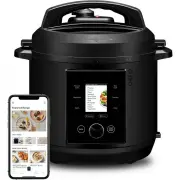
6 7 1. COOKING POT 2. CONTROL PANEL 3. DIAL 4. FLOATING VALVE Your Smart Cooker™ must be used with a 6-quart pot insert. The nonstick one that comes with it includes handy measurements inscribed inside. Use nonstick-safe utensils when cooking and non-abrasive cleaners when cleaning to protect nonsti...
Page 6 - BEFORE FIRST USE; Remove all packaging materials, such as plastic bags and; IMPORTANT SAFEGUARDS:
BEFORE FIRST USE For best results, follow these steps before using your Smart Cooker™ for the first time: 1. Remove all packaging materials, such as plastic bags and pulp inserts. 2. Read and remove stickers from the Smart Cooker™. 3. Check to ensure that all Smart Cooker™ parts are accounted for. 4...
Page 7 - SHORT CORD INSTRUCTIONS:
12 13 A short power supply cord is provided to reduce the hazards of entanglement or tripping over a longer cord. Longer detachable power-supply cords or extension cords are available and may be used if care is exercised in their use. If a longer detachable power-supply extension cord is used: 1. Th...
Page 8 - More
14 15 COOKING FUNCTIONS The Smart Cooker™ offers myriad ways to cook your favorite foods. Most are displayed on, and selected from, the control panel; look for others by pressing More on the control panel: COOKING FUNCTIONS COOKING FUNCTIONS
Page 9 - WHAT IS PRESSURE COOKING?
16 17 PRESSURE COOK WHAT IS PRESSURE COOKING? Pressure cooking can seem miraculous. That’s because it cooks food much faster and more deliciously than just about any other method all while using less energy. It works by cooking foods in a sealed environment that does not allow steam to escape below ...
Page 10 - Select Continue to confirm the cooking parameters.
18 19 HOW TO PRESSURE COOK IN THE SMART COOKER™ IMPORTANT: IF YOU’RE USING A chefiqlogotype® GUIDED COOKING RECIPE FROM THE APP, THOSE DIRECTIONS INCLUDE COOKING PARAMETERS SENT DIRECTLY FROM THE APP TO YOUR SMART COOKER™ AND DO NOT REQUIRE ADDITIONAL MANUAL INPUT ON THE UNIT. TO EXECUTE THE GUIDED ...
Page 11 - WHAT IS SEARING AND SAUTÉING?
20 21 SEAR/SAUTÉ With the Sear/Sauté function, you can use your Smart Cooker™ like you would use a skillet or sauté pan on the stove. WHAT IS SEARING AND SAUTÉING? Searing and sautéing are similar cooking methods in that both use direct, dry heat and cook uncovered. Searing exposes the surface of fo...
Page 14 - SLOW COOK; WHAT IS SLOW COOKING?
26 27 SLOW COOK With its ample, 6-quart cooking pot and its Delay Start and Keep Warm functions, the Smart Cooker™ makes an excellent slow cooker. Plus, foods to be slow cooked can be seared before slow cooking right in the Smart Cooker™ cooking pot, which not only boosts the flavor of the final dis...
Page 16 - Press the Scale button on the control panel.
30 31 SCALE Most professional chefs use weight rather than volume to measure ingredients because it’s more accurate. The Smart Cooker™ comes with an integrated scale, which means you can easily measure ingredients by weight as you add them to the cooking pot. Not only is measuring by weight easy and...
Page 17 - When using the; FERMENT
32 33 FAVORITES MORE When using the chefiqlogotype® app, you can use the handy cooking calculator for discovering the best cooking parameters for cooking your favorite foods. You can then relay them right to the Smart Cooker™; to use these customized pre-sets, press Favorites on the control panel. N...
Page 18 - HOW TO SET KEEP WARM MANUALLY:
34 35 KEEP WARM SANITIZE The Keep Warm function keeps foods at 165˚F, a food-safe temperature, for up to 72 hours after they’ve been cooked. While this function can be set to occur automatically when programming the Smart Cooker™ for other functions, it can also be set manually from this menu, and c...
Page 19 - Settings includes the following options:; on the app on correctly placing the gasket back
36 37 SETTINGS CLEANING AND MAINTENANCE Settings includes the following options: WIFI CONNECTION Use the dial to adjust between enabling and disabling WiFi connectivity. WEIGHT UNITS Use the dial to adjust the scale setting between ounces andgrams. SCREEN BRIGHTNESS Use the dial to adjust brightness...
Page 20 - SMART COOKERTM FAQS; WARRANTY
38 39 SMART COOKER™ FAQS chefiqlogotype® WARRANTY Why won’t the lid close? The lid will not close if it’s not in correct position or if the gasket (sealing ring) is not properly secured to the Smart Cooker™ lid. (See chefiqlogotype® app for video instructions on correctly placing the gasket back int...
Page 21 - FCC STATEMENT
40 41 EXTENDED WARRANTY: Once your chefiqlogotype® appliance is connected and paired to the chefiqlogotype® app, the extended warranty will be enacted. Want to know more? Please visit us at for additional information. OTHER LIMITATIONS:All warranties of any kind whatsoever, express, implied and stat...